
Option 1 – Adding inventory (Manually)
1.) Go to Views> Administration & Utilities

2.) Select Inventory>Inventory Add/Edit Delete

3.) Within the Main tab enter the following information:
-
- In the Product # field, enter the product number and press ENTER (required).
⚠️ If the item already exists, it will display after pressing ENTER. - Select the Department the item should be assigned to (required).
- Enter the Size and press ENTER (required).
Note: Pressing ENTER auto-fills the raw size - Provide a clear and concise item Description (required).
- Complete any additional applicable fields:
- Choose either Taxable or Non-Taxable.
- Select Stocking or Non-Stocking.
📝 Setting Stock = Yes enables inventory tracking - Specify whether the item is a Good or a Service.
- Set the UT1 – Typically set to Subject to Scrap.
See the UT1 Explanations document for a full explanation.
- In the Product # field, enter the product number and press ENTER (required).

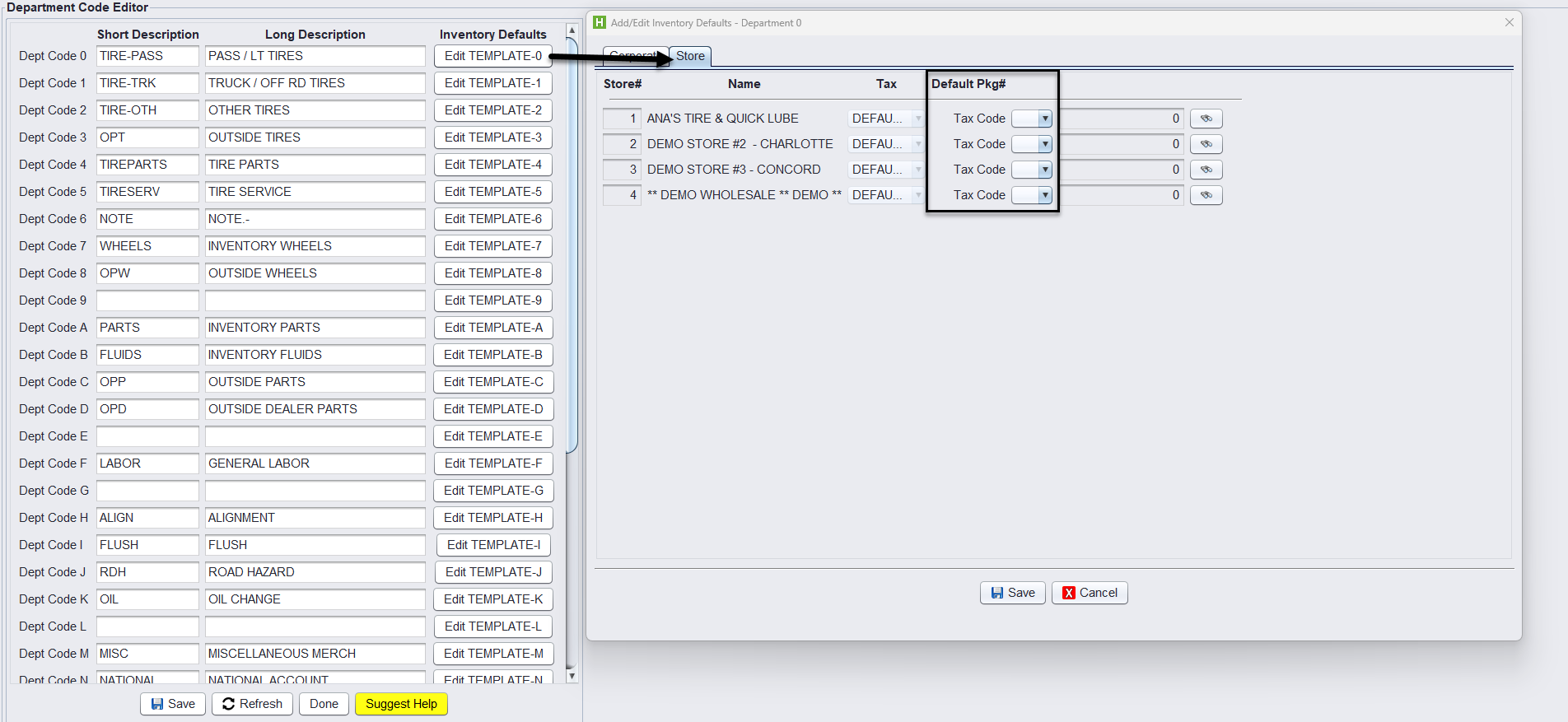
When you select a department or class during inventory entry, HITS can automatically assign a tax code or any other fields based on the Inventory Defaults which can be set by a Department Code or Class Code. Just click the  button.
-
- You can also set these defaults by going to Views > Administration & Utilities > Corporate> Department Codes
- Click Edit TEMPLATE for the desired department or class, select the Tax Code for each store, and click Save.
4.) Click the Additional Info tab to enter:
-
- General Details – like adding it to a package or linking to a primary vendor.
- Tire or Wheel-specific information – like rim size and diameter

5.) Click on the Cost/Price tab to enter:
-
- Average Cost w/FET
- Retail Price(s) for each item tax code.

6.) Click Save (at the bottom) to store the new item.
⚠️ If any required fields are missing, an error will appear. Complete missing fields and click Save again.
Option 2 – Adding Inventory from an Open Receipt
1.) On the open receipt Line Items tab, enter a new product number in the Product # field.

2.) If the product does not exist, HITS will display the option: “Add To Inventory” – Click it

3.) This will bring you to the Inventory Add/Edit/Delete screen. Complete the inventory details on the Inventory Maintenance screen to save the new inventory items (as noted above).

4.) Once complete, click Save, then click Return. ✅ You’ll return directly to your open receipt—no duplicate entry needed