
This guide explains how to use PCD! codes in HITS to apply warranty and Road Hazard discounts directly on customer tickets. It covers how to calculate warranty credits, apply discounts by tread wear or mileage, and report warranty activity by department.
For instructions on creating and configuring PCD! codes, see the separate document: Setting Up PCD! Codes
Applying a Warranty Discount – Using PCD! Warranty Discount
You’ll need to create a PCD! line item specifically for handling warranty work related to tires and parts. It’s recommended to set up a separate PCD! item for each type. Be sure to assign each one to the correct Department Code during setup to make tracking warranty activity easier.
1.) Add the replacement tire/part onto your workorder.
2.) Right-click on the line item and/or select Adjust Items button
3.) Select your PCD!-Warranty code from the Drop-Down list
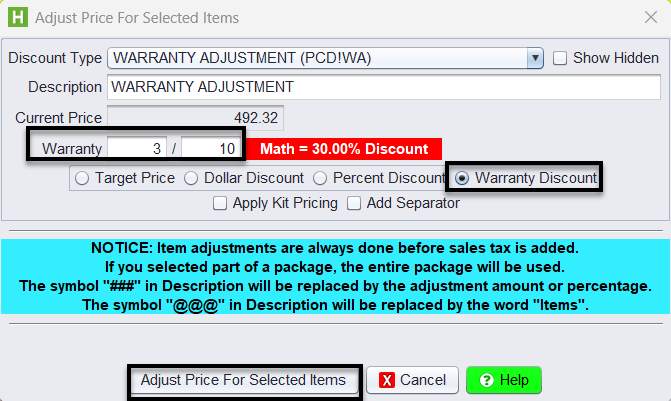
4.) Make sure the radio button beside Warranty Discount is selected.
-
- The 1st field is the amount remaining on the warranty.
- The 2nd field is the original warranty amount.
5.) Click on Adjust Price For Selected Items
Examples:
Tire: The original tire tread was 10/32. There is 3/32’s of tread left on the tire for which you will be giving the customer credit. You would put 3 into the 1st field and you would put 10 as the original tread depth into the 2nd field.
Part: Customer had a battery with a warranty of 36 months that only lasted 18 months. You would put 18 in the 1st field and 36 in the 2nd field.
Applying a Warranty Discount – Using Tire Warranty Calculator
Handling Road Hazard Warranty Adjustments
1.) Verify the tire is eligible (coverage dates, tread, damage type, proof of purchase).
2.) Locate the replacement product and determine the adjusted replacement price using the Tire Warranty Calculator
3.) Add the new tire article to the Workorder
4.) Select the correct tire package (with or without Road Hazard Warranty)
5.) If the customer declines the warranty.
- Do NOT delete the Road Hazard line item from a warranty package if the customer declines the warranty.
- Instead, change the package to the basic Tire Install (non‑warranty) package so the components and pricing remain accurate.
6.) From the Line Items tab, highlight the replacement tire and click Adjust Items (or right-click and select Adjust Items).
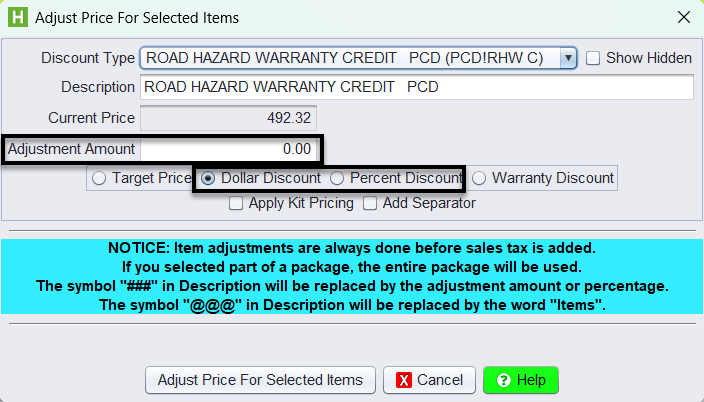
7.) Select the Road Hazard PCD discount from the Drop-Down list
8.) Select the discount method you will be using (percent or dollar) and type in your discount amount.
9.) Click on Adjust Price For Selected Items
Reporting on Discounts
To report on discounts or warranty adjustments, run the Sales Transaction Report and filter by Department if your PCD! codes are department-assigned.
Path: Views –> Reports –> Inventory –> Sales Transactions –> Product# = PCD!### To PCD!###
You can also export the report to Excel to review totals by Department, Discount Type, or Date Range.