
To Edit Selling Prices and/or Costs (Step #1 – Export Inventory):
1.) Click on Views > Administration & Utilities
2.) Click on Pricing > CSV Price & Cost Export Utility
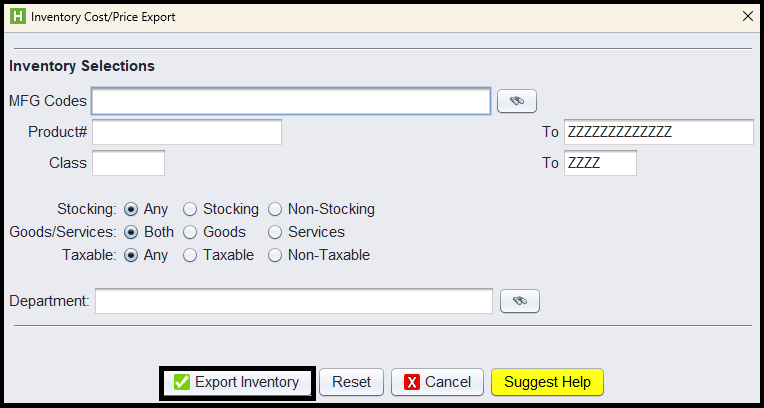
3.) Filter on specific items you wish to export by: MFG Code, Department, etc. or export all items
4.) Click on Export Inventory > then click on Open CSV File
5.) Make edits to the spreadsheet and be sure to Save the spreadsheet
6.) Return to HITS to Import the changes made
Note #1 – If you are copying / pasting from another spreadsheet, such as a supplier’s spreadsheet, you can delete the data that gets exported except the headers, then copy/paste the new data from your supplier’s spreadsheet into the HITS spreadsheet. All you need is the Product# and then whatever other data (price/cost) you are wanting to update. Be sure to format the columns as TEXT.
Note #2 – Is is Very Important that you do not change the order or the name of any of the columns in this spreadsheet. Please do not edit the column headers at all. The column headers need to remain in the same order to ensure that all the information is imported correctly.
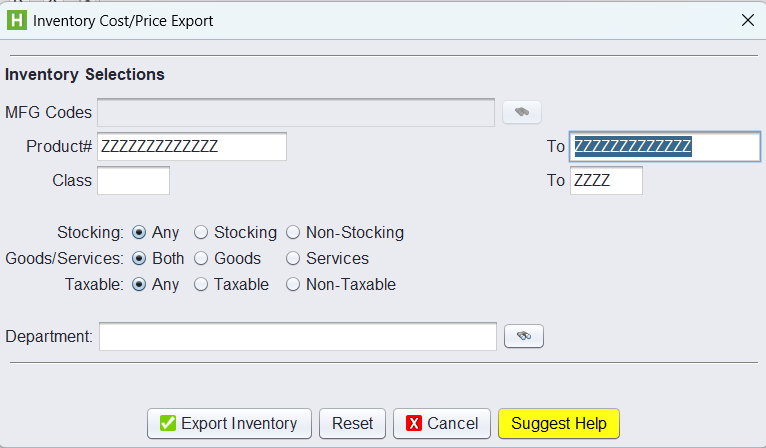
Note #3 – If you need a blank template, it would be helpful to copy the ZZZZZZZ from the second product # to the first and then delete the second row.

To Update Selling Prices / Costs / Table Codes / Aux Quantity (Step #2 – Import Changes):
1.) Return to HITS and click on Views > Administration & Utilities
2.) Click on Pricing > CSV Price & Cost Update Utility
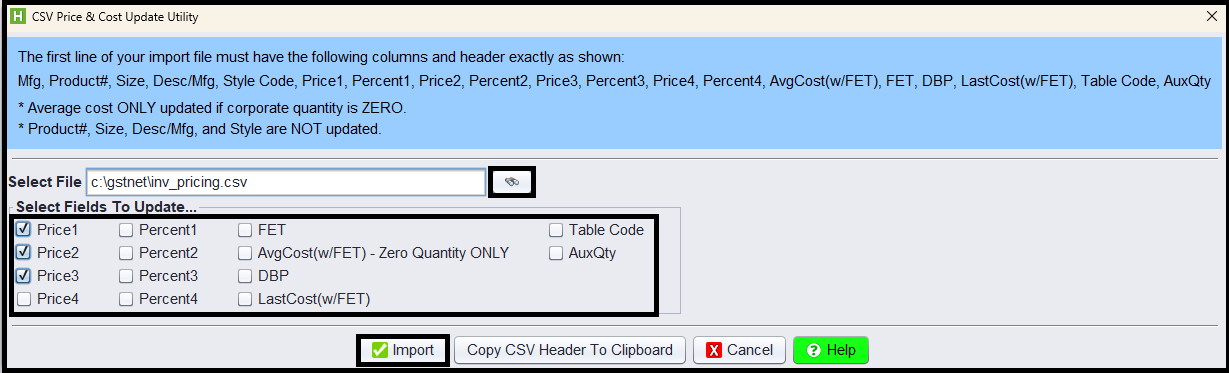
3.) Click the binoculars to find the spreadsheet that was edited and saved and double-click to select the file
4.) Check any fields that were edited on your spreadsheet that need to be updated
5.) Once done, click the Import button which will update the selected fields
PLEASE NOTE: If you have opted to only update your Target Percentages (Factors) and not your pricing, you may want to take the additional step of running the Target Percentage Price Change Utility to update your pricing based on your new percentages.