Open Google Chrome
Launch Google Chrome by clicking on the Chrome icon from your desktop, taskbar, or Start menu.
Access Settings
To manage notifications, you’ll need to access the settings menu.
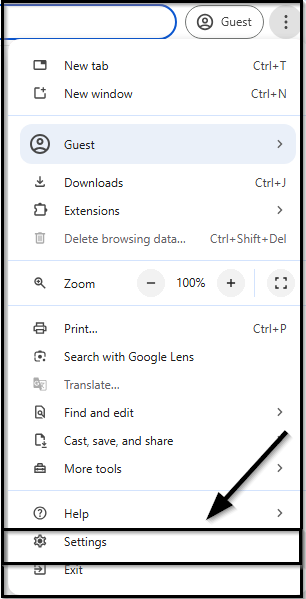
o Click on the three-dot menu (ellipsis) located at the top-right corner of the browser window.

o From the dropdown menu, click on Settings.
Navigate to Notifications Settings
Once you’re in the Settings menu, you need to go to the section where push notifications can be controlled.
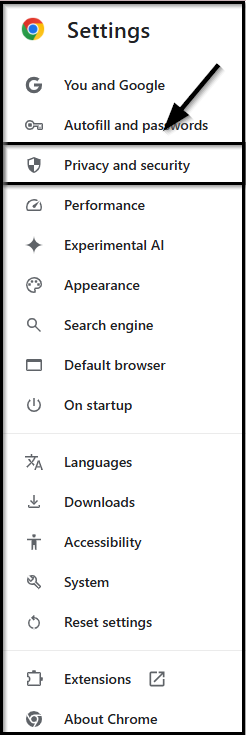
o In the left-hand sidebar of the Settings page, select Privacy and security.
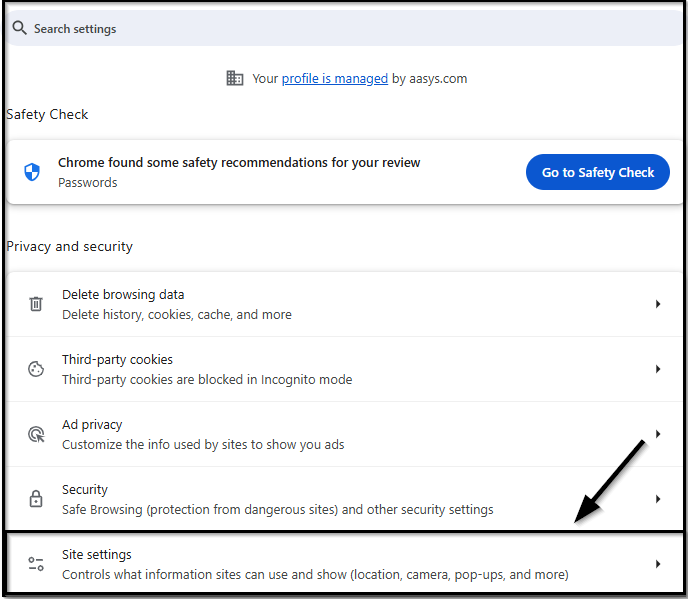
o Scroll down and click on Site settings under the “Privacy and security” section.
o Under “Permissions” on the Site settings page, find and click on Notifications.
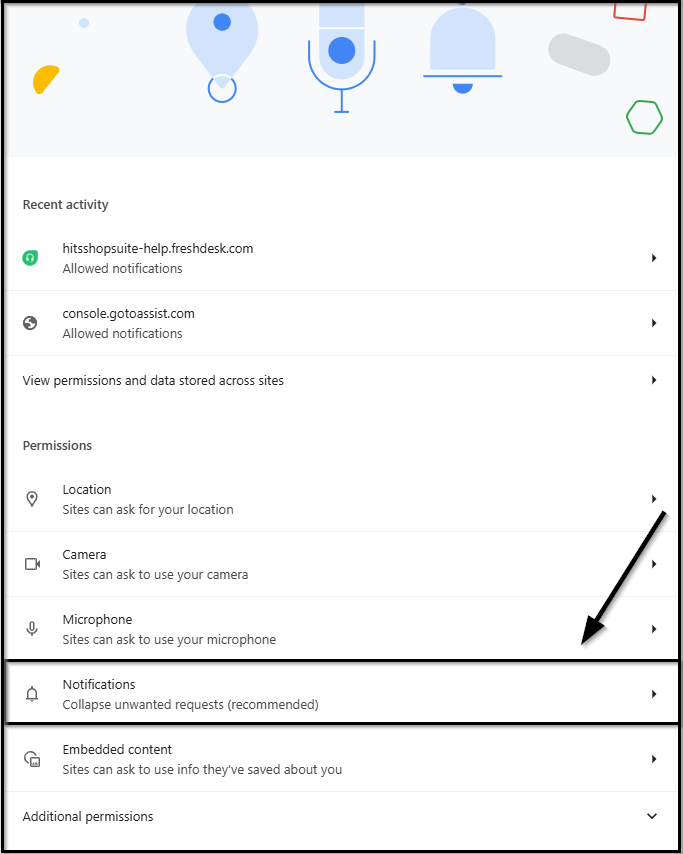
o Under “Allowed to Send Notifications” Click add and type the following URL: https://gohitsdigital.com:443 and click add
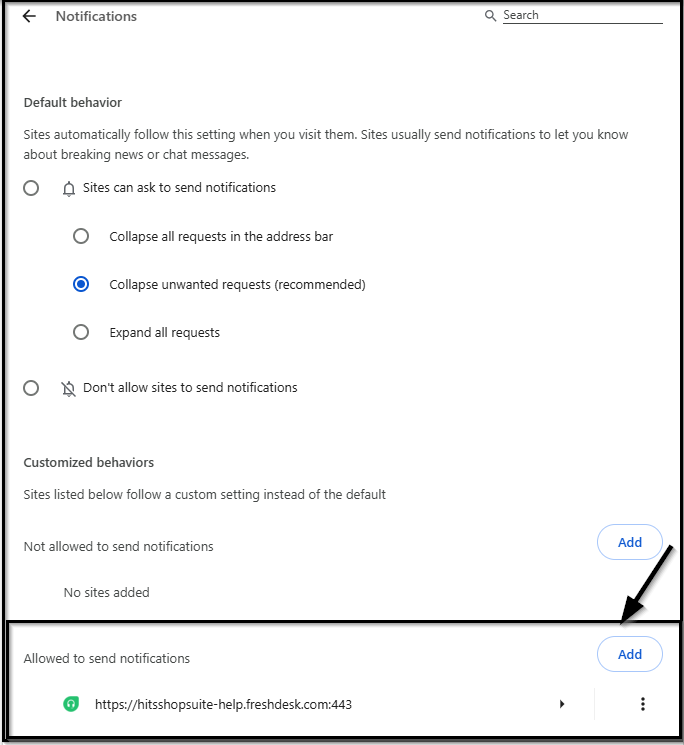
To Verify This Has Been Setup Correctly:
o Click the settings button in HITS Digital:

o Locate and Click on the Communications Settings Button
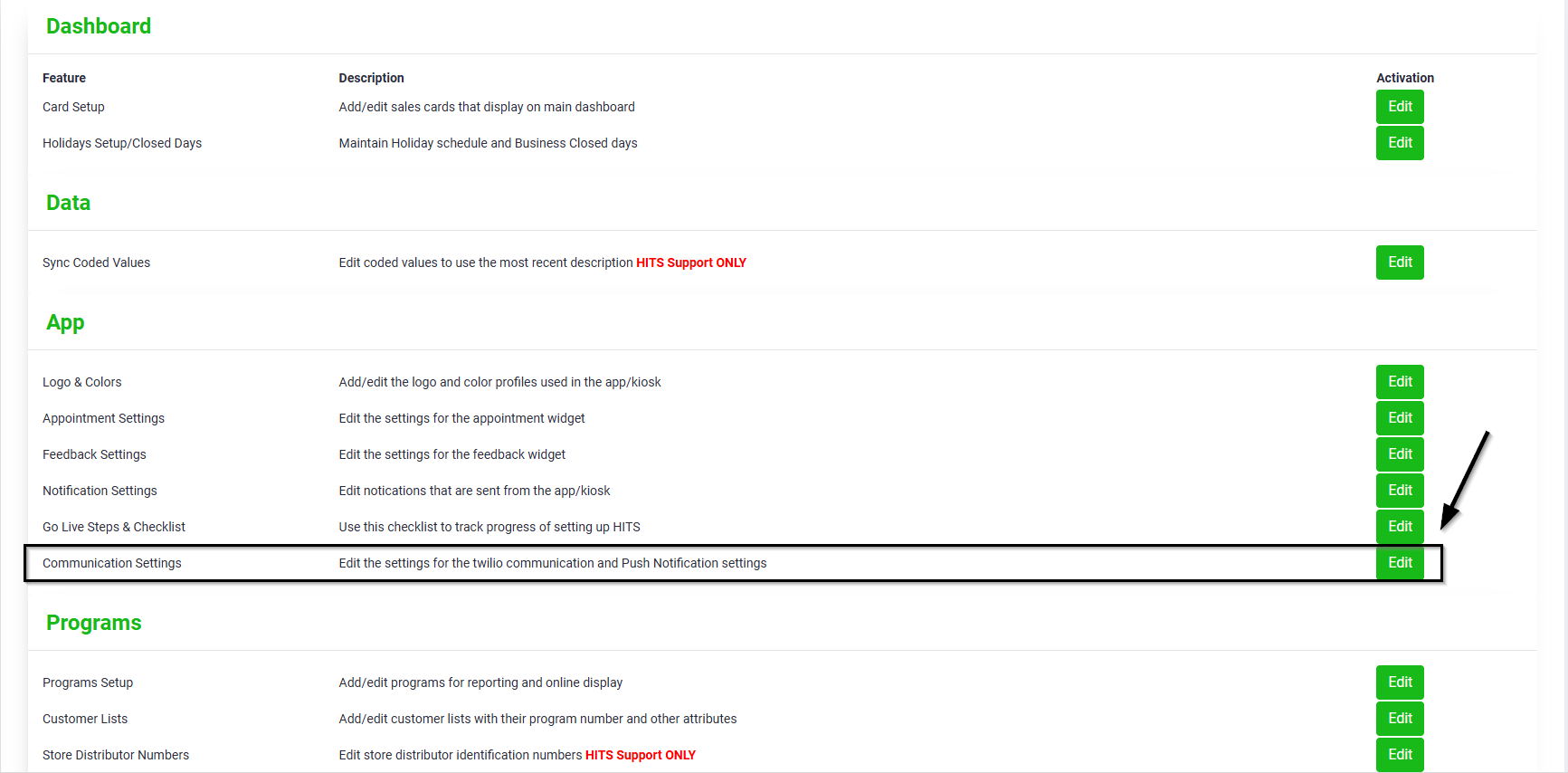
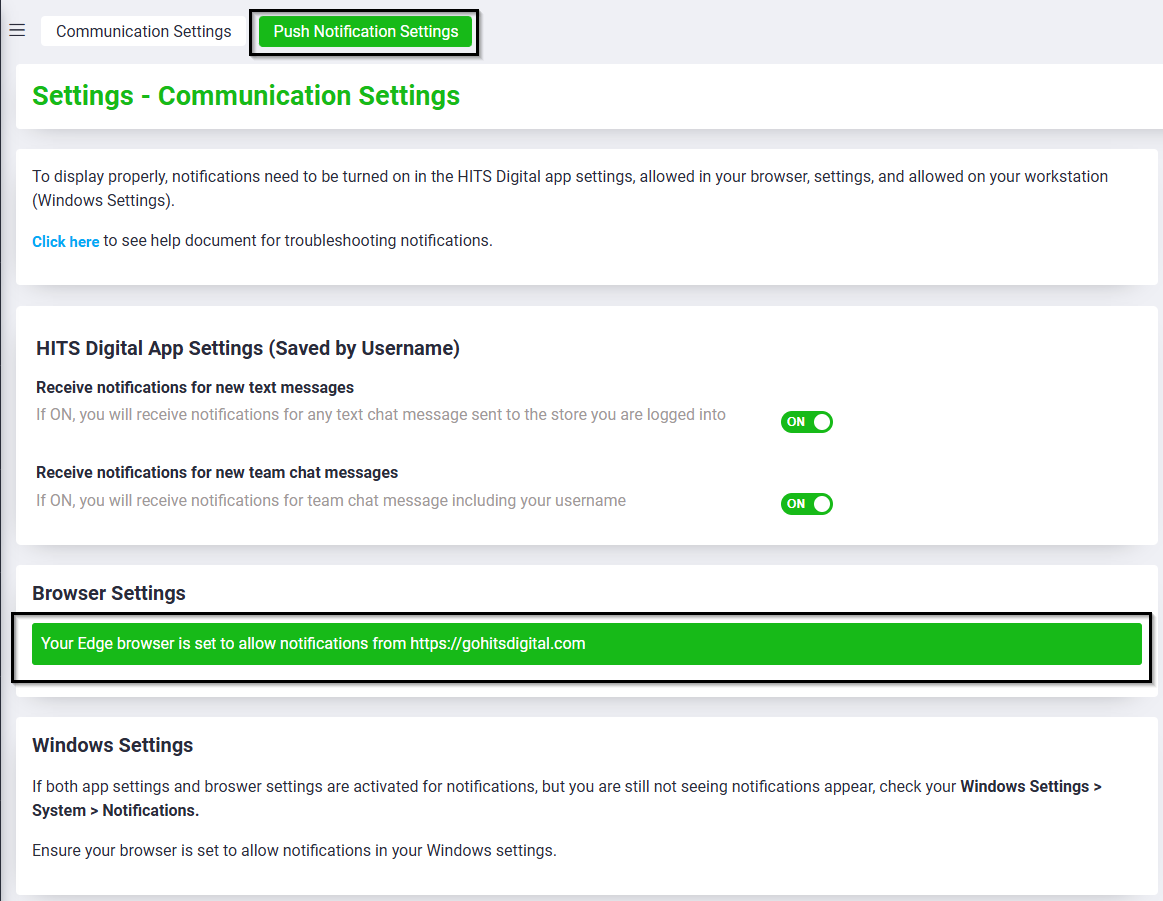
o Click on the Push Notifications Tab If the area in Browser Settings is highlighted green the workstation has been set up to receive desktop notifications.