Option 2 – Bookkeeper Posts Credit After Invoice Closes Using Cash
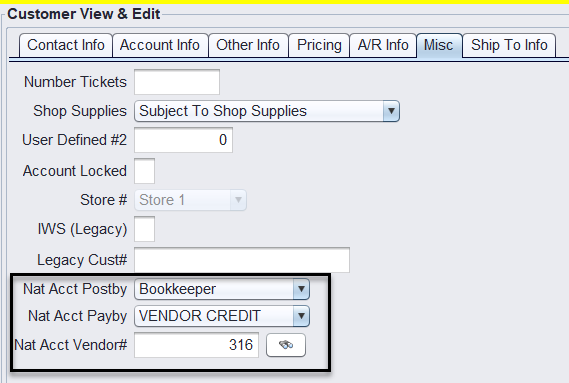
1.) Supplier National Account customer is set up with the following Misc. setup.
Example: Goodyear customer set up with the Bookkeeper Vendor Credit.
Nat Acct Postedby: Bookkeeper
Nat Acct Payby: Cash/Check/Credit Card
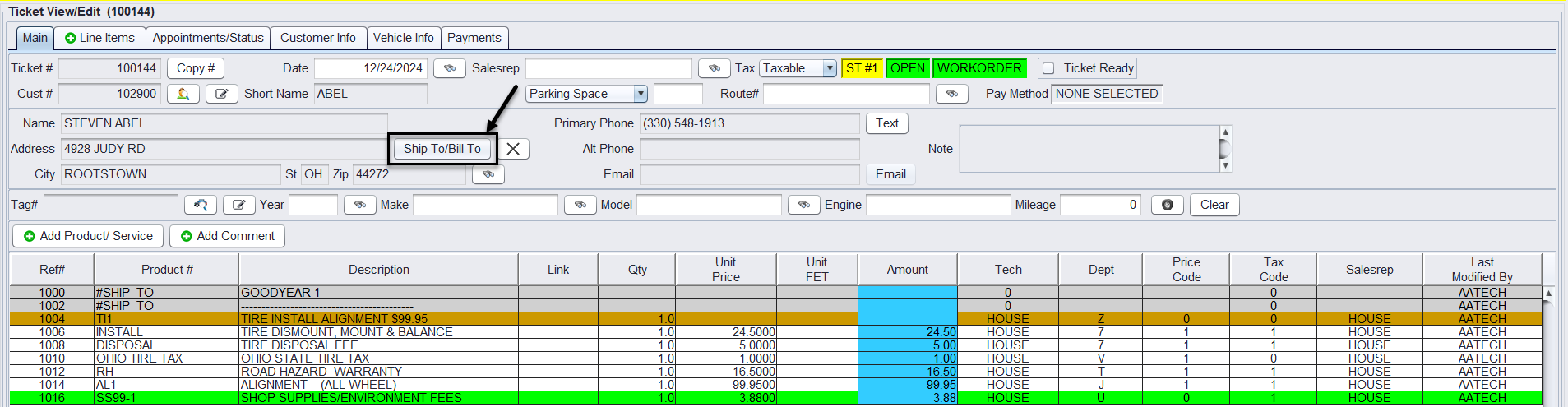
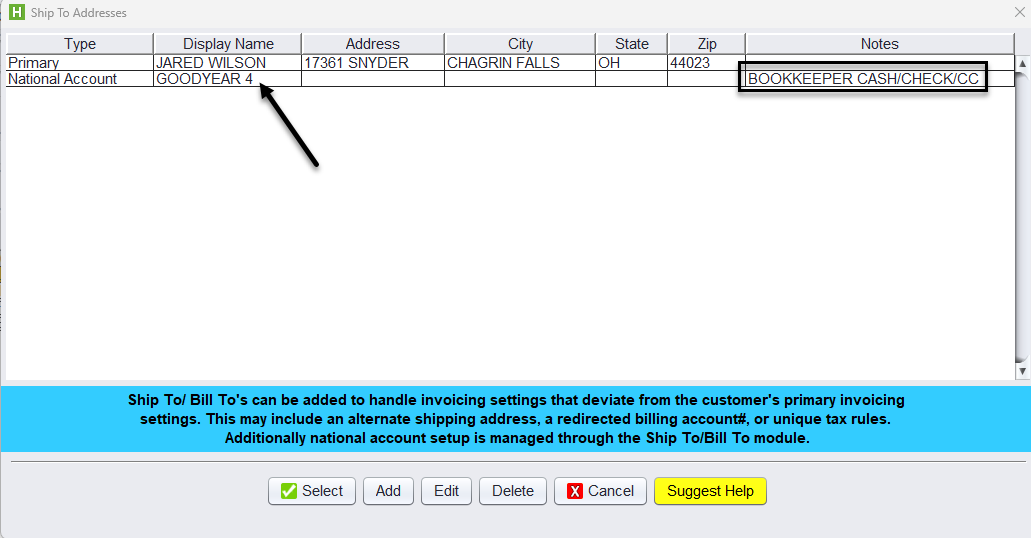
2.) On the customer’s workorder receiving the Supplier National Account Vendor Credit, select the Shop To/Bill To button to add the national supplier providing the credit for this ticket. This will add the supplier name as a Ship To comment on the ticket line items.
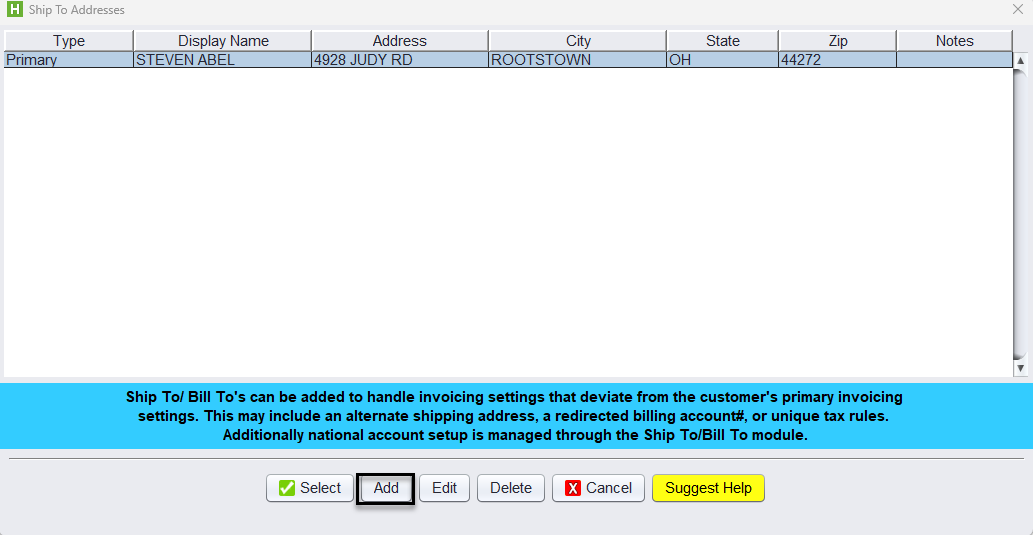
Under the Ship To/Bill To – Click the Add button to add your National Account.
At a minimum, each account must have the following settings:
-
- Type – National Account
- Ship To/Bill To – If this account is for both Ship/Bill information.
- Ship To – If this account is only for Ship To location information.
- Bill To – If this account is only for Bill To location information.
- National Account – If this account is categorized as a National Account.
- Billing # – National Account Billing account #.
- Use Ship Tax – Use Customer Tax Values or Use Ship To Tax Values
- Tax Exempt # – The Tax ID #
- Nat Acct Flag – checked by default
- Type – National Account
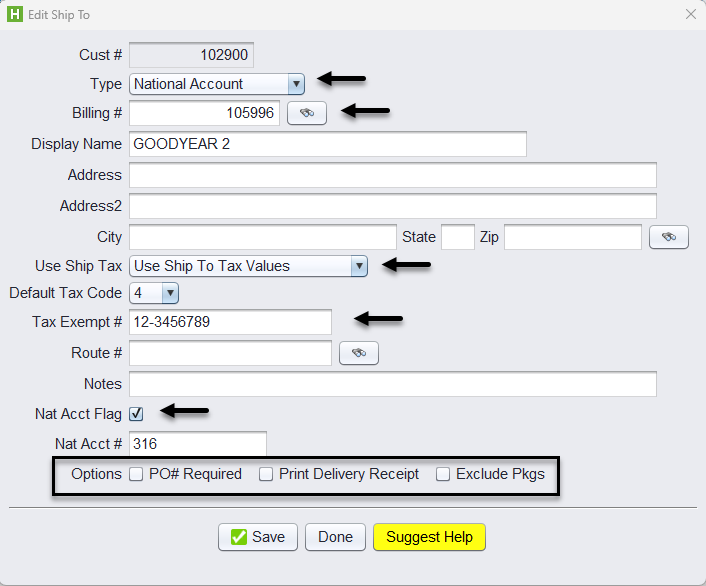
Optionally, you can check the box if:
-
- PO# Required – If a vendor requires a PO# to print on the invoice, check the PO# Required checkbox.
- Print Delivery Receipt – If you would like to print invoices with no pricing and only listing the products that are being sold
- Exclude Pkgs – If the account should not have packages included on their tickets.
Once the account is set up, select the National Account from the Ship To/Bill To table to add it to the ticket.
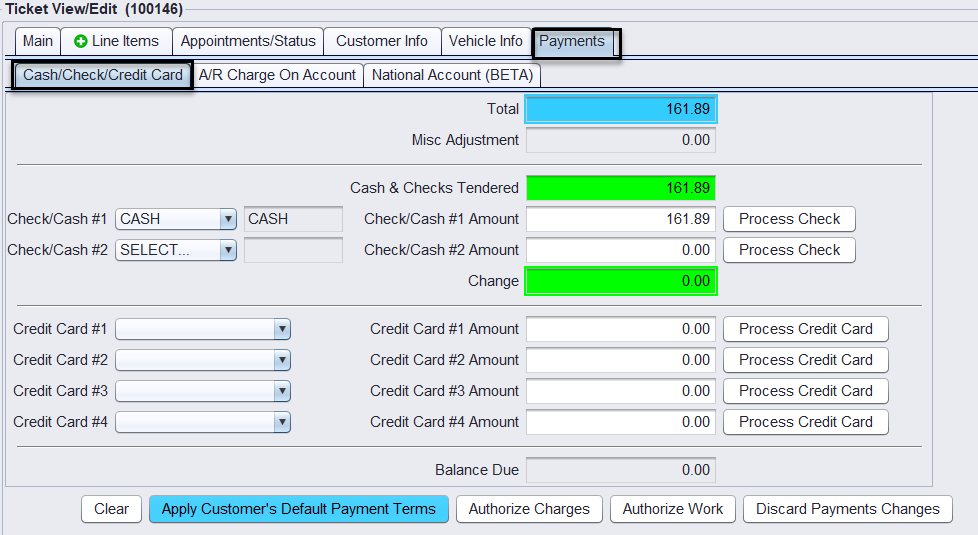
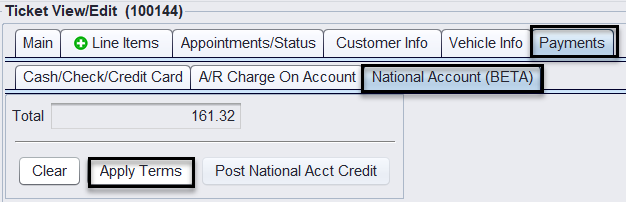
3. To close the ticket, the Salesrep applies the payment received under the Payments>Cash/Check/Credit Card tab and clicks on National Account (BETA) tab clicks on Apply Terms>Close button to close the ticket at the full amount.
Posting the Vendor Credit
Bookkeepers apply the Credit from Views>Bookkeeping>Received on Account>Create National Account Credit.
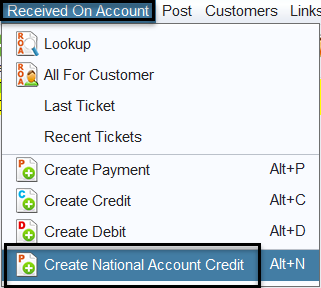
Select the Invoice for the National Account Credit to be applied, add the Credit #, add the Credit Amount Received, and the system will calculate the Difference, enter the posting date, then click on Post Credit to finalize the credit.
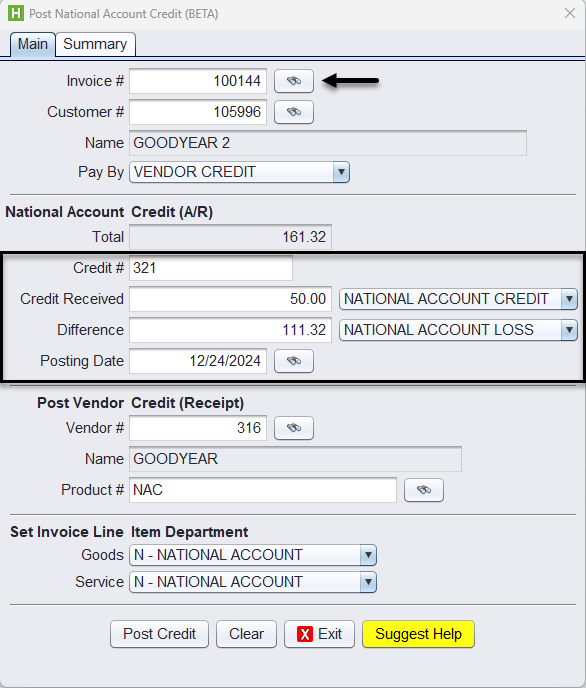
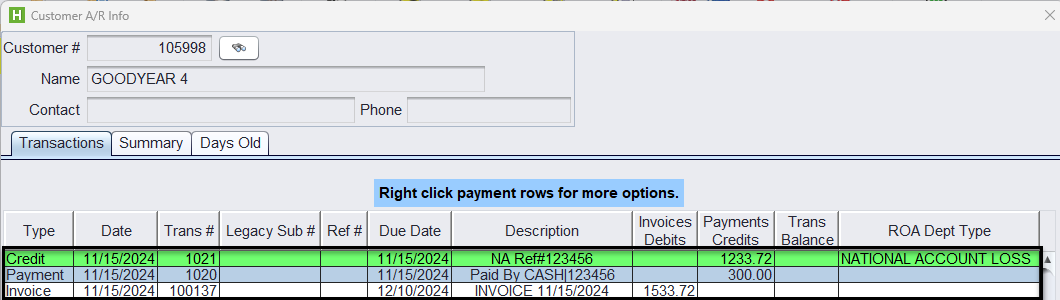
Once the credit is applied the system posts on ROA Payment and one Credit Memo for the loss.