Option 4 – Sales Rep Posts Credit Using Cash
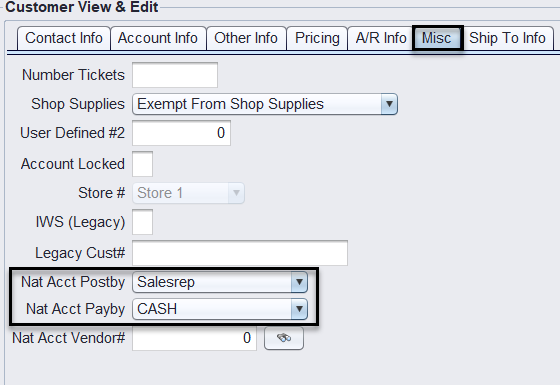
1.) Supplier National Account customer is set up with the following Misc. setup.
Example: Goodyear customer set up with the Bookkeeper Vendor Credit.
Nat Acct Postedby: Salesrep
Nat Acct Payby: Cash/Check/Credit Card
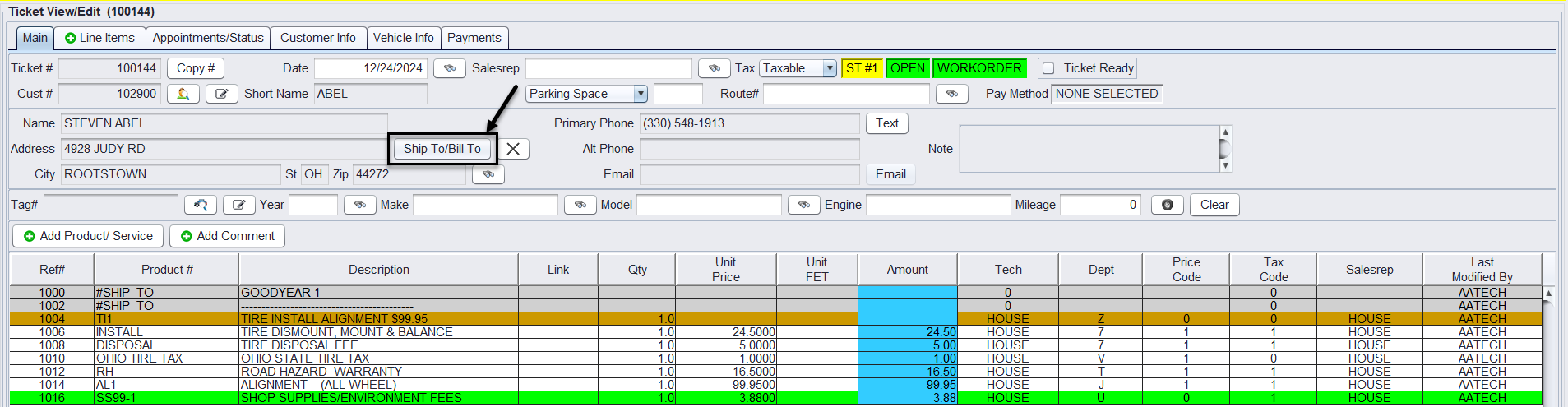
2.) On the customer’s workorder receiving the Supplier National Account Vendor Credit, select the Shop To/Bill To button to add the national supplier providing the credit for this ticket. This will add the supplier name as a Ship To comment on the ticket line items.
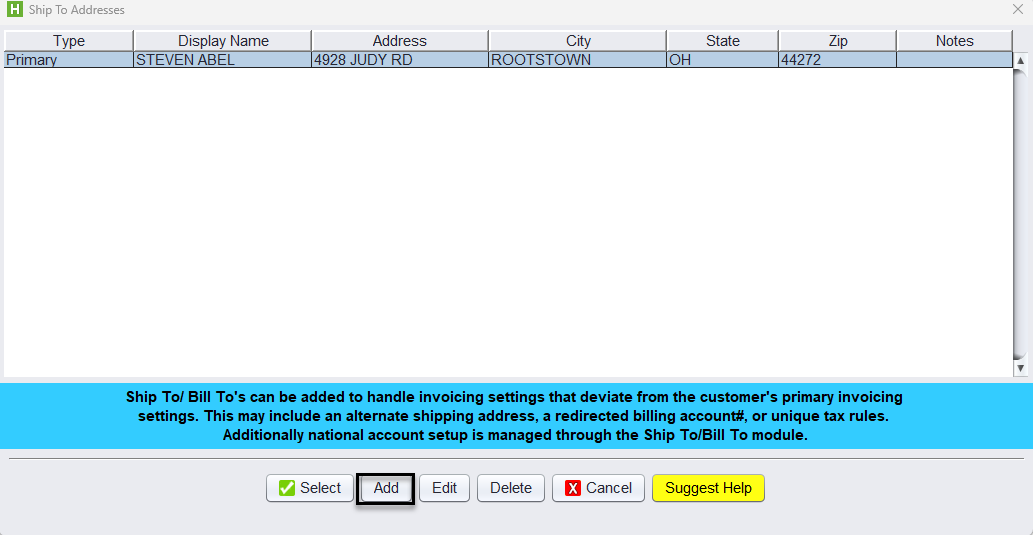
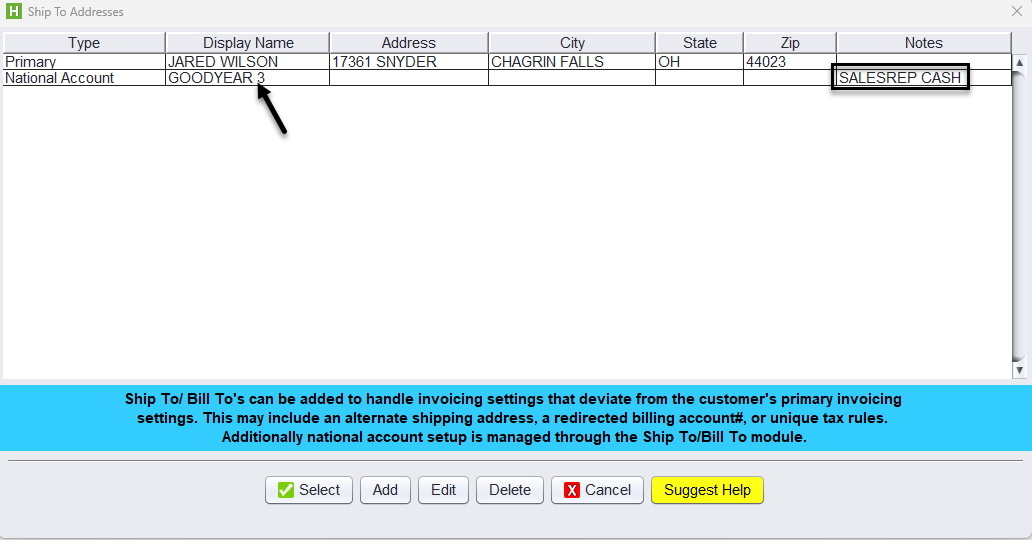
Under the Ship To/Bill To – Click the Add button to add your National Account.
At a minimum, each account must have the following settings:
-
- Type – National Account
- Billing # – National Account Billing account #.
- Use Ship Tax – Use Customer Tax Values or Use Ship To Tax Values
- Tax Exempt # – The Tax ID #
- Nat Acct Flag – checked by default
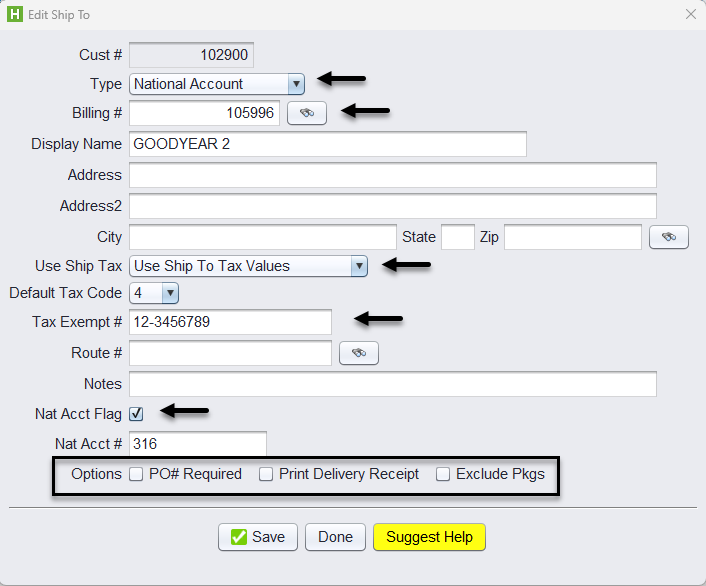
Optionally, you can check the box if:
-
- PO# Required – If a vendor requires a PO# to print on the invoice, check the PO# Required checkbox.
- Print Delivery Receipt – If you would like to print invoices with no pricing and only listing the products that are being sold
- Exclude Pkgs – If the account should not have packages included on their tickets.
Once the account is set up, select the National Account from the Ship To/Bill To table to add it to the ticket.
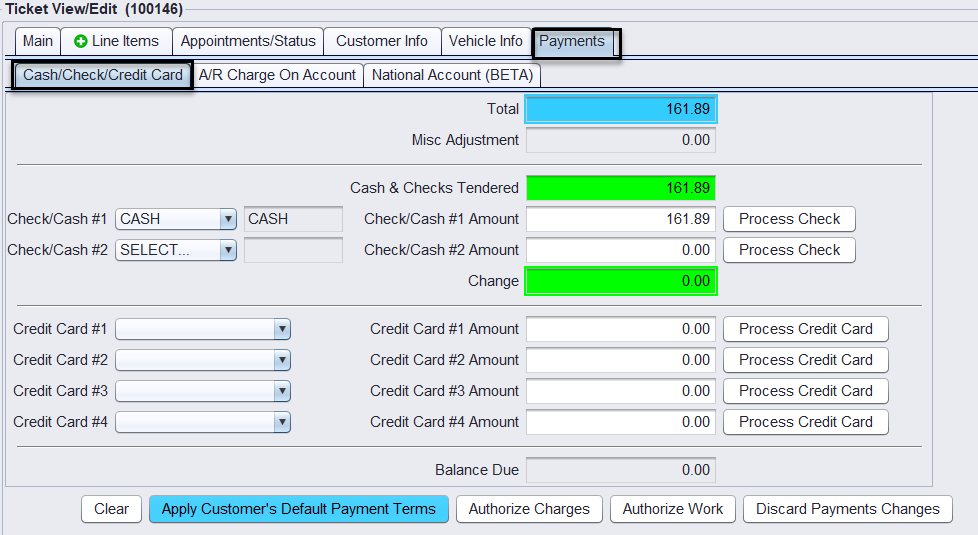
3. To close the ticket, the Salesrep applies the payment received under the Payments>Cash/Check/Credit Card tab and clicks on National Account (BETA) tab enters the Credit Received and the Credit #, then Apply Terms & Credit>Close button.
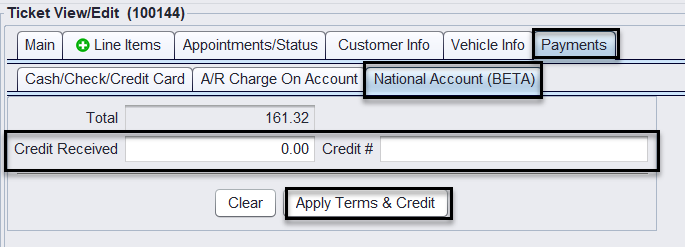
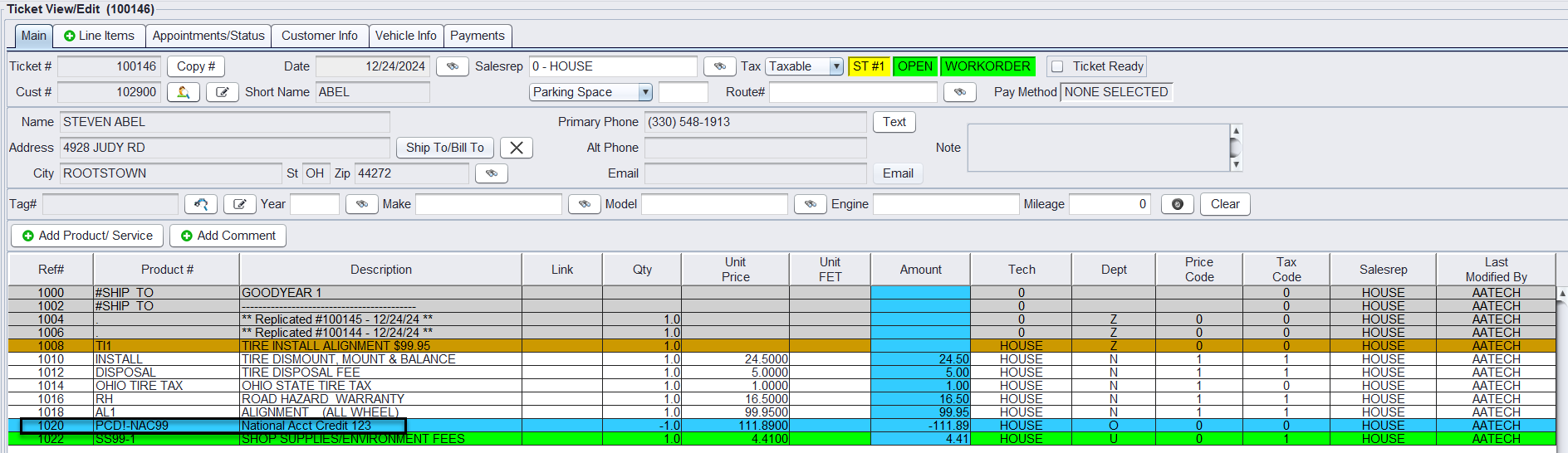
This adds a PCD!-NAC99 Credit Line item to the ticket.
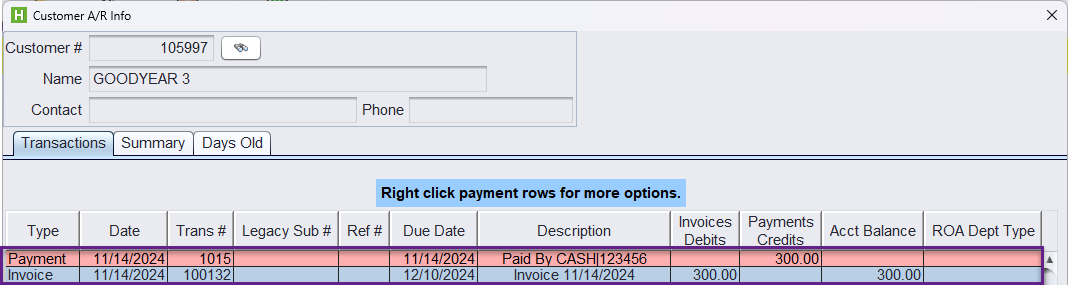
At invoice closing, One ROA (Received on Account) payment is applied to the invoice of the Ship To/Bill To account in the amount applied to the ticket.