
Why Post Receipts?
Posting receipts in HITS serves two primary purposes:
- Update Inventory Quantities: Essential if your shop stocks and tracks inventory.
- Capture Vendor Costs: Important if your shop uses HITS for accounts payable.
If your shop does not track cost or inventory quantities in HITS, you may skip this process.
📦 Types of Items You May Receive
1.) Stocking Inventory (with SKUs)
-
-
- Items with SKUs set up in the system.
- Requires creating a receipt ticket.
-
2.) Shop Supplies
-
- May be SKU-based or use generic codes (e.g., SS for Shop Supply).
- Also requires a receipt ticket.
3.) Outside Purchases (Billed to Customer Tickets)
-
- Require a manual receipt unless your system is configured for Auto-Vendor Reconciliation Posting.
- Items are auto-received when properly configured and the work order is closed.
🧾 Creating a Receipt for Stocked Items
If your shop receives inventory items with SKUs, a receipt must be created to update on-hand quantity and cost.
For detailed step-by-step instructions on manually entering these receipts, including saving line items and handling price updates, refer to:
Receiving – Creating an Inventory Receipt Manually
🧴 Creating a Receipt for Shop Supplies
Shop supplies may be tracked in HITS with either specific product codes or generic codes (e.g., SS for Shop Supply).
These receipts are created using the same process as stocking inventory. For detailed step-by-step instructions: Receiving – Creating an Inventory Receipt Manually
- Use SKU if available (e.g., DOT3 for brake fluid)
- Otherwise, use a generic code (e.g., SS for Shop Supplies)
- Enter outside part number and description from invoice if desired
- Follow the same steps as above to save, apply AP terms, and close
🔄 Auto-Posting Outside Purchases (Customer Tickets)
If a part is listed as an Outside Purchase on a customer work order:
- No receipt ticket is needed, if your system is set to Auto-Vendor Reconciliation.
- Just enter vendor invoice number and date using Set Vendor Info
- When the work order is closed and paid, the system auto-posts the receipt
Default behavior is auto-posting enabled. Contact tech support if this feature needs to be activated or disabled.
If your system is not set to Auto-Vendor Reconciliation, you will want to create a manual receipt.
Views > Administration & Utilities > Store > View/Edit Default Settings > Invoice View/Edit > Auto Vendor Rece Post
📊 Verifying Vendor Receipts
To ensure all delivered items are received:
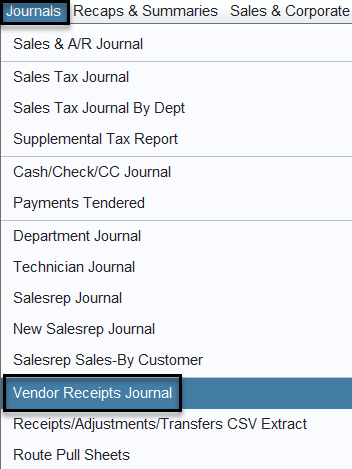
1.) Run the Vendor Receipt Report:
-
- Go to Reports View > Journal Menu > Vendor Receipt Report
2.) Match report entries against physical vendor invoices
3.) Resolve any missing receipts before end of day.