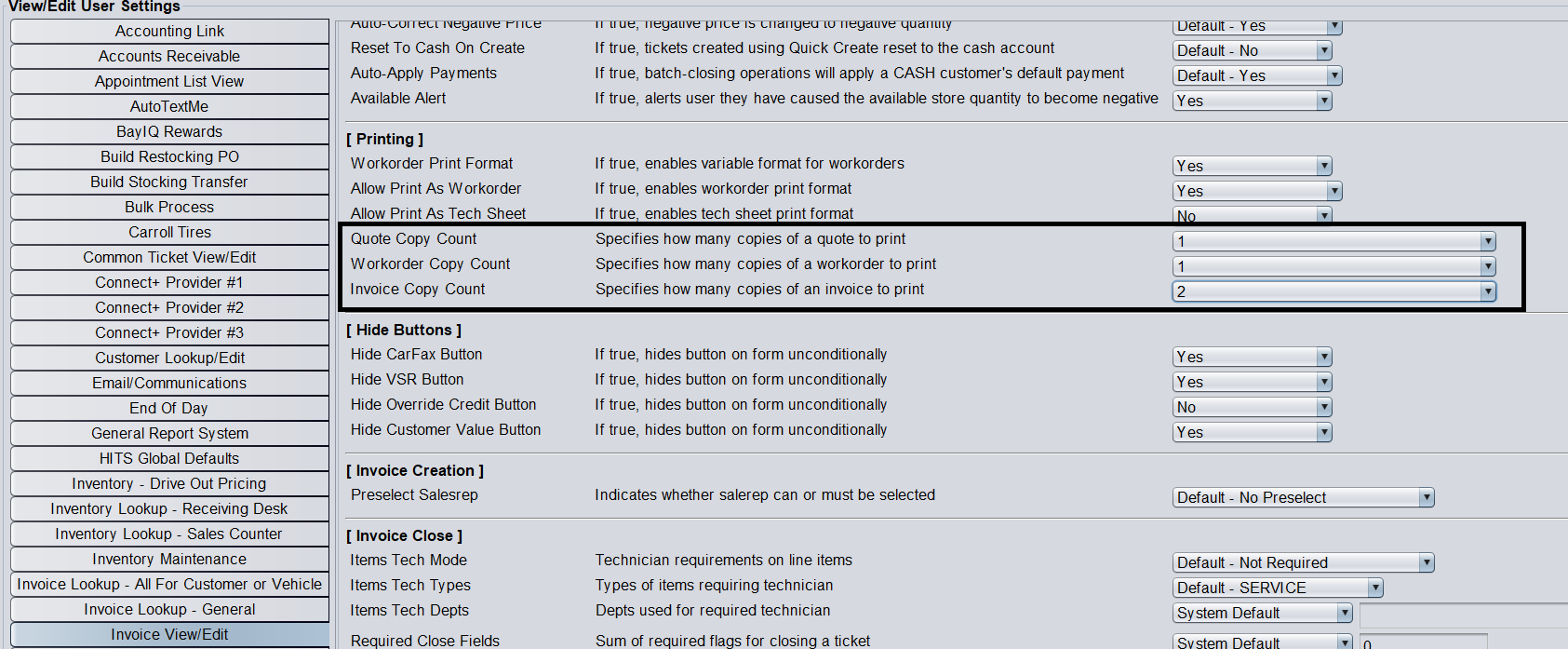
Within the HITS point-of-sale, the default printers and number of copies can be set by ticket type. This can reduce the number of “clicks” it requires to close and print a ticket.
By setting the default settings, you can also take advantage of the ALT+P keyboard shortcut to avoid the Print button altogether.
Set Default Printers
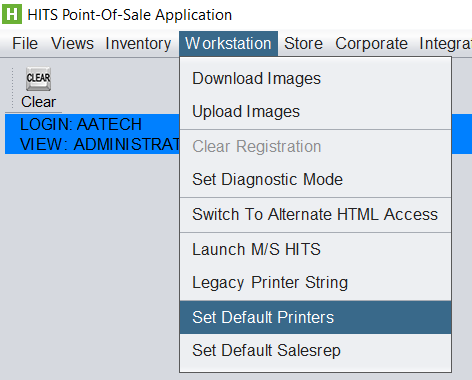
1. Views > Admin & Utilties > Workstation > Set Default Printers
2. From this screen you can set default ticket by printer type.
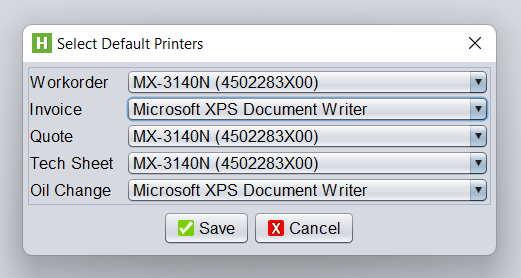
For businesses that require certain specific ticket types to be printed a colored paper, a “trey” can be set up as a designated printer. This would allow, for example for all Workorder to print to 2nd trey which only contained yellow paper.
To set up a “trey” as a designated printer, you would need to work with local hardware professional. HITS Support does not provide local printer support.
Set Default Copies
1. Views > Admin & Utilities > Store > View/ Edit Default Settings > [Invoice View/ Edit Section]
The Quote, Workorder, and Invoice copies can be set here.