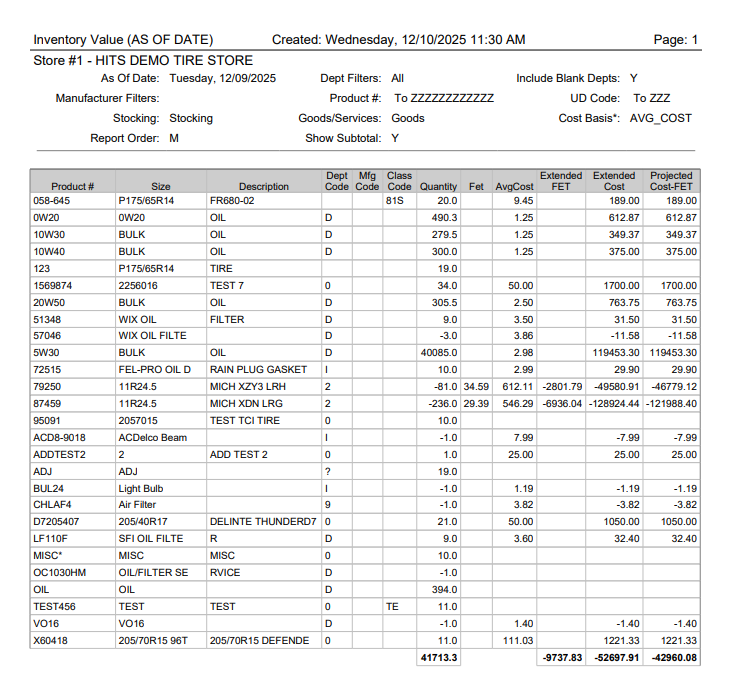
The Inventory Value (AS OF DATE) report provides a snapshot of your on-hand inventory value as of a specific date. This is especially useful for:
-
- Month-end or year-end financials
- Audits and accountant requests
- Comparing current inventory value to prior periods
The report can be run in summary (totals only) or detail (item-level) format and supports multiple cost basis options.
Run the Inventory Value (AS OF DATE) report whenever you need a verified inventory valuation for a particular date, such as:
-
- Period-end closing (month, quarter, or year)
- When your accountant requests an “as of” inventory value for financial statements
How to Run the Inventory Value (As Of Date) Report
Follow the steps below to generate the report:
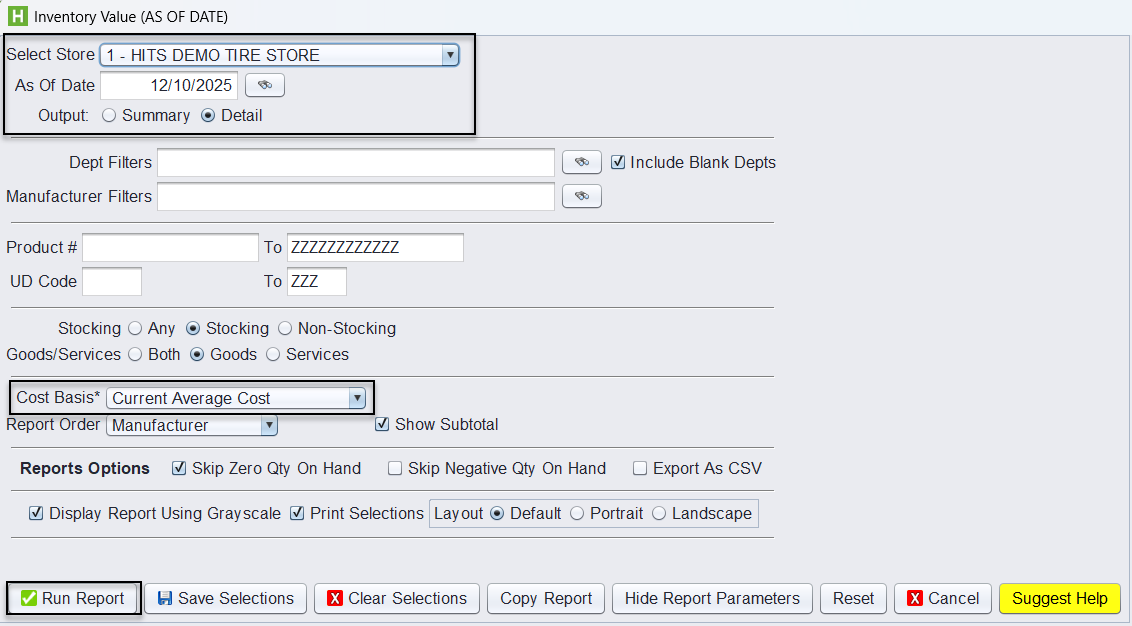
1.) Navigate to the report: Reports → Inventory → Inventory Value (AS OF DATE).
2.) Select the Store: Choose the store you want to run the valuation for. Each store must be run separately.
3.) Choose the As Of Date: Click the binoculars icon to select the date.
-
- When a prior date is selected through the calendar, the Historical Cost option becomes available under Cost Basis only when a prior date is selected by using the binoculars.
4.) Choose Output Type: Select Summary or Detail depending on the level of detail needed.
5.) (Optional) Apply Filters:
-
- Dept Filters
- Manufacturer Filters
- Product # range
- UD Code
Leave blank to include all items.
6.) Select Stocking Options: The system defaults to Stocking and Goods, which is appropriate for most valuation reporting because only stocking goods typically have a cost to calculate inventory value.
7.) Select Cost Basis: Choose how the inventory value should be calculated:
-
- Current Average Cost: This uses the current weighted average cost of the item based on all receipts, updates automatically whenever new inventory is received at a different cost, is the most commonly used cost basis, and is best for standard internal reporting and general inventory valuation.
- Current Dealer Base: This uses the vendor’s base cost for the product (when provided), is often used when manufacturers or distributors supply standardized pricing, does not fluctuate with your store’s actual receipt history, and is useful when you want a valuation based on consistent vendor cost rather than operational cost.
- Historical Cost (available only when selecting a prior date via the calendar): Historical Cost uses the cost that existed on the specific As Of Date selected, allowing the system to calculate the true inventory value as it was at that time rather than today’s costs—this option is only available when selecting a prior date using the calendar icon so the system can pull the correct historical dataset.
8.) Choose Report Order: Select how the report should be grouped (Manufacturer, Raw Size, or Department).
9.) Adjust Report Options:
- Skip Zero Qty On Hand
- Skip Negative Qty On Hand
- Export As CSV
- Print Selections
10.) Click Run Report
Understanding the Report Layout
Each row represents a product included in the valuation. Key columns include:
-
- Product # – Inventory SKU
- Size – Tire size or product dimensions (if applicable)
- Description – Item description
- Dept / Mfg / Class Codes – Categorization fields for reporting groups
- Quantity – On-hand quantity (true quantity) as of the selected date
- FET – Federal Excise Tax amount (if applicable)
- Avg Cost – Cost per unit based on the selected cost basis
- Extended FET – Total FET (Qty × FET)
- Extended Cost – Total cost (Qty × unit cost)
- Projected Cost-FET – Total cost (Qty x (unit cost – FET)) – Does not include FET in Cost
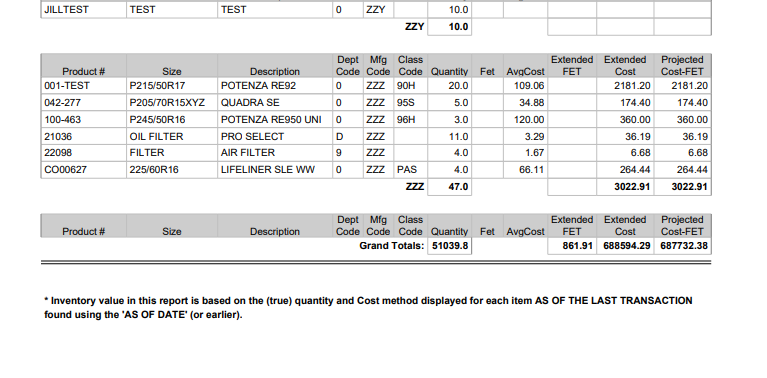
At the bottom, grand totals summarize:
-
- Total quantity
- Total Extended FET
- Total Extended Cost
- Projected Cost-FET
These totals represent your true inventory value as of the selected date.
Inventory value in this report is based on the (true) quantity and Cost method displayed for each item AS OF THE LAST TRANSACTION found using the ‘AS OF DATE’ (or earlier).
What this means:
-
- The system looks at the last known transaction on or before your selected date.
- Quantities and costs are pulled from that point in time.
- If Historical Cost is selected, the valuation uses historical cost—not current cost.
- This ensures accurate financial reporting when reviewing past periods.