
The Sales Tax Journal provides a summary of sales tax collected for the selected date range. It is typically used for monthly, quarterly, or annual tax filings and helps ensure each store is reporting accurate sales tax totals.
Before running this report, it is helpful for each store’s Tax Rate Breakdowns to be set up. These determine how tax is allocated across state, county, city, or other tax authorities and allow the report to display each tax total(s) separately.
When to Use This Report
Use the Sales Tax Journal when you need to:
-
- Prepare state, county, or local sales tax reports
- Reconcile sales tax collected in HITS
Most clients run this report on a monthly or quarterly basis.
What Are Tax Rate Breakdowns?
These breakdowns represent the components of the total sales tax for a store. Examples:
- State sales tax
- County tax
- Local municipal tax
- Special district tax
If a store uses multiple tax components, entering breakdowns allows the Sales Tax Journal to show each component in its own column (TC0, TC1, etc.). If no breakdowns are entered, the report will still run, but only the combined tax total will appear.
To view or edit breakdowns, go to:
Views → Administration & Utilities → Store → Tax Code Editor
Inside the Tax Code Editor:
1.) In the row for Taxrate1, Taxrate2, etc., click the magnifying glass icon.
2.) This opens the Tax Codes Breakdown window.
3.) Here you can add each tax component (ex: NC State, Rutherford County).
4.) Click OK once completed
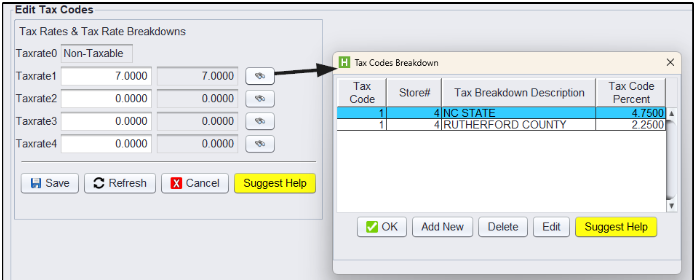
Note: If the Tax Code Breakdowns do not add up to the “Taxrate#”, HITS will display an error for correction.
How to Run the Sales Tax Journal
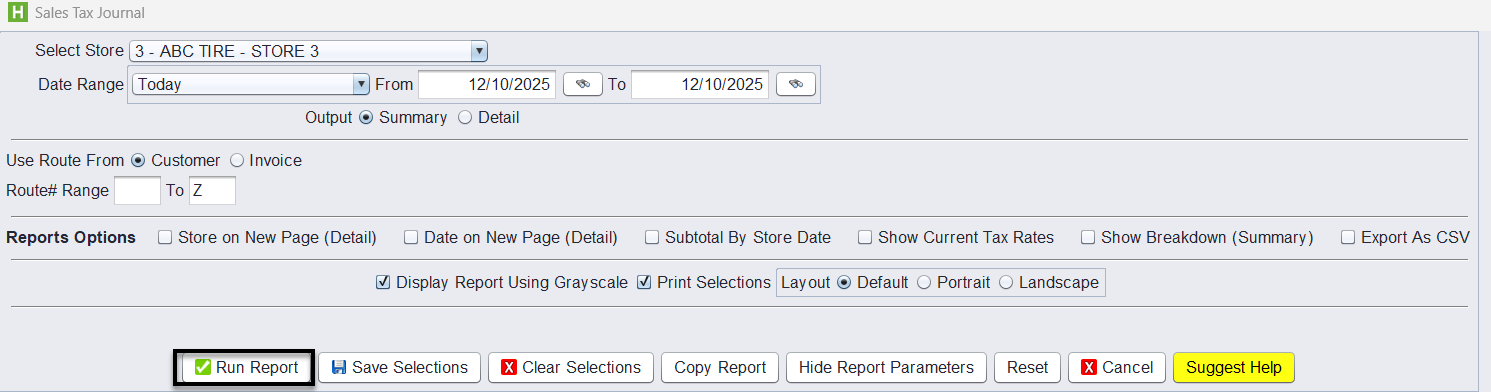
1.) From the main menu, go to Views→ Reports→ Journals → Sales Tax Journal.
2.) Select Store
3.) Set the Date Range
4.) Output:
-
- Summary: Summary view shows total tax collected for the period,
- Detail: Detail view lists each taxable invoice and the exact tax charged on it.
5.) Use Route From: Choose whether the report should use the Customer route or Invoice route if your business uses routes.
6.) (Optional) Route# Range: Narrow the report to a specific route range
7.) (Optional) Reports Options
-
-
You can choose options such as Store on New Page (Detail), Subtotal by Store Date, Show Current Tax Rates, or Show Breakdown (Summary) depending on how you prefer to see the totals.
-
Export as CSV can be used if you want to work with the totals in Excel.
-
8.) Click Run Report to generate the Sales Tax Journal.
Note: To see the sales tax breakdown, after setup above, check the “Show Breakdown (Summary)” checkbox before running.
Understanding the Detailed Sales Tax Journal
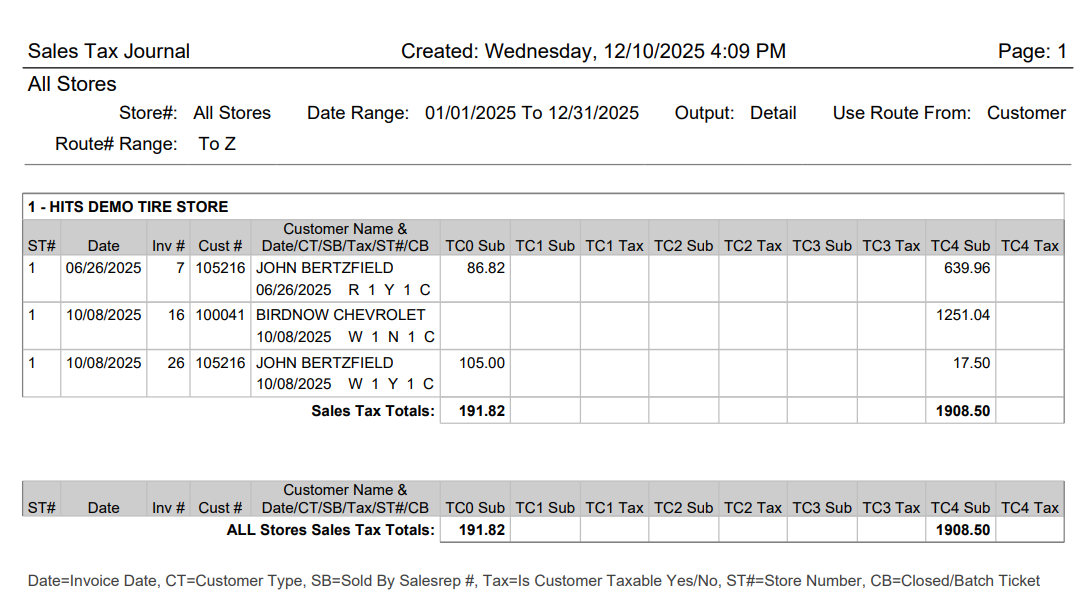
When Output = Detail, the Sales Tax Journal lists each taxable invoice in the selected date range, including the taxable amounts and tax collected for every configured tax breakdown (TC0–TC4).
About Tax Codes (TC Columns)
-
- TC0 represents non-taxable sales. This is usually for any tickets closed with “NO TAX” or any items set up as a non-taxable item.
- TC1–TC3 represent taxable amounts based on the store’s Tax Rate Breakdowns.
- TC4 represents tax-exempt sales (Tax Code 4).
Each column shows the taxable (or non-taxable/exempt) subtotal and the tax charged for that specific category.
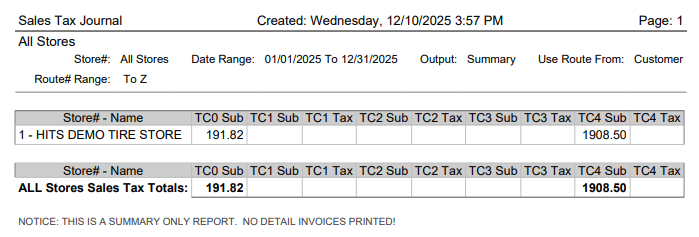
Store Totals show the summed tax for that location, and All Stores Sales Tax Totals appear at the bottom when multiple stores are included.