
Digital Vehicle Inspections (DVIs)
HITS Digital lets you view and interact with Digital Vehicle Inspections (DVIs) linked to tickets. Based on permissions and system settings, users can:
- View inspection details associated with the ticket
- Send a live inspection link to the customer via text
- Begin or complete inspections directly from this view
Launch HITS Digital from within BPOS by clicking on the HITS Digital icon on your toolbar.
Once logged into HITS Digital, navigate to the Customer Care page, Tickets tab, then click the clipboard icon to start an inspection.
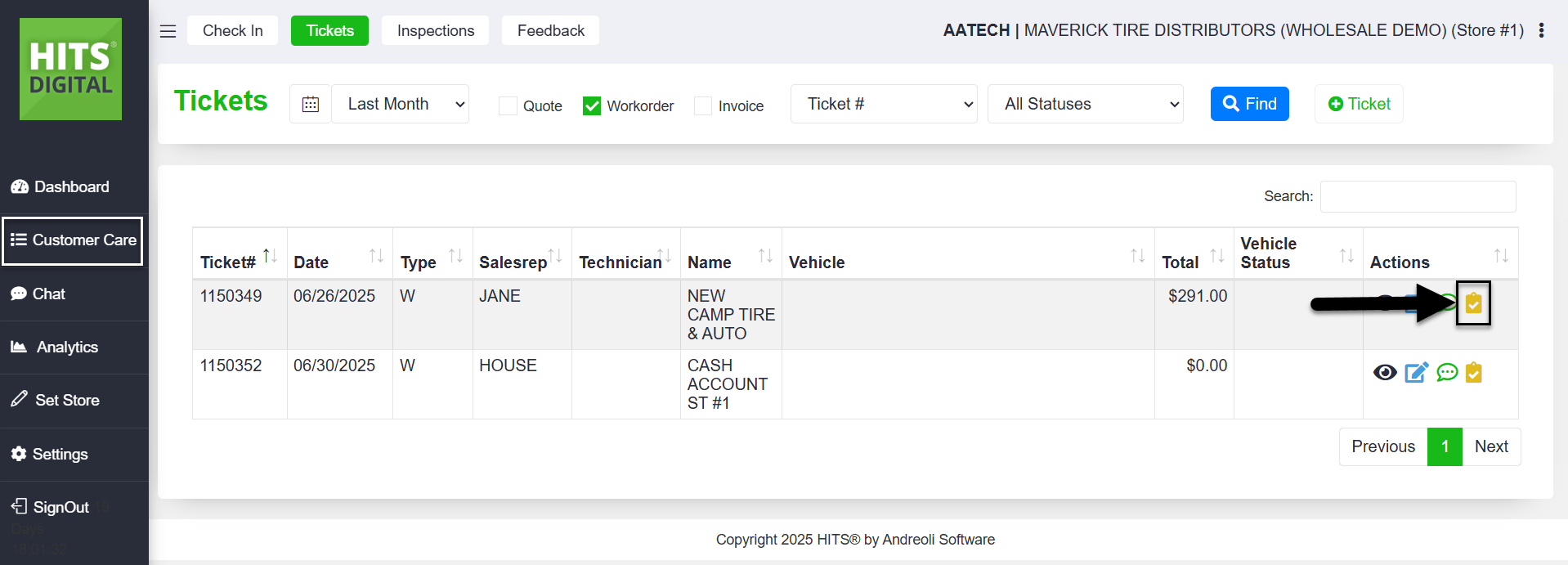
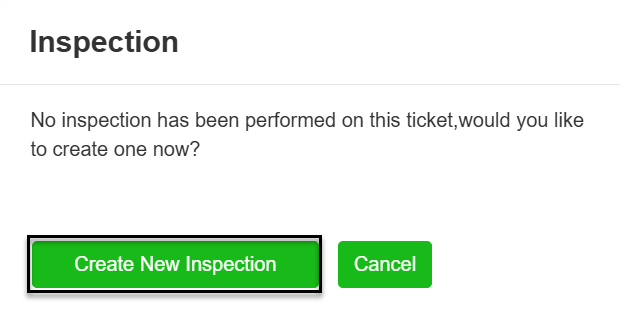
Start a DVI

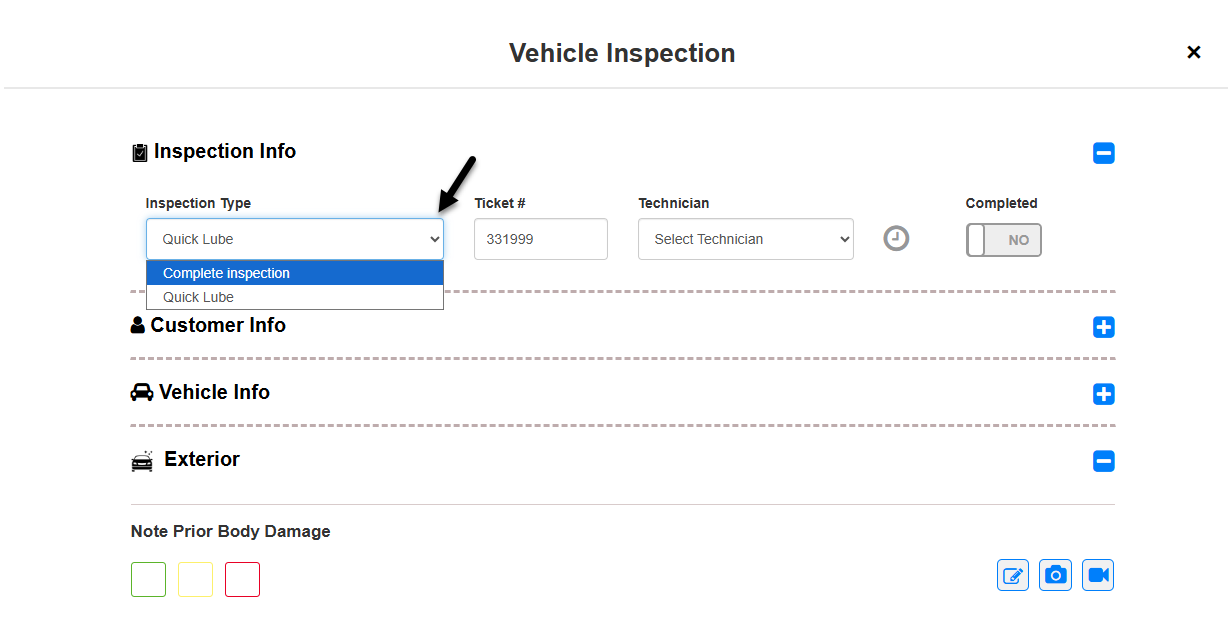
Inspection Types
Two inspection formats are available:
- Full Inspection – comprehensive system-based checklist for complete evaluations
- Quick Lube – streamlined format for routine oil changes and maintenance
The inspection type is selected under the Inspection Info section when starting a new DVI.
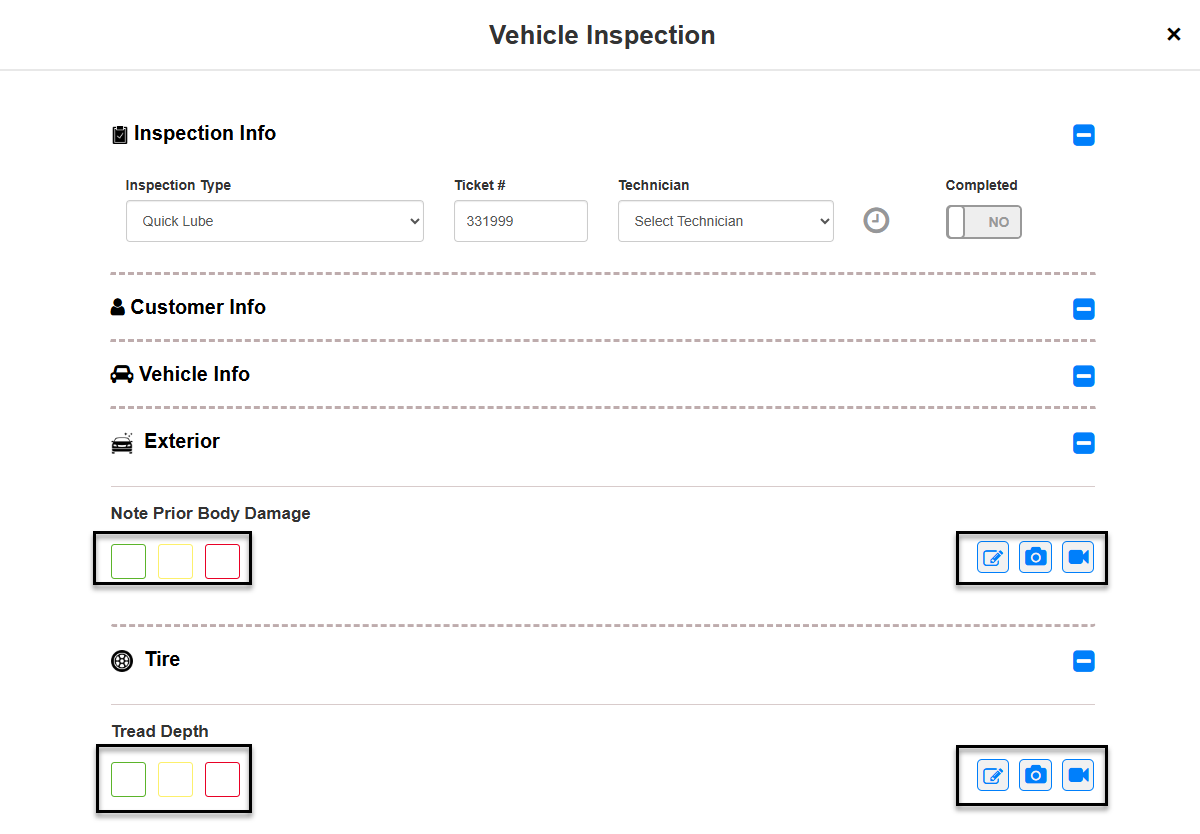
The Digital Vehicle Inspection (DVI) in HITS Digital guides technicians through a full checklist of components grouped by system. Each line item supports condition indicators, notes, and photo uploads to ensure clear communication with customers.
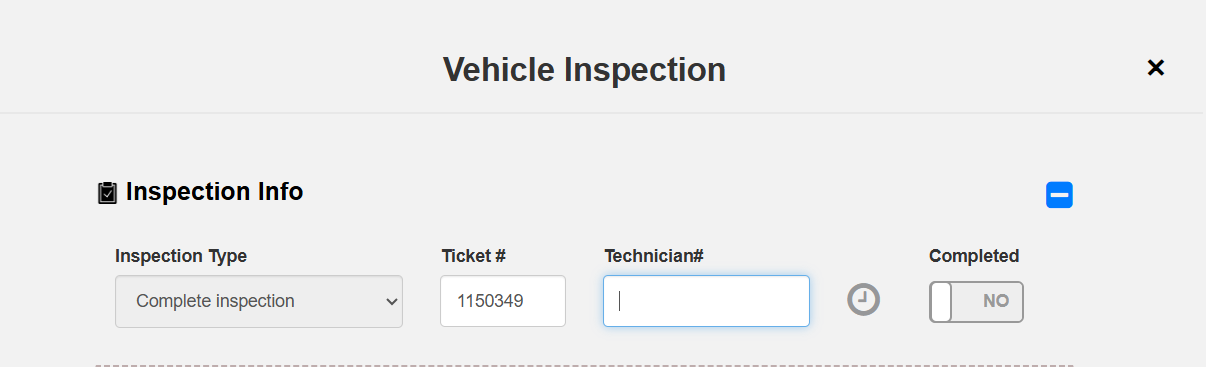
Customer, Technician, and Vehicle Information
When starting or reviewing a Digital Vehicle Inspection (DVI), HITS Digital automatically pulls customer, technician, and vehicle information from the linked POS ticket. This ensures all records stay consistent across the system.
Even though these fields originate from HITS, authorized users can edit or update the information directly within the DVI interface. Any changes made here are saved back to the associated ticket, helping your team correct or complete missing data without opening the full POS.
Customer Info
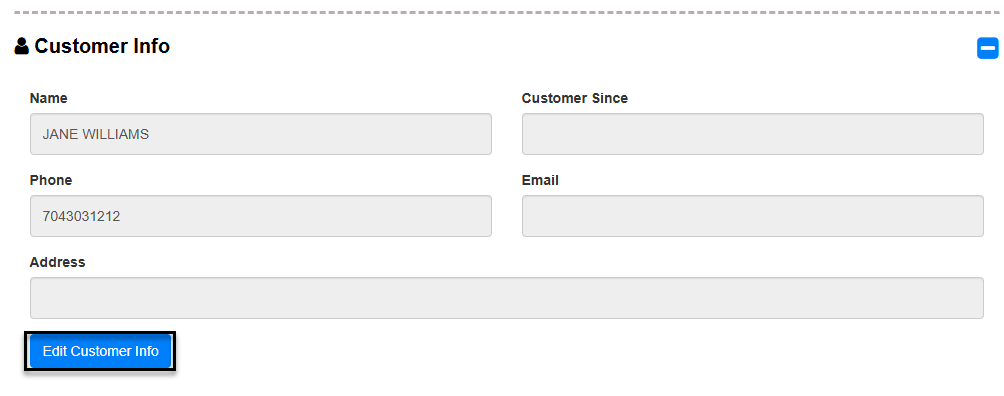
The Customer Info section displays:
- Name
- Phone
- Address
- Customer Since
Click Edit Customer Info to make updates or add missing details.
Vehicle Info
The Vehicle Info section includes:
- Vehicle Year, Make, and Model
- License Plate (with selectable state)
- VIN#
- Mileage
Click Edit Vehicle Info to update vehicle data directly from the DVI.
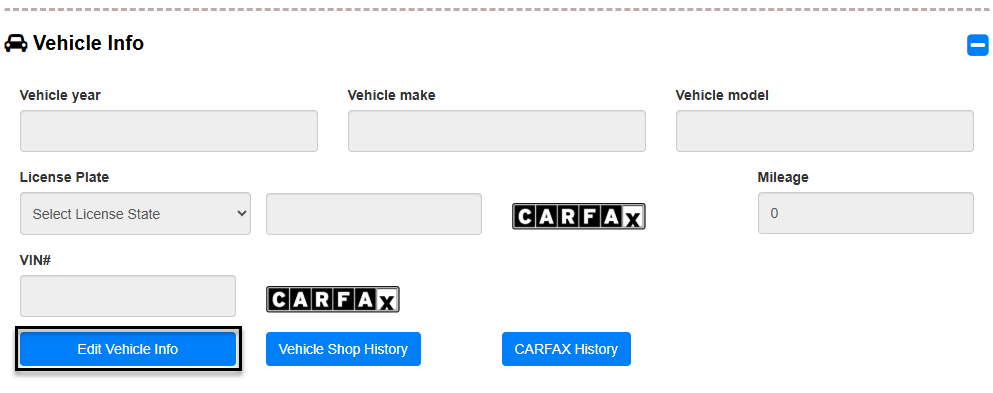
HITS Digital also integrates with CARFAX to retrieve verified vehicle details and history:
- Use the CARFAX button beside the VIN or License Plate field to pull current vehicle information.
- Select CARFAX History to view the complete vehicle history report.
- Choose Vehicle Shop History to review prior services completed within HITS.
Adding Notes, Photos, and Videos
Each inspection line item supports:
Condition selection

- 🟩 Green – OK / No Issues
- 🟨 Yellow – Needs Attention Soon
- 🟥 Red – Immediate Concern
Technician notes for describing observations or recommendations

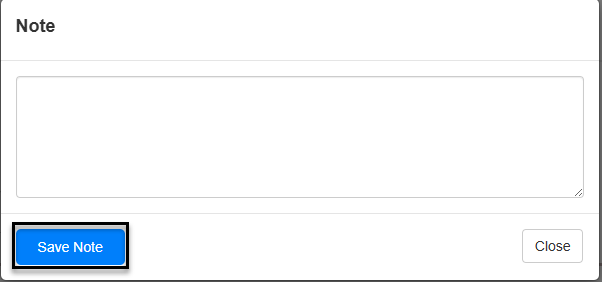
Photo and video uploads for visual documentation

Videos allow you to capture real-time footage of vehicle issues or maintenance needs and share them with customers through the inspection link. Video uploads support files up to 300 MB.
Saving or Completing the Inspection
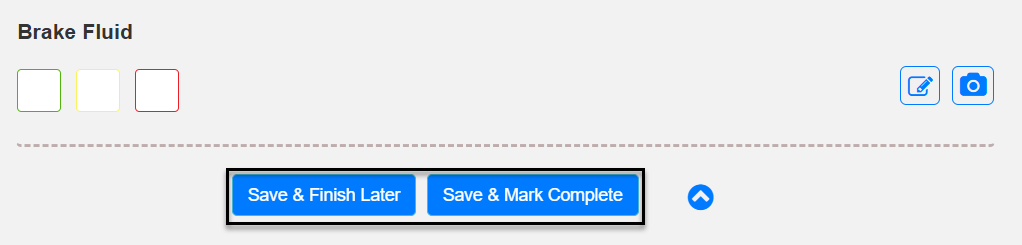
At the bottom of the inspection screen:
- Save & Finish Later – saves progress without completing
- Save & Mark Complete – finalizes the inspection, adds a link to the HITS ticket under the Links tab, and updates the Vehicle Status to Inspection Complete
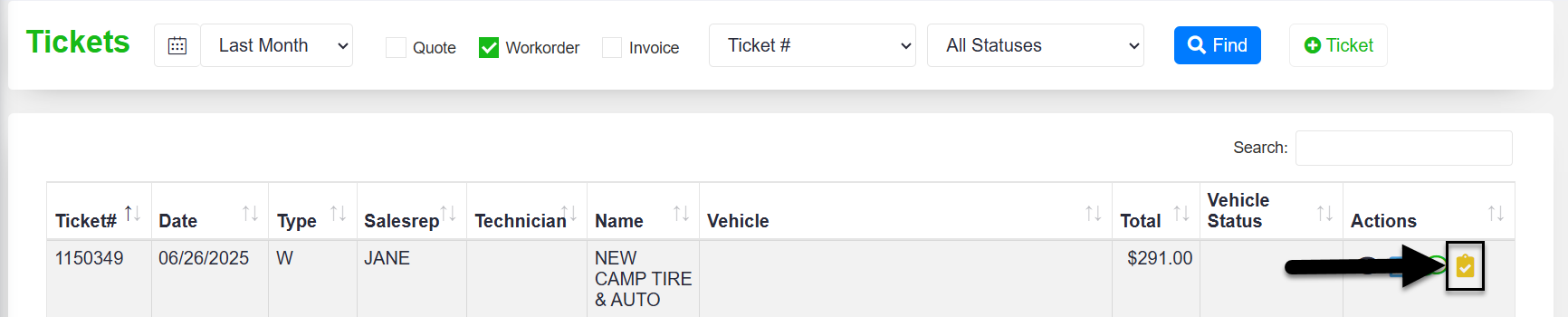
To reopen an incomplete inspection:
1.) Navigate to Customer Care > Tickets
2.) Locate the ticket and click the yellow clipboard icon  in the Actions column
You can also text a completed inspection directly to the customer using the chat bubble icon  . Two-way texting must be enabled; contact HITS Technical Support for setup assistance.
Getting Started
To enable the HITS Digital Add-On for your shop:
1.) Contact HITS Support or Sales to activate the feature
2.) Assign user HDN1 (controls access to HITS Digital functionality) and HDN2 (controls ability to view financial data in HITS Digital) permissions in the main POS to control what each user can access in HITS Digital
3.) Distribute login credentials and share mobile or browser access, as needed
Once active, your team can use HITS Digital from any supported device with internet access.
Access to HITS Digital
HITS Digital is an add-on and must be enabled for your account. Contact your sales representative or