
About:
HITS integrates with several third-party tire ordering platforms — including ATD, NTW, TireHub, Atlantic Tire, US Autoforce, K&M, K&M Hickory, and others — directly from the Sales Counter. Whichever tire integration(s) your store uses, the workflow is the same: look up inventory, quote drive-out pricing, create a quote or workorder, and order tires for your customer, all without exiting BPOS.
This guide walks through the general process using the on-screen icons for your tire integration. Screens and column names may vary slightly between integrations, but the steps below apply to all of them.
How:
- Click on Views → Sales Counter.
- Click on the icon for your tire integration on the toolbar (for example, ATD, NTW, TireHub, Atlantic Tire, US Autoforce, K&M, or K&M Hickory — whichever appears on your store’s toolbar).
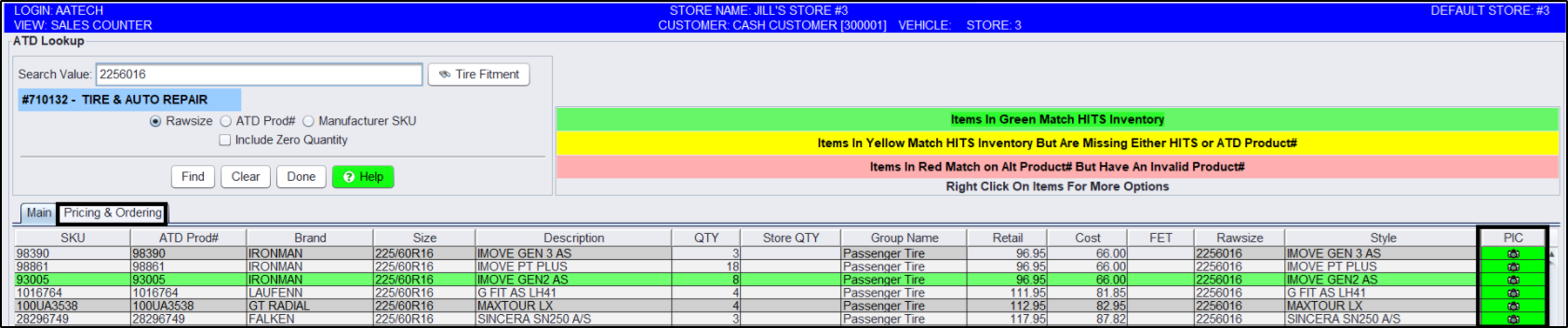
- On the Lookup screen, type the rawsize of tires and hit your <enter> key to search.
- Your results will display. Items highlighted in green are items you already carry in BPOS. Your store quantity is listed for reference so you don’t order tires you don’t need.
Note: You can right-click > Add Item to Inventory… to add the inventory to your HITS local inventory! - If your integration includes tire imagery and specifications, each tire’s image, specifications, features, and benefits will be available by clicking on the camera icon in the PIC column.
- Click on the Pricing & Ordering tab.
- Depending on how your tire integration is configured, the drive-out pricing displayed will either be based on the vendor’s online pricing profiles or on a markup factor. You can change any of the selections as needed — if you make changes, such as to the quantity, be sure to click the Update Prices button.
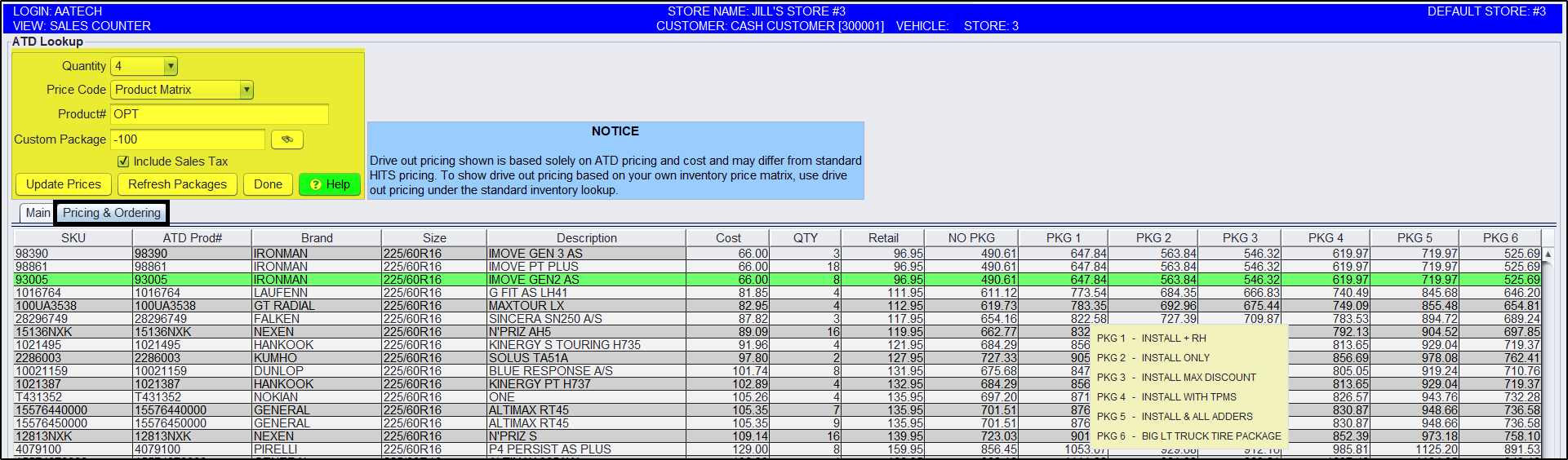
- Each pricing column displays drive-out pricing with your tire packages included, in order by package number (usually Good/Better/Best). You can right-click on any price and select Quick Detail to see everything included in that price.
- Once your customer has agreed to a tire and price, right-click on that price and select Create Invoice/Quote.
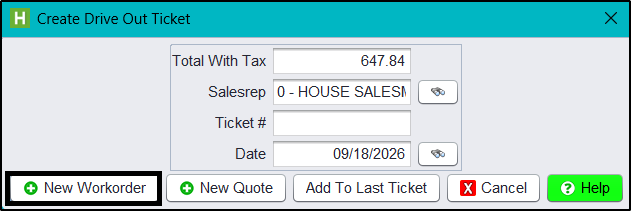
- On the Create Drive Out Ticket screen, if you and your customer have worked out a deal at a different, agreed-upon price, key in the new price in the Total Before Tax box.
- Click on the New Workorder button (or New Quote, as applicable) to create the ticket.
- On the Ticket View/Edit screen, proceed as you normally would in building a ticket by adding customer and vehicle information.
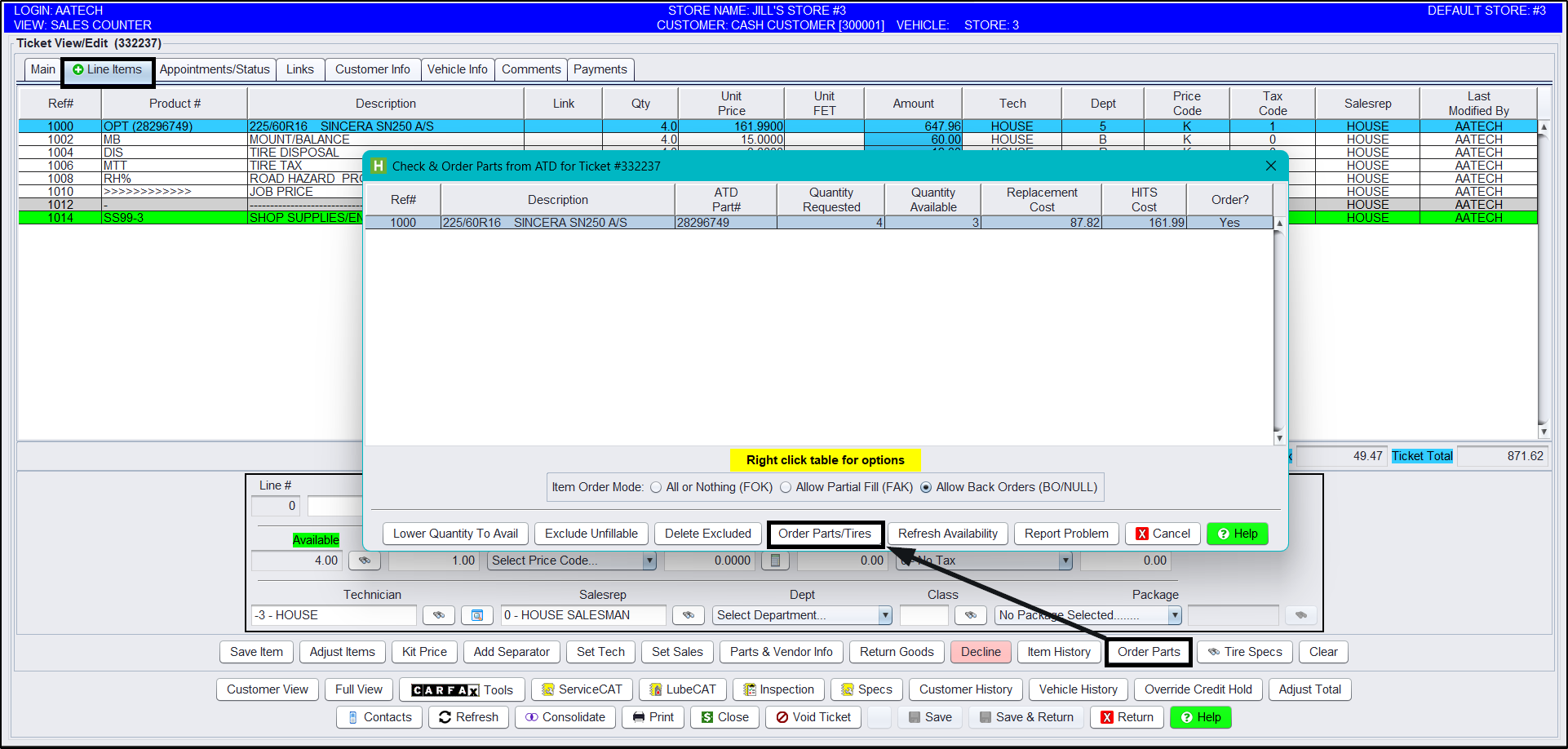
- Click on the Line Item tab.
- Click on the Order Parts button at the bottom.
- On the Check & Order Parts screen, confirm the item is available under the Quantity Available column.
- Click on the Order Parts/Tires button at the bottom. Your tire integration will return an order number for reference, which will appear on the customer’s ticket automatically once the order is processed.
- From there, process the ticket as normal in HITS, like any other workorder/invoice transaction on the Sales Counter.
Note – Users must have password permission to create invoices (P21). If you need to give a user permission to perform the above function, please contact your system administrator.
Applies To:
- ATD
- NTW
- TireHub
- Atlantic Tire
- US Autoforce
- K&M
- K&M Hickory
- Any other tire ordering integration configured for your Sales Counter