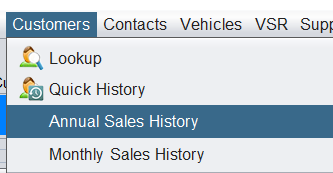
To view history for a customer, if you do not have the customer pulled up already, go to the Customer Lookup to find the customer.
Customer History will show all history for the customer. (This will include history for ALL of the customer’s vehicles. To only see history for a single vehicle, use the Vehicle History button.)
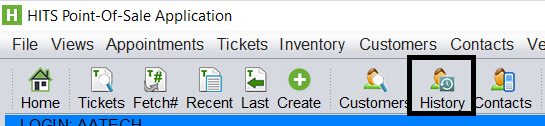
After you’ve performed a lookup for the customer, click the Customer History button from either the toolbar…
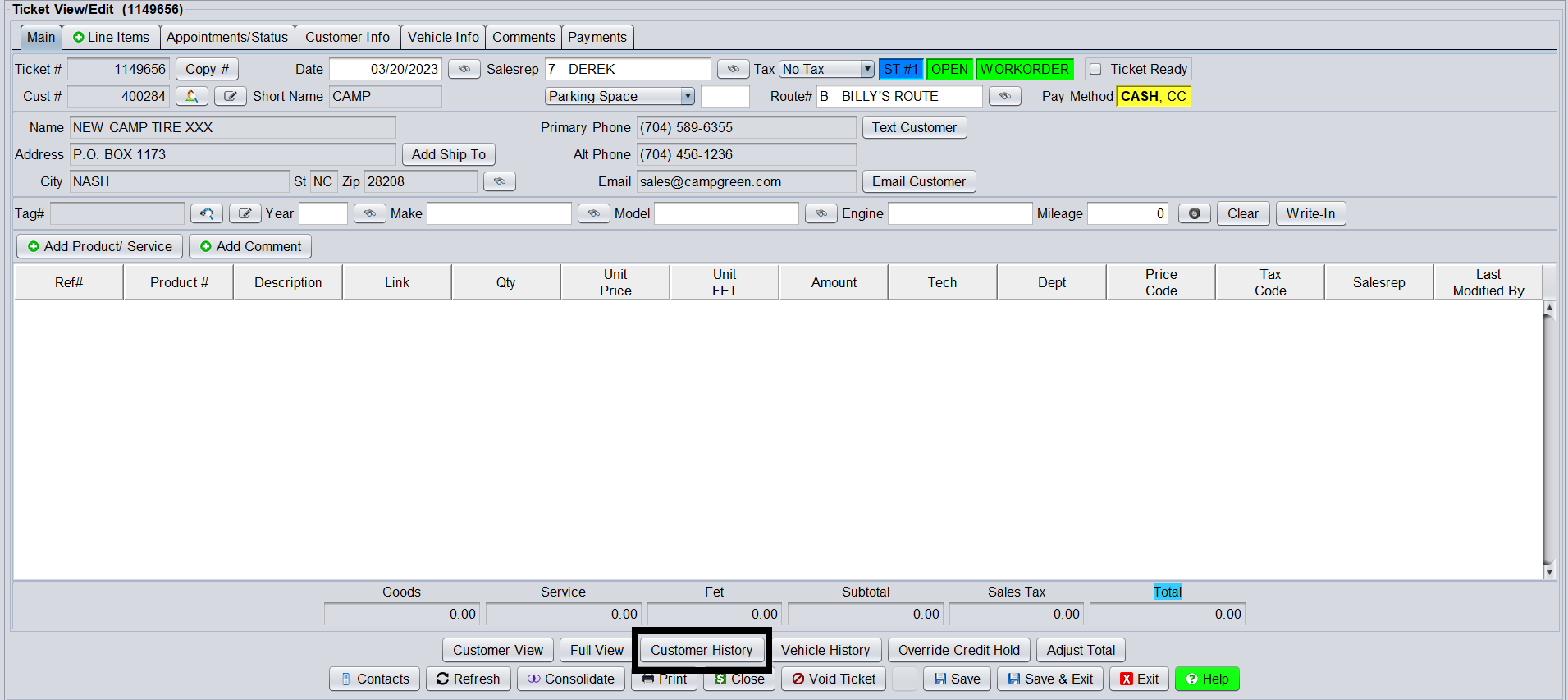
Or from the ticket…
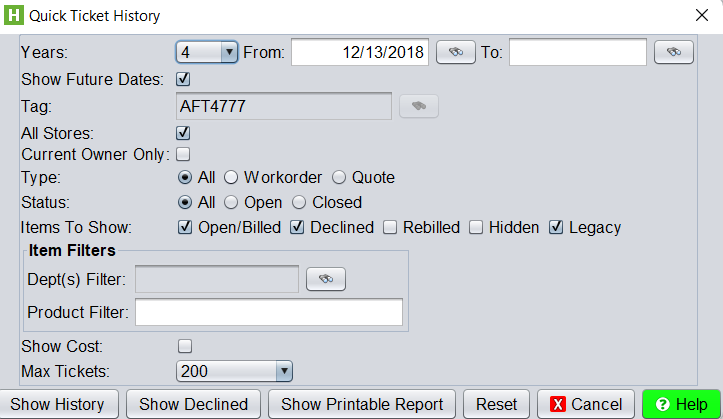
Prior to viewing the history, you will be prompted for filters such as how many years of history to view, which ticket types to include, as well as options such as including items the customer has previously declined.
Click Show History button to view history.
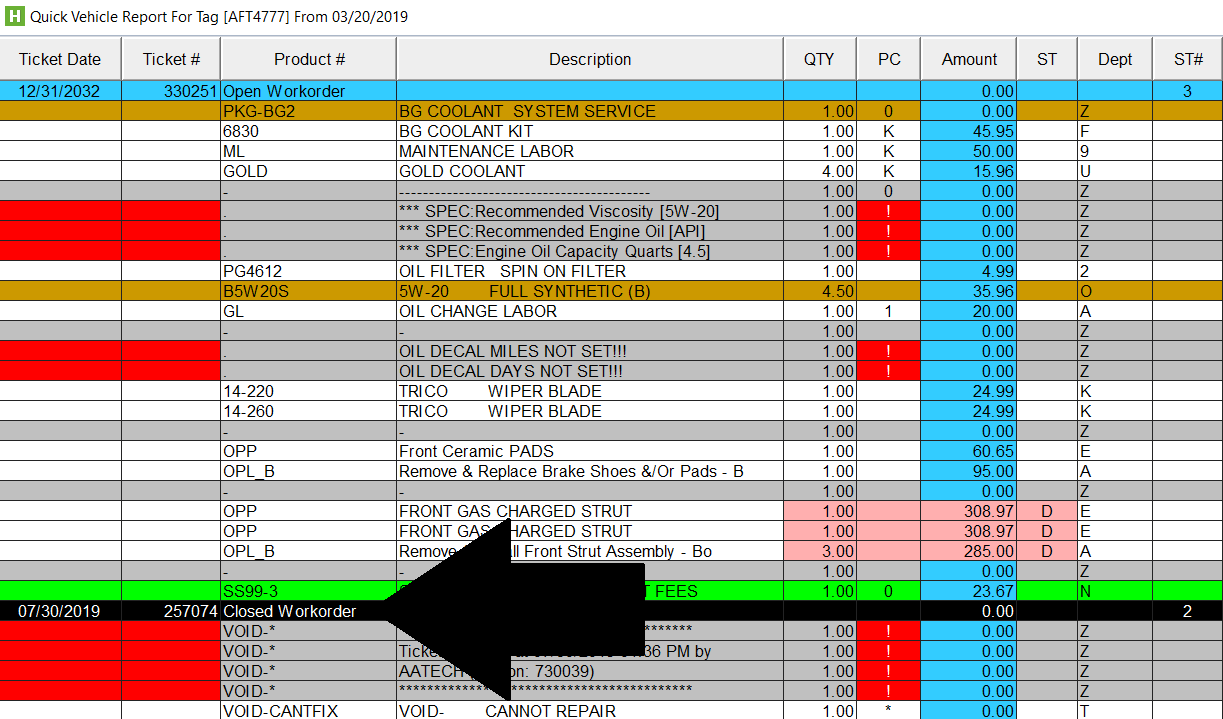
The history will display full line item item details for all previous (and future) tickets. All black rows indicate a new ticket. You can double click the black ticket row to open that ticket.
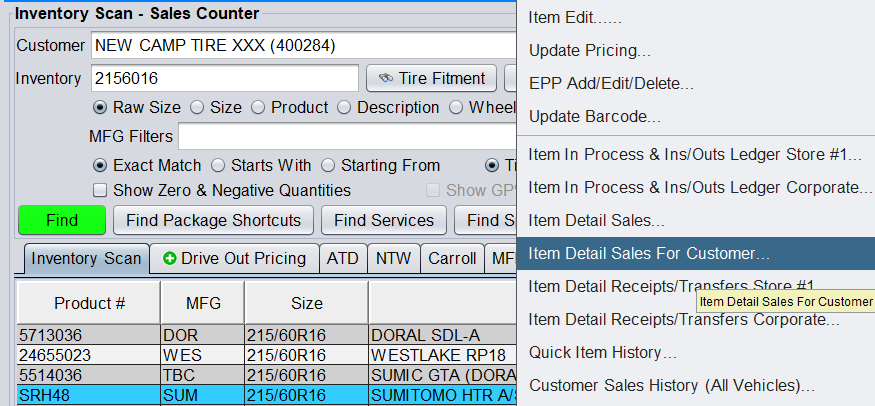
For history on specific products, from the Inventory Lookup screen (with an active customer), right-click on the product to show Item Detail Sales for Customer. This will show each time the customer has purchased this product.
Customer Item History is also available from the Line Item tab of the ticket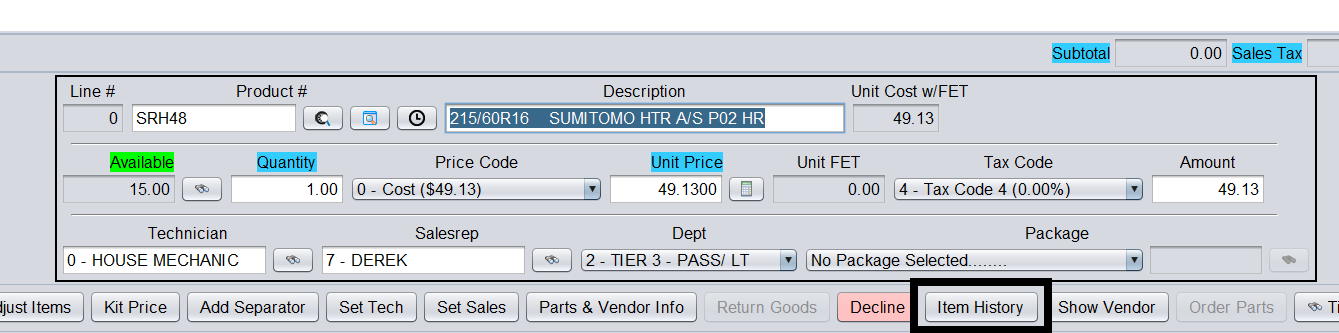
Last, for a quick glace at how much this customer typically purchases during a period, you can view the Annual Sales History or Monthly Sales History for a quick dollar and profit total.