What is ServiceCAT?
ServiceCAT is an integrated catalog and labor lookup tool within HITS that helps service centers quickly find, price, and order parts and labor for vehicle repairs. It connects directly to the active work order, automatically pulling customer, vehicle, and ticket information. ServiceCAT combines vendor part catalogs, labor times, and vehicle specifications into a single, easy-to-use interface, streamlining the process of building accurate service estimates and repair orders.
Launching ServiceCAT
ServiceCAT can be launched from multiple areas on the work order screen. The ServiceCAT button appears both in the middle section among other catalog tools (TireCAT, LubeCAT, etc.) and again along the bottom toolbar for quick access. Clicking either button will open ServiceCAT and automatically carry over the customer, vehicle, and ticket information.
Search Screen
The Search screen is where users begin their workflow. It is divided into three main sections:
1.) Vehicle Section
-
- If a vehicle is already active in HITS or associated with the ticket, it will automatically populate in ServiceCAT.
- If not, users can manually select Year, Make, Model, and Engine from drop-down menus.
- An integrated Inspection Sheet provides vehicle-specific specifications, including fluid types and fill capacities.

2.) Defaults Section
-
- System defaults are typically pre-set by an administrator.
- These include vendor selections, part stock settings, and pricing defaults.

3.) Search Criteria Section
-
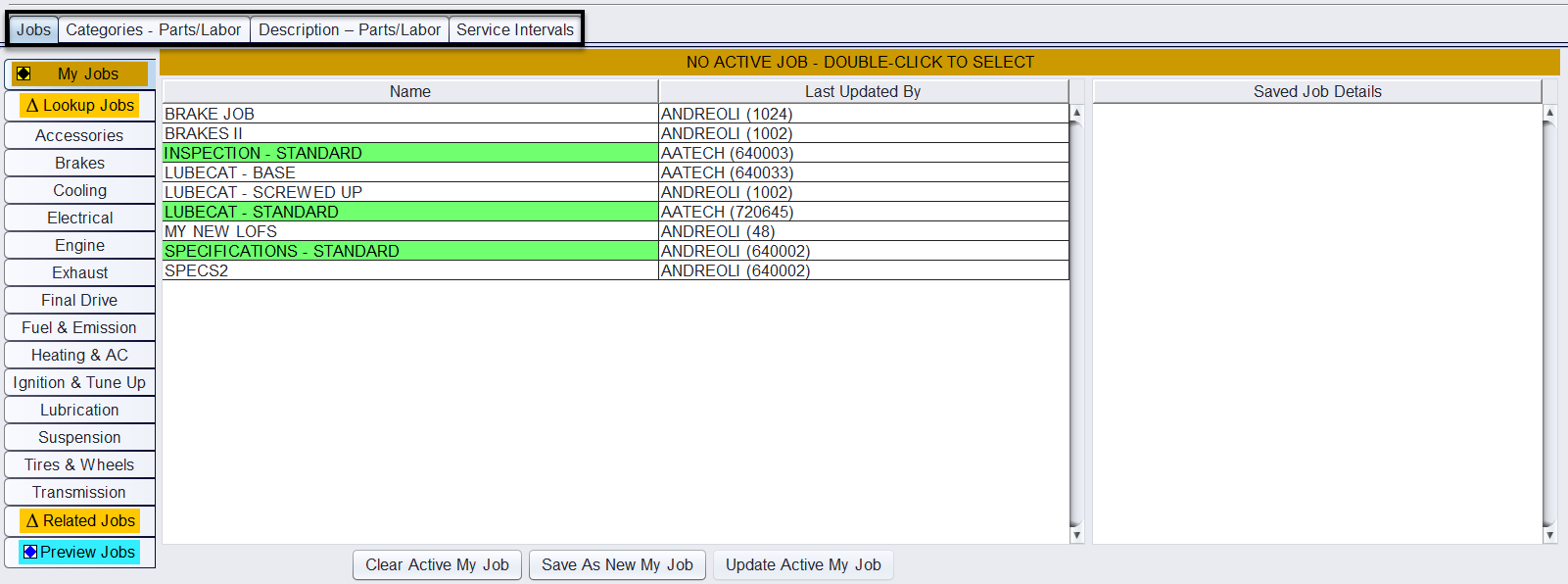
- There are four horizontal tabs for different search types:
- Jobs Search (most common)
- Parts and Labor by Category
- Parts and Labor by Description
- Service Intervals
- Only one tab can be used at a time when searching.
- The Related Jobs tab displays jobs commonly performed with the selected repair.
- There are four horizontal tabs for different search types:
Job Search Tab
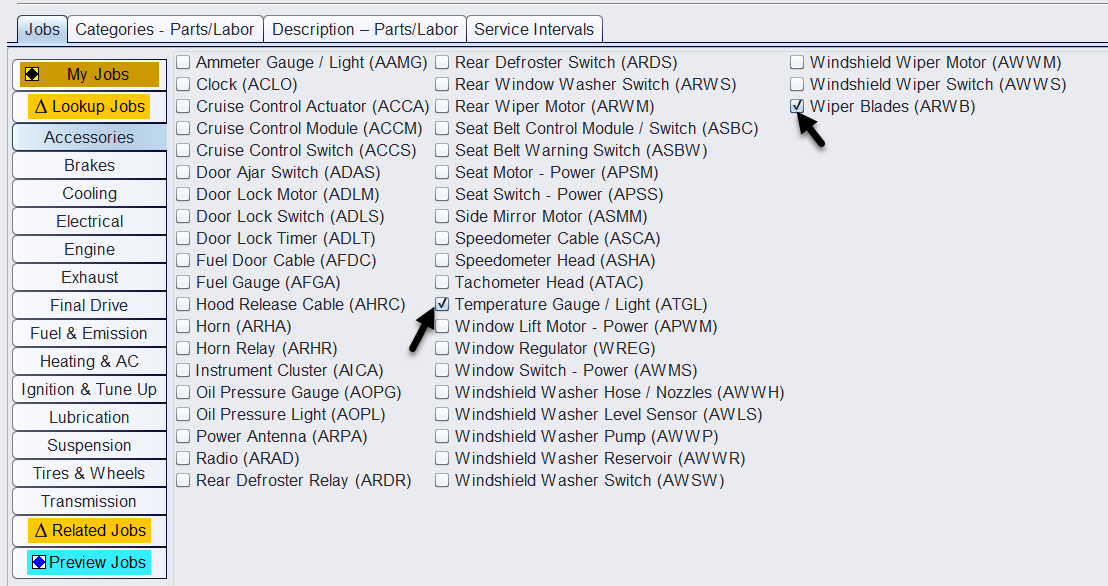
The Job Search tab mirrors the job categories from Epicor ISE. Users can:
- Select one or multiple jobs from any category (e.g., Complete Brake Job, Brake Fluid Flush, Water Pump, Thermostat).
- Use the Lookup Jobs field to quickly find specific jobs (e.g., typing “SERP Belt” to find Serpentine Belt Job).
- Review selections under the Preview Jobs section before fetching results.
After selecting jobs, clicking Fetch Jobs runs the search across configured vendors and transitions the user to the Results Screen.
Results Screen
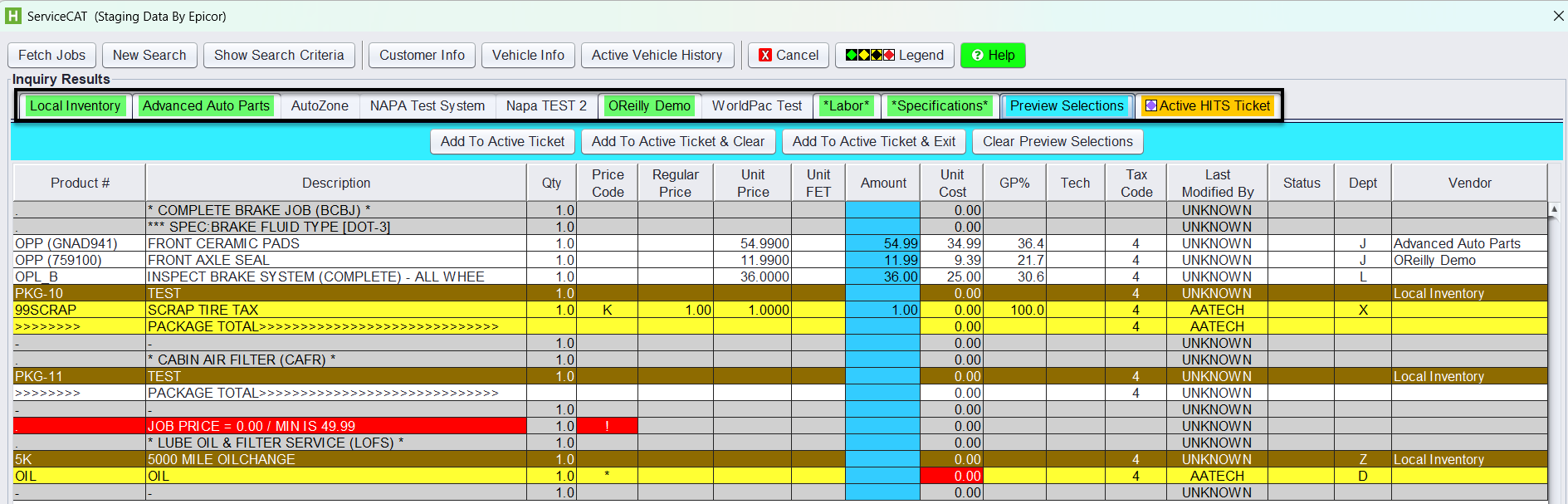
The Results Screen displays the search results in an organized tab layout.
Top Row of Tabs:
- Local In-House Inventory
- Parts Vendors
- Labor
- Specifications
- Preview Selections
- Active HITS Ticket
The Results Screen shows the search results returned from each vendor tab, including pricing, cost, and vendor details.
After selecting parts or labor items, users must click the Preview Selections tab (highlighted above) to review all chosen parts, labor, and pricing before transferring them to the work order.
Once verified, click Add to Active Ticket or Add to Active Ticket & Clear to move the selections into the active work order. Green diamond icons indicate parts in stock, and clicking the image icon opens part pictures and specifications (e.g., OE cross-references)