
If you extend in-store credit to your customers and allow them to charge their purchases, you will need to age these accounts once a month in order for the transactions to roll over to the correct aging buckets (Current, 1-30, 31-60, 61-90, 90+) and to assess any finance charges if you choose to calculate those. Please note, this HITS routine is for Open Item Accounts only.
To Age in HITS:
1.) Click on Views –> Bookkeeping
2.) Click on the A/R Aging icon 
3.) Your Aging Date is a reference field only and displays the date that the aging will be processed on. This will be your oldest open store date. To age as of a specific date, all other store dates prior need to be closed.
4.) The A/R Due Date is the Due Date for the finance charges only that will be created. Edit as needed.
5.) If you would like you can select the option to charge a minimum finance charge and then type in the minimum amount you would like to add. Usually, this is not necessary as the aging process looks to each individual customer’s account to see what % to calculate for each customer.
6.) You also have the ability to charge Late Fees. Again, this is optional and not required. If your company chooses to charge a Late Fee, select the appropriate Days Late for which to charge the customer (i.e., No Late Fees, Late Fees When Past Due 1-30 Days, Late Fees When Past Due 31-60 Days, Late Fees When Past Due 61-90 Days or Late Fees When Past Due 91-120 Days).
7.) Type in the Late Fee amount to be charged on the selection that is made in Step#6.
8.) Click on Run Process to age your accounts. When it has completed, you will receive a message confirming it is done:

REMINDER: If you are closing invoices in Blue Screen (ONLY), please go to Views>Administration & Utilities>Corporate>A/R Due Date and set your new A/R Due Date for next month’s invoices.
Note: Customer Safety Days prevents a users from aging A/R Accounts again after the aging process has already been run. The default is set to <20> days, however can be edited according to your business needs. Please reach out to HITS Technical Support for any questions.
Troubleshooting
You may receive the following message when attempting to run A/R Aging:
Database error #2079 has occurred. (#2079): No open date available
This error may occur when the Current Store Date has not been set or there is no appropriate open store date available for the aging process.
Check the Current Store Date
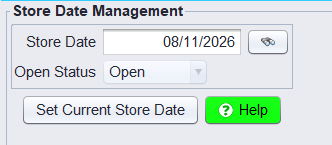
- Go to Views > Administration & Utilities > Store > Store Date.
- Review the Store Date field.
- If the field is blank, enter the appropriate open store date.
- If the current date has already been closed, enter the next open store date.
- Select Set Current Store Date.
Check the Oldest Open Store Date
For accounts with multiple locations, determine which store has the oldest open store date before running A/R Aging.
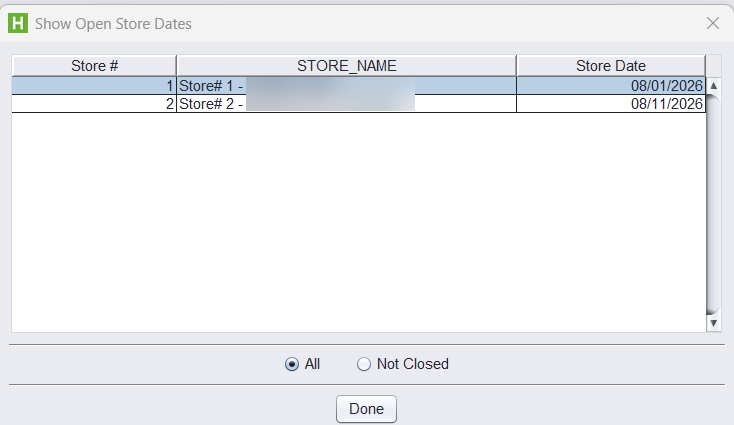
- Go to Views > Administration & Utilities > Store > Oldest Open Store Date.
- Review the open Store Date for each location.
- Identify the store with the oldest open store date.
- Run the A/R Aging from the store with the oldest open store date.
For example, if Store 1 has an open date of 08/01/2026 and Store 2 has an open date of 08/11/2026, run the aging from Store 1.
This ensures the A/R Aging process runs against the appropriate open store date across all locations.