
The A/R Value (As of Date) report provides the total Accounts Receivable balance for a selected date. This report is commonly used for month-end, year-end, audits, and financial reconciliation. You can run the report in Summary or Detail format, depending on the level of information needed.
When to Use This Report
Run the A/R Value Report when you need to:
- Verify month-end or year-end A/R totals
- Reconcile accounting system balances
- Review A/R exposure per store
- Understand customer-level open balances as of a specific date
How to Run the A/R Value (As of Date) Report
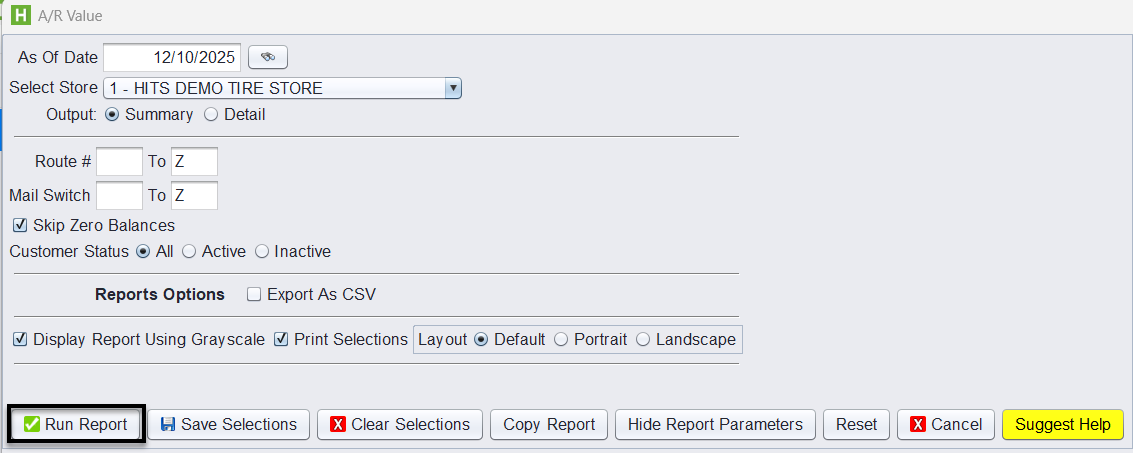
- Navigate to: Views → Reports → A/R → A/R Value (As of Date)
-
Select the date using the binoculars

(recommended to ensure correct system formatting). - Choose the Store or select All Stores.
- Choose your Output format:
- Summary – Totals per store
- Detail – Shows each customer’s balance
- (Optional) Apply additional filters such as Route, Mail Switch, or Customer Status.
- Click Run Report.
What This Report Shows
This report calculates your accounts receivables exactly as they existed on the selected date. It does not show a running historical ledger—each time you run it, HITS rebuilds the values based on invoice and payment activity up to the chosen date.
Where the Numbers Are Pulled From
HITS reads directly from the A/R ledger and underlying invoice/payment records. It includes:
- All open invoices dated on or before the As-Of Date
- Minus any payments, credits, or debits applied on or before that same date
Because values are calculated in real time, this report provides an accurate representation of receivables at a moment in time.
Summary Output
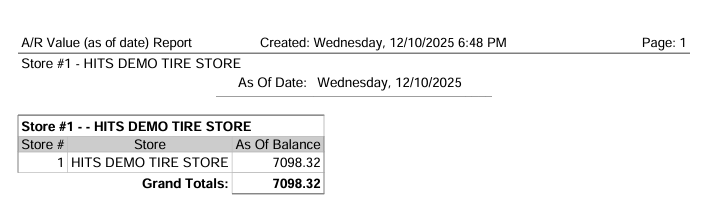
The Summary version displays one line per store, showing:
- Store #
- Store Name
- A/R Balance as of the selected date
This view is best for high-level reporting, reconciliations, and financial statements.
Detail Output
The Detail version lists every customer with an active balance on the selected date.
Each row includes:
- Customer #
- Short Name
- Customer Name
- Store #
- Balance
- As Of Balance
This format is helpful when investigating variances or determining which customers make up the total A/R balance.
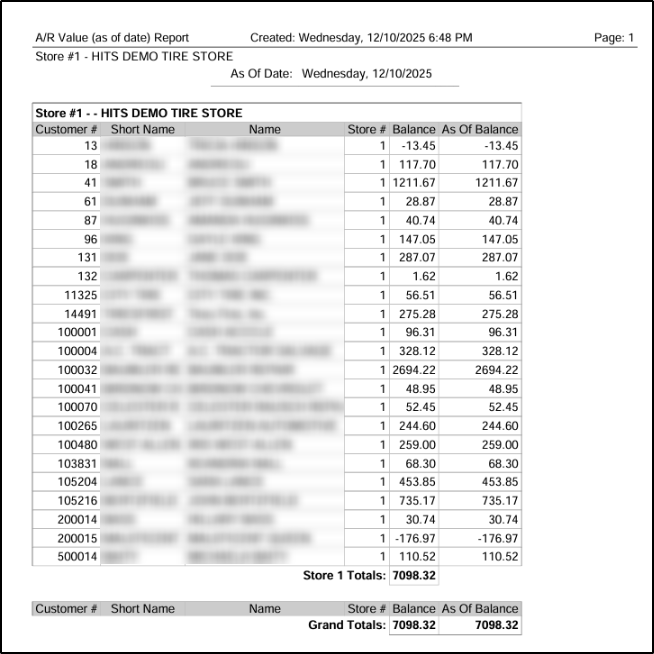
Balance – The customer’s outstanding A/R at the time the report was run
As Of Balance – The outstanding balance as of the selected date
(These values may differ if payments or adjustments were made after that date.)