Accessing Tire Connect Password List
To lookup a customer’s Tire Connect password, take the steps below in HITS:
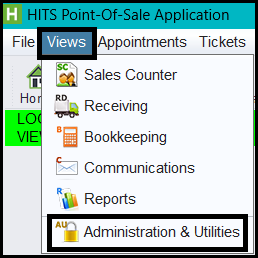
- Click Views and select Administration & Utilities
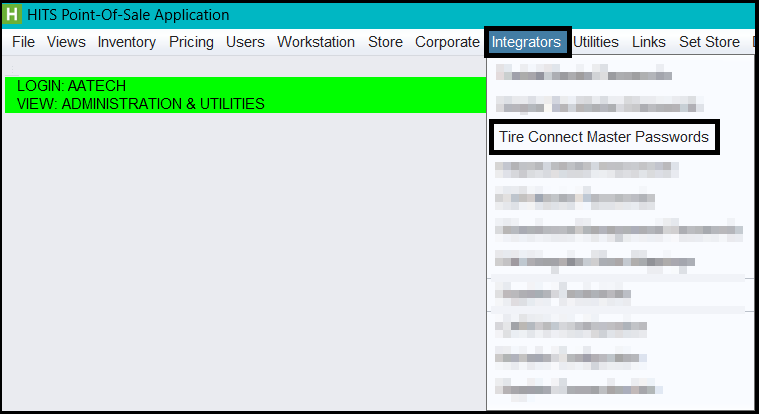
- Click Integrators and select Tire Connect Master Passwords
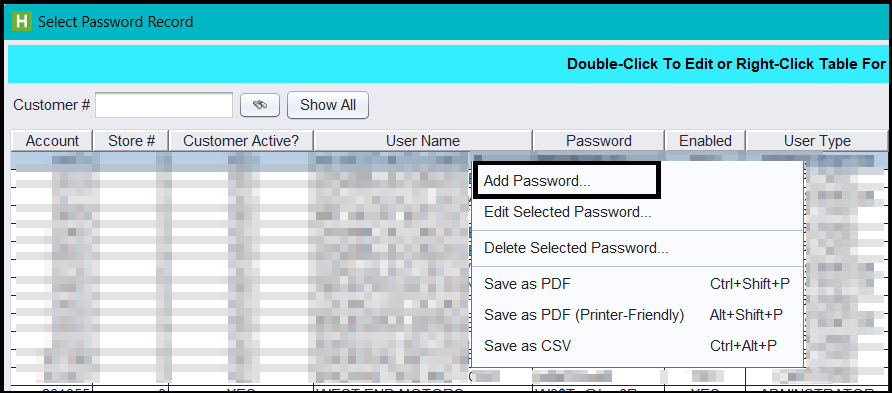
- From this screen a user can enter a customer’s HITS Customer# and press ENTER or click the binoculars to search for a customer. If you do not get any results after looking up the customer, this means the customer has not been added to the Tire Connect Master Passwords list. If you need this customer added, continue following the rest of the instructions below:
- Right-click on the table and select Add Password…
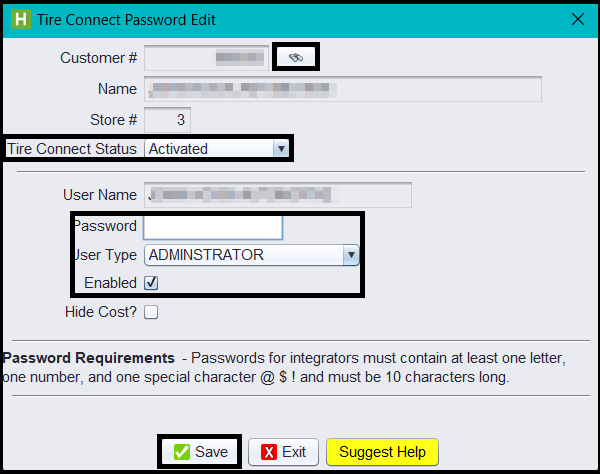
- Click the binoculars and lookup the customer and double-click to add them.
- Ensure the Tire Connect Status is set to Activated.
- Enter a unique password following the password requirements.
- Select the User Type whether it is an Employee or Administrator.
- Click the Enabled checkbox.
- If needed, you can click the “Hide Cost?” checkbox.
- Click Save.