1. Click on Views –> Administration & Utilities
2. Click on Integrators –> Tirelink Master Passwords
3. Right-Click on the table and then click on Add Password
4. Click the binoculars button next to the Customer # field to lookup and select the appropriate customer
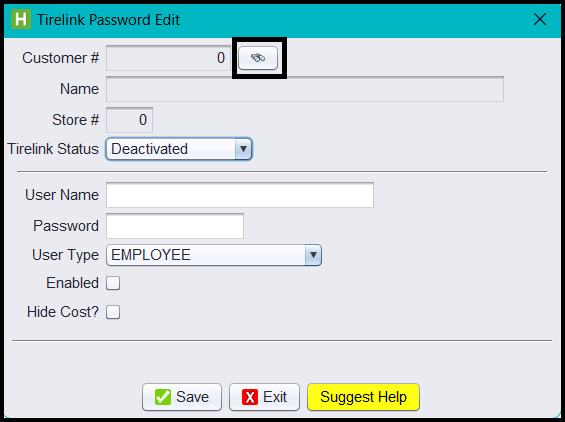
5. Change the Tirelink Status to Activated
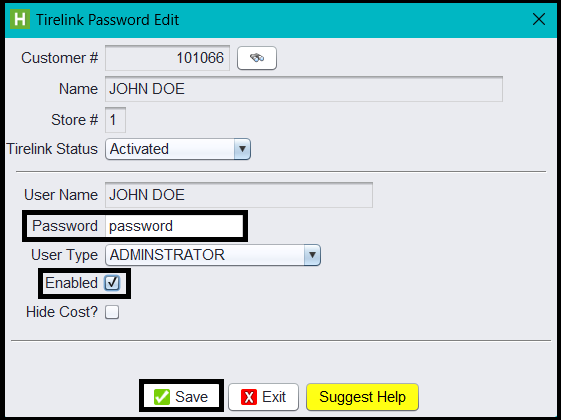
6. Add a new password
8. Select the user type:
o Employee – Allows access to the website and the user can submit orders. User cannot access any Admin options from Tirelink website menu.
o Administrator – Allows access to the website but the user can add retail pricing, installation add-ons, quote options and adding users/passwords.
9. Check the Enabled checkbox
10. Click on the Save button