
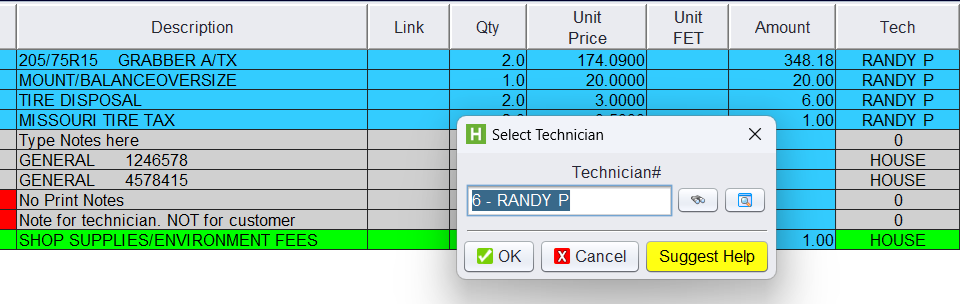
In HITS, technician codes are used to track the work performed by each technician. This information can be used for accountability, compensation, productivity, and efficiency reporting. Technicians are assigned to Work Orders at the line-item level, and each line item can be assigned to one or more technicians.
How to setup technicians in the system
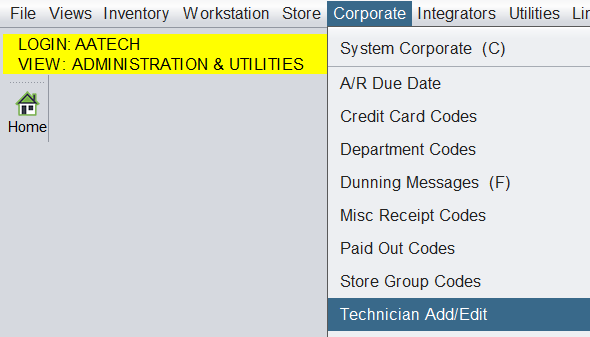
To add Technicians into the system, go to Views > Admin & Utilities > Corporate > Technician Add/Edit
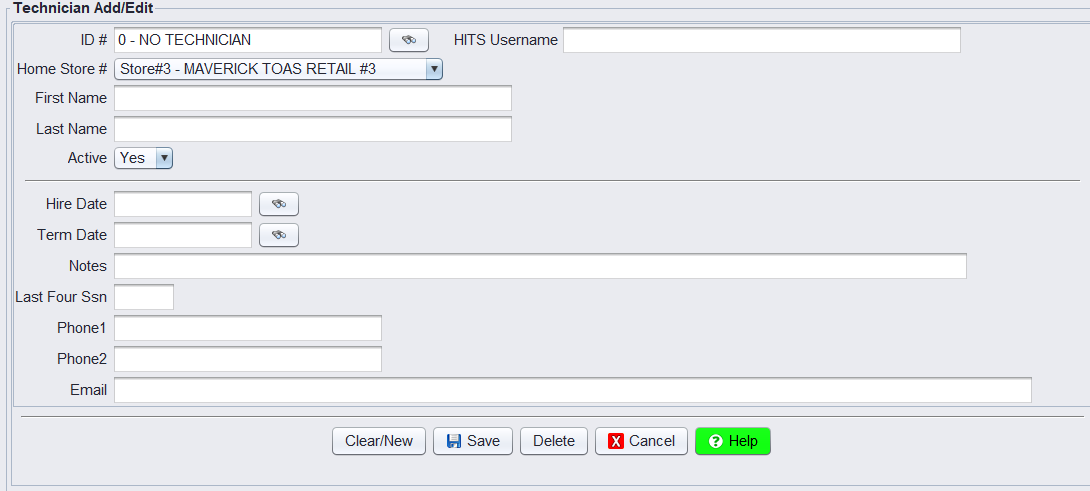
On the screen, enter the technician’s First Name and Last Name. Select the technician’s Home Store if applicable. Most of the remaining fields are optional and provided for informational purposes. If you are using the HITS Time Clock feature, be sure to enter the technician’s HITS Username so time punches can be associated with the correct technician.
The Technician ID is automatically created when you click Save. To add another technician, click Clear/New. Please be sure to log out of HITS and log back in for the changes to take effect.
Frequently asked questions
What is the difference between a Salesrep and a Technician in HITS?
Salesrep is generally who made the sale. Technician is who performed the work. If an employee sells as well as performs the work, they will need to be added to both the Salesrep table, as well as the Technician table.
What if a Technician works in multiple stores?
Technicians are maintained in a single corporate table, so they only need to be added once. Each technician is assigned a Home Store, which determines where they appear under the Store Technicians tab. If needed, technicians from other locations can be selected from the All Technicians tab.
How do I run reports on Technicians?
Technician is available as a filter or reporting option on several reports in HITS. The Technician Journal and Technician Recap are the most commonly used.
Can I make a Technician inactive?
Yes. Set the Active field to No to prevent the technician from appearing in technician lookups while preserving historical transactions and reporting.