
The Bulk Process screen in HITS lets you verify payments, check tickets for errors, and close a batch of tickets (multiple tickets).
The Bulk Process screen serves three main objectives:
- Allows you to verify payments for a group of ticket
- Allows you to check a group of tickets for errors prior to closing
- Allows you to CLOSE a group of tickets
These processes are shown below.
Adding tickets to the Bulk Process ticket screen
To add tickets to the Bulk Process screen, first find the tickets on the Ticket Lookup screen. These tickets can be searched on the Ticket Lookup screen by Ticket Type, Date, Store, Salesrep, Route, etc.
Changing this setting will affect how due dates appear on customer statements.

Once you have found the tickets you are looking for, you can select the specific tickets in the list you are wanting to process. Use the CTRL key to select multiple tickets. You can also use the Select All button to select all tickets on the screen. Once all needed tickets are highlighted, click the Bulk Process button.

This will load all selected tickets from the Ticket Lookup screen to the Bulk Process screen.

You can also add tickets to the Bulk Process screen one at a time by either entering the ticket number or scanning the barcode on the ticket into the Add Ticket box.
Entering tickets #s will add tickets to the Bulk Process screen.

Validate & Edit Payments
One of the benefits on the Bulk Process screen is to allow you to verify payments for a group of tickets and make any needed edits to payments.
This verification process can be performed regardless of whether the tickets are being closed or just validated for payments.
Examples:
-
- This process could allow a warehouse manager to see expected payments to be received when a driver returns with multiple delivery receipts (Invoices).
- This process could also be used by a corporate bookkeeper verifying a day’s worth of business. (This process would likely need to be used along with the CASH/ CHECK/ CC JOURNAL Report since only sales payments are shown on this screen, not ROA payments.)
For the tickets shown on the Bulk Process screen, the expected Total Cash, Check, and Credit Card payments will be shown.
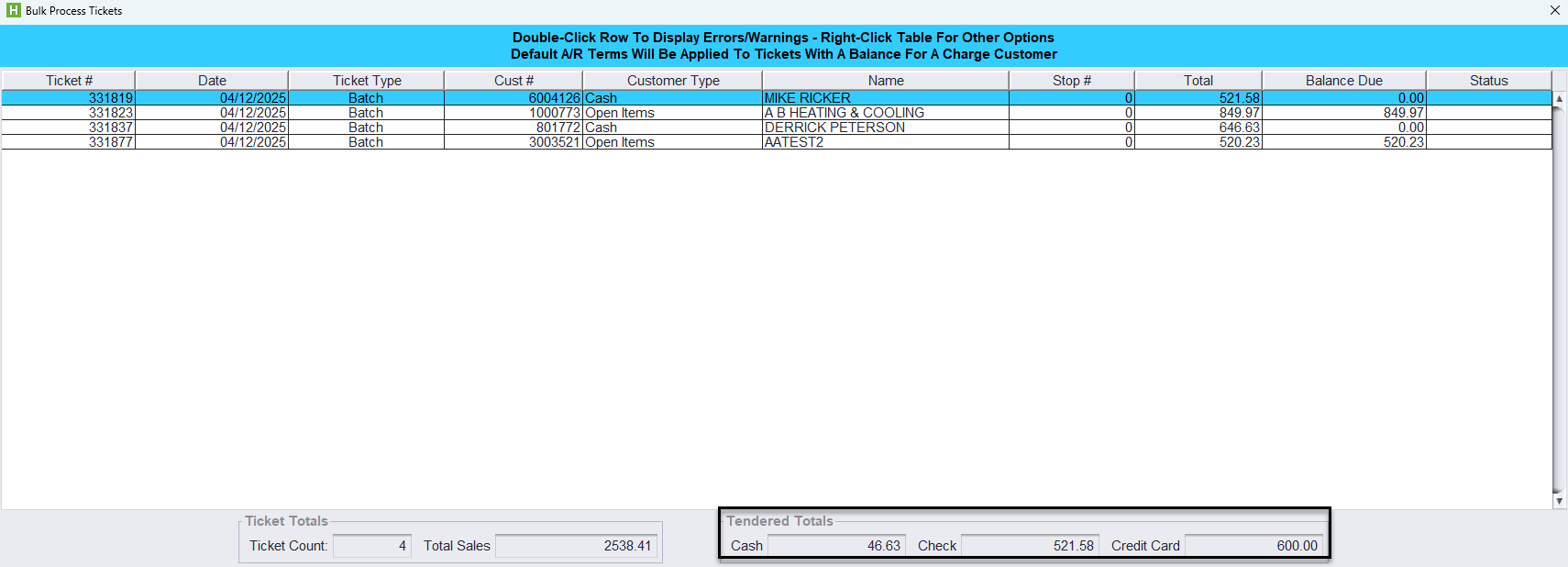
To edit these payments, right-click in the list if you want to edit the selected ticket, edit just tendered payments, or edit all payments.
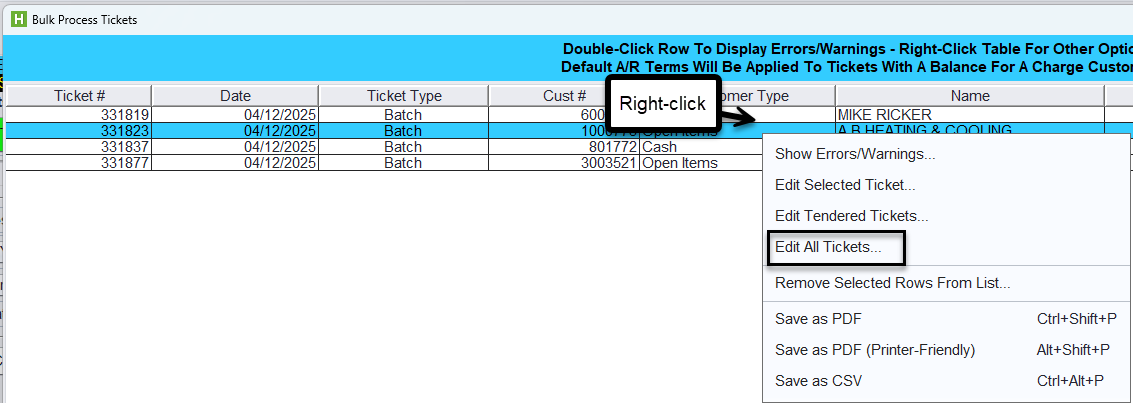

The Edit Payment screen will allow you:
-
- See the payment for each ticket
- Enter CHECK #s for CHECK payments
- See tickets with credit card payments that have not yet been processed.
Note: Highlighted CC tickets were “auto-applied” at close, but a credit card payment was not posted manually to the ticket. Be sure to edit this ticket and select the appropriate credit card code.

If you edit the payments on a ticket by navigating to the individual ticket, click Save & Return on ticket to return to the Edit Payments screen.

(If your system is set for Batch Mode processing, tickets will need to re- opened and re-closed before and after editing payments.)
CHECK tickets for errors prior to close
The Bulk Process screen allows you to check tickets for errors prior to close. To check for errors on the Bulk Process screen, select:

Once the check is complete, the list will show any WARNINGS and ERRORS.
WARNINGS will not keep you from closing tickets if you check the “Ignore Warnings” checkbox. ERRORS will keep you from closing tickets. Double-click on the WARNING/ ERROR to see reason.

Close Batch of Tickets
To close a group of tickets, on the Bulk Process screen, select:
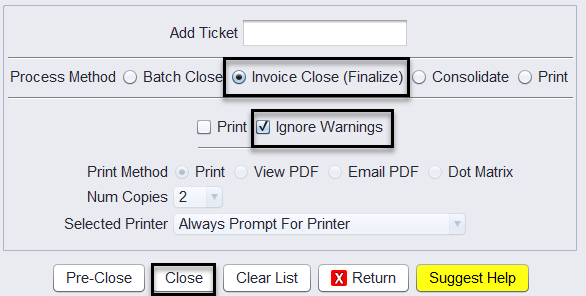
The closing will skip closing any tickets with ERRORS.
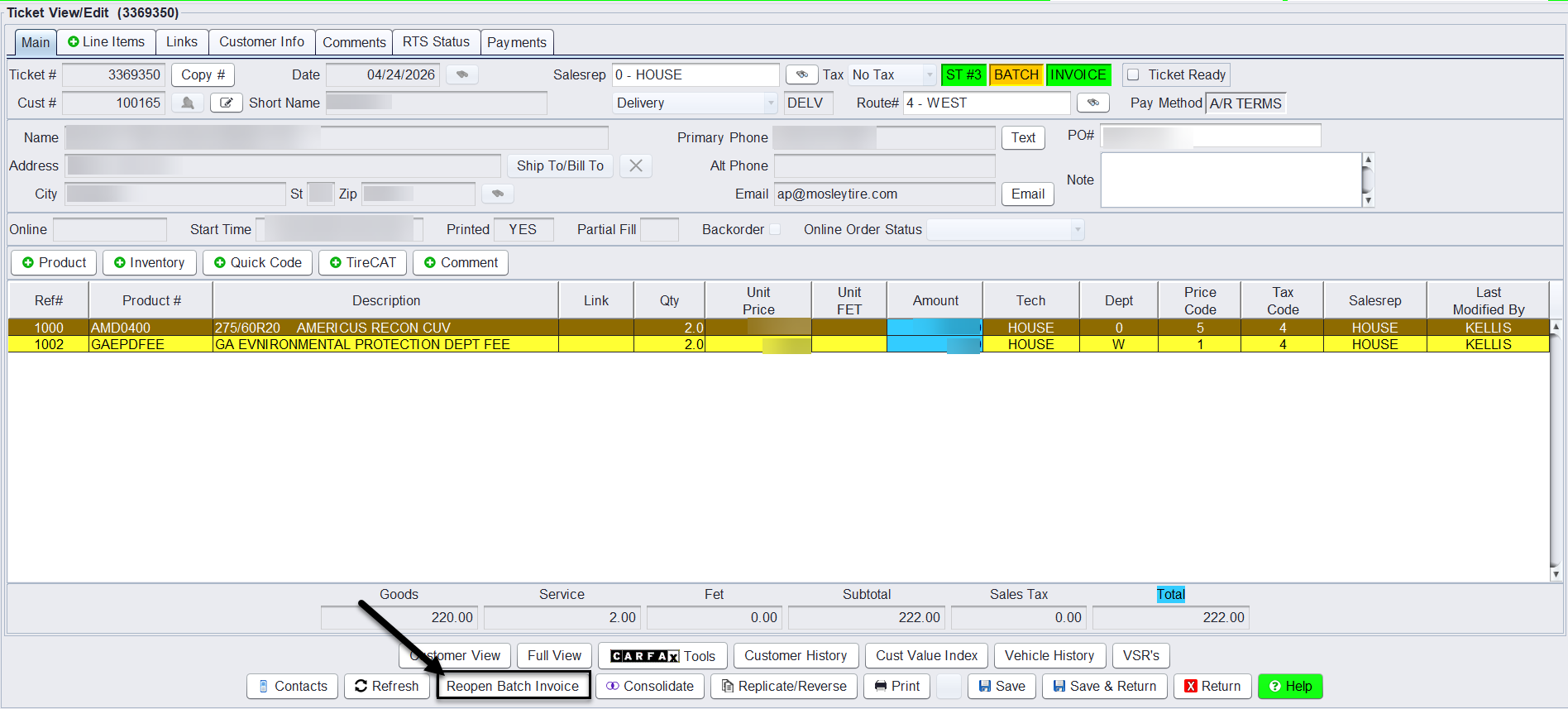
Reopening a Batch Ticket
- Open the batch closed ticket
- Click Reopen Batch Invoice
- Make required edits
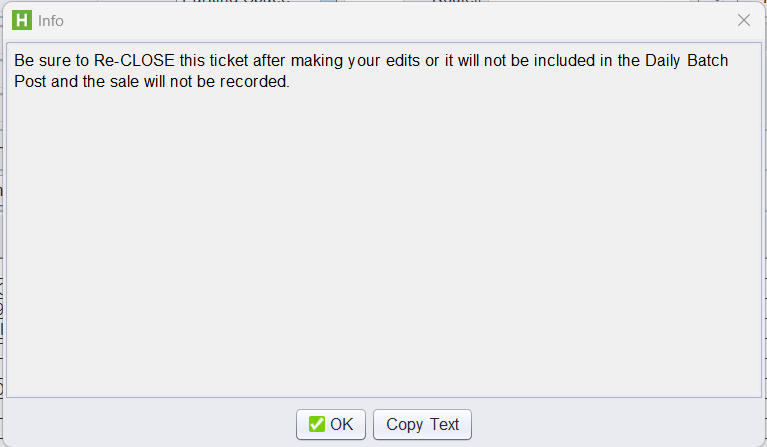
- Re-close the ticket to include it in the Daily Batch Post
Important
- If the ticket is not re-closed, it will not be included in the Daily Batch Post and the sale will not be recorded
- P58 permissions are required to reopen batch invoices
A/R Due Date Behavior (Optional Setting)
A setting is available to control when the A/R Due Date is calculated for Batch tickets.
By default, the due date is calculated when the Batch is first closed.
When the Reassign A/R Due Date setting is enabled, the due date will instead be calculated when the ticket is fully finalized and closed.
This can be useful for businesses that close Batch tickets before product is shipped, as it prevents invoices from appearing on statements before delivery.
This setting is optional and does not require any changes unless you want the due date to reflect final close timing.
To enable:Views > Administration & Utilities > Store > View/Edit Default Settings
Invoice View/Edit (Invoice Close section)
