
What are Service Packages?
Service Packages are reusable “dummy tickets” that allow commonly repeated work orders—such as Oil Changes, Brake Jobs, Tire Rotations, or Alignment Services—to be applied to customer tickets without re-entering line items each time. Package ticket numbers are restricted to the range of -1 to -10,000 to prevent accidental deletion.
Key benefits: Speed up ticket creation, standardize services, reduce manual entry errors, and ensure consistent pricing.
Package Types
Packages can be configured as either Static or Dynamic:
- Static: Always uses the exact pricing saved on the package ticket.
- Dynamic: Recalculates pricing based on the customer’s assigned Price Code (set in Account – View/Edit) when the package is added to a live ticket.
Each package is also assigned a Package Shortcut (formerly “Package Header”), accessible via the Package Shortcut button when building tickets, for quick lookup and application.
Dynamic Pricing Example: For product MB (Tire Mount & Balance)—a retail customer on Price Code 1 may pay $19.95, while a commercial customer on Price Code 4 may pay $9.95 for the same item.
Creating a Service Package
- Navigate to: Views > Administration & Utilities > Corporate > Packages Add/Edit.

- Dismiss the warning message by clicking OK.

- Find the next available ticket number. Avoid the -100 range—those are reserved for tire packages.
- Right-click anywhere in the ticket list and select Create New Ticket.
- On the Add/Edit Ticket screen, enter your target package number and click Create New Ticket…


- On the Ticket View/Edit screen, dismiss the Package Shortcut warning, then click Package Shortcut at the bottom of the screen.

- Select the appropriate Department (you may use the Comments department), enter a Lookup Key (e.g., “OIL” or “BRAKE”), and a Description. Click Save.
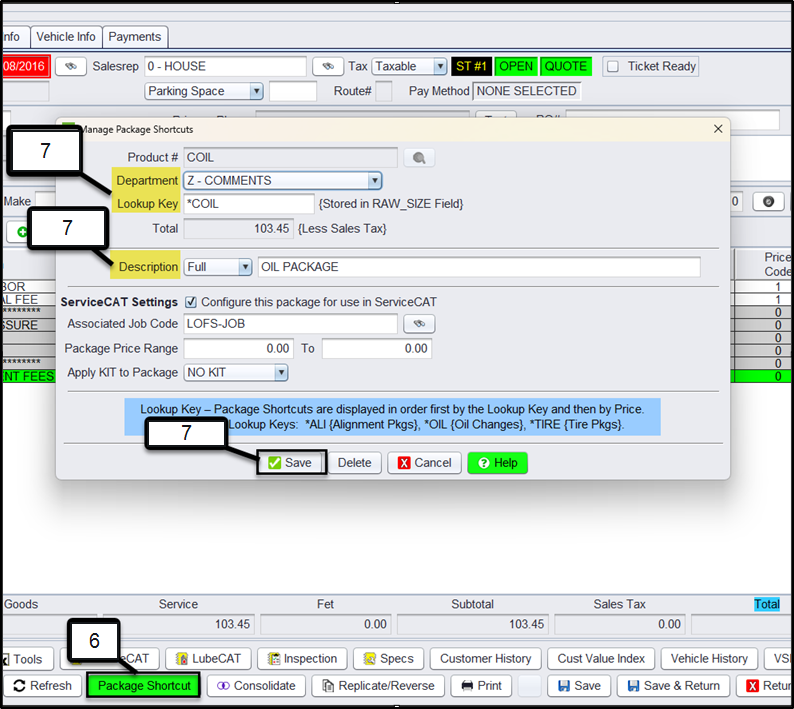
Note: To keep packages ordered by ID, enter the Package ID as the Lookup Key (Raw Size field).
- On the Line Items tab, add all line items and verify pricing. To import from an existing ticket, right-click in the package body and choose Copy Items From (Import).
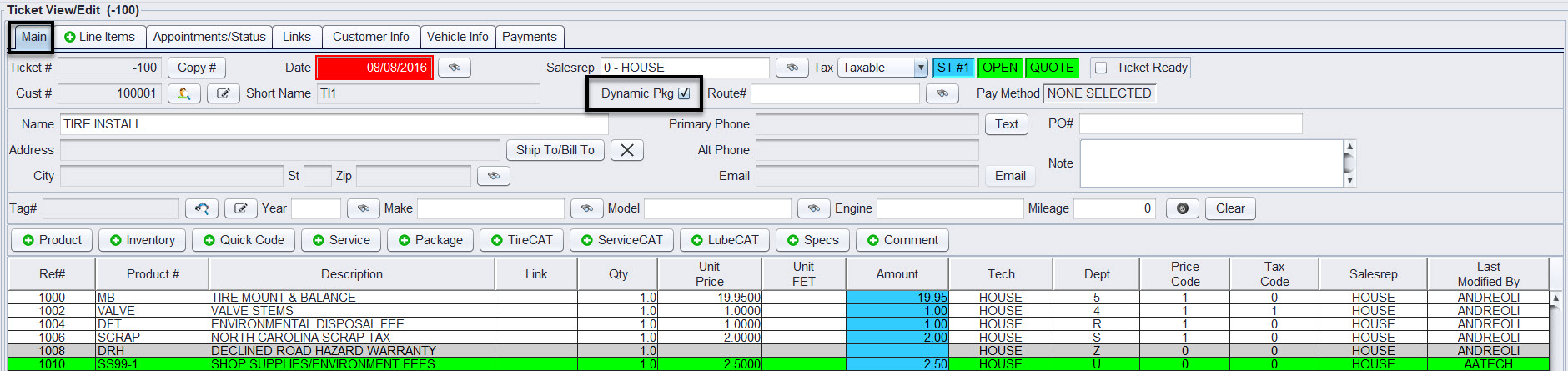
- Set pricing behavior: leave Dynamic Pkg unchecked for fixed pricing, or check it for customer-specific pricing (see Dynamic Package Pricing below).
- Click Save & Return when finished.
- Log out and log back into HITS on all computers to activate the package.
- Test the package on a live ticket to confirm items and pricing populate correctly.
Note: Users must have permission P16 to create invoices. Contact HITS Technical Support to assign this permission.
Updating an Existing Package (Reference Above Steps)
- Navigate to: Views > Administration & Utilities > Corporate > Packages Add/Edit.
- Locate and open the package ticket (package numbers are negative).
- On the Main tab, update the shortcut, department, lookup key, or description as needed.
- On the Line Items tab, add, edit, or remove items. Verify product number, description, quantity, department, price code, tax code, and unit price.
- Adjust the Dynamic Pkg setting if needed.
- Click Save or Save & Return.
- Log out and log back into HITS, then test the package on a new ticket.
Dynamic Package Pricing
When Dynamic Pkg is enabled, HITS recalculates line item pricing at the time a package is added to a customer’s ticket, using the Price Code assigned in their account (Account – View/Edit). This replaces the fixed prices stored on the package ticket.
Important: Dynamic pricing only works if the inventory or service items in the package have pricing configured for multiple Price Codes. Customers without an assigned Price Code default to Price Code 1.
How to Enable Dynamic Pkg
- Open the package via Views > Administration & Utilities > Corporate > Packages Add/Edit.
- On the Main tab, check the Dynamic Pkg checkbox.
- On the Line Items tab, confirm correct product numbers, departments, quantities, tax codes, and price codes.
- Verify that all included inventory or service items have pricing set for the necessary Price Codes.
- Save the package, then test by adding it to a ticket for a customer with a Price Code assigned and confirm pricing recalculates correctly.
Updating Package Pricing (Synchronize)
Over time, static package prices may drift from current inventory pricing due to cost changes, labor updates, matrix adjustments, fee changes, or Price Code updates. HITS includes a synchronization utility that updates package pricing in bulk from the inventory master file—eliminating the need to edit each package individually.
Note: Dynamic packages do not use saved pricing—they pull from inventory at billing time—but keeping inventory pricing current is still essential for accurate calculations.
For step-by-step synchronization instructions, refer to the Synchronize Package Pricing to Inventory help document.