Customer Dashboard
The Customer Dashboard replaces the former Customer Edit screen, offering a more comprehensive and efficient way to view and manage customer information. This guide will walk you through how to use the Customer Dashboard and how to activate it for your store.
What Is the Customer Dashboard?
The Customer Dashboard is designed to streamline your workflow by giving you quick access to the most relevant customer information in one place. From this screen, you can view:
- Open tickets
- Account information
- Vehicle details
- Customer history and account summaries
This allows you to instantly see if an open quote, work order, or appointment already exists for a customer—helping you avoid duplicates and saving valuable time.
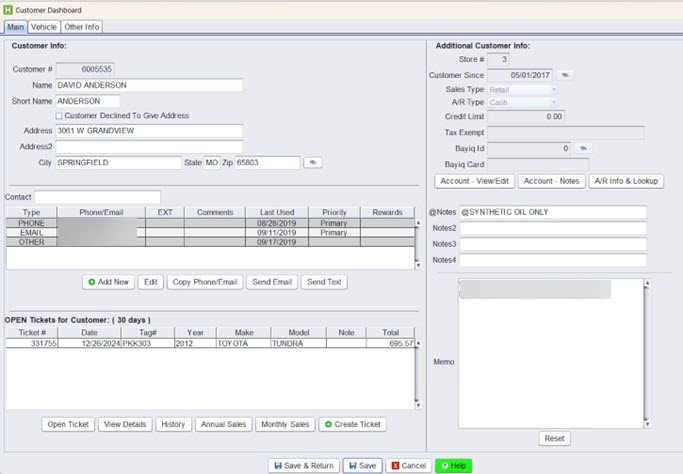
When you search for and select a customer using Customer Lookup, the Customer Dashboard will automatically appear (if enabled). You can use it to:
1.) Review open tickets and recent activity.
2.) Verify account and contact details.
3.) Check vehicle information linked to the customer.
4.) Access service history and previous transactions.
This supports the recommended retail workflow and ensures consistent handling of customer data.
How to Activate the Customer Dashboard
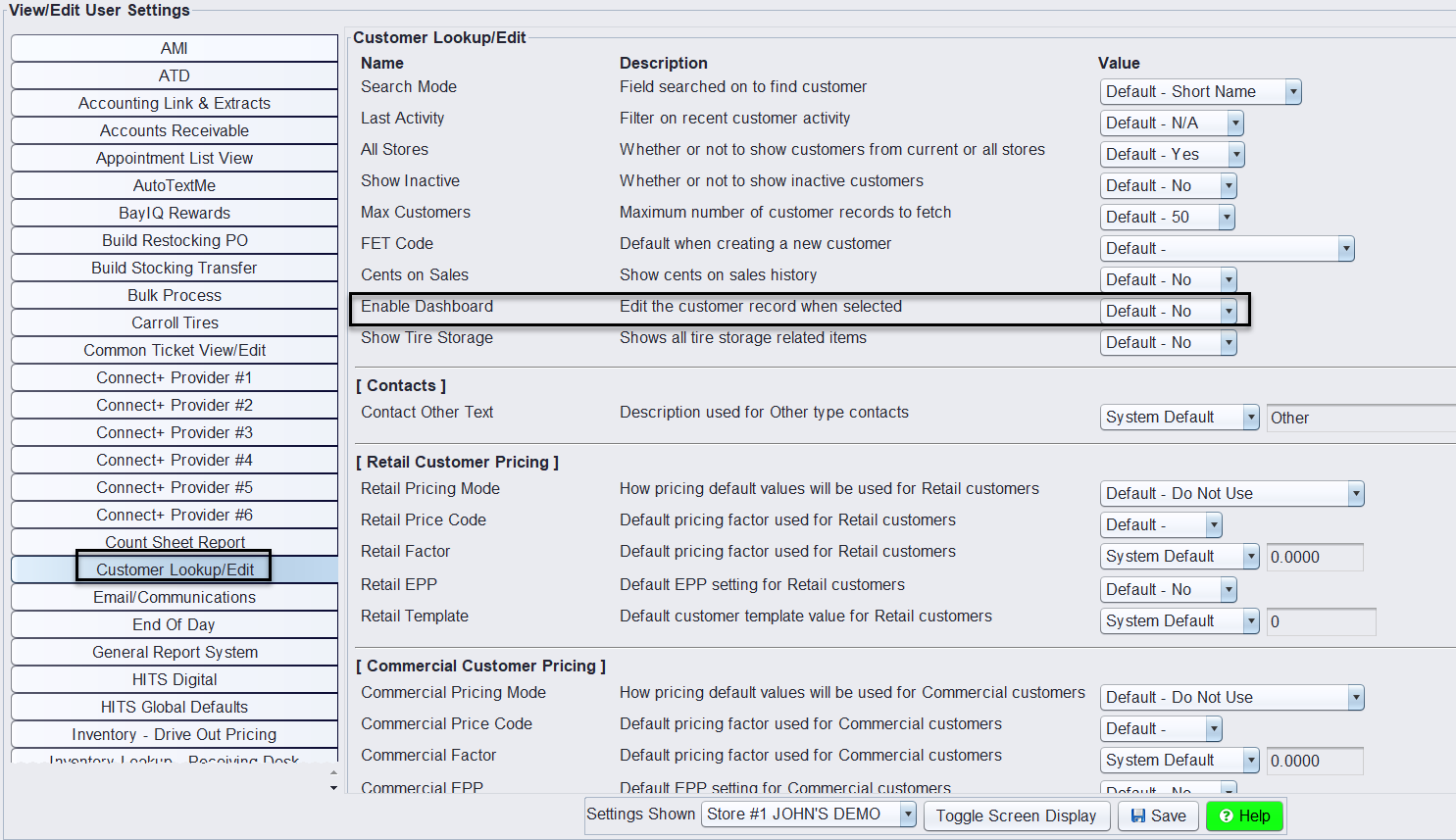
To enable the automatic pop-up of the Customer Dashboard when selecting a customer, follow these steps:
1.) Go to the top menu and click on View.
2.) Navigate to Administration & Utilities.
3.) Select Store, then Store View/Edit Default Settings.
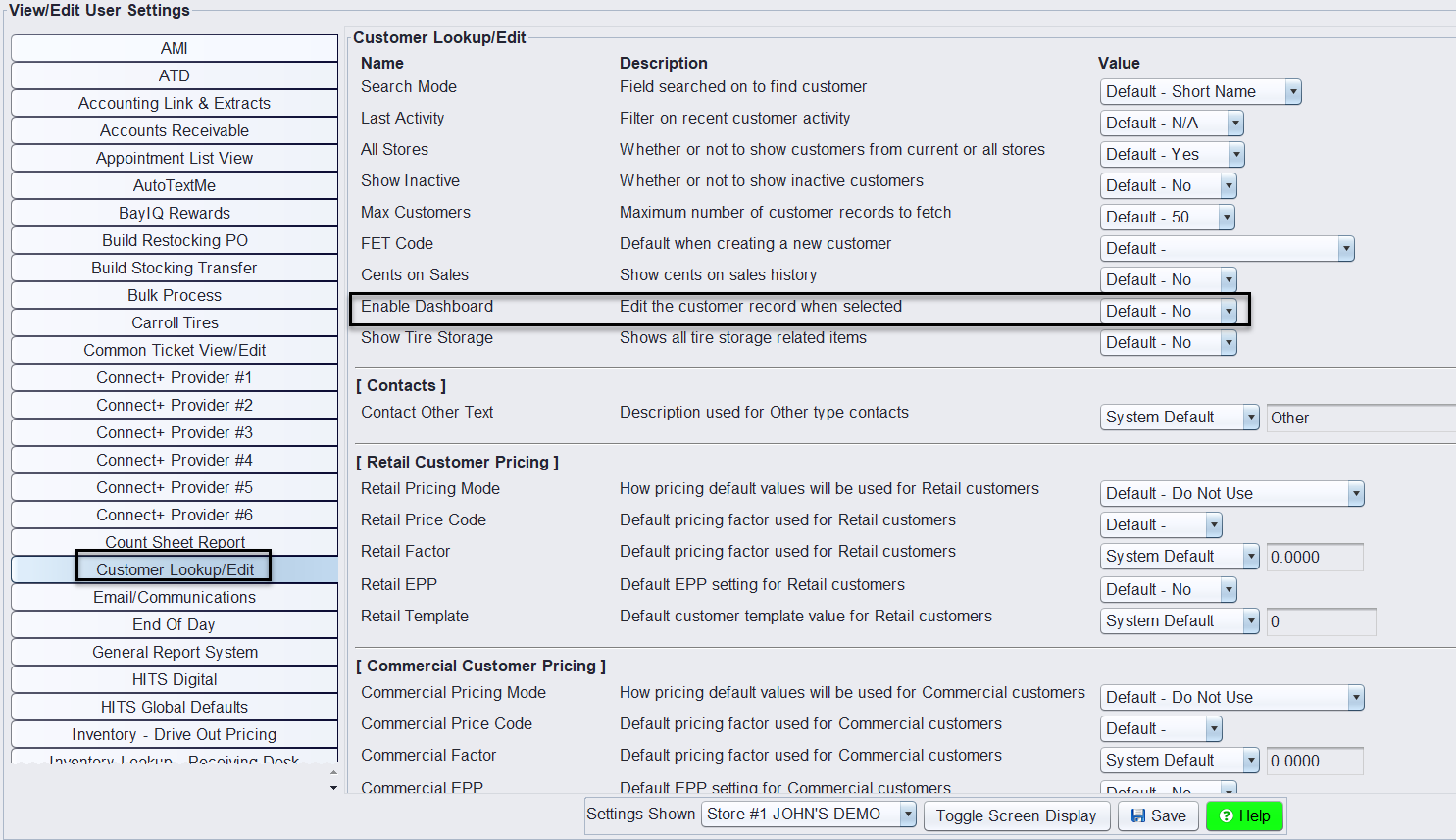
4.) Click the Customer Lookup/Edit tab.
5.) Locate the setting Enable Dashboard and set it to Yes. (Users must log out/in to see the reflected change)
Vehicle Dashboard
The Vehicle Dashboard is an enhanced version of the former Vehicle Edit screen. It provides a detailed view of vehicle information, service reminders, and vehicle history—all in one convenient location.
This guide will show you how to use the Vehicle Dashboard effectively as part of the recommended retail workflow in HITS, and how to enable it for automatic use.
What Is the Vehicle Dashboard?
The Vehicle Dashboard helps retail service advisors quickly review critical vehicle details before starting a new quote or work order. It displays:
- Vehicle information
- Service reminders
- Complete vehicle history
You can easily open a ticket directly from the Vehicle History panel by clicking anywhere in the ticket located on the Vehicle History window.

How to Use the Vehicle Dashboard in Your Workflow
The Vehicle Dashboard is especially useful when working with returning customers. Here’s how it fits into the recommended workflow:
1.) Search for and select the customer
**The Customer Dashboard opens automatically.
2.) Select an open ticket or click the Vehicle tab to choose the appropriate vehicle
**The Vehicle Dashboard opens automatically.
3.) Review vehicle details, service reminders, and history:
-
- To open an existing ticket, click anywhere in the ticket located on the Vehicle History window.
- To start a new Quote or Work Order, click the
 button.
Unit # Support for Commercial Workflows
Commercial View works hand-in-hand with a store setting that allows Unit # to be used in place of Vehicle Barcode throughout the system.
Many commercial customers track vehicles by Unit Number rather than barcode. When this setting is enabled, all vehicle barcode lookups and displays use Unit # instead, creating a more natural workflow for fleet and account-based service.
This helps commercial teams:
- Locate vehicles using familiar Unit Numbers
- Align ticket lookup with fleet tracking methods
- Reduce confusion when servicing multiple vehicles per account
- Improve speed and accuracy during ticket creation and review
To enable this option:
Go to Views > Administration & Utilities > Store > View/Edit Default Settings > Vehicle Lookup/Edit
Set Barcode Label – Change Barcode to Unit Number to Yes.
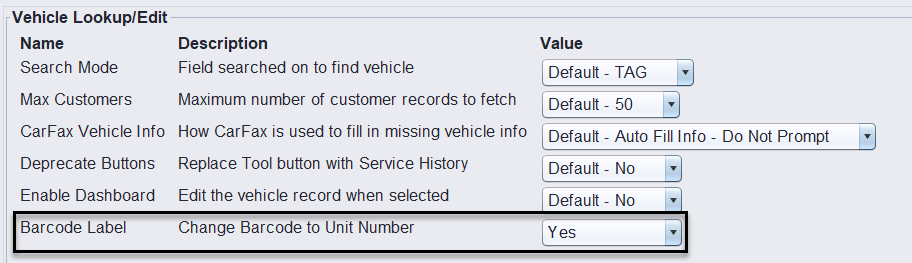
Once enabled, Commercial View and Sales Ticket Lookup will reflect Unit Numbers instead of vehicle barcodes.
How to Enable the Vehicle Dashboard
You can configure the system to automatically open the Vehicle Dashboard when a vehicle is selected—either from Vehicle Lookup or directly from the Customer Dashboard. Here’s how to turn this feature on:
1.) Go to View on the top menu.
2.) Click Administration & Utilities.
3.) Choose Store, then select Store View/Edit Default Settings.
4.) Navigate to the Vehicle Lookup/Edit tab.
5.) Set Enable Dashboard to Yes.