
Customer-specific pricing can be managed with Extended Price Profiles (EPP). This ensures contracted prices are applied consistently and accurately.
EPPs can be updated in two ways:
- Bulk updates with CSV files – best for large inventories or many customers, saving time and reducing errors.
- Manual updates – useful for making individual pricing changes.
You can also export, edit, and re-import EPP data for quick updates across accounts and different products.
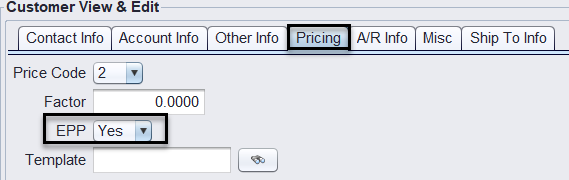
Setting the Customer to EPP=Yes
1.) Navigate to the Customer View/Edit page by going to Views > Sales Counter > Customers > View/Edit > Pricing tab.
2.) Set the EPP field to Yes.
To Update bulk Contract Pricing via a .CSV Spreadsheet
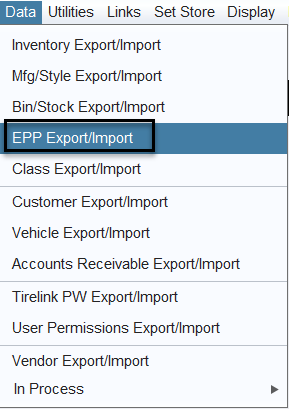
1.) Go to Views > Administration & Utilities > Data > EPP Export/Import.
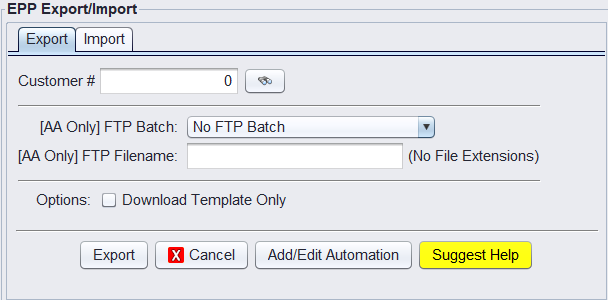
2.) To obtain the template or existing EPP data:
- Export New Template:
- In the Export tab, check Download Template Only and click Export.
- Export Existing Pricing:
- In the Export tab, enter the Customer # (or leave blank for all), and click Export to download the current pricing for update.
3.) Open the exported CSV in Excel.
- Do not edit or delete the first or second header rows
- Do not edit the first column (
KEY(DO NOT EDIT)). - Update or add data in the following columns as needed:
- Customer # – Customer account number.
- Mfg Code, Style Code, Product # – Product identifiers.
- Price Code, Factor, Round To – Contract price settings.
- Start Date, Stop Date – Optional date range for the pricing.
- Ref # – Optional reference name.
4.) Save Your File
- Save as
.CSVformat on your local drive.
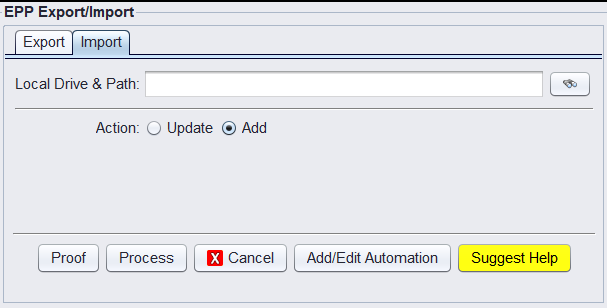
5.) Import Your File
- Return to Data > EPP Export/Import.
- Select the Import tab.
- Browse to your
.CSVin Local Drive & Path. - Select Update (to change existing prices) or Add (to add new ones).
6.) Proof & Process
- Click Proof to review for errors before importing.
7.) Review Exceptions
- If any products or accounts could not be processed, they will be listed after import for review.
Please reach out to tech@aasys.com to process and finalize the EPP pricing once your proof is successful.
To Update Pricing manually
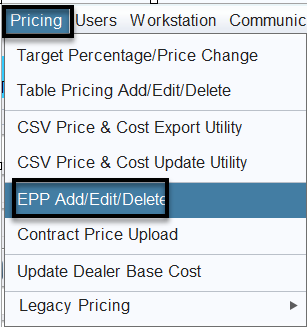
1.) Click on Views>Administration & Utilities>Pricing>EPP Add/Edit/Delete
2.) Search for the customer using the binoculars icon beside the customer field and double-click to make them active. The customer must have EPP set to YES on their Pricing tab.
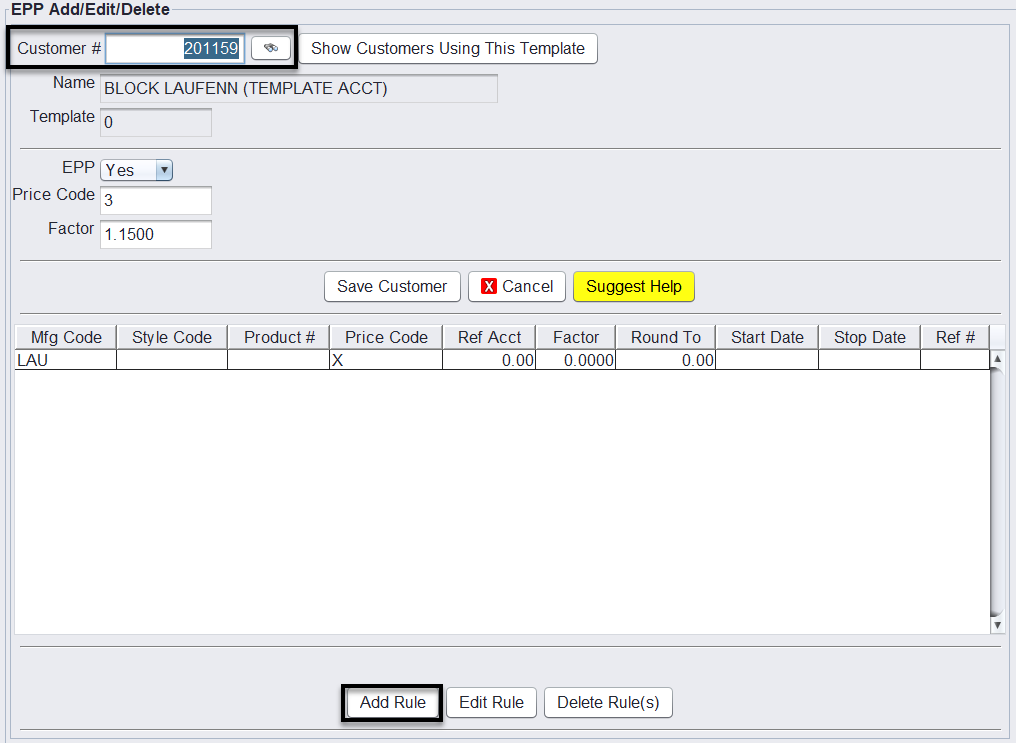
3.) Click on Add Rule to create a new rule for the customer
4.) Select what the EPP Rule is going by: MFG, MFG+Style, or MFG+Style+Product, then select the Price Code option from the drop-down menu.
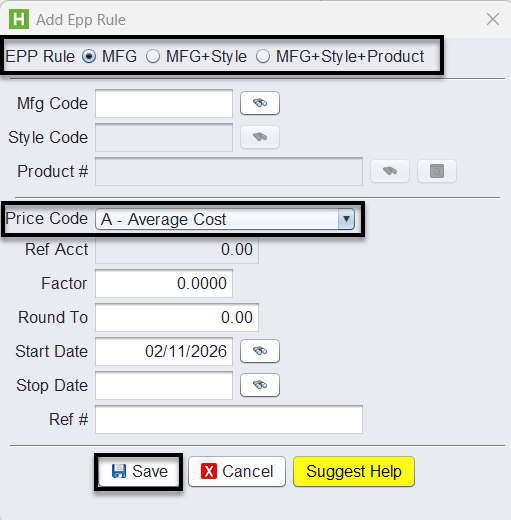
5.) Enter the Price Factor, Round To details and the Start Date will default to the date the EPP Rule was created. Enter a Stop Date if you want this pricing to stop on a specific date in the future.
To report on Customers with Extended Price Profiles (EPP)
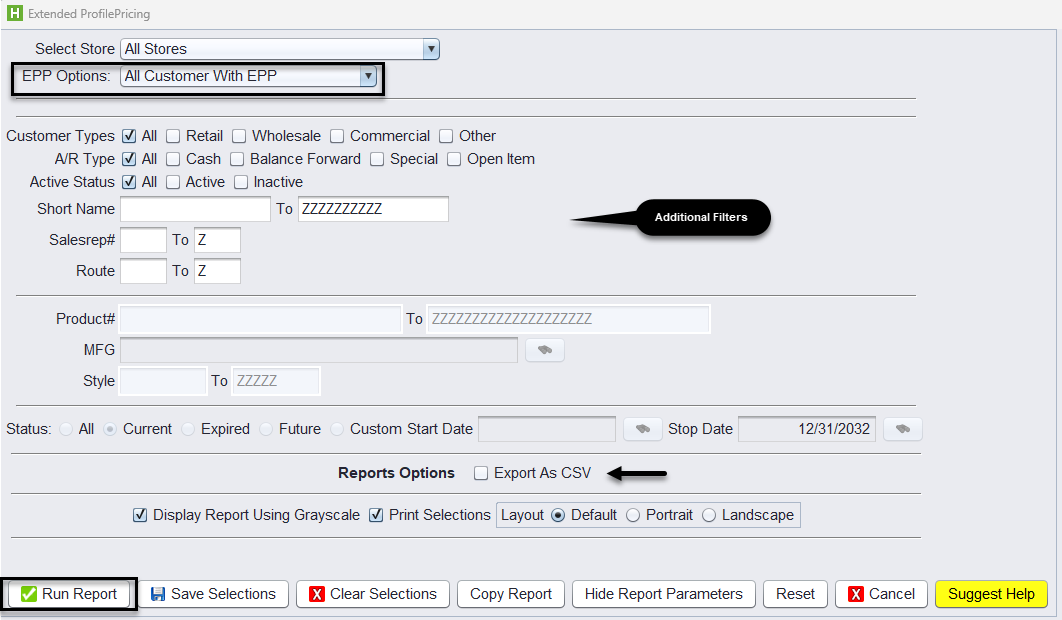
1.) Navigate to Views>Reports>Customer>Extended Price Profiles.
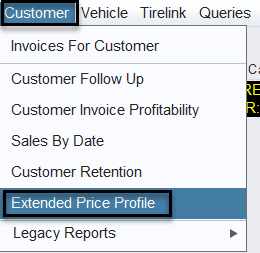
2.) The report can be generated for All Stores or Store specific stores. Select EPP Options = All Customer with EPP and click Run Report. You can also exported the report as CSV.
For more information on Inventory Pricing Hierarchy Rules (EPP) Click Here