
Flag time in HITS is used to credit technicians with a specific amount of time for services performed. It helps track productivity and, in some cases, calculate pay. This article explains how flag time works, how to configure it, and how to report on it.
What Is Flag Time?
Flag time represents the credited time assigned to a technician for performing a specific job. It may differ from the actual time clocked. For example:
-
An oil change might have a flag time of 0.5 hours.
-
Mounting and balancing a tire may take 0.25 hours per tire.
If a tech performs 4 mount-and-balance services, the total time credited would be: 0.25 x 4 = 1.0 hour
When to Use Flag Time
Use flag time for standard services where credited time should be consistent.
Do not use flag time for general labor codes or jobs where actual time should be tracked.
| Service Type | Flag Time Behavior |
|---|---|
| Oil Change | Set Flag Time = 0.5 |
| Mount & Balance | Set Flag Time = 0.25 per tire |
| General Labor | No flag time; quantity = hours worked |
| Disposal Fees / Tire Tax | Set Flag Time = -1 to suppress from technician reports |
If no flag time is set, HITS uses the quantity entered as the total time credited.
How to Set Flag Time on a Service Item
1.) Go to Views > Administration & Utilities
2.) Select Inventory > Inventory Add/Edit/Delete
3.) Enter the Product# for the service item (e.g., MB)
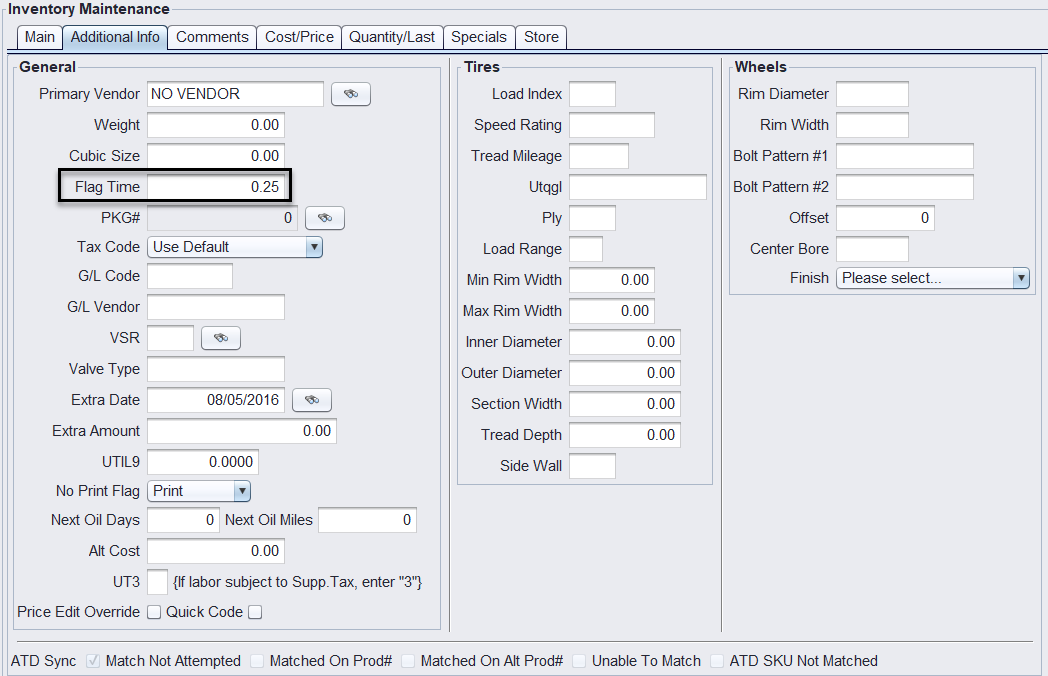
4.) Go to the Additional Info tab
5.) Enter the flag time value (e.g., 0.25)
6.) Click Save
To edit all service codes at once, contact HITS Technical Support and request a spreadsheet of your service items.
Displaying Flag Time on Tickets
When you add a service code to a ticket:
-
The Flag Time field appears next to Quantity.
-
This is enabled with the Views>Administration & Utilities>Store>Store View/Edit Default>Invoice View/Edit>Show Flag Time = Yes (Defaults=No)
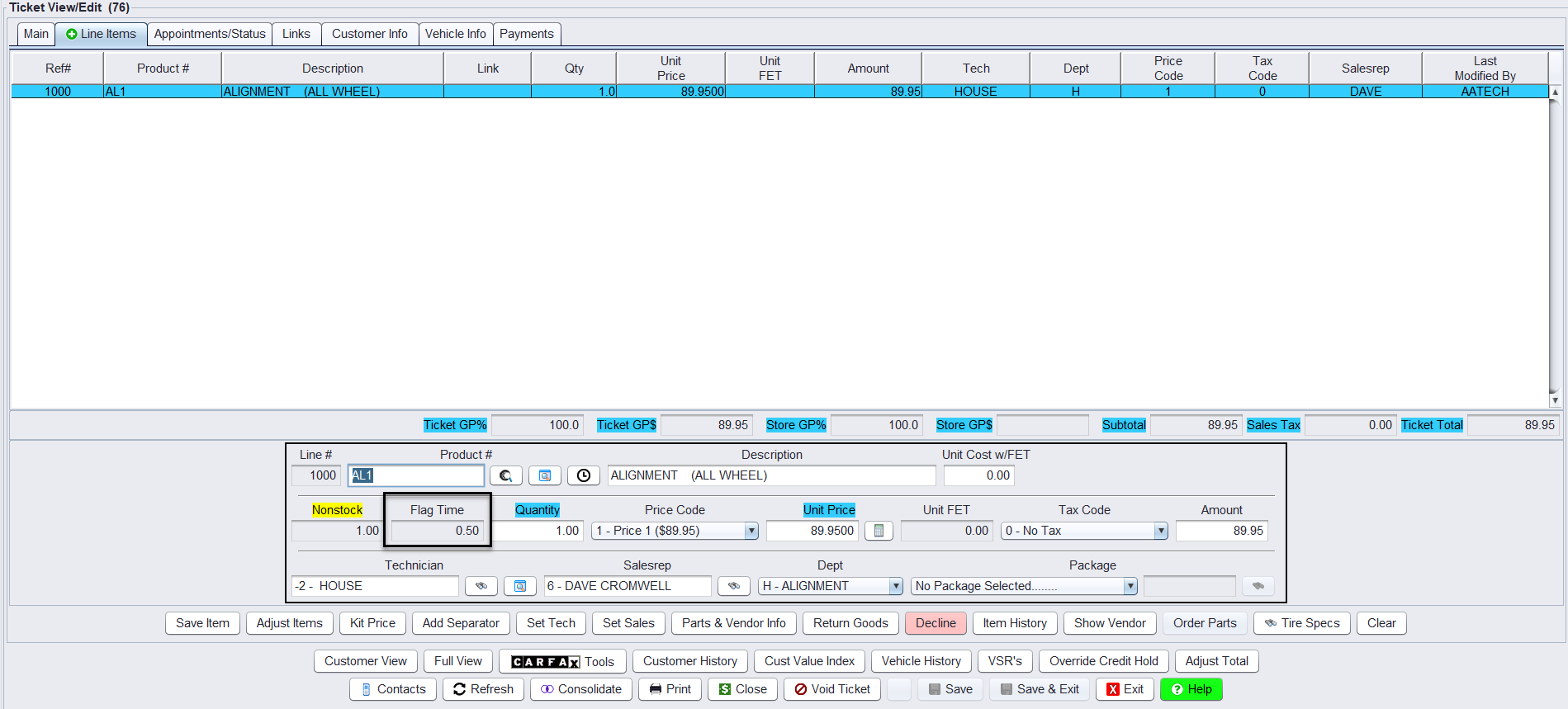
Flag time can also appear on the Work Order Tech Sheet, which must be turned on by Support.
Suppressing Non-Service Items
To prevent non-service items like state tire taxes or disposal fees from showing time on the tech sheet:
-
Set their Flag Time = -1
This will keep them from displaying time or being assigned to a technician on the report.