The G3X class tag is used to identify Outside Purchase Tires that qualify for the G3X program so they can be reported accurately for sales tracking and reimbursement.
When to Use G3X
- Only apply G3X to Outside Purchase Tires that qualify for the program
- Do not apply to stocked inventory
- Enter prior to closing the ticket whenever possible
Adding G3X to an Open Ticket
- Add the Outside Purchase Tire to the ticket as usual
- In the Vendor Information section, locate the Class field
- Enter G3X in the Class field
- Continue processing the ticket
- Close the ticket as normal

Applying G3X to a Closed Ticket
- Open the closed ticket
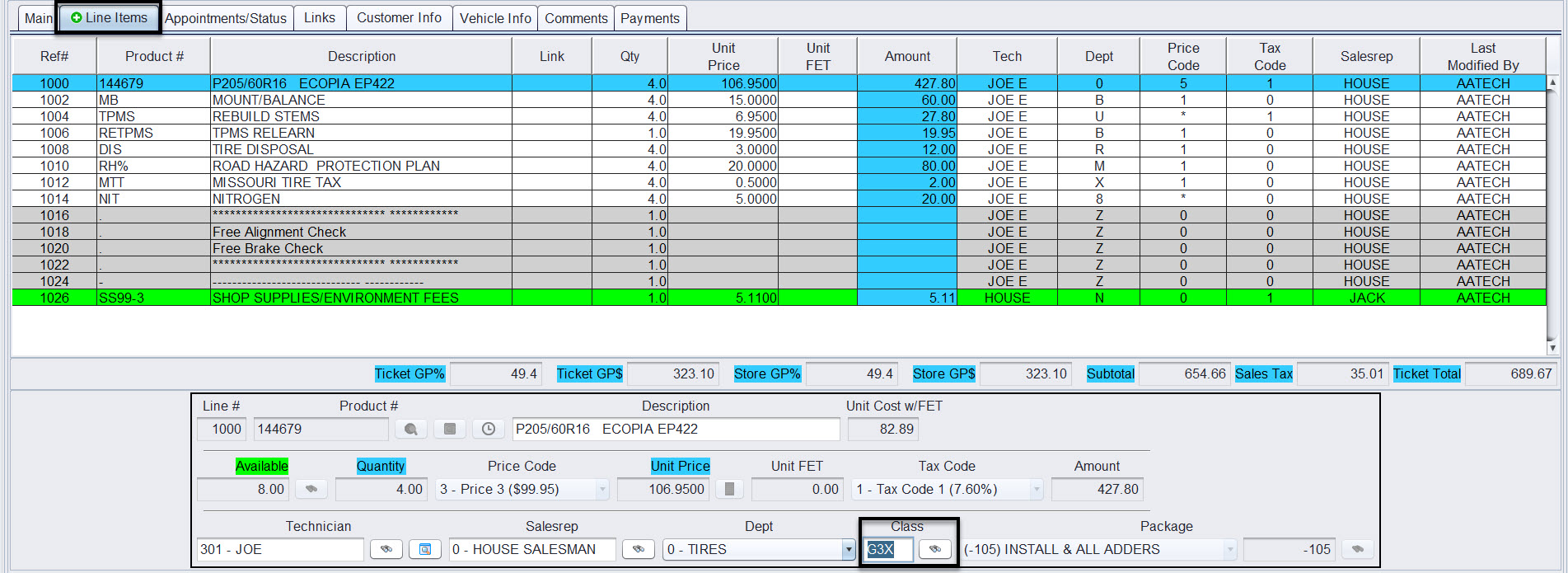
- Navigate to the Line Items tab
- Enter G3X in the Class field for the qualifying item
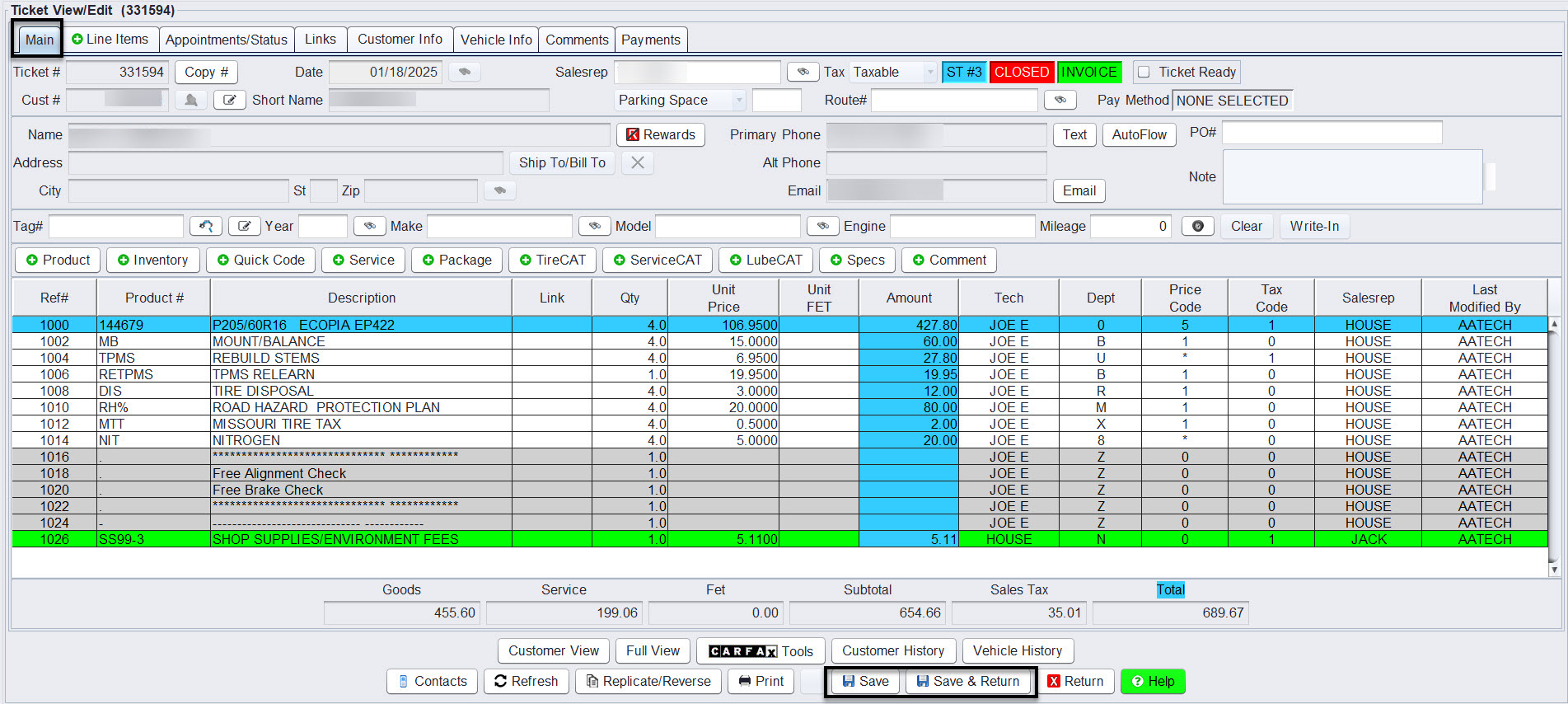
- Return to the Main tab
- Select Save
Note: Updating closed tickets may affect previously generated reports.
Running a G3X Sales Report
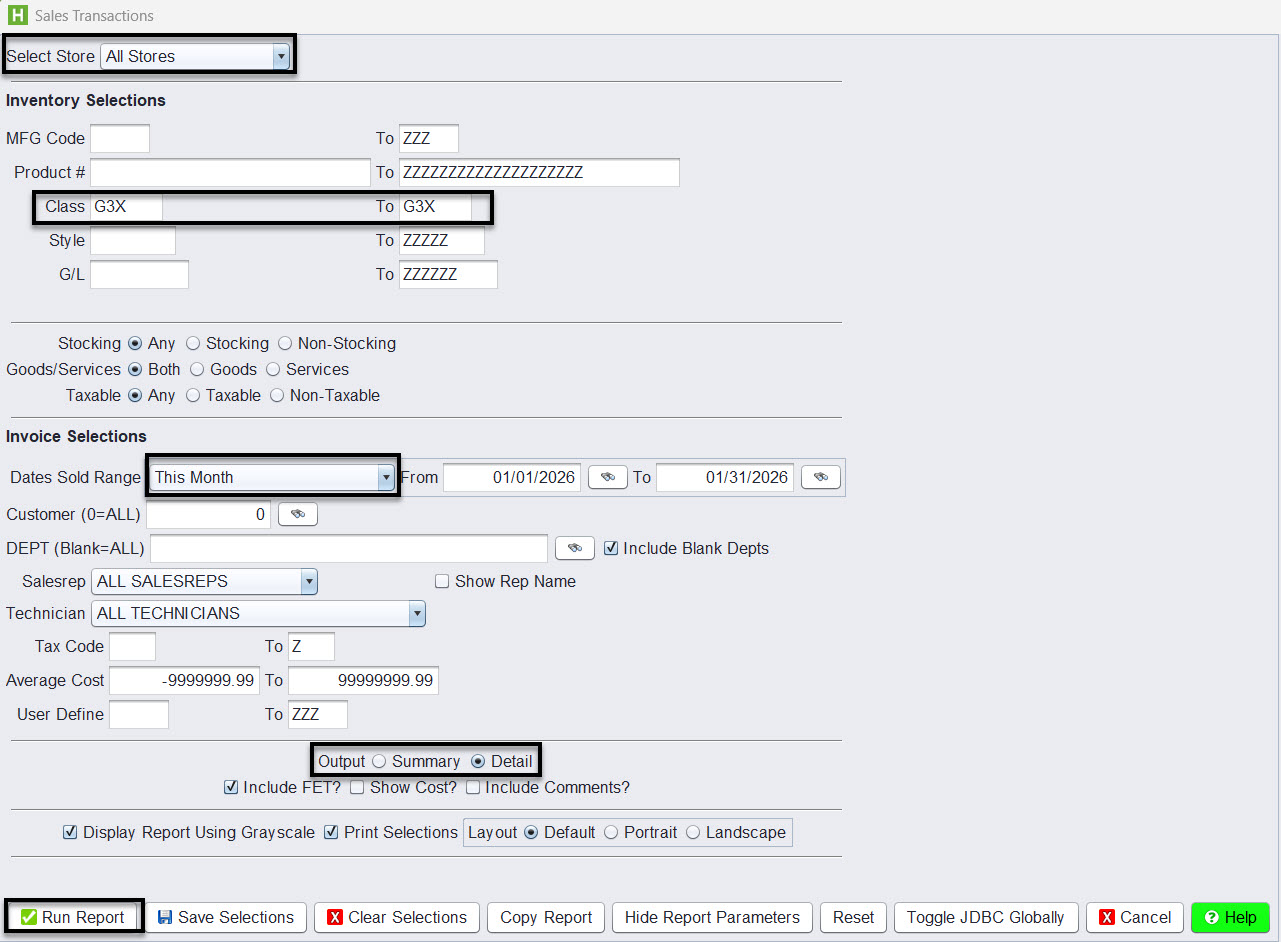
- Go to Views → Reports → Sales & Corporate → Sales Transactions (or Sales Transaction CSV Extract)
- Enter G3X in the Class field
- Enter the Store Number
- Select the desired Date Range
- Run the report as:
-
- Summary for high-level totals
- Detail for line-item breakdown
- CSV export which always provides detail format
Tip: If no results appear, confirm the Class field was entered correctly on the ticket.