
This section is accessed through the Customer Care module in HITS Digital (gohitsdigital.com). It is a browser-based, mobile-friendly extension of the HITS POS system that provides real-time access to tickets, inspections, and customer communication tools, without needing to access the full HITS POS interface for day-to-day ticket updates and communication.
All tickets must be created in the HITS POS system to appear in HITS Digital.
Customer Care supports both internal ticket management and customer-facing interactions through Customer View, allowing shops to share live ticket updates, vehicle status, and request digital work approvals.
The interface is optimized for use across phones, tablets, and desktop browsers.
Access to HITS Digital is subscription-based and offered in multiple tiers. Features vary based on subscription and permissions configured in the POS system.
What You Can Do with HITS Digital – Tickets and Customer Interaction
Authorized users can access key features including:
- Review open workorders, estimates, and invoices
- Update vehicle status and add technician or internal notes
- Send Customer View links via text or email for real-time updates and digital work approvals
- Track customer activity through the Timeline (if you are not seeing the timeline, please reach out to Tech Support to get HITS Digital activated)
- Send ticket summaries
- Add internal comments synced with the POS ticket
- Perform updates without accessing the full HITS POS interface
Working with Tickets
Users can view and make limited edits to existing tickets. All tickets must be created in the HITS POS system to appear in HITS Digital.
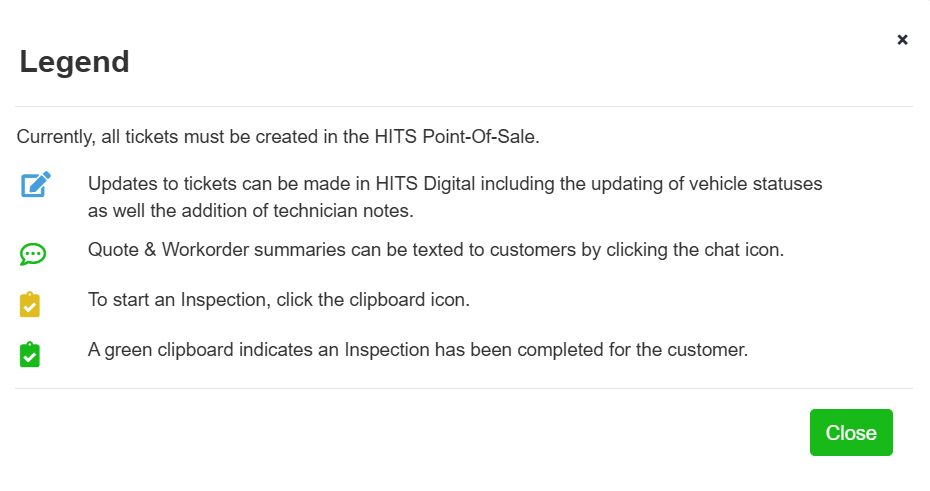
Available Ticket Functions
Search and View
Quickly locate open workorders, estimates, or invoices.
Edit Ticket Details
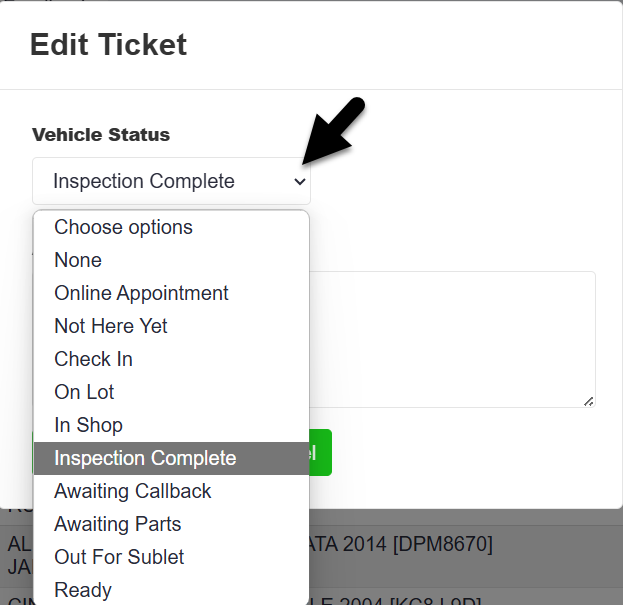
- Open a ticket to change the Vehicle Status.
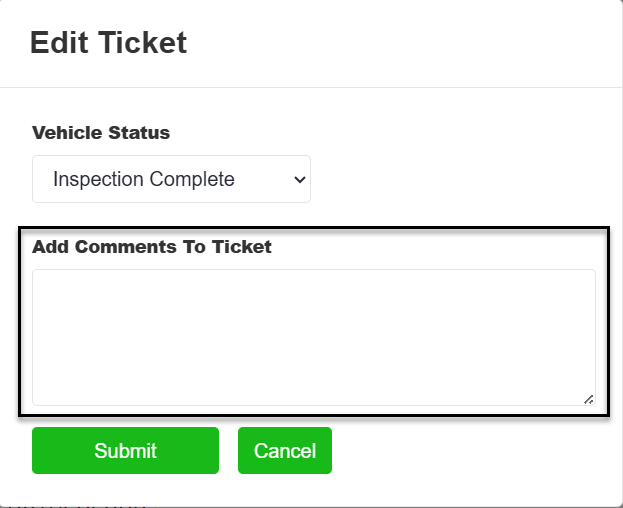
- Add internal comments to the ticket. These comments sync automatically with BPOS.
Customer Communication

View the customer-facing ticket summary.
Text the ticket summary to the customer. The default message can be customized before sending.
Chat logs record messages sent, including shared links, to help track communication history and review delivery issues.
Advisor View
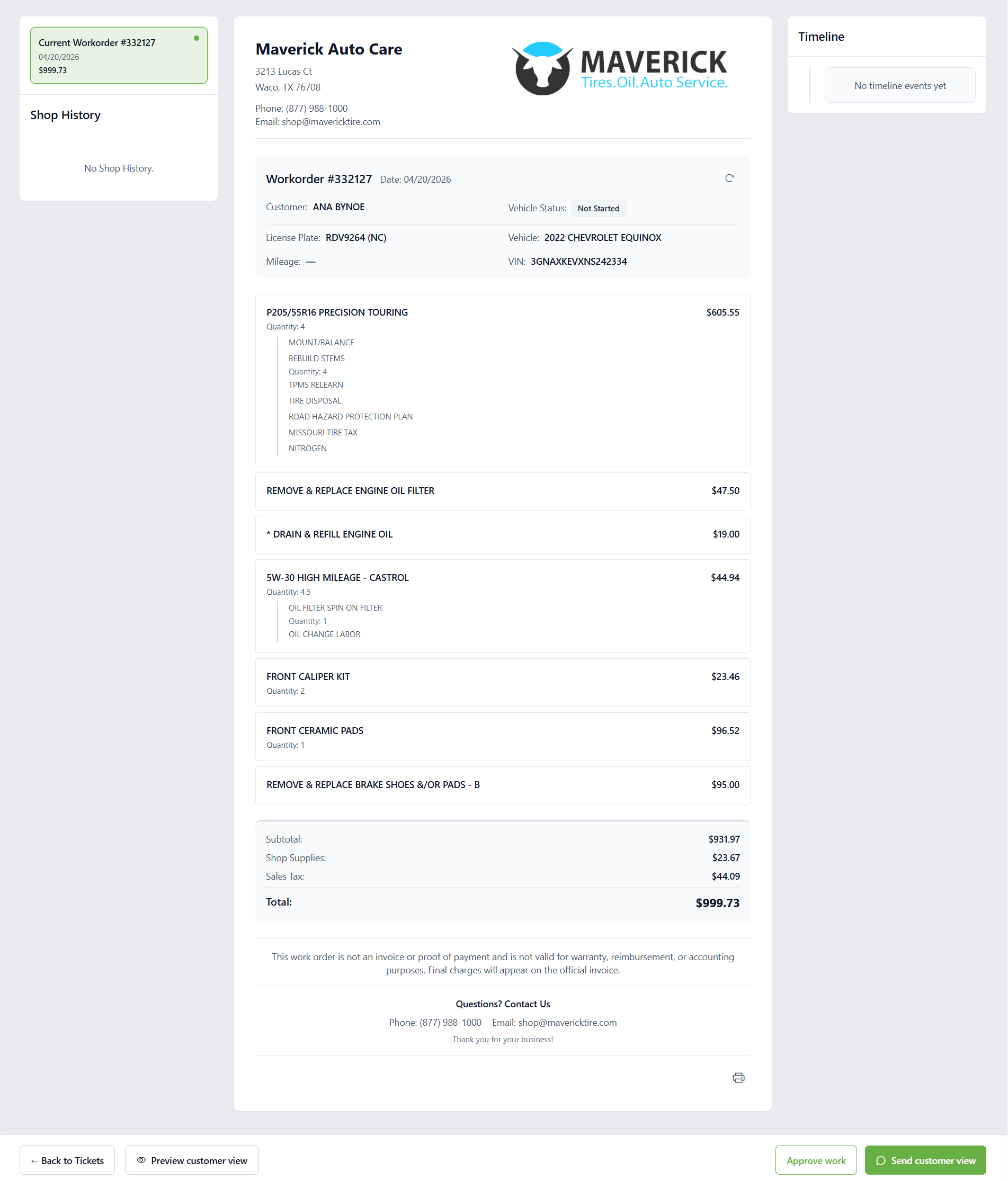
In HITS Digital, advisors can manage and share the customer-facing workorder directly from the ticket screen.
- View workorder, customer, and vehicle details
- Update Vehicle Status
- Access Shop History and Timeline
- Use Approve Work for in-person or verbal approvals
- Select Send Customer View to share the link
- Preview the customer view before sending
Customer View
The customer opens a mobile-friendly web page from the text or email link. This view is designed for visibility and approvals.
- View shop details and contact information
- See workorder number and vehicle information
- View current Vehicle Status
- Review services, line items, and totals
- Approve or decline recommended work
- Print the workorder if needed
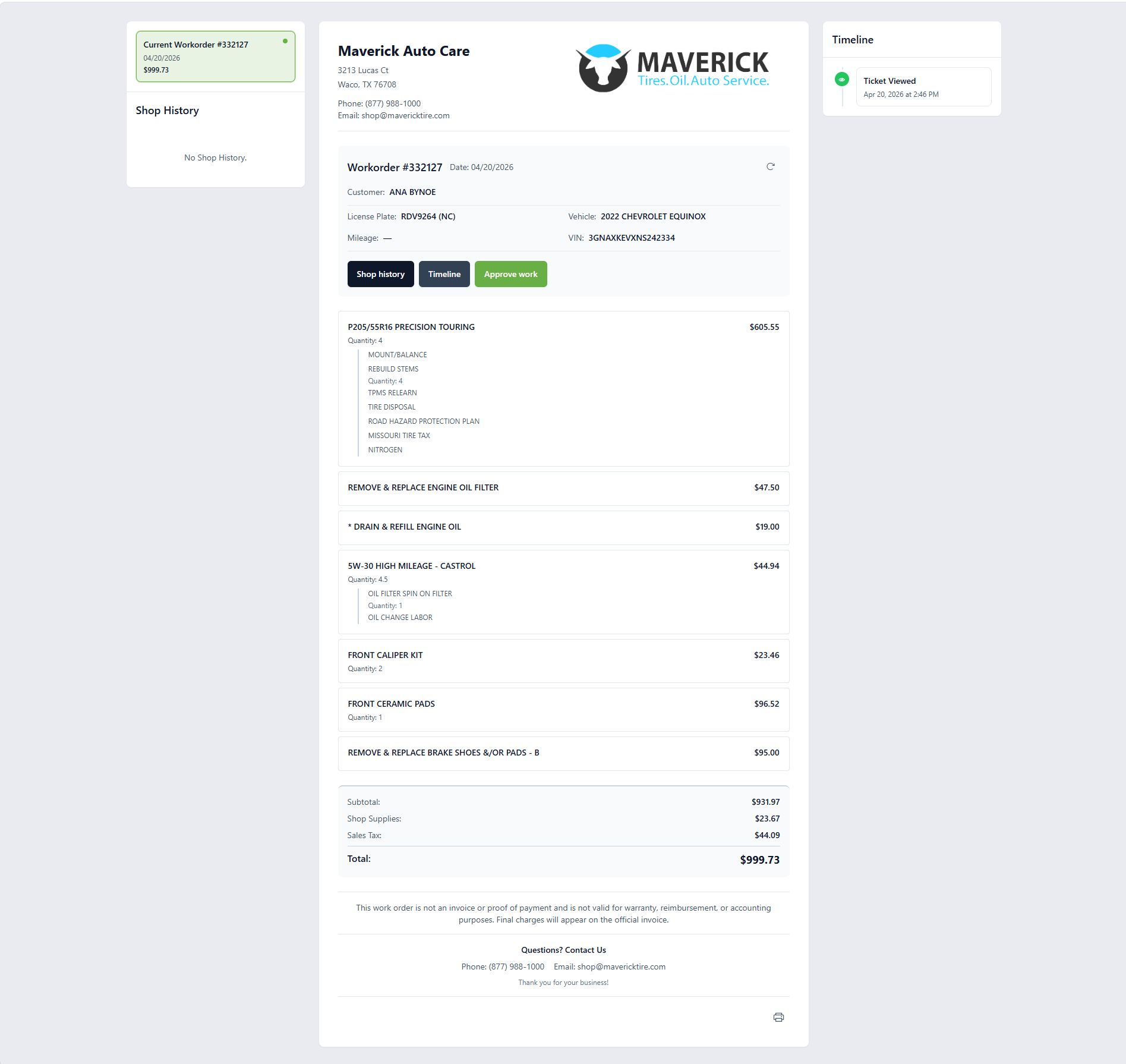
Workorder Approval Workflow
This workflow begins when the advisor sends the workorder approval link to the customer. The customer opens the text message on their mobile device, selects the link, reviews the workorder, and approves the requested services. Approved services are then signed and returned to the advisor in HITS Digital.
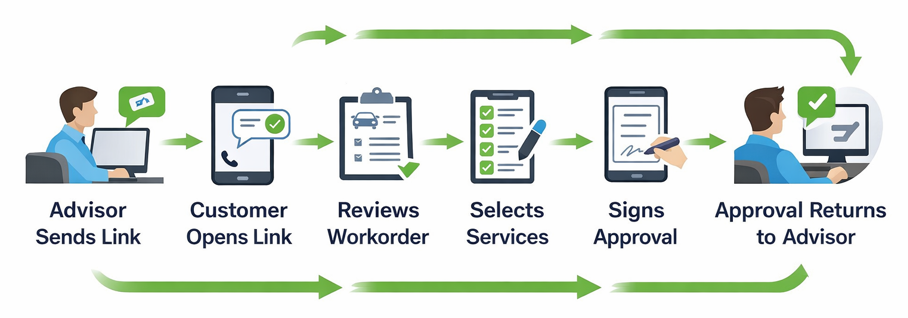
1. Customer Receives the Link
The advisor sends the workorder approval link by text message. The customer opens the message on their mobile device and selects the link to begin the approval process.
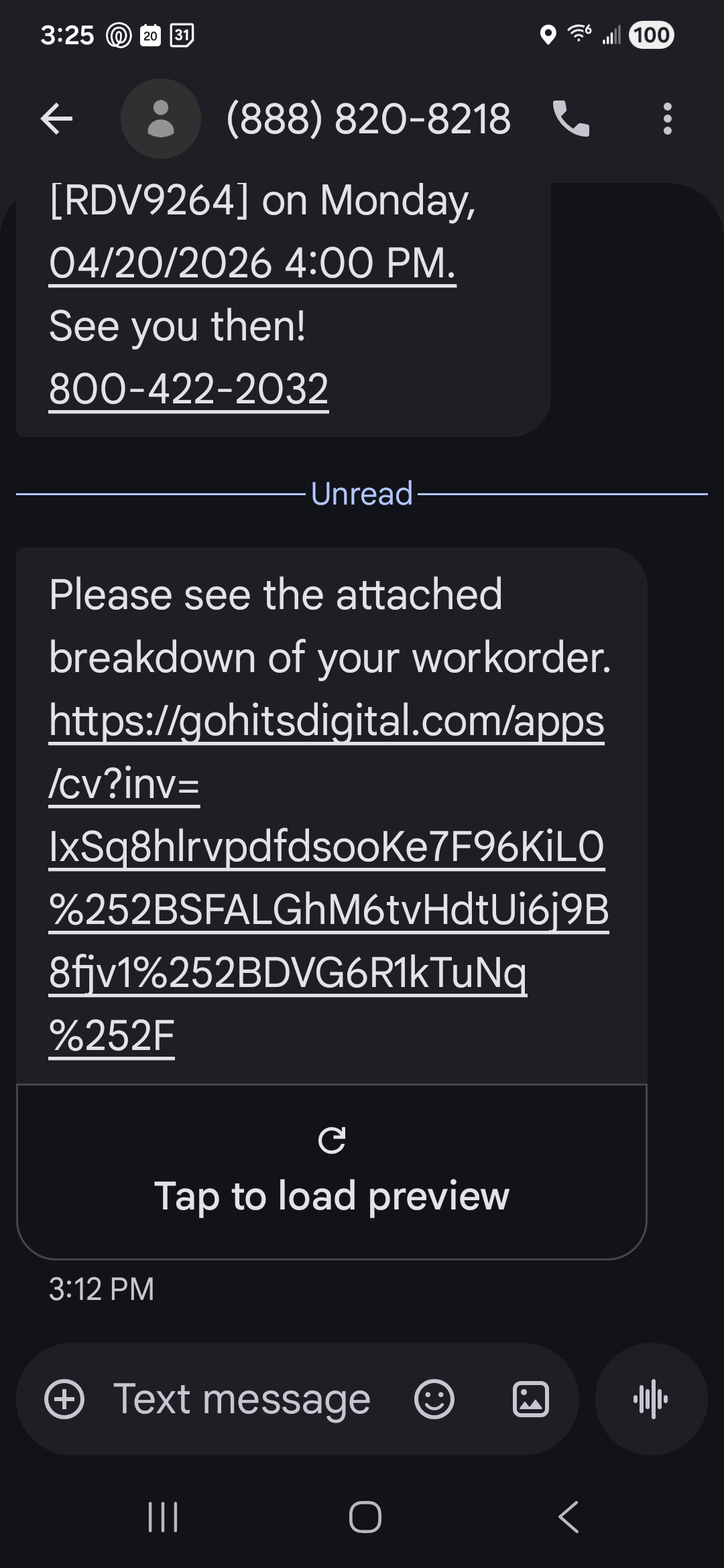
2. Customer Reviews the Workorder
The link opens the mobile Customer View, where the customer can review the workorder details, current vehicle information, shop history, timeline, and available approval options.
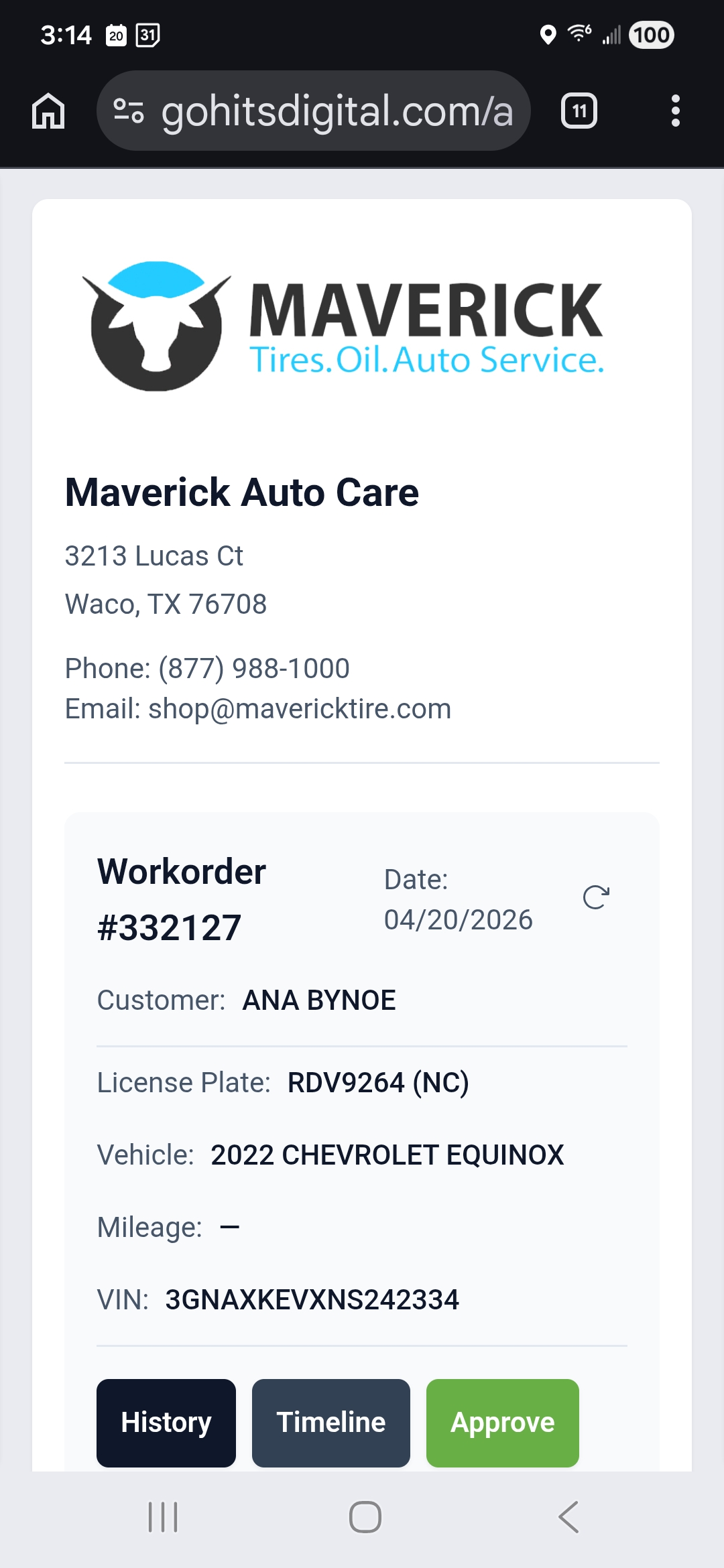
3. Customer Selects Services
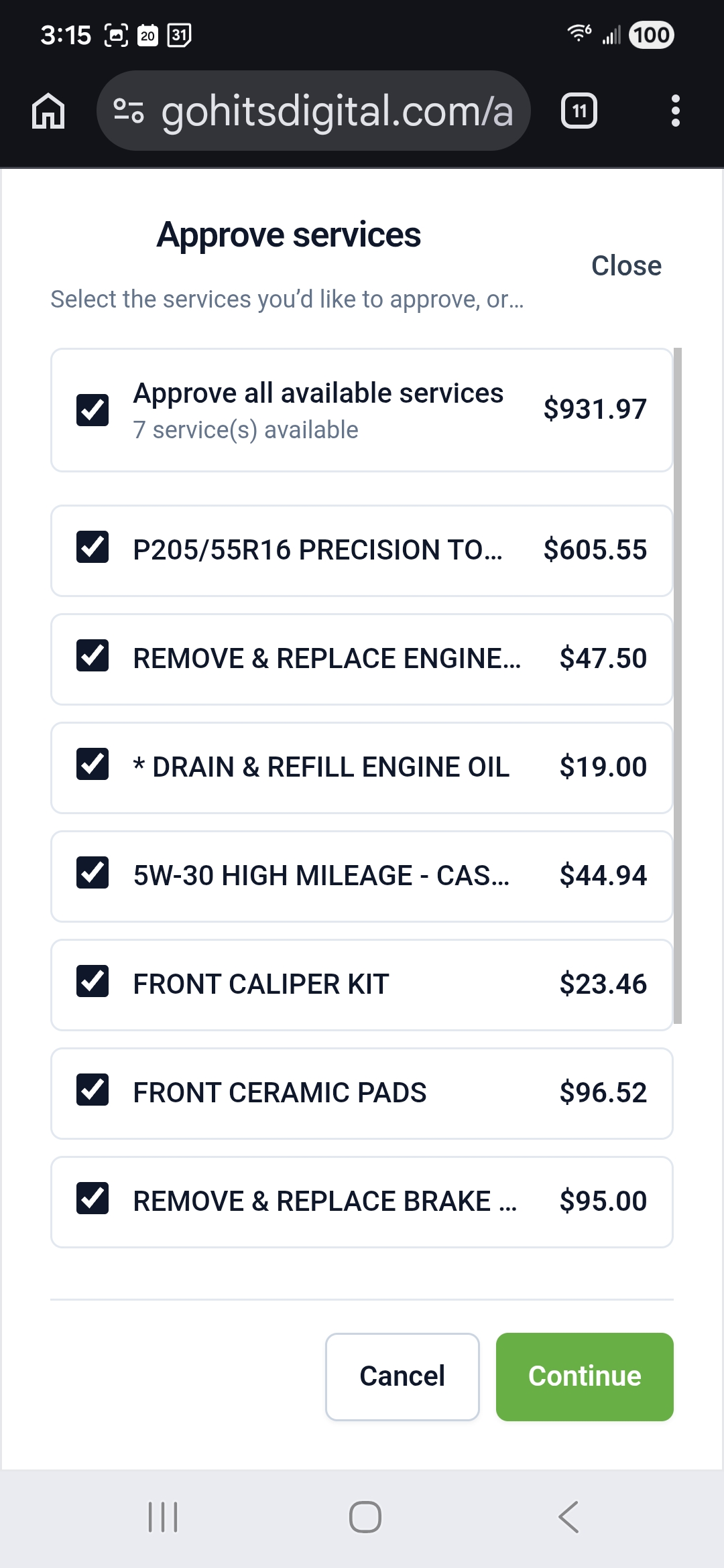
When the customer selects Approve, the available services are displayed. All services are selected by default, and the customer can deselect any items they do not wish to approve before continuing.
4. Customer Signs the Approval
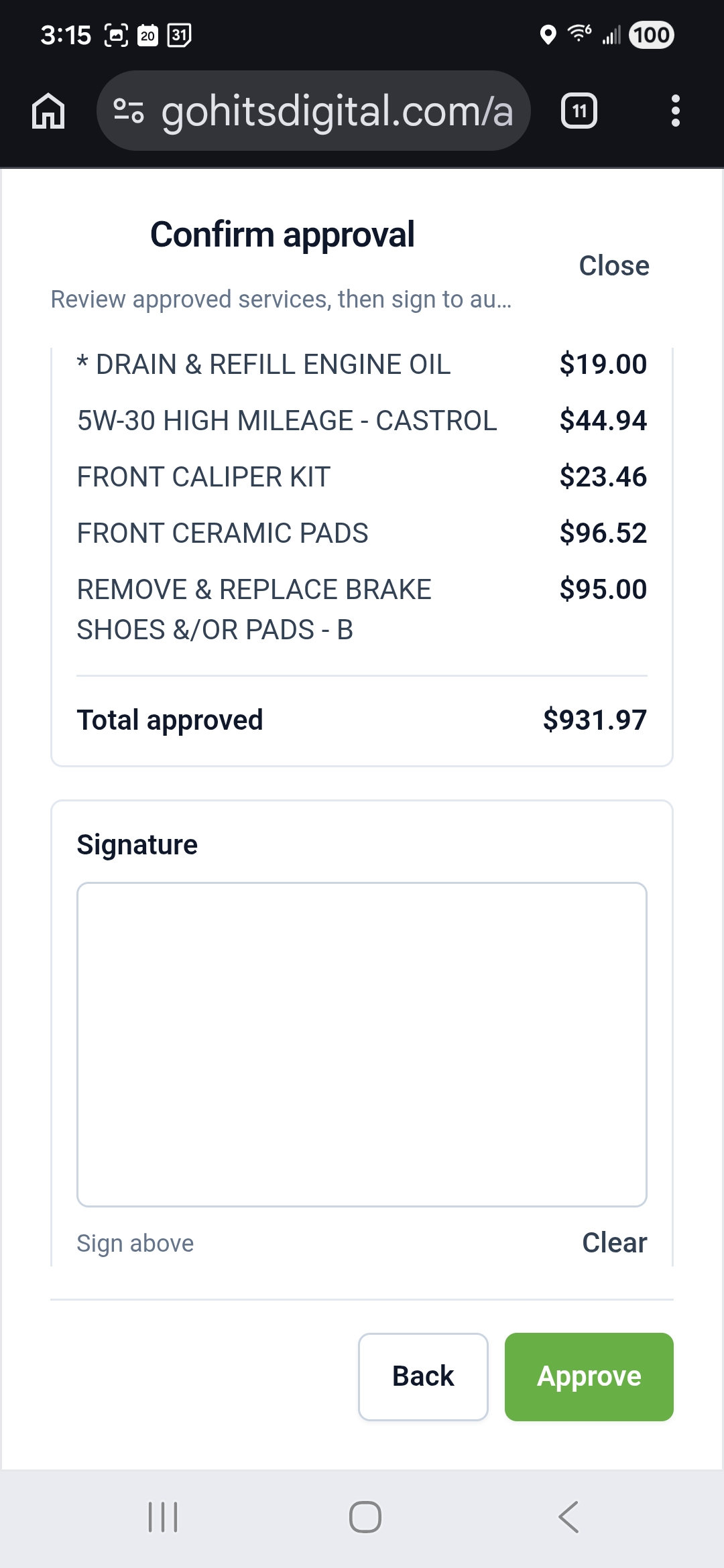
After reviewing the selected services, the customer signs the approval on their mobile device. Once submitted, the signed approval is returned to the advisor in HITS Digital.
HITS Notifications
In addition to the Timeline in HITS Digital, key customer interactions also generate notifications within the HITS POS system. These notifications allow staff to take immediate action without needing to monitor the Timeline screen.
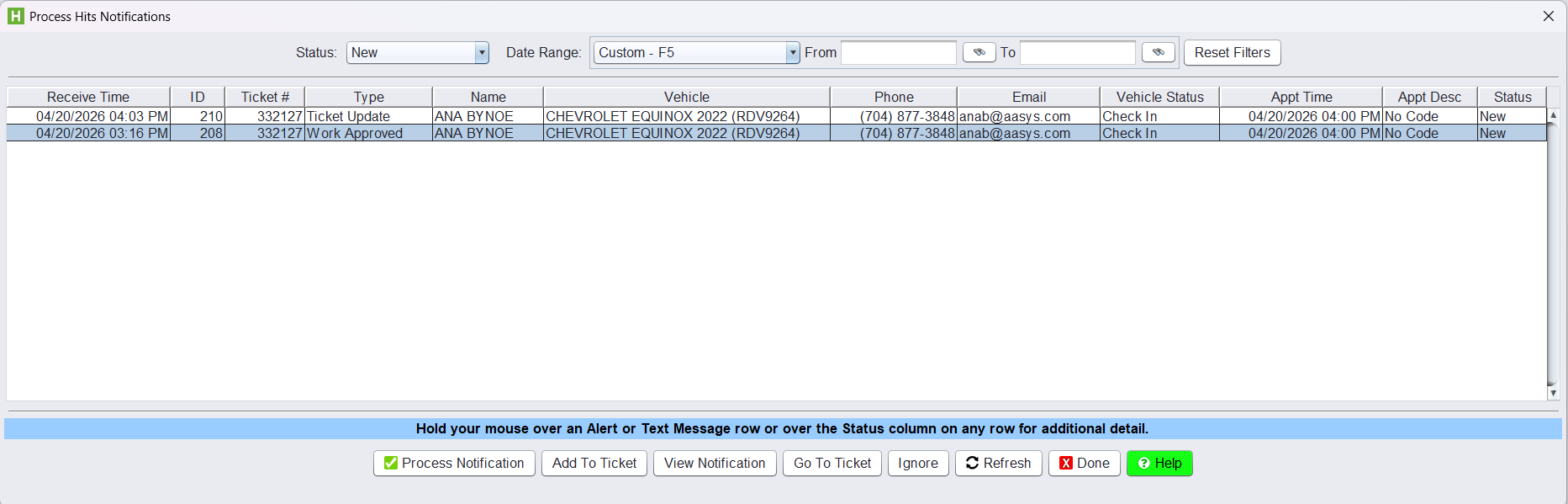
Notifications are accessed through the Process HITS Notifications screen and display real-time updates such as:
- Ticket Update – triggered when customer activity occurs
- Work Approved – triggered when the customer completes the approval process
When a Work Approved notification is received, staff can:
- Open the ticket directly using Go To Ticket
- Review the approved services
- Confirm that a customer signature has been captured
This provides a direct workflow from customer action to in-store execution, ensuring that approved work can be reviewed and acted on immediately.
Once the notification is processed the ticket will add comments on work approved.
Shop History
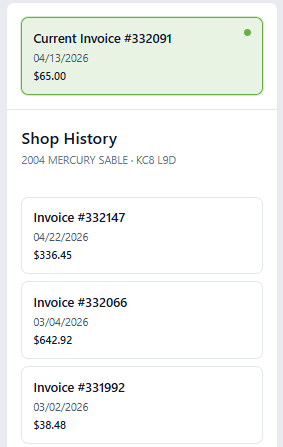
The Shop History section displays previous invoices associated with the selected customer and vehicle.
How It Works:
Selecting any invoice from the Shop History list will make that invoice the Current Invoice displayed at the top of the screen. The system will update to show the selected work order details while continuing to display historical invoices for that customer and vehicle below. This allows advisors to quickly review prior services, compare past work performed, and navigate between invoices without performing additional customer or ticket searches. This is not available in the customer view.
Timeline
Events captured in the Timeline include:
- When the ticket was sent, including which advisor sent it
- When the customer opens and views the ticket
- Vehicle status updates
- When work is approved by the customer
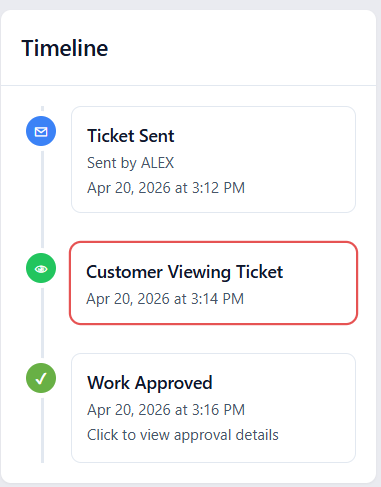
When the customer is actively viewing the ticket, the Customer Viewing Ticket event appears and is highlighted to indicate real-time engagement. This helps staff confirm that the customer has opened and is currently reviewing the workorder.
Once the customer completes the approval process, a Work Approved event is added to the Timeline.
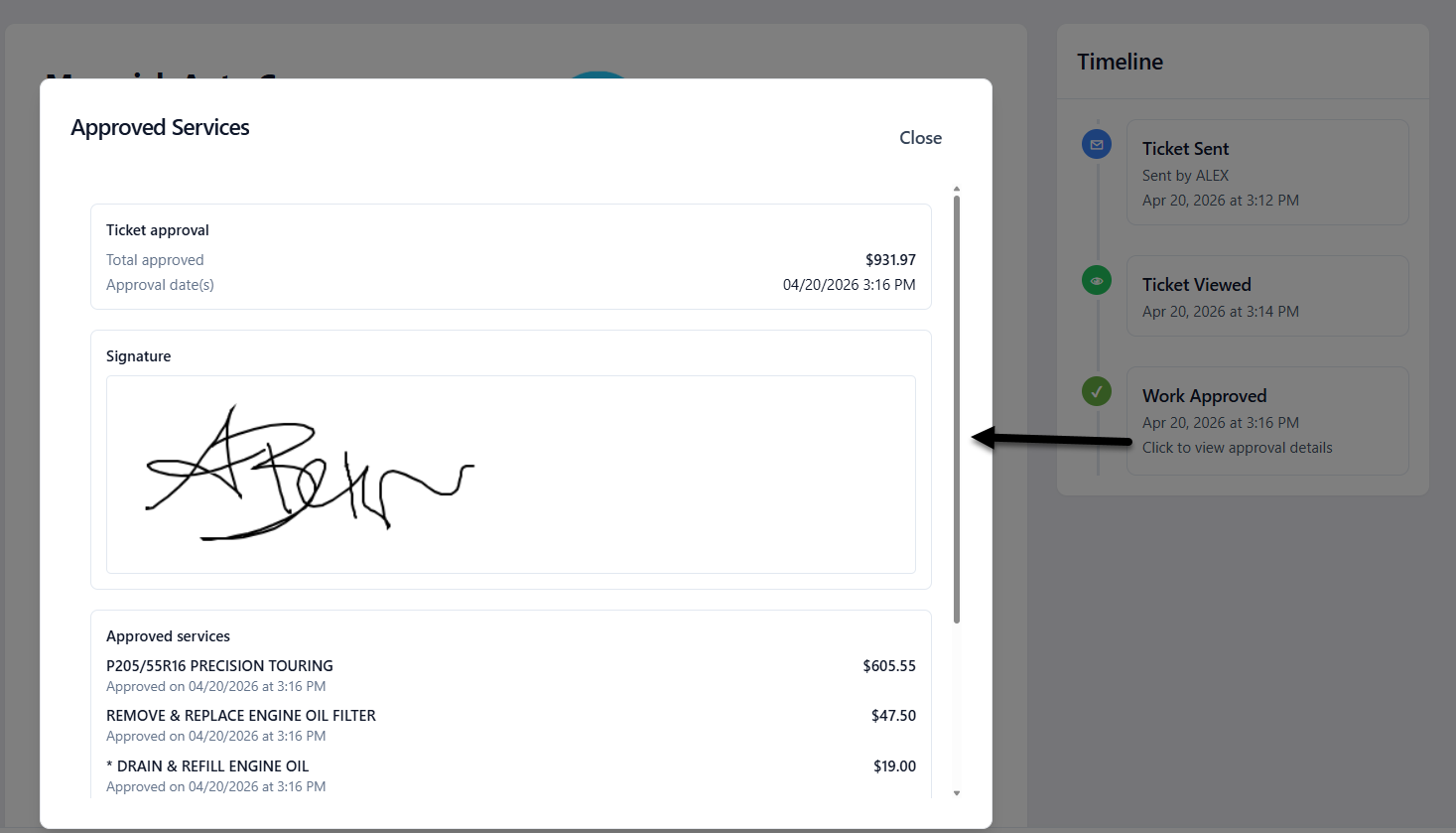
Selecting the Work Approved event allows the advisor to view full approval details, including:
- The customer’s signature
- A breakdown of the approved services
- The date and time the approval was completed
This provides confirmation that the customer not only viewed the ticket, but also formally authorized the work.
Vehicle Status in Customer View
Advisors can set and update the Vehicle Status directly from the advisor-facing view in HITS Digital.
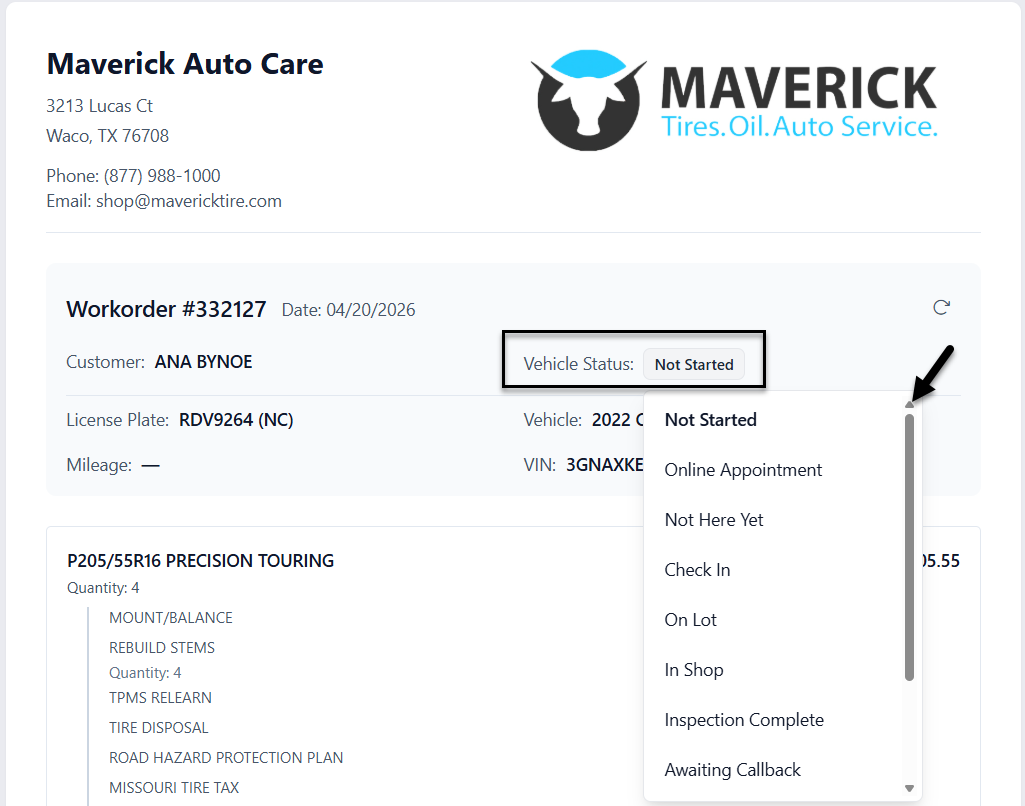
The Vehicle Status dropdown allows staff to select from predefined status options such as:
- Not Started
- Check In
- On Lot
- In Shop
- Inspection Complete
- Awaiting Callback
- And other configured statuses
Once updated, the selected status is immediately reflected in Customer View, allowing the customer to see the current progress of their vehicle in real time.
Customers can view the status but cannot modify it.
All Vehicle Status options and updates are controlled from the advisor side only.
This status activity is also reflected in the Timeline, providing visibility into when updates occur during the service process.
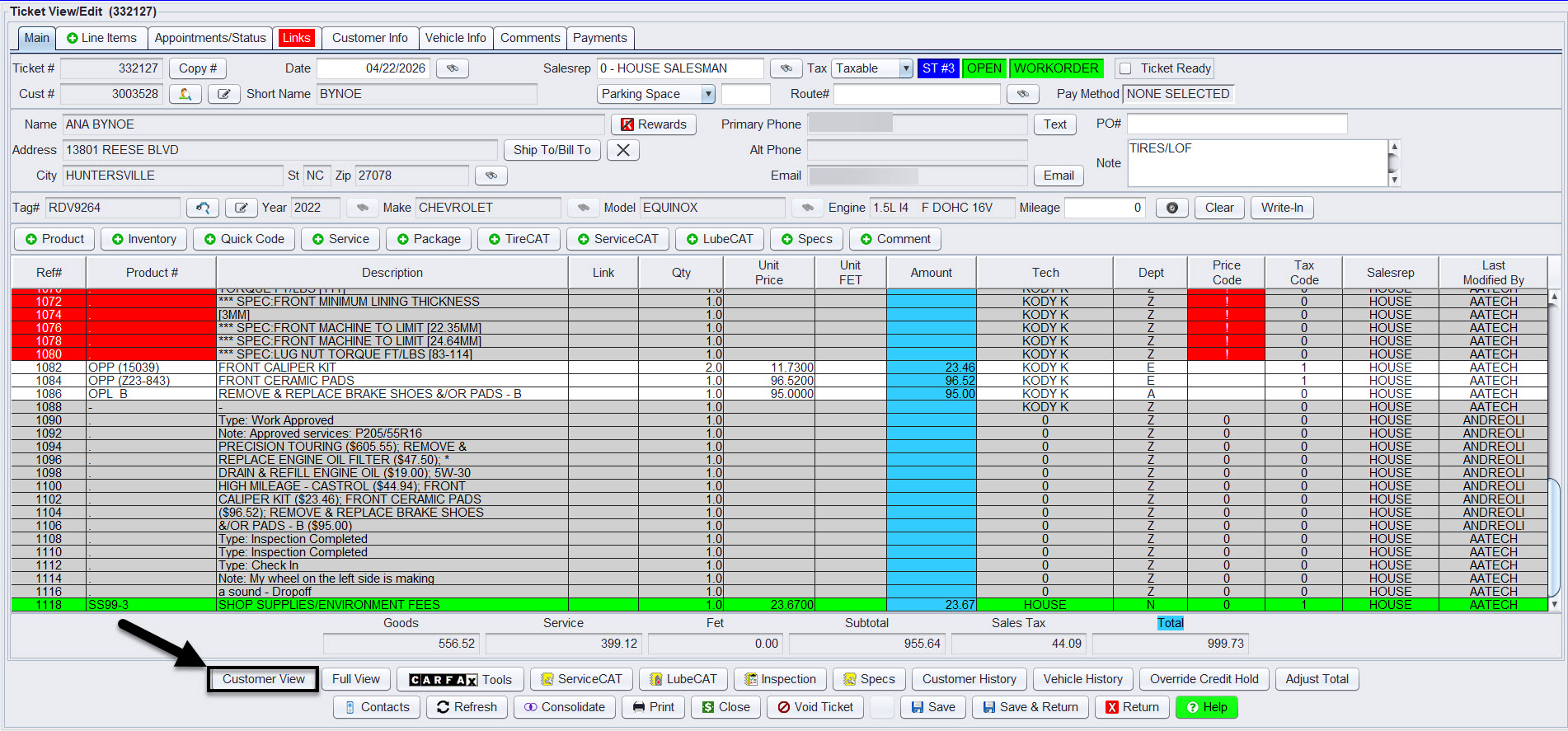
Customer View in HITS
The Customer View on the ticket in HITS will also take them to the HITS Digital Customer view of the ticket.
Digital Vehicle Inspections (DVI)
You can also send a link to the vehicle’s Digital Inspection (DVI) from the ticket. DVIs allow technicians to document findings and recommend services.
For detailed instructions on creating and managing DVIs, see: HITS Digital – Digital Vehicle Inspection (DVI).
Access to HITS Digital
HITS Digital is an add-on and must be enabled for your account. Contact your sales representative or HITS Support for more information.