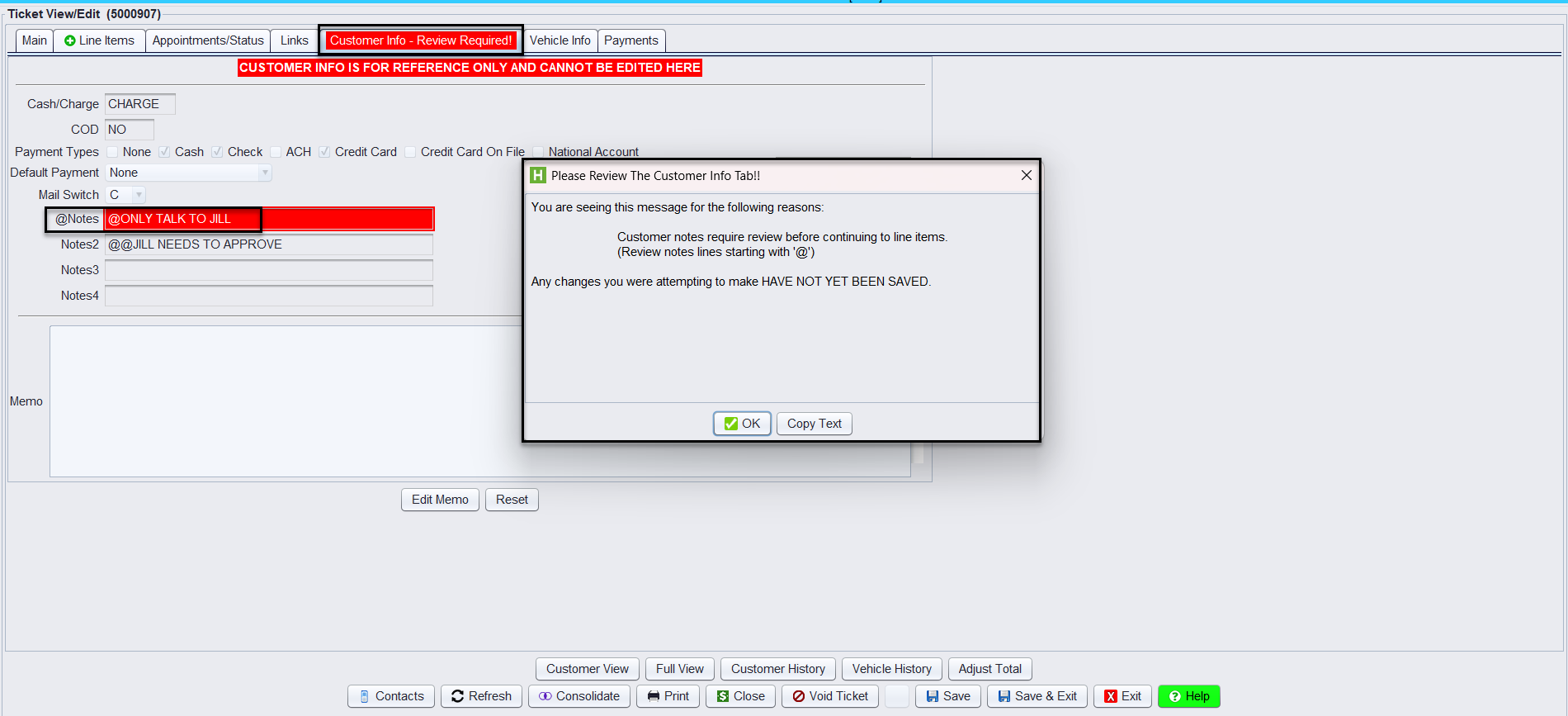
HITS offers a flexible way to manage customer notes during sales ticket creation. Users can set specific notes to display either at the start or close of a ticket, with options to alert through a pop-up or by highlighting the Customer Info tab in red. If the system is set to “alert popups”, once a user clicks the Line Items tab, the @note will popup. Here’s a breakdown of how to use these features effectively:
Setting Up Customer Notes:
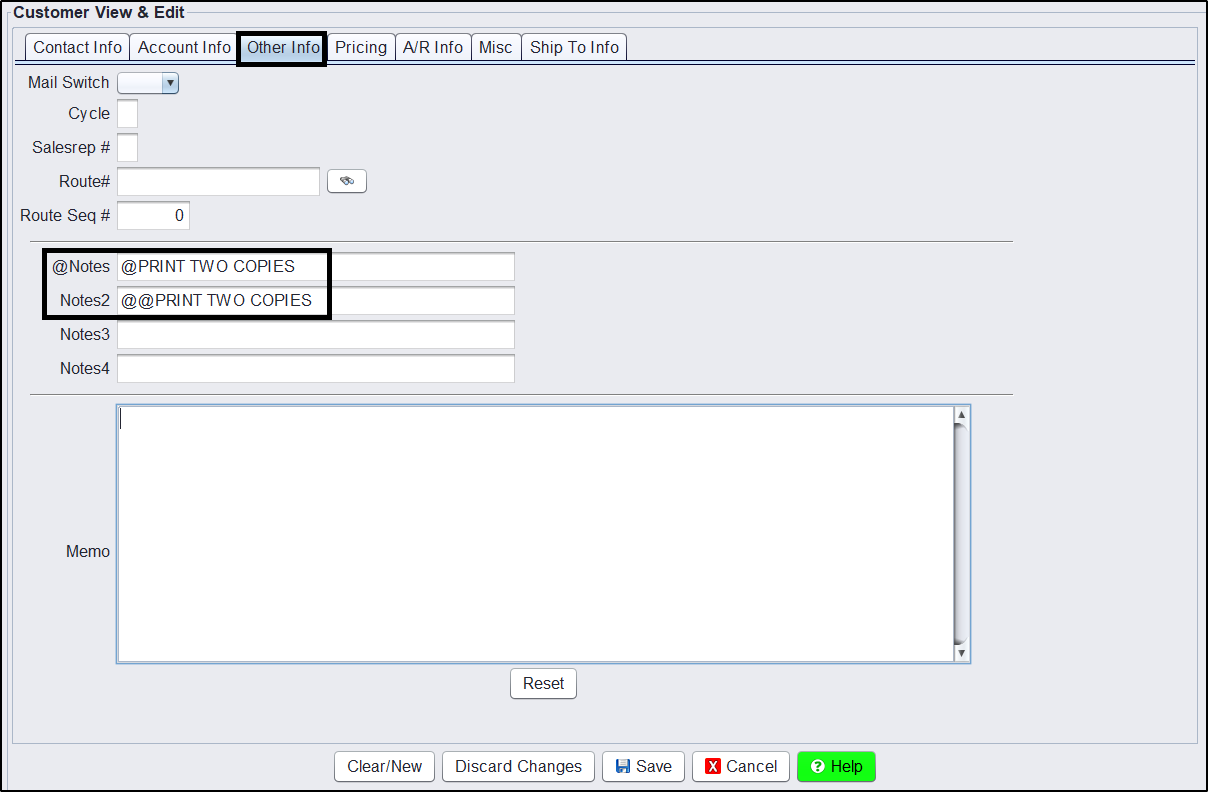
1.) Navigate to the Customer Info tab under Customers > View/Edit for the active customer
2.) Go to the Other Info tab and enter your notes into the notes field with an “@” symbol before the note
Alert Options:
1.) Use “@” followed by your note for a flashing note at the start of a ticket.
2.) Use “@@” followed by your note for a flashing note at the close of the ticket.
3.) For notes at both the start and close of a ticket, enter two lines: one with “@” and another with “@@”
Activate Pop-Up or Highlighted Customer Notes Tab
With admin privileges take the steps below in HITS:
1.) Click Views > Administration & Utilities
2.) Store > View/Edit Default Settings
3.) Select Invoice View/Edit from the left-hand menu
4.) Make the appropriate “Settings Shown” option to select Corporate or a Specific Store if you are a multi-location
5.) Change the Popup Alerts option to Yes to turn on popup alerts
6.) Click Save before exiting this screen
7.) Click File > Log Out
8.) Log back into HITS to accept this change
Note: All users must log out and log back into HITS for all computers to make this change active.