
To post a received on account (ROA) payment, click the Create button and ROA Payment.

You can also go to Views > Bookkeeping > ROA Payment
If applying payment to a single specific invoice, you can enter the Invoice# the customer is paying. This will pull up the customer and amount due. If posting payments for statement or multiple invoice, leave this field blank.

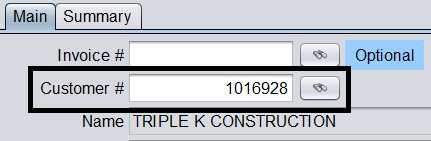
To look up the customer for payment, either type in the customer’s account# or perform a customer lookup.
Next type in the Amount for payment and hit ENTER:

Select the payment method from the dropdown:

If the customer is paying with CHECK, a CHECK# can be added:

If the customer is paying with a different payment method, a description note can be added:

You will likely be posting payment to the current date, but if needed, you can put a previous date for the transaction as long as the store date is still open:

After all information has been added, click the Create Payment button.
(Only use the Create Payment & Apply button if you are applying to a single Invoice# or want to auto-apply the payment to the oldest transactions on the customer’s account).
This will post the payment in the system. If needed, you can Print out this payment receipt ticket for the customer.
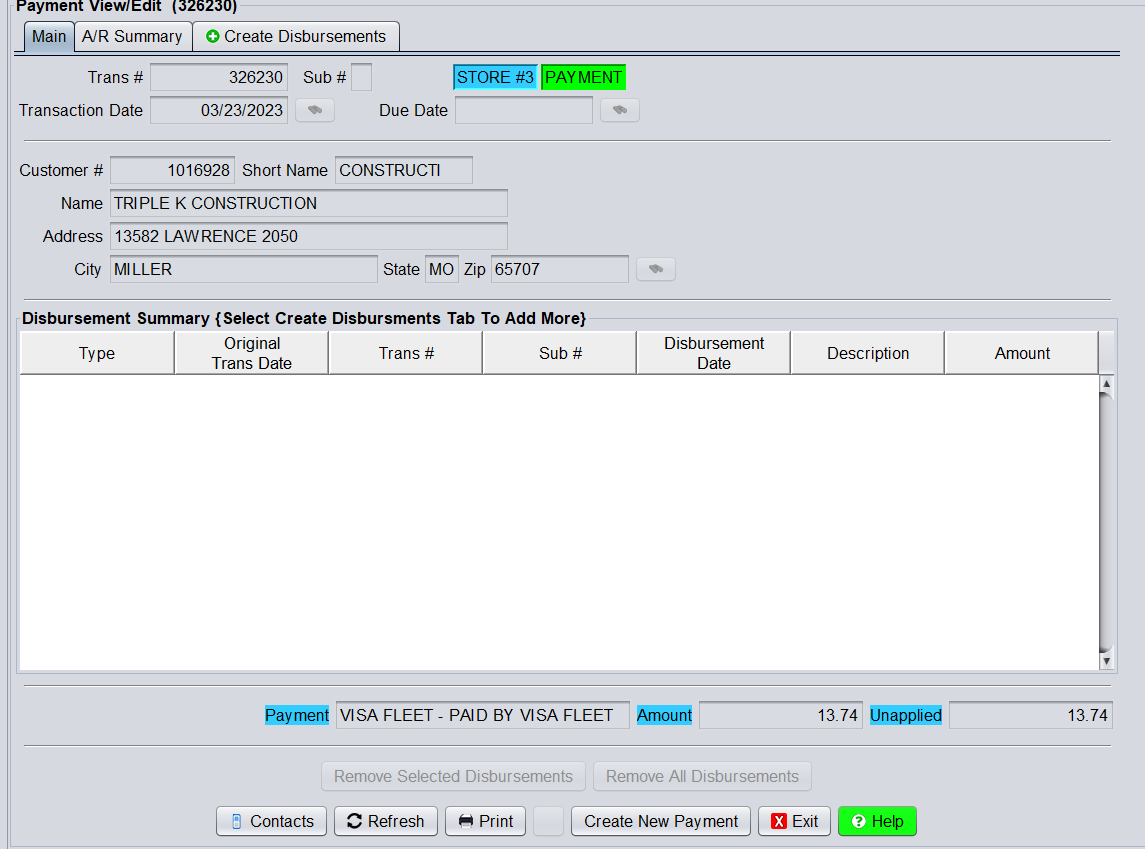
At this time, you may be complete or you may need to continue to disburse the payment to specific invoices/ debits/ credits on the customer’s account. Continue by clicking the link below to see how to: