If hosting images somewhere other than your Tirelink e-commerce site, please ensure these images start with https, (known as secure image). Images starting with http will not display on a secure site. This is not a HITS standard, rather the a technical nuance of most major browsers.
Product images as well as manufacturer logos can be uploaded to your Tirelink e-commerce site. Once upload, the links to these images can be added to the point-of-sale to the appropriate products. This doc will cover this two-step process.
Uploading Images
1. Login to the Admin panel of WordPress: www.mywebsite.com/wp-admin.
2. Enter user and password.
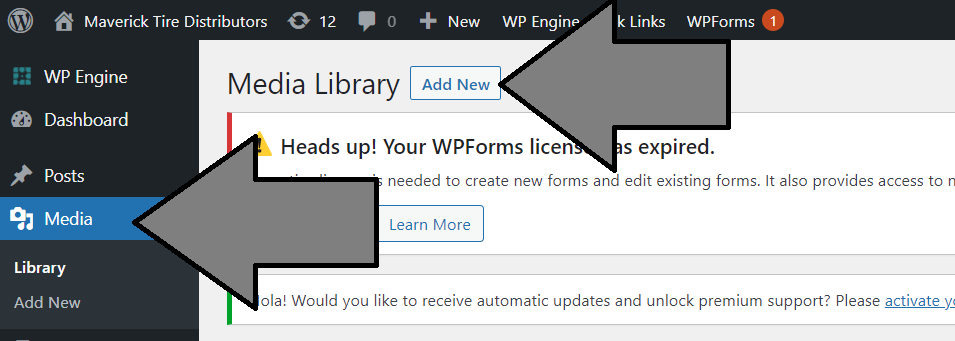
3. Once logged in as an Admin, select Media and then Add New.
4. Select files to upload. File types to be uploaded are: JPG, JPEG, and PDF
5. Once uploaded, if you will be copying the images into BPOS (for manufacturer logo or product image mapping), click the image and then COPY the URL.
Linking images to products
1. Find a product this image should link to and retrieve it on the Views > Administration & Utilities > Inventory Add/Edit Delete.
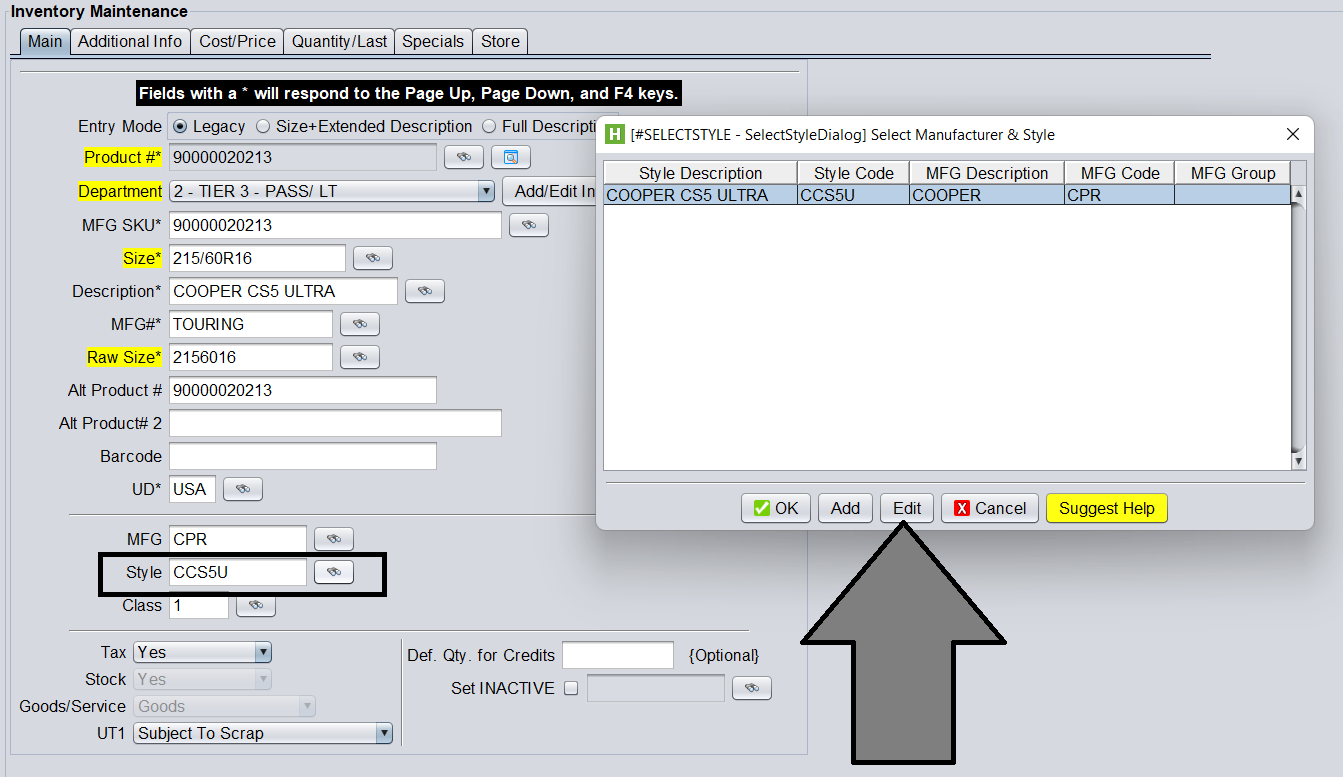
2. Click the Lookup button next to the Style field, and then click Edit to edit the specific style.
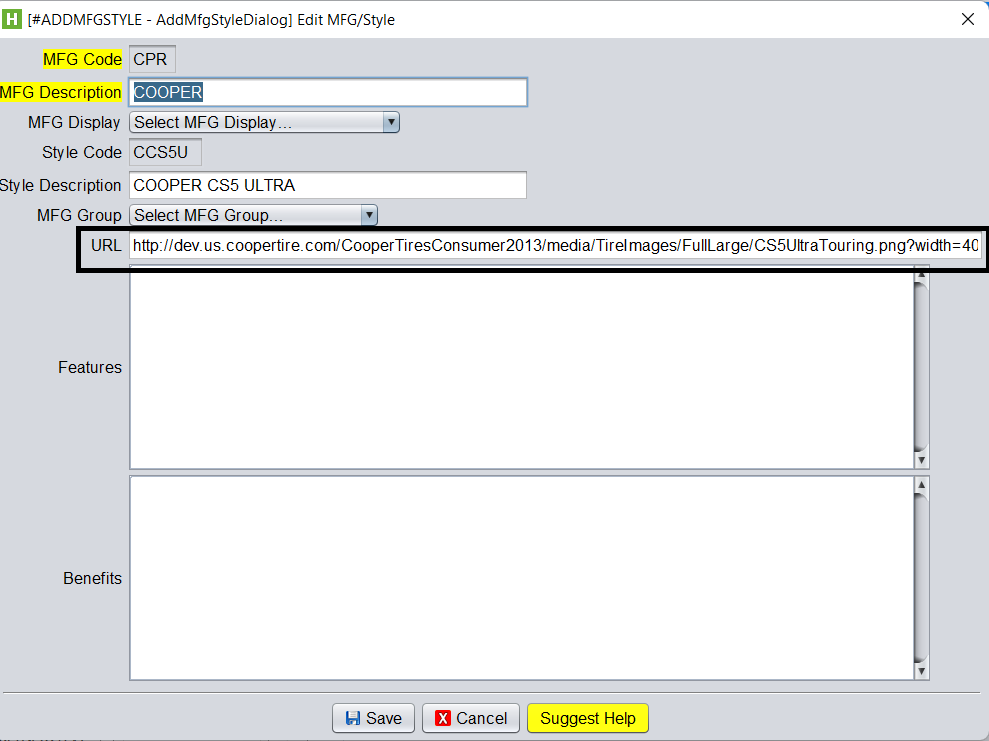
3. Paste the URL of the uploaded image in the URL field and click Save.
This will link this image to all items that contain this Style code.
Linking Manufacturer Logos
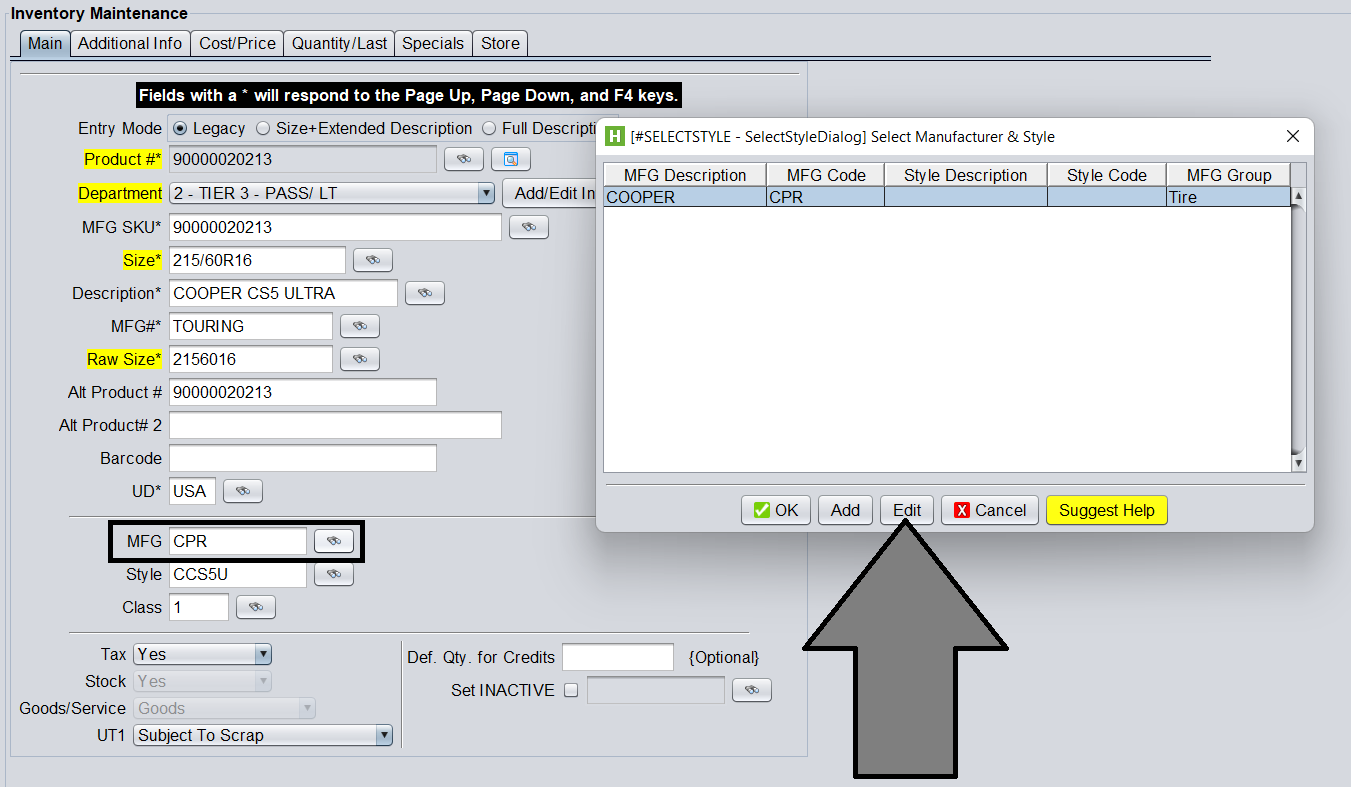
For adding a manufacturer logo, use the same process as above, however select the Lookup from the Manufacturer field and then click Edit. (The record you edit should only contain the MFG Code and Description, Style Code and Description should be blank.)