
The Inventory Lookup screen allows users to quickly search for products in the inventory database when creating sales tickets, receiving inventory, or reviewing inventory data.
Inventory Lookup is available in two views of HITS:
- Inventory Lookup – Sales Counter View (used while creating customer sales tickets)
- Inventory Lookup – Receiving View (used while processing receipts)
Both versions function the same and allow users to view product information, confirm availability, and select items for transactions.
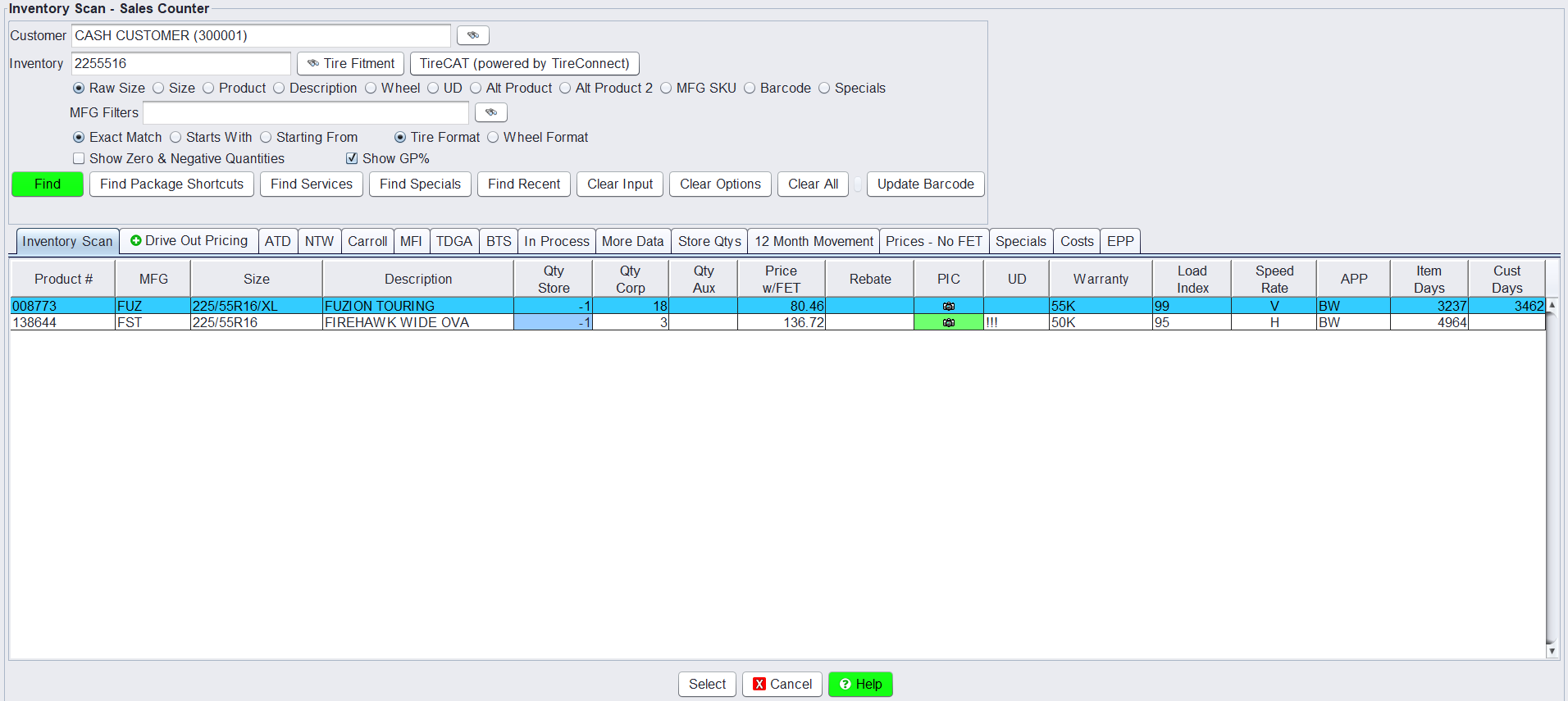
Searching for Inventory
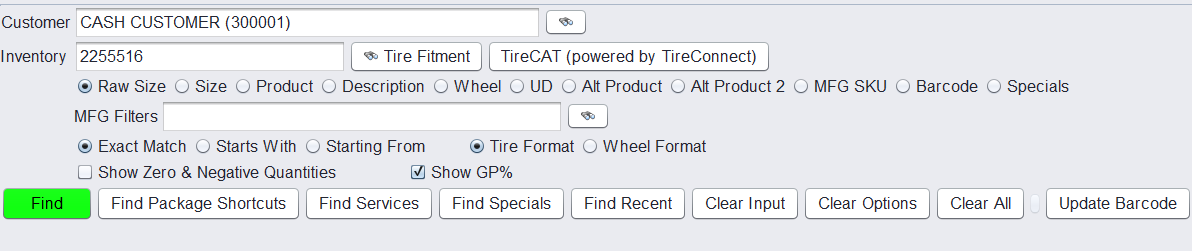
Inventory Lookup allows users to search for items using several different criteria depending on what information is available.
Users can search by selecting one of the following options:
- Raw Size – Search using the raw tire size format stored in the system
- Size – Search using standard tire size formatting
- Product – Search by the product number
- Description – Search by product description or keywords
- Wheel – Search wheel inventory
- UD – Search using a Product’s User-Defined field
- Alt Product – Search using the first alternate product number
- Alt Product 2 – Search using the second alternate product number
- MFG SKU – Search using the manufacturer’s SKU
- Barcode – Search by scanning or entering a barcode
- Specials – Search items currently marked as specials
Additional search filters include:
- Manufacturer Filters (MFG Filters) to limit results to a specific manufacturer
- Exact Match – Returns only exact matches
- Starts With – Finds items that begin with the entered value
- Starting From – Returns items beginning from a specified value in the list
For tire searches, users can also choose between:
- Tire Format
- Wheel Format
These options help refine search results and locate the correct inventory item more quickly.
Understanding the Results Grid
The first four columns remain fixed to ensure key product information is always visible when reviewing results. These columns include:
- Product Number
- Manufacturer
- Size
- Description
After these four columns, additional fields are displayed to provide more product details. HITS includes default columns for these fields; however, they can be customized to better fit your shop’s workflow.
Common examples of additional columns include:
- Store Quantity
- Corporate Quantity
- Price
- Rebate
- Warranty
- Load Index
- Speed Rating
- Application
- User-Defined (UD) fields
These columns can be adjusted to display the information most useful to your team. For example, some shops choose to display SPIFF values stored in a Product Code’s UD field, renamed as “Spiff” allowing staff to quickly identify items eligible for incentives when selecting products.
Waterfall Sort to Inventory Lookup
A User Setting called Waterfall Sort is available for Inventory Lookup.
When enabled, results are grouped and sorted in the following order (Price – Ascending within each group):
- Store Quantity
- Corporate Quantity
- Auxiliary Quantity
This prioritizes items available in the current store location, helping staff sell on-hand inventory before sourcing from other locations.
This behavior is similar to the Tirelink sorting method and helps reduce unnecessary transfers or external sourcing.
To enable: Click Views > Administration & Utilities > Store > View/Edit Default Settings
Then update:
- Inventory Lookup – Sales Counter
- Inventory Lookup – Receiving Desk

Beginning in HITS v47, the Inventory Lookup screen also allows the maximum number of returned records to be increased up to 500 results, making it easier to review larger product lists without performing multiple searches.
If you would like to modify the columns displayed, please contact Technical Support at tech@aasys.com for assistance.
Inventory Lookup Tabs
The tabs below the results grid provide additional information about the selected item.
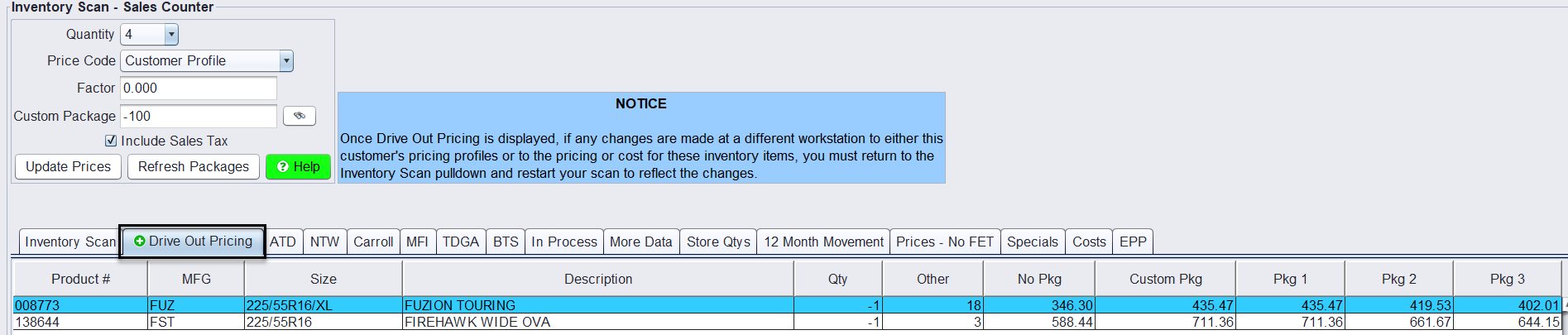
Drive Out Pricing
Displays calculated drive-out pricing for the selected item.
For full setup and configuration instructions, see: Drive Out Pricing Tab
Tire Integration Inventory Tabs
If tire integrations are enabled, additional tabs may appear showing live manufacturer inventory quantities and costs.
Examples may include:
-
- ATD
- NTW
- Carroll
- MFI
- TDGA
- BTS
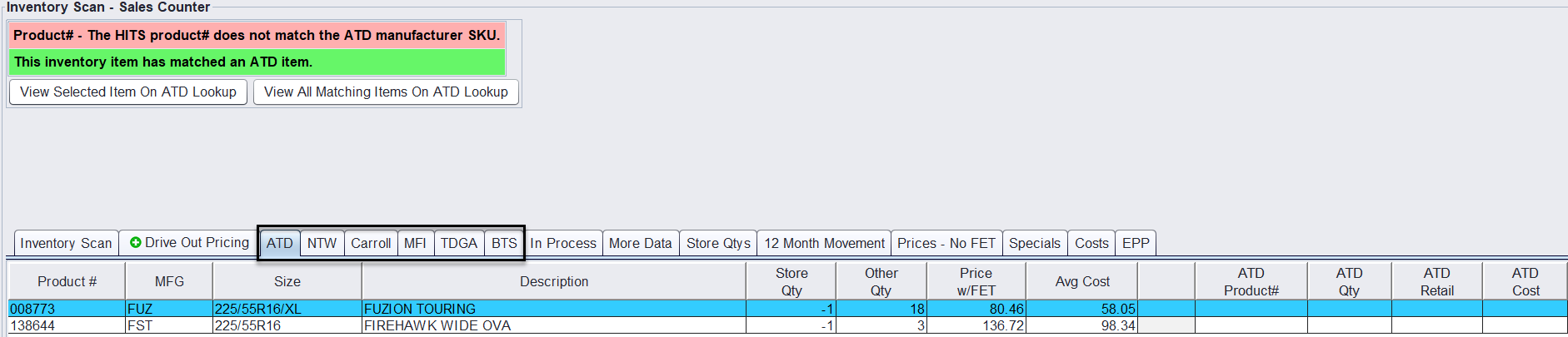
These integrations allow shops to quickly check distributor inventory and availability without leaving HITS.
In Process
Columns listed are:
-
- WIP – Workorder In Process
- RIP – Receipt In Process
- TIP – Transfer In Process
- OIP – Order In Process
- OIP Info – Mouse Hover Displays Open Order Ticket #, QTY, and ETA (if listed)
For a full explanation of these quantities, see: Inventory Quantities in HITS

More Data
The More Data tab displays additional product attributes that may not appear in the main Inventory Scan results.
This may include information such as style, class, rim diameter, load index, tread mileage, UTQGL, bin location, department, and other product or system fields.

Store Qty’s
Displays available inventory quantities for multiple store locations.
The All column shows the total available quantity across all stores.

12 Month Movement
Displays sales activity for the item over the past 12 months, including:
-
- Monthly unit sales
- Total units sold
- Average monthly movement
- Current stock level
- Available corporate quantity

Prices – No FET
The Prices – No FET tab displays the item’s price levels without Federal Excise Tax (FET) in separate columns.
- Customer Price
- Price1
- Price2
- Price3
- Price4
- FET
-

Specials
Displays any special pricing currently configured for the item, including pricing by customer type (Retail, Commercial, Wholesale, Other), and start/end dates.

Costs
The Costs tab displays cost-related information for the selected item.
- Average Cost
- FET
- DBP Cost
- Last Cost
- Last Cost Date
-

EPP
Displays Extended Price Profile (EPP) rules used for customer-specific contract pricing.
For full instructions on managing EPP pricing, see: Extended Pricing Profile (EPP) and Customer Pricing

Selecting an Item from Inventory Lookup
To add an item to an open ticket (quote, workorder, receipt, etc.) click the binoculars, from an open ticket, to access the Inventory Scan screen, complete a search and then double-click the item.
Note: Additional options are available by right-clicking an item in the Inventory Lookup results grid.
Create Ticket from Inventory Lookup
Users can create a ticket directly from the Inventory Lookup screen after selecting an item.
- Highlight the desired item from the Inventory Lookup results
- Click the Create button from the top menu bar
- Complete the required fields:
-
- Salesrep
- Ticket # (optional – auto-assigns if left blank)
- Package (if applicable)
- Quantity
- Date
- Choose the ticket type:
-
- Workorder
- Quote
- Add to Last Ticket
- Launch Create Any Ticket
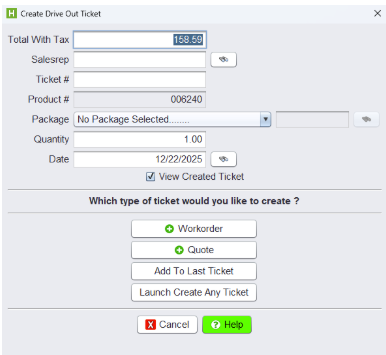
The selected item will be added to the new or selected ticket, allowing users to move directly from product lookup into the sales process.