
When HITS determines a product’s price, it evaluates pricing rules from highest priority to lowest priority. The system applies the first applicable rule it finds and ignores all lower-priority rules.
Pricing is evaluated in this order (Higher numbers indicate higher pricing priority):
5.) Specials (Highest Priority)
Overrides all other pricing when the special price is lower than the customer’s calculated price.
4.) Customer-Specific EPP Rules
Pricing rules applied directly to an individual customer account.
3.) EPP Template Rules
Pricing applied through a shared template account assigned to the customer.
2.) Customer Price Code & Factor
Customer-level price code and optional discount or GP% factor.
1.) Inventory Price Codes (0–4)
Base inventory pricing, including Average Cost and static price codes.
If you are changing or removing EPP pricing, it’s important to understand what layers may still be affecting the price after the EPP is removed.
1.) Inventory Price Codes (0–4)
HITS supports five inventory price codes:
Price Code 0 – Average Cost
- Dynamic
- Updates automatically when inventory is received
Price Codes 1–4 – Static Price
- Do not change unless updated manually or through a pricing routine

Ways Price Codes 1–4 Can Be Updated
- Manually, item by item
- Spreadsheet export → edit in Excel → re-import
- Target GP% (factor-based pricing)
- Table pricing updates
If no customer or EPP pricing applies, these price codes are used.

2.) Customer Price Code and Factor
Each customer has:
A default Price Code
- If none is set, the system defaults to Price Code 1
- Can also be assigned by Customer Type
An optional pricing factor
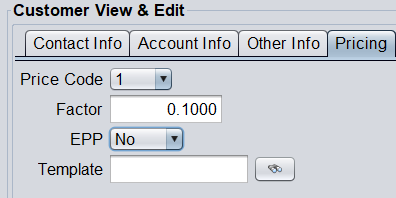
How Customer Factors Work
- Factor on Price Code 0 (Avg Cost)
- Applies a GP% markup
- Example:
0.15= 15% GP
- Factor on Price Codes 1–4
- Applies a discount
- Example:
0.15= 15% off
If an EPP is removed, pricing will fall back to the customer’s price code and factor.
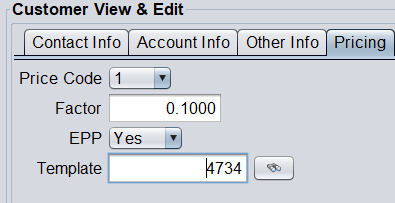
3.) EPP Template Rules
EPP Templates are built using a template customer account.
- Template contains predefined pricing rules
- Template number must be added to each customer
- One template supports multiple customers
If you remove or change a template EPP:
- Verify template is removed
- Confirm no other template exists
4.) Customer-Specific EPP Rules
Customers may also have their own EPP rules:
- Manufacturer
- Style
- Individual product
EPP is also used for:
- Contract pricing
- Vendor uploads
Always check customer-specific EPPs when troubleshooting.
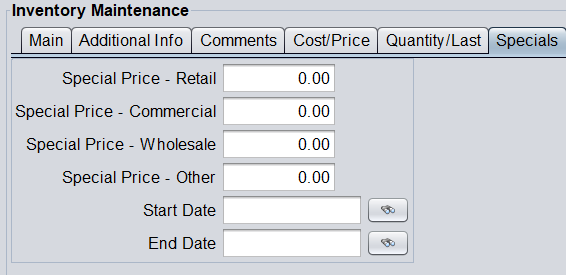
5.) Specials
Special pricing overrides everything else.
- Applied only if lower than calculated price
- Retail / Commercial / Wholesale / Other
- Start & End Dates required
If pricing still looks incorrect, check for active Specials.
Quick Troubleshooting Checklist
- Confirm the EPP template account has been removed from the customer.
- Verify that no customer-specific EPP rules remain.
- Review the customer’s price code and factor to ensure they are correct.
- Confirm that inventory price codes are correct.
- Check for any active Specials that may be overriding pricing.
EPP Pricing Troubleshooting Flowchart
Start → Pricing appears incorrect or EPP records need to be removed
⬇️
Is there an active Special price? (Priority 5)
- Yes → Special pricing applies (stop here)
- No → Continue
⬇️
Are there customer-specific EPP rules? (Priority 4)
- Yes → Review, modify, or remove
- No → Continue
⬇️
Is an EPP template applied? (Priority 3)
- Yes → Confirm correct template account
- No → Continue
⬇️
Is the customer’s Price Code and factor correct? (Priority 2)
- No → Update as needed
- Yes → Continue
⬇️
Are Inventory Price Codes correct? (Priority 1)
- No → Update inventory pricing
- Yes → Pricing should now be correct
⬇️
End → Pricing hierarchy fully validated
Start → Pricing incorrect
⬇️ Special? → Yes stop / No continue
⬇️ Customer EPP?
⬇️ Template?
⬇️ Price Code?
⬇️ Inventory?
End → Pricing validated