
Overview
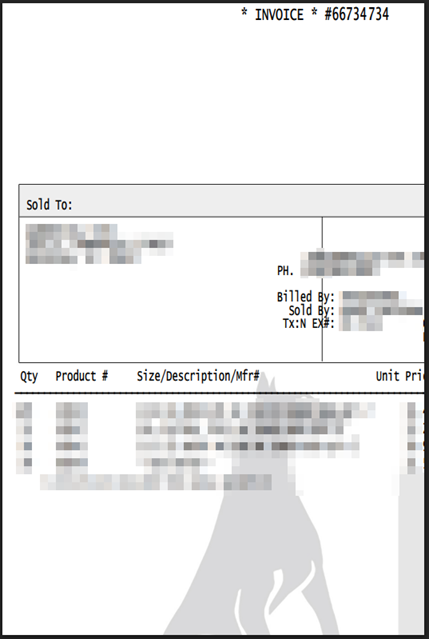
You may have received an invoice via email where the attached PDF appears cut off or incomplete — typically showing only the left half of the document. This can make the invoice difficult to read.
Why This Happens
This issue is caused by the default printer setting on the computer used to generate your invoice. When a label printer (such as a Zebra printer) is set as the default, the system uses that printer’s smaller page size to format the PDF — resulting in a document that appears cut off when opened on a standard screen.
How to Fix It
To resolve this, update the default printer on the computer used to send invoices. If you don’t have permission to change printer settings, please contact your IT administrator.
- Open Control Panel → Devices and Printers
- Identify the current default printer (it may be a label printer)
- Right-click your regular office printer or Microsoft Print to PDF
- Select Set as Default Printer
- Close and reopen your application
- Resend the invoice
Note: These steps apply to Windows. If you’re using a Mac, printer settings can be found under System Settings → Printers & Scanners.
What to Expect After Fixing
Once the default printer is updated, any newly generated invoices will display correctly with the full page visible. Please note that previously sent invoices won’t be automatically corrected — you’ll need to resend them for customers to receive a complete copy.