
Resize M/S HITS Legacy (bluescreen):
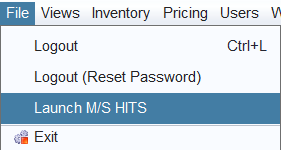
1. File –> Launch M/S HITS (blue screen)
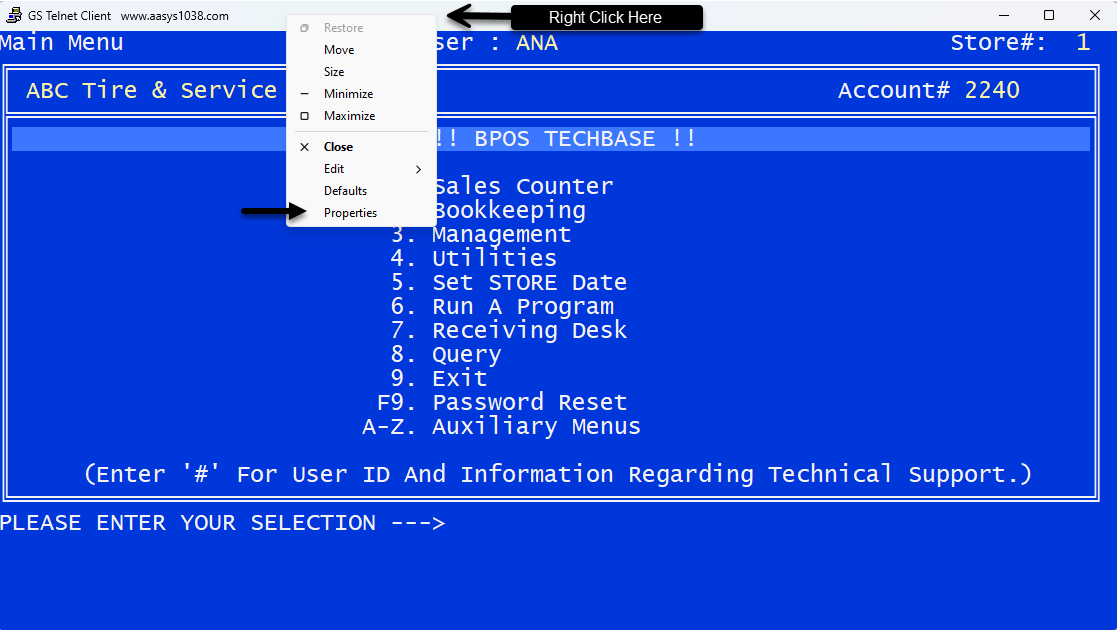
2. Right-click on the top menu bar, select Properties.
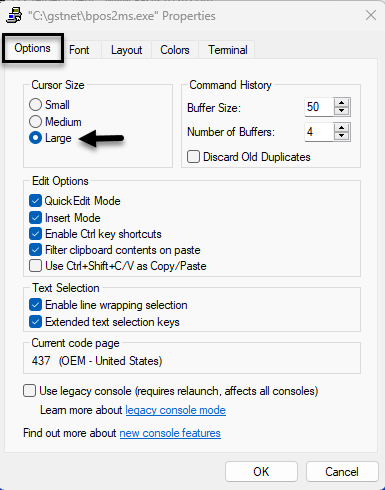
3. Click on the Options tab and select Cursor Size = Large
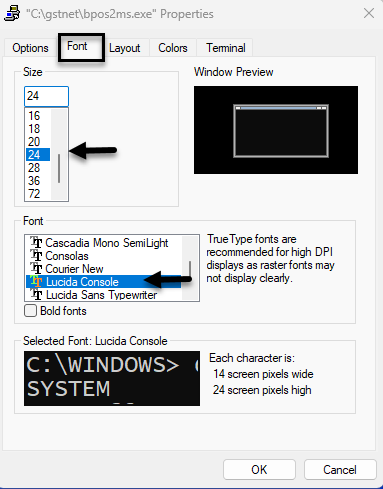
4. Click on the Font tab and select Size = 24 and Font = Lucida Console
5. Click on the Layout tab and change Screen Buffer Size –> Width = 80 Height = 25 (required)
6. Change Window Size –> Width = 80 Height = 25 (required)
7. Click OK
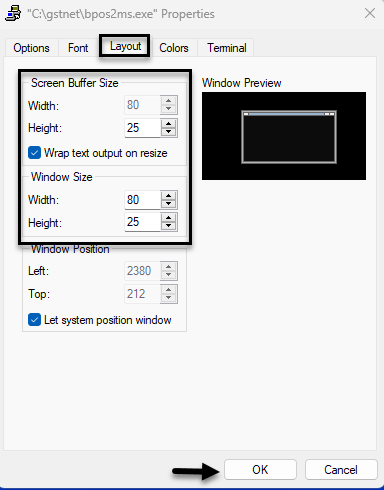
If you are wanting to make the screen larger on the computer, you can always increase the Font Size to your liking.
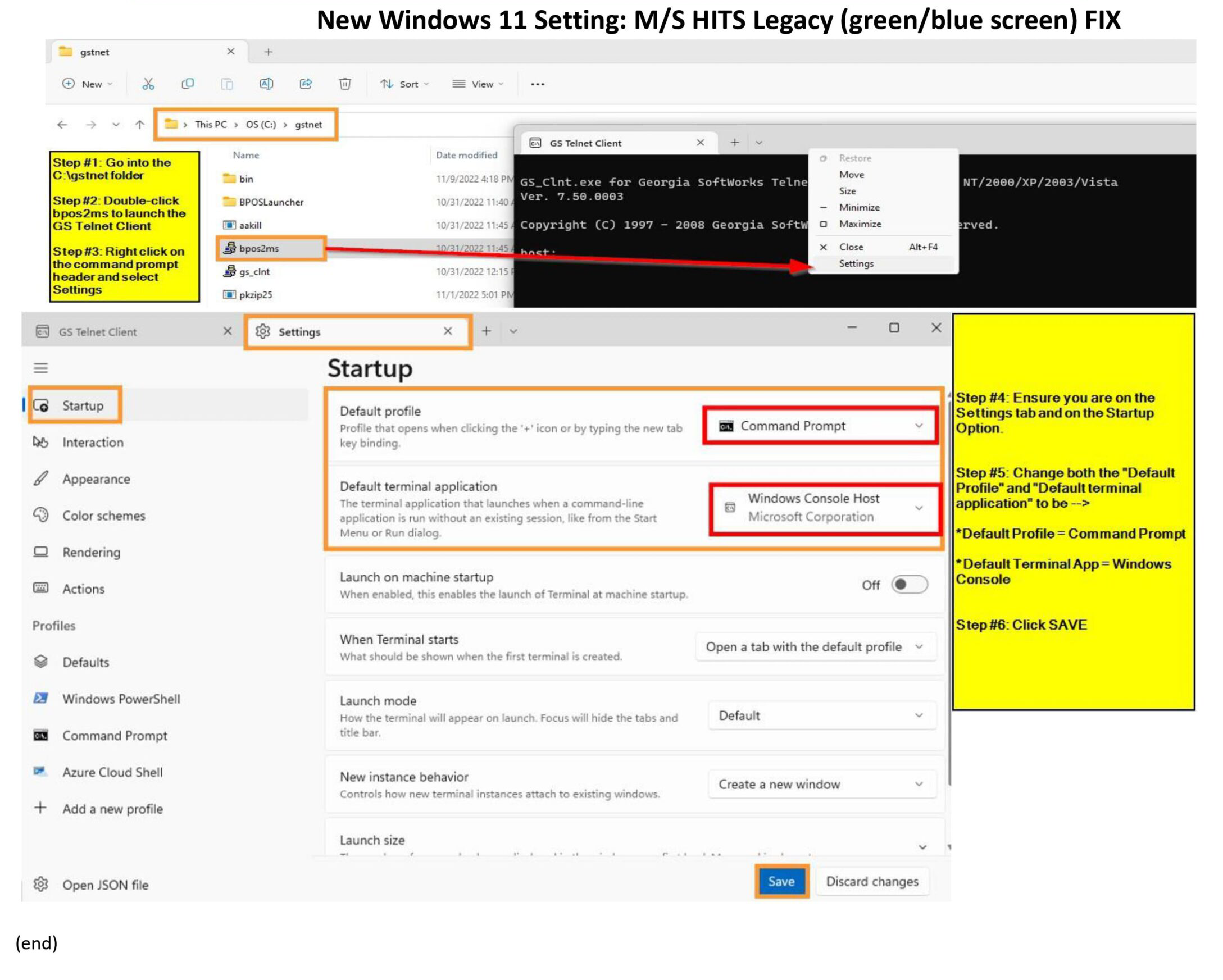
Cannot Launch Blue Screen (Need to resize the window)
User cannot launch the blue screen on a new workstation (only affects one workstation).
a.) Locate the bpos2ms application file under the c:\gstnet folder and run the application

b.) This will open the GS Telnet Client window, right-click in the header and select Properties to resize the window
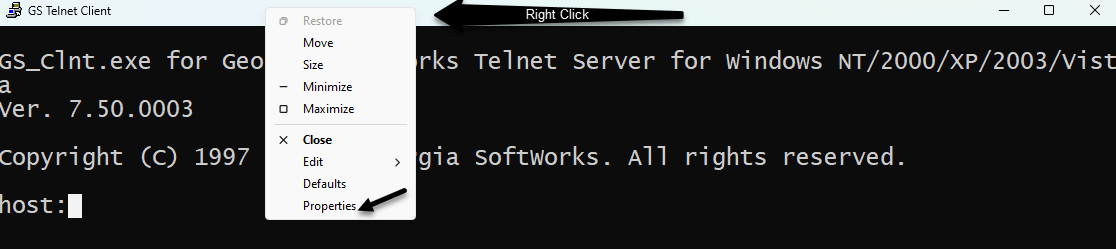
c.) Once in the Properties, ensure the Layout Width=80 and Height=25 and the font is set to Lucida Console (28 or 36 size).
