
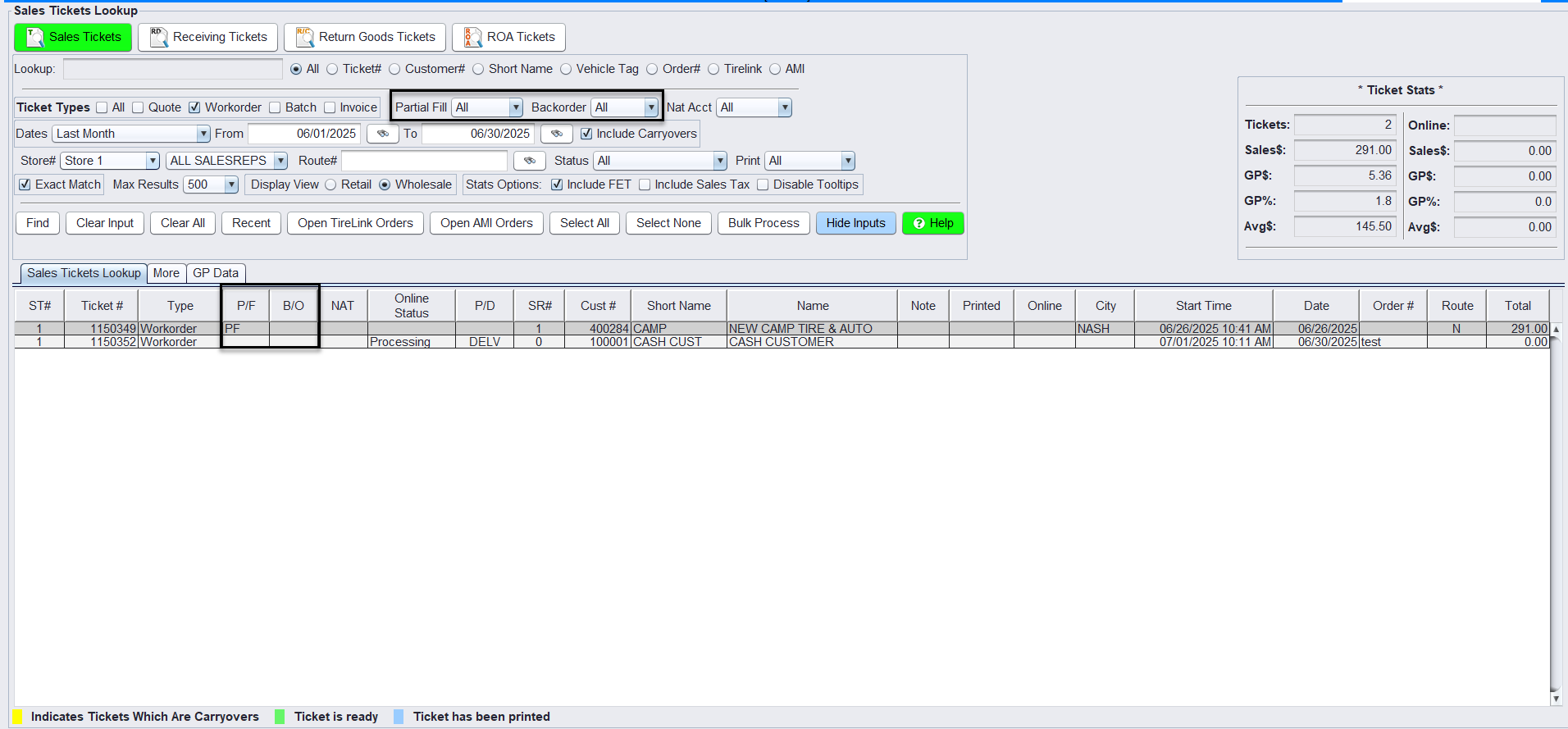
HITS includes built-in support for managing Partial Fill and Backorder Tirelink tickets that customers have submitted, allowing you to track unfulfilled customer orders and streamline allocation of incoming inventory. HITS automatically checks the available inventory and determines if the order can be fully filled. If not, the ticket is flagged as Partial Fill = Yes. Below is an example of what that looks like on a ticket:

What is a Partial Fill?
When a Tirelink order is placed by a customer, HITS automatically checks the available inventory and determines if the order can be fully filled. If not, the ticket is flagged as Partial Fill = P/F.

Example:
-
- A customer places an order through Tirelink for 4 tires
- Only 2 are in stock
- When the workorder is created:
- The system automatically flags the ticket as Partial Fill = P/F
- You do not manually set the Partial Fill checkbox. The system sets it based on current stock.
⚠️ The Partial Fill flag updates automatically after a user runs the “Recalculate Partial Fill” function from the Sales Counter.
What is a Backorder?
Backorder (BO) is a manual flag used to help you track tickets that are awaiting fulfillment, usually because the product is out of stock or not immediately available.

-
- The Backorder checkbox is not set automatically and must be applied by a user.
- You can right-click a ticket in Ticket Lookup and choose Mark as Backorder.
- This can be done in bulk for multiple tickets that are known to need follow-up by highlighting multiple tickets or using the Ctrl+Left Click to highlight individual tickets from the Ticket Lookup screen.
Backorder status is especially useful for:
-
- Communicating with staff which tickets are pending supplier replenishment
- Preventing premature ticket closure (when used with Invoice View/Edit restrictions)
- Filtering and prioritizing vendor Purchase Orders
🔁 You can clear the Backorder flag manually at any time once the product has been received and reassigned.
P/F and BO tickets are completed independent of each other and a ticket can be P/F only, BO only, or both.
Using Ticket Lookup to Manage PF and BO
From the Views > Sales Counter > Ticket Lookup screen, you can use dropdown filters to sort and manage tickets based on Partial Fill and Backorder status.
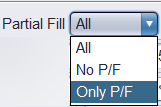
Partial Fill Filter Options:
-
- All – shows all tickets, regardless of PF status
- No P/F – shows only tickets that are not Partial Fill
- Only P/F – shows only tickets that are flagged as Partial Fill
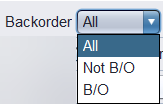
Backorder Filter Options:
-
- All – shows all tickets
- Not B/O – tickets not flagged as Backorder
- B/O – tickets manually marked as Backorder
You can also:
-
- Select all visible PF tickets and right-click to Bulk Mark as Backorder
- Combine filters to find:
- Backorders that are now fully fillable
- Partial Fill tickets that haven’t been flagged as BO
This view helps prioritize which tickets can be closed, need inventory, or require follow-up.
Managing Partial Fill Tickets
When inventory is received:
1.) Go to Views > Receiving and complete the receiving process as usual.
2.) Close the receipt to ensure inventory quantities and true quantities are updated.
3.) Navigate to Views > Sales Counter > Tickets > Recalculate Partial Fill.
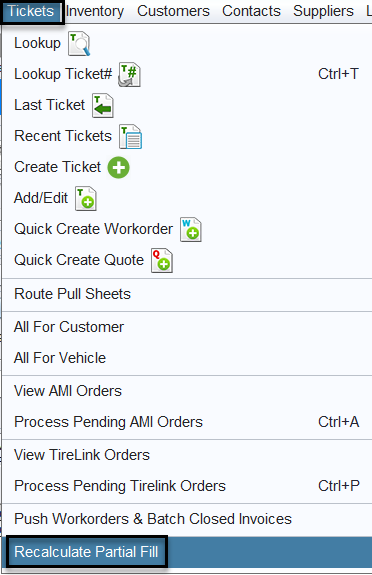
**Recalculate Partial Fill typically takes 5–15 seconds depending on how many open tickets exist in the system.**
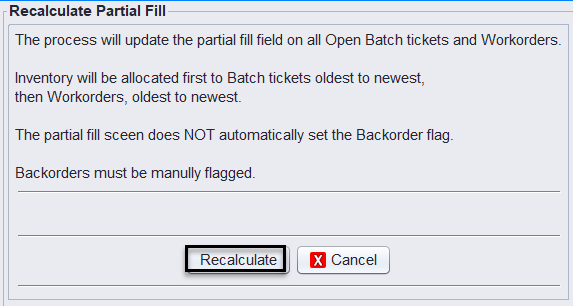
⚠️ The recalculation must be run manually. Partial Fill flags do not update automatically after posting a receipt.
4.) The system will then allocate inventory as follows:
-
- Prioritize batch tickets first, then workorders, based on oldest to newest
- Update any tickets flagged as Partial Fill to remove the P/F flag if they can now be fulfilled
Partial Fill vs. Ticket Closing
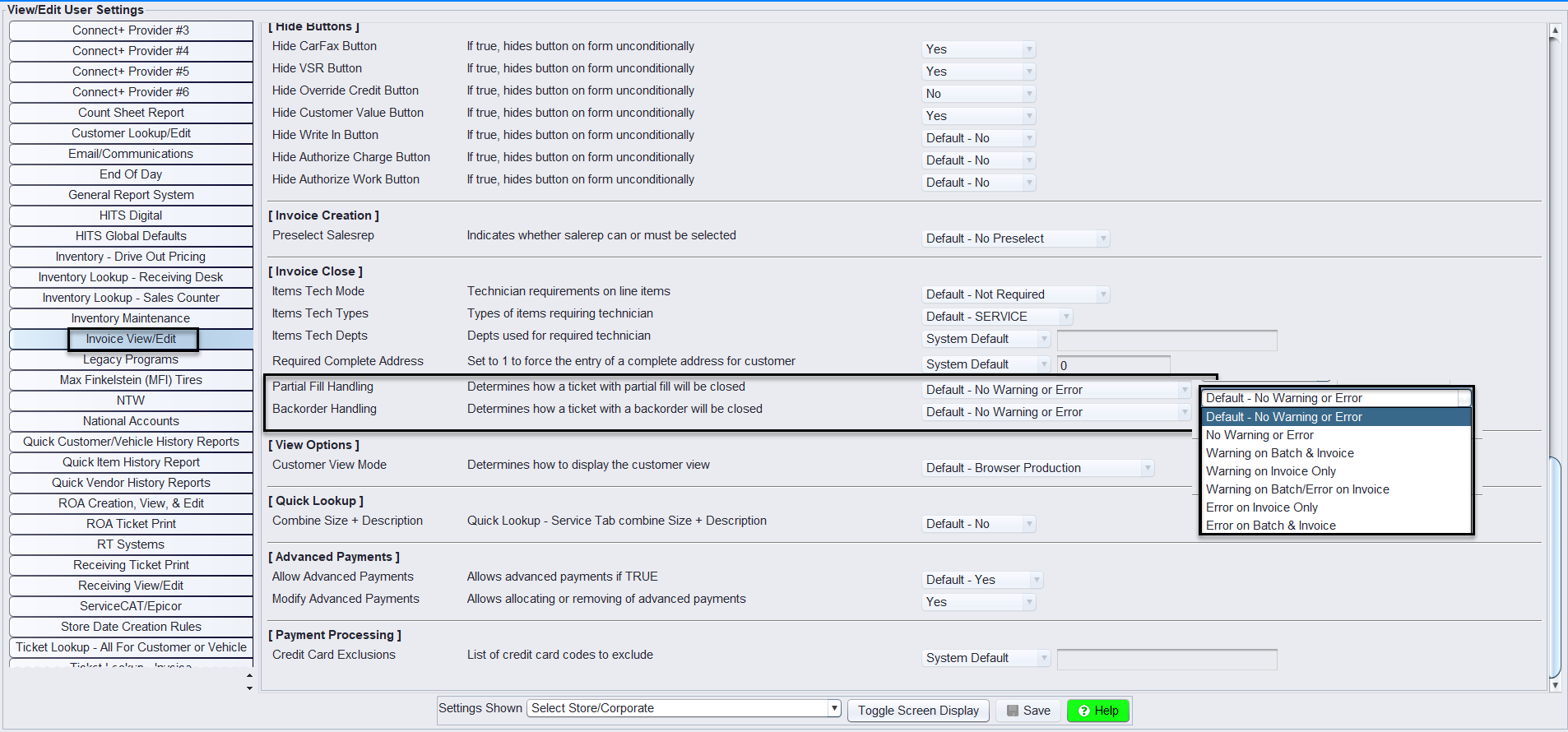
To adjust how tickets are closed for Partial Fill and Backorder tickets, go to Views > Admin & Utilities > Store > Store View/Edit Default Settings.
These settings are set to no warning or error by default, but you can change them to fit your needs when closing PF or BO tickets.
The options available allow you to:
-
- Allow closing without warning
- Display a warning (user can still proceed)
- Block the action with an error (user cannot proceed)
Settings: They are found in the Invoice View/Edit section of Views > Admin & Utilities > Store > Store View/Edit Default settings.
Partial Fill Handling – Controls what happens when trying to close a ticket flagged as Partial Fill
Backorder Handling – Controls what happens when trying to close a ticket flagged as Backorder
Understanding Partial Fill Behavior
Why is a ticket still marked Partial Fill even after receiving product?
-
- Check that the receipt is fully closed. Inventory won’t update until the receipt is finalized.
- Then run Recalculate Partial Fill to update ticket status.
Why did inventory go to a different ticket than expected?
-
- The system does not use ticket number order to determine allocation priority.
- It allocates inventory to:
- Batch tickets first
- Then Workorders, from oldest to newest — based on update timestamps, not ticket number
Behavior Note:
If two tickets contain the same item, inventory is not allocated based on which ticket was created first. Instead, inventory goes to the ticket that was updated first (e.g., batch-closed), not necessarily the one with the lower ticket number. Partial Fill may remain on tickets that are still open, even if they had the item first.
Another Case:
A ticket may show available quantity on an item but still show Partial Fill. This can happen if a receipt with that item is still open. The system uses the true quantity, which EXCLUDES open receipts. Once the receipt is closed and Recalculate Partial Fill is run, the PF flag will clear.
📋 Encourage sales staff to log the item number and general ticket context (such as ticket#, date, and quantity ordered) when reporting issues. This helps Support investigate quickly.
Best Practices
Always run Recalculate Partial Fill after posting large receipts to ensure all tickets are re-evaluated.
Use Ticket Lookup filters to manage ticket status:
- Partial Fill dropdown: Choose “Only P/F” to view tickets currently flagged as Partial Fill
- Backorder dropdown: Choose “B/O” to view tickets that have been manually flagged as Backorder
Right-click from the Ticket Lookup screen to bulk mark Partial Fill tickets as Backorder for tracking
Train staff to document product and ticket numbers (e.g., ticket#, date, product code) when reporting fulfillment issues
Need Help?
If something seems off with Partial Fill behavior:
-
- Provide the ticket # and item # to Support
- We’ll check inventory status, receipt posting, and ticket updates