Mapping Manufacturer Groups: Wheels, Tubes, Accessories
It may be necessary to map a manufacturer code to a group such as Wheel, Tube, or Accessory. This is especially important for the TireLink e-commerce system to display inventory results correctly, but it is also used in select places in the point-of-sale system, such as showing wheels properly on the inventory lookup screen.
This document explains how to map manufacturer groups, review the product fields used for searching, rebuild keywords, and verify the results in TireLink.
Open the Product in HITS
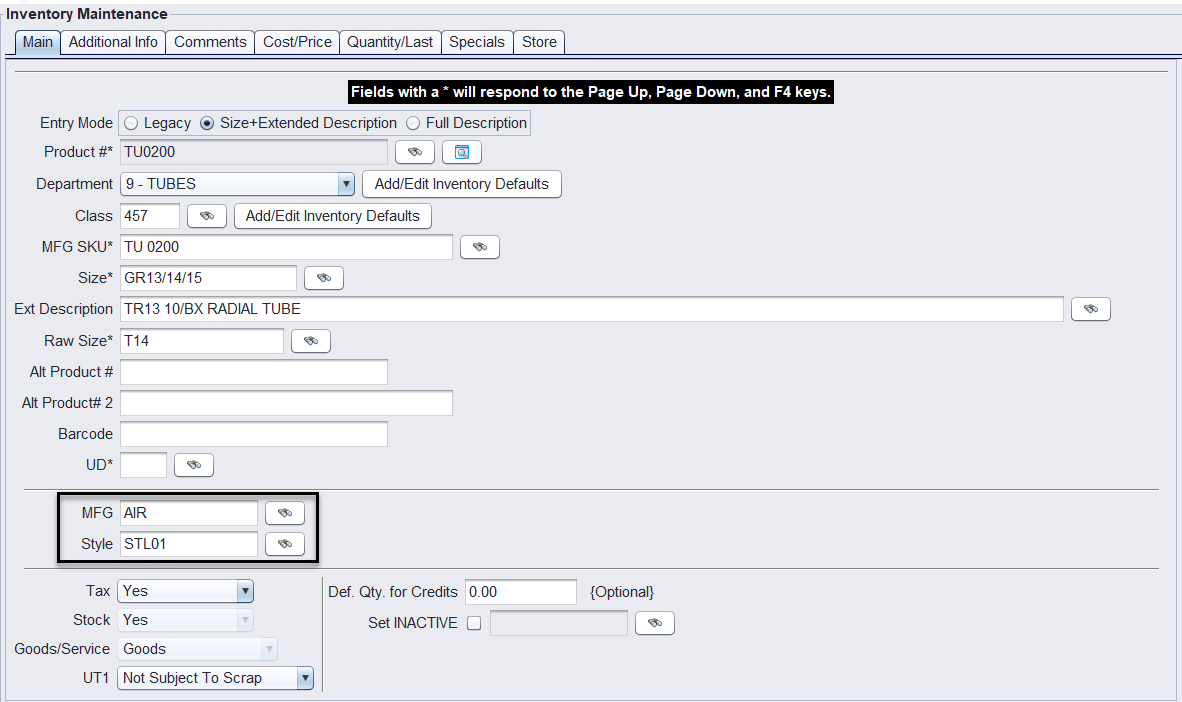
Open the inventory product and review its Manufacturer and Style fields.
- Manufacturer only – Map the Manufacturer code.
- Manufacturer and Style – Map the Style code.
Example: If a manufacturer supplies both tires and tubes, map the tube Style code to the Tube group.
Assign the Manufacturer Group
- Click the binoculars (lookup) button for the applicable Manufacturer or Style code.
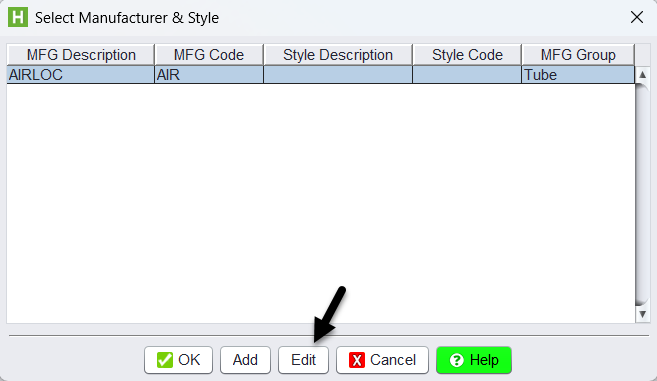
- Select the code and click Edit.
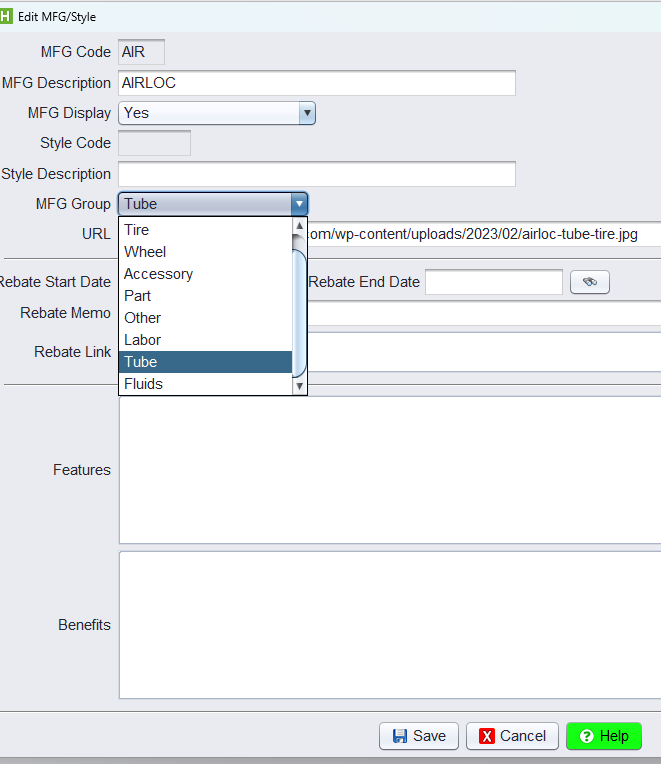
- Set Manufacturer Group to the appropriate group: Wheel, Tube, or Accessory.
- Save the change.
- Repeat for any additional codes that need mapping.
Important: The mapping applies to all products using that code. If all your tubes use the same Manufacturer code and have no Style codes, you only need to map that Manufacturer code once.
Review the Product Search Fields
The following inventory fields populate the search dropdowns on TireLink:
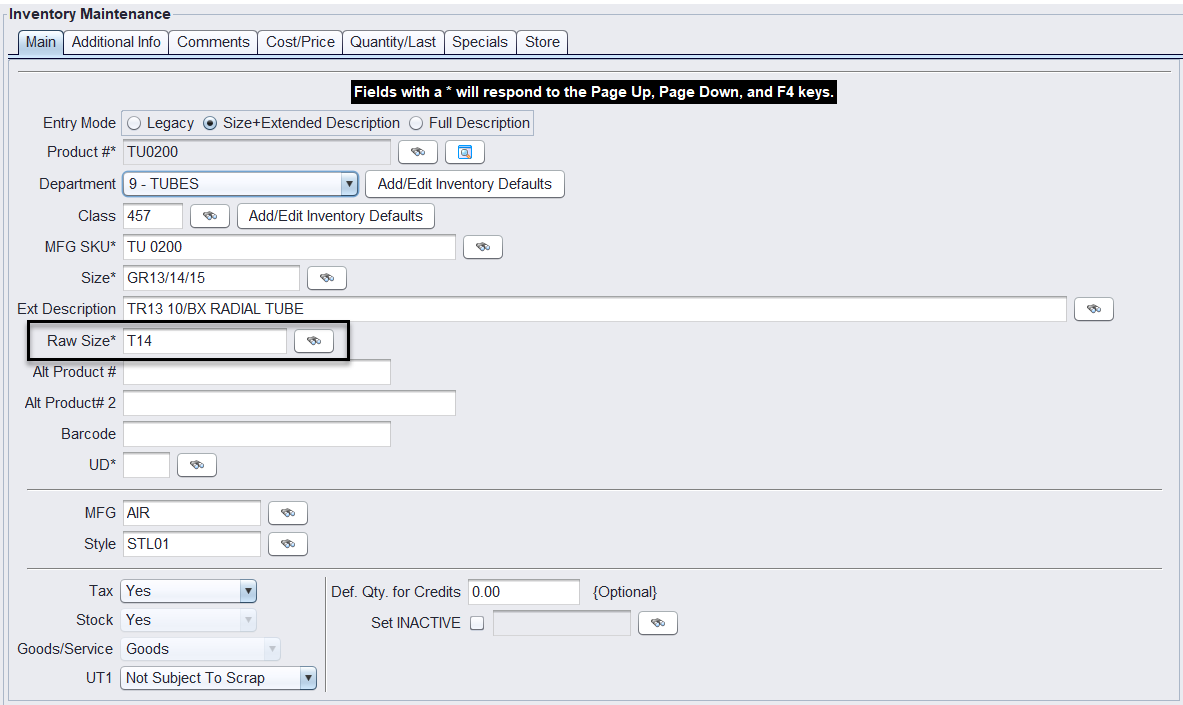
- Tubes – The Raw Size field supplies the Size dropdown.
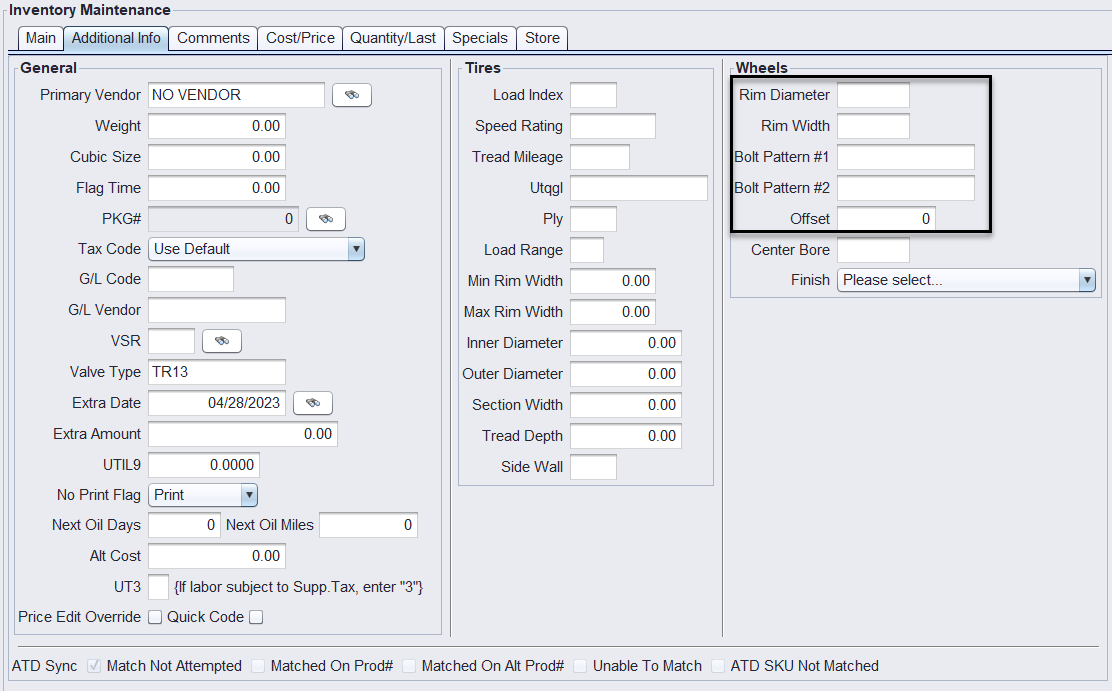
- Wheels – The Rim Diameter, Rim Width, Bolt Pattern, and Offset fields on the Additional Info tab supply the wheel dropdowns.
- Accessories – The Raw Size field supplies the Description dropdown. Examples include Tire Patch or Wheel Weight.
Review the applicable fields, make any necessary changes, and save the product.
Rebuild Keywords
Rebuild keywords when setting up groups for the first time, after importing products, or when expected search dropdown values are missing.
- Complete the manufacturer group mappings and inventory updates.
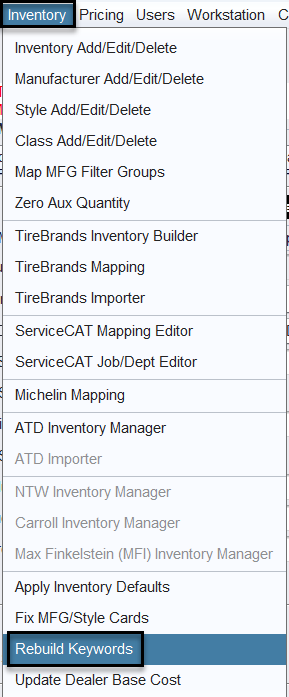
- Open the Inventory menu.
- Select Rebuild Keywords.
Important: One rebuild covers all product groups. When adding or editing products manually afterward, saving the product records its search values.
Verify the Results in TireLink
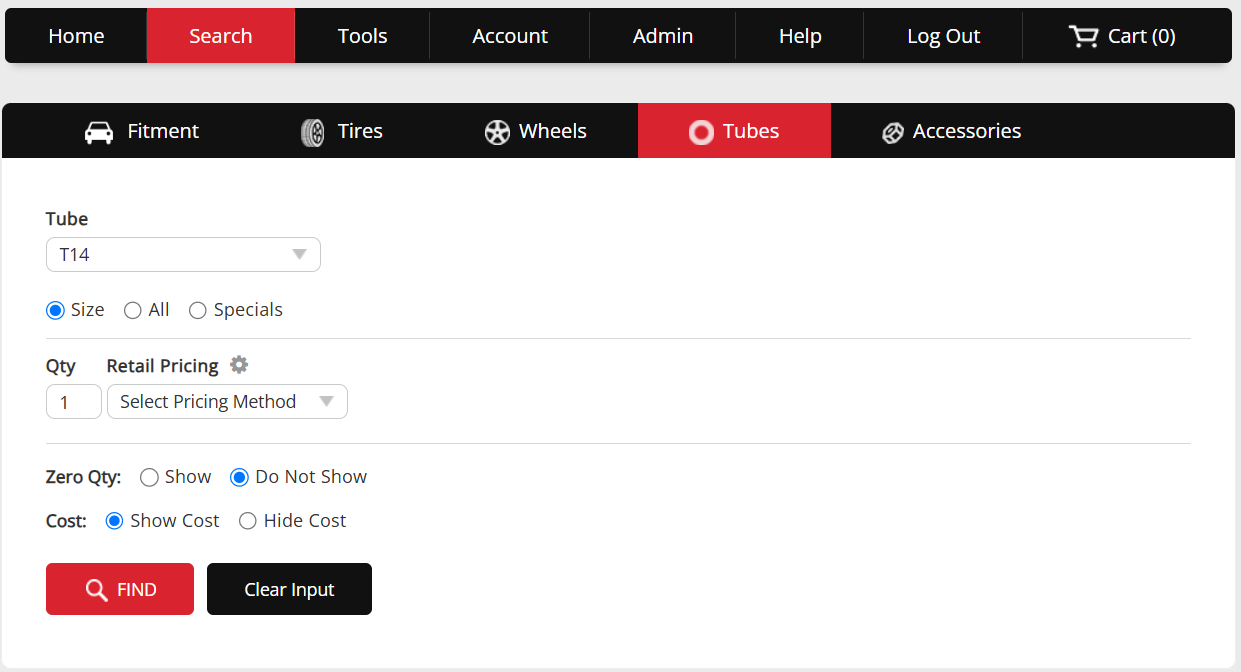
- Open the applicable Tubes, Wheels, or Accessories tab on your TireLink website.
- Run an All search to confirm the mapped products appear.
- Review the search dropdowns and confirm the expected values are available.
- Search using one of those values to verify the results.