
To merge customers in HITS, you can select multiple customers from the Customer Lookup screen (by holding down the CTRL key on your keyboard), and then clicking the Merge Customers button.
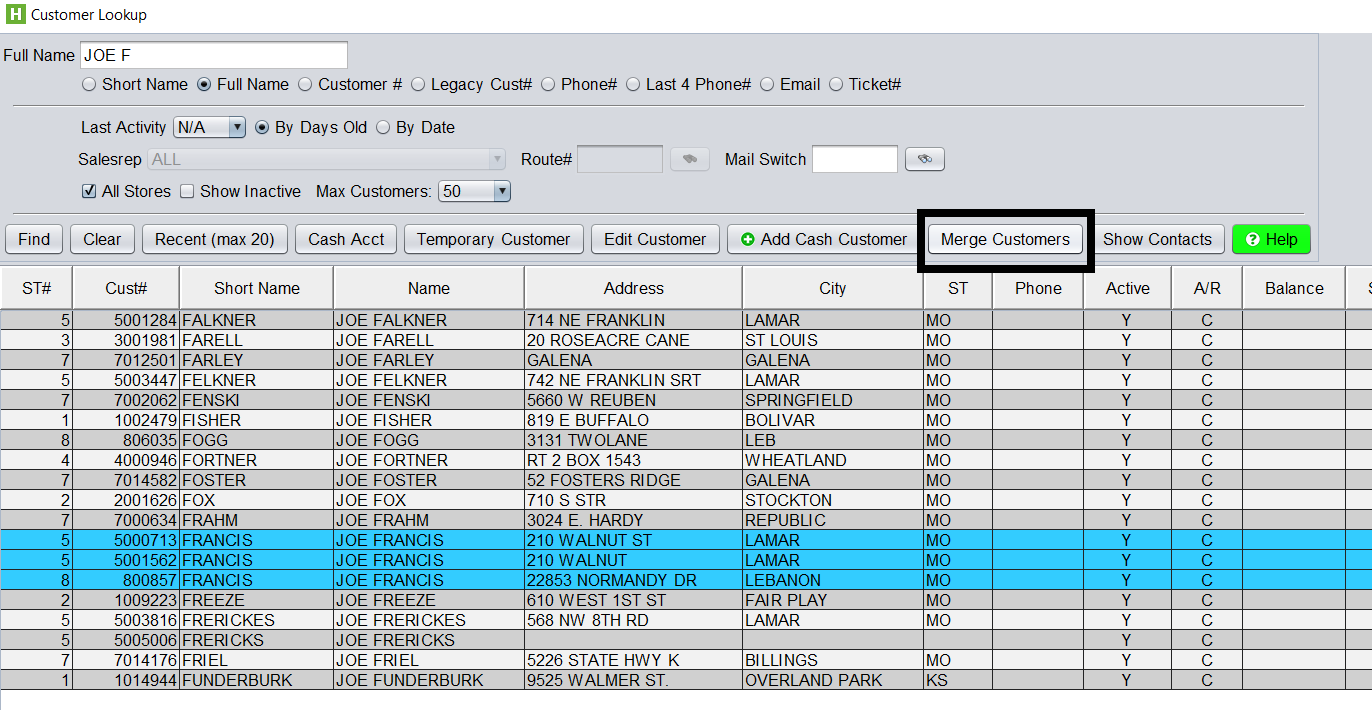
Alternatively, you can go to Customers > Merge from the top menu.
From the Merge Customers screen, you can continue to add or remove customer to be merged.
To finalize the merge, select the customer account you would like to the other account to be merged to, and click the Merge to Selected Customer button.
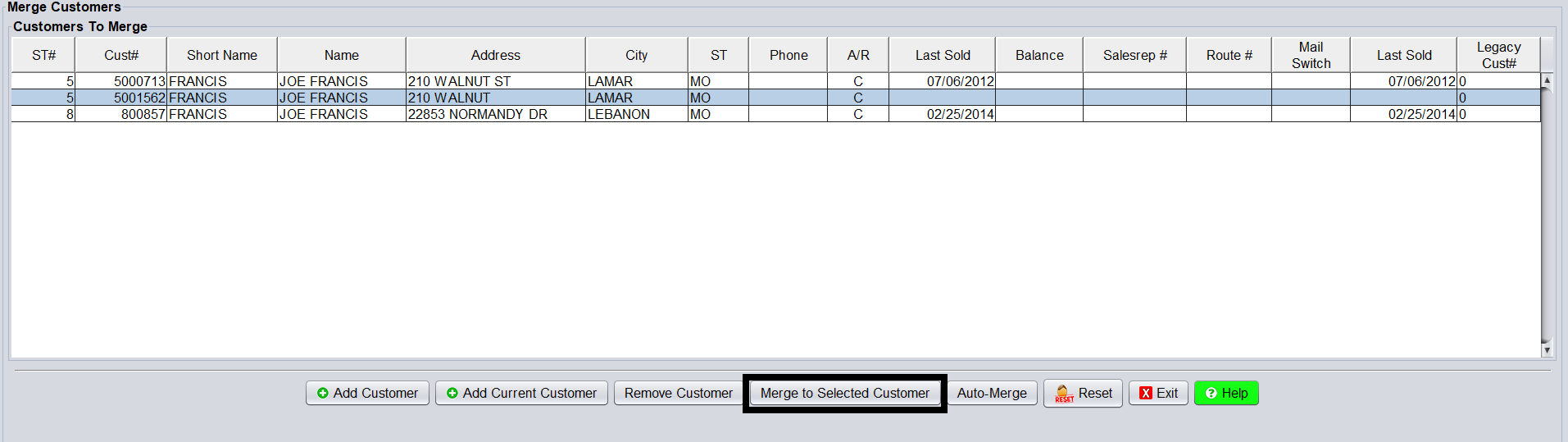
This will merge all history and vehicles to the selected customer account, only leaving you with the single customer account.
Additional note: You cannot merge multiple open item charge accounts with a balance. You can merge multiple non-open items charge accounts (cash accounts) to a single open item charge account. If doing this, the open item charge account must be selected as the customer account you are merging to.