
Occasionally, you may need to pay cash out of the drawer for expenses such as:
- Employee lunches
- Gas
- Shop supplies
- Cash/Check part purchases
HITS provides two different ways to handle these transactions, depending on whether your location uses the original Accounting Link for QuickBooks Desktop or the updated Accounting Link for QuickBooks Online.
Legacy Paid Out Process (QuickBooks Desktop)
To set up Paid Out Codes:
Navigate to Views>Administration & Utilities>Corporate>Paid Out Codes
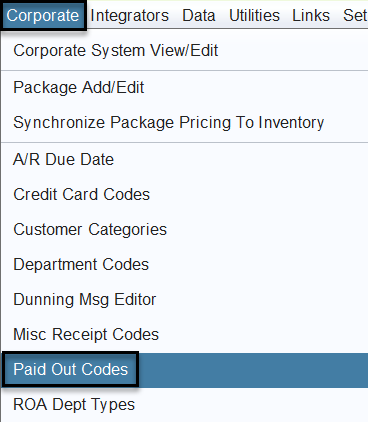
You’ll see the View/Edit Paid Out Codes screen.
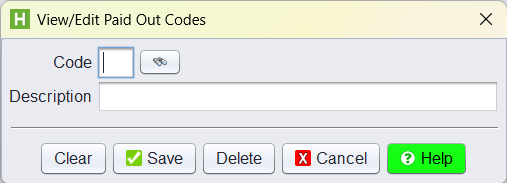
From this screen:
- Click the binoculars icon to view existing Paid Out Codes
- To add a new code:
- Enter a Code
- Enter a Description
- Click Save
- Log out and log back into HITS to use immediately
These codes will then be available for selection when posting Paid Outs.
When creating Paid Out Codes, consider adding codes for the most common cash expenses at your location, such as:
- LUNCH – Employee meals
- GAS – Fuel for shop or company vehicles
- SUPPLIES – Shop or office supplies purchased locally
- PARTS-CASH – Parts purchased with cash or check
- MISC – Miscellaneous cash expenses
- CARWASH – Vehicle wash or detailing
- TOW – Emergency towing expenses
- POSTAGE – Stamps or mailing costs
- SNACKS – Breakroom food or drinks
- PARKING – Parking fees while on company errands
💡 This setup is only used for QuickBooks Desktop accounts.
Posting a Paid Out (QuickBooks Desktop Method Only)
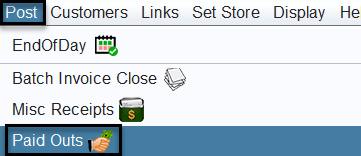
Once Paid Out Codes have been created, you can post Paid Out from view Bookkeeping>Post>Paid Outs.
- Select the appropriate Paid Out Code, from the dropdown.
- Verify or enter the Transaction Date.
- Enter the Transaction Amount.
- Enter a Transaction # (optional – used if you want to reference a receipt or internal tracking number).
- Enter a Transaction Description (recommended for clarity, such as Employee Lunch or Gas for Shop Truck).
- Click Save.
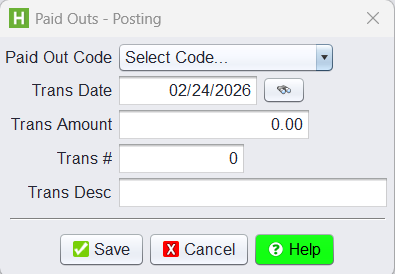
Once saved:
- The Paid Out is recorded immediately.
- It will appear in the Store Recap Report & Paid Outs Journal.
- It reduces the amount of cash expected for your store’s daily deposit.
💡 Tip: Always include a clear description to help accounting identify what the cash was used for.
New Paid Out Method (QuickBooks Online)
If your location uses QuickBooks Online integration, do not use the Paid Outs screen for cash expenses like lunch, gas, or miscellaneous shop purchases.
Instead, these must be processed as Receipts, so they sync properly to QuickBooks Online.
When to Use This Method
Use this process for:
- Employee lunches paid in cash
- Gas purchases
- Shop supply runs
- Any cash expense that needs to be posted to QuickBooks Online
This ensures the transaction:
- Syncs correctly to Quick Books Online.
- Posts to the proper expense account
- Is tied to the appropriate vendor
Create Expense Product Numbers (One-Time Setup)
Before posting receipts, you must create product numbers for expense items.
Navigate to Administration & Utilities>Inventory>Inventory Add/Edit/Delete and add the item.
Enter the following:
- Product #: (Example: LUNCH)
- Department: X – SHOP/BIZ EXPENSES (Recommended)
- MFG SKU: Same as Product #
- Description: (Example: LUNCH EXPENSE)
- Tax: No
- Stock: No
- Goods/Service: Service
- UT1: N/A
No additional setup is required.
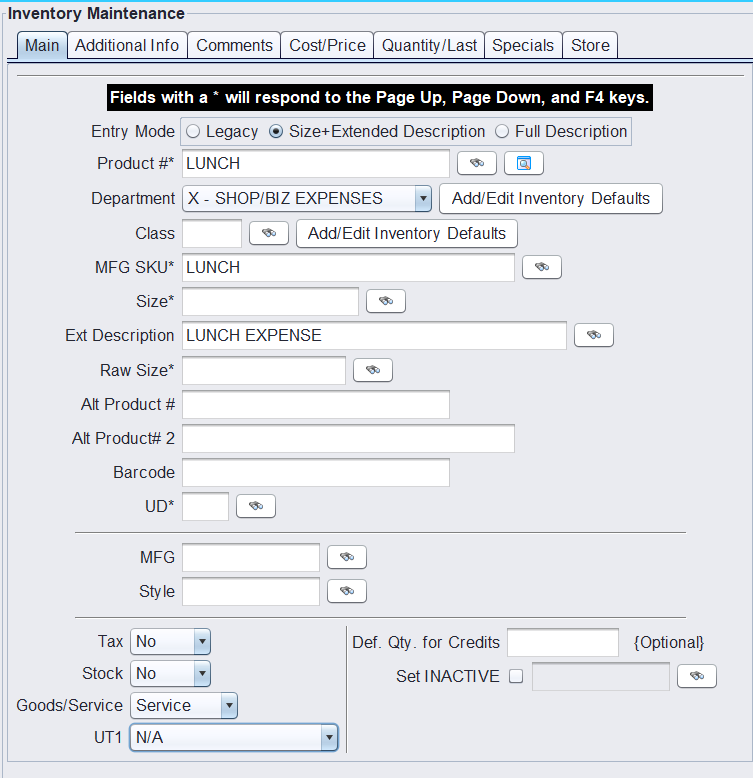
These product numbers are required because QuickBooks Online syncs transactions through product-level detail. These are not inventory items for resale, they are expense tracking items.
Create a Receipt for the Expense (QuickBooks Online Accounts Only)
Navigate to Views>Receiving and create a Receipt.
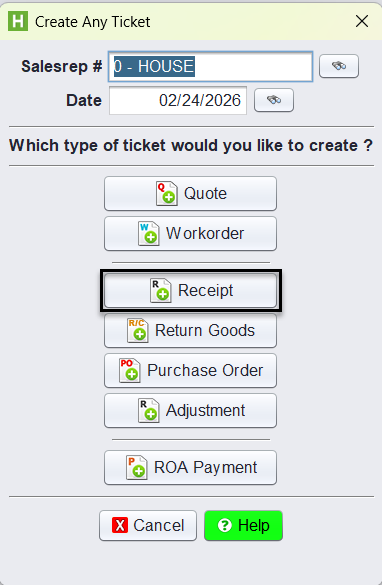
- Assign the appropriate Vendor – Should be the company paying the expense.
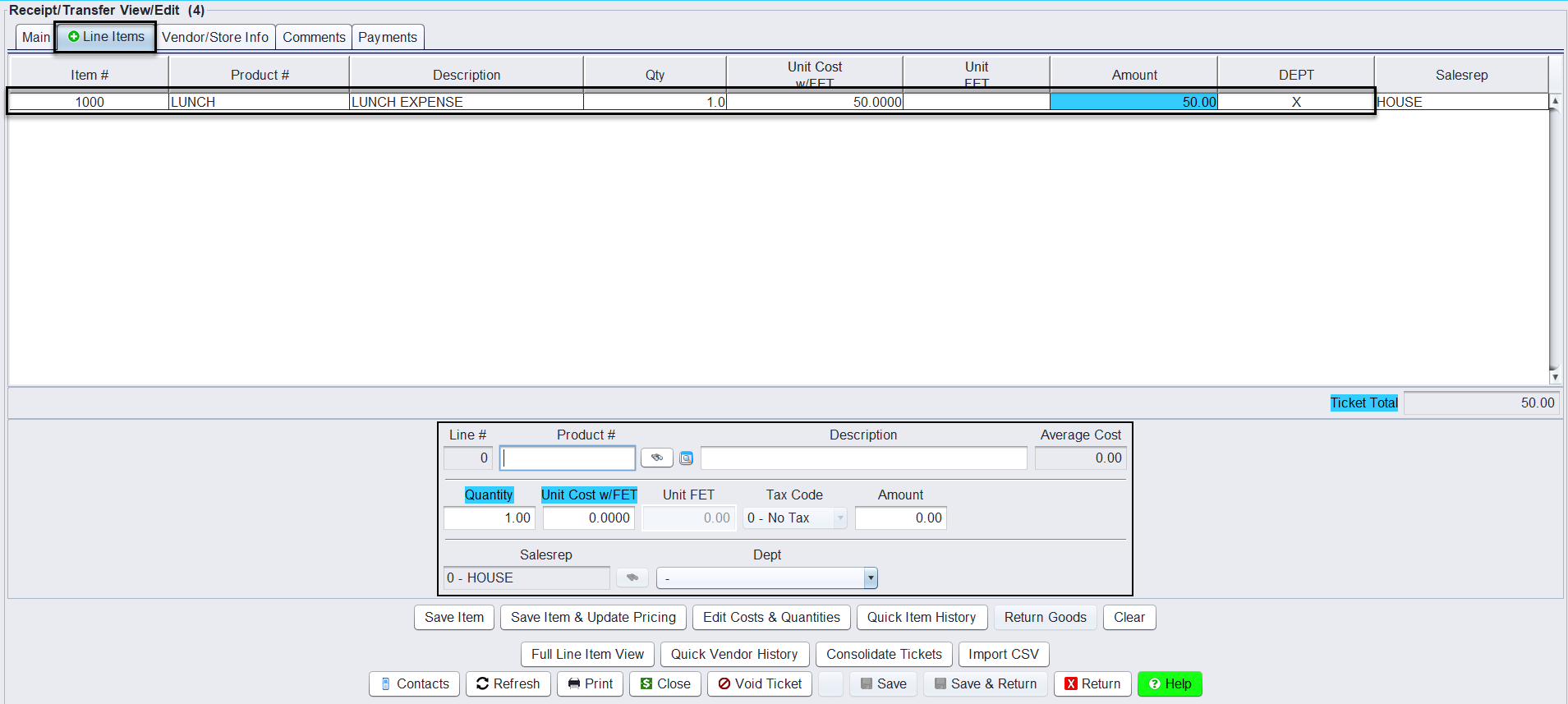
- Add the expense product (for example, LUNCH)
- Enter the dollar amount
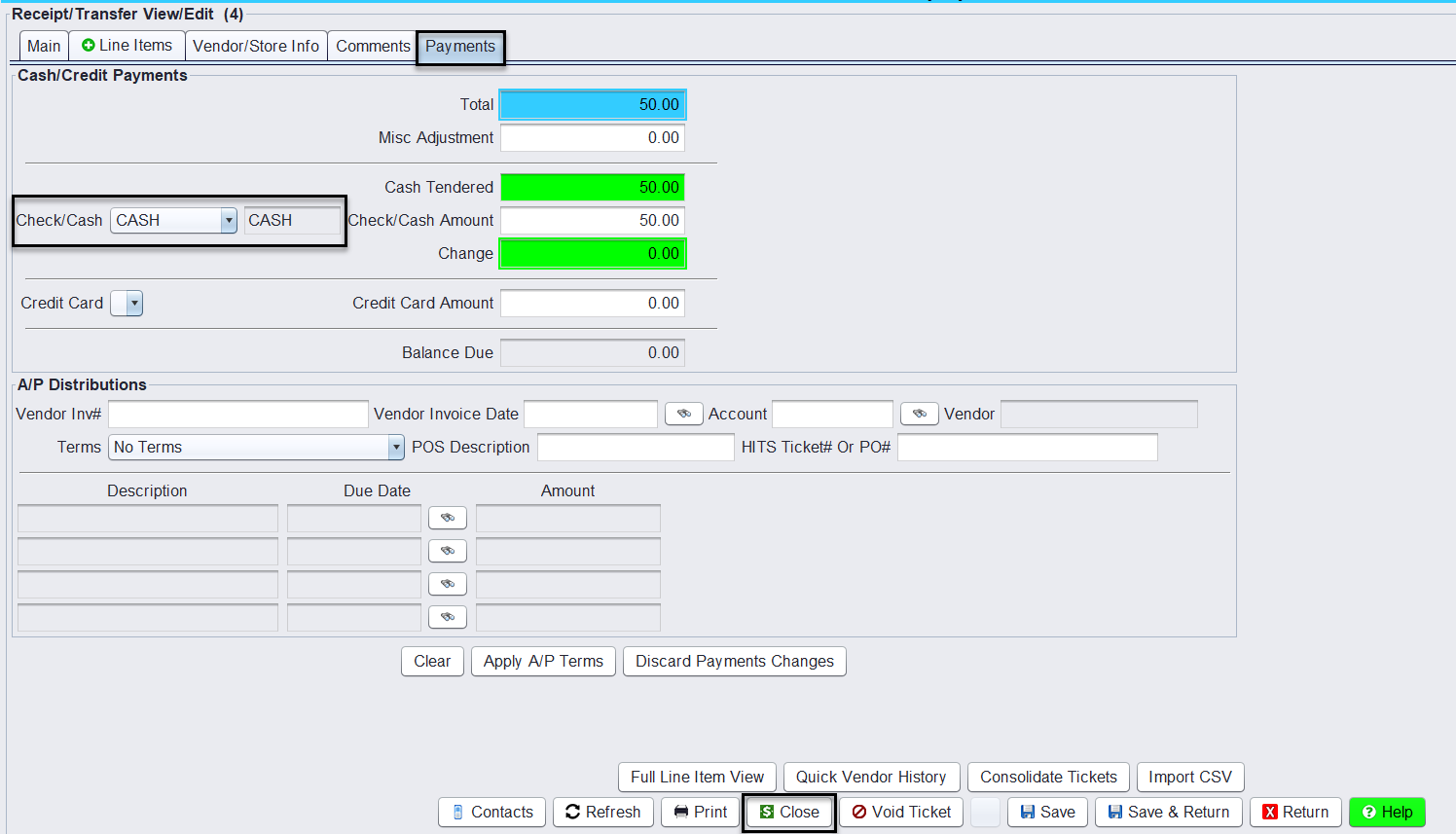
- Apply Cash as the payment method
- Close the receipt.
Paying Cash for Parts on a Customer Invoice
If you pay cash for parts that are tied to a customer invoice, you will still record the cash expense (paid-out). In addition, you may want to note on the customer’s invoice that the parts were paid with cash so accounting can clearly see the parts have already been paid.
Steps:
- Open the customer’s invoice.
- Click the outside part line item to edit it.
- In the Vendor Invoice field, enter: Cash
- Enter the vendor invoice number (if available).
- Click Save.

This lets bookkeeping know the outside part was paid with cash.
Reporting Impact (All Methods)
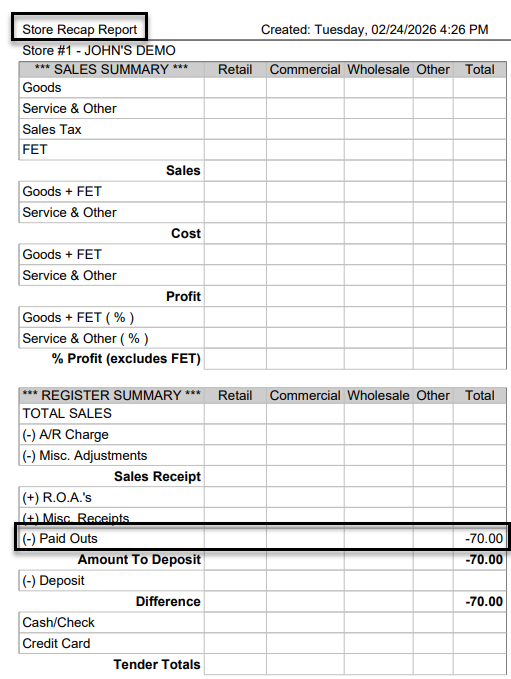
Both the legacy Paid Out method and the New Paid Out method (QuickBooks Online Accounts) will appear on the Store Recap Report under Paid Outs.
In both cases:
- The cash expense is reflected in the daily totals
- The Amount To Deposit is reduced
- The transaction is included in end-of-day reconciliation
Key Difference
The difference is how the transaction is created.
- Legacy Method – Posted directly through Bookkeeping → Paid Outs
- New Method – Created as a Receipt in Views → Receiving.