
ABOUT:
HITS BPOS offers an efficient password settings grid that allows you to edit all password permissions for users from a single form. We recommend using this grid for managing password permissions.
The table below is a breakdown of the fields in the password settings, along with brief descriptions and typical entries where applicable. Note that not all fields are currently in use, and those not in use are marked as n/a. Unless stated otherwise, permissions apply to both HITS M/S and HITS BPOS. Specific values required for certain fields will be described as needed.
How to Access and Use:
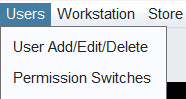
Only administrators with the permission will be able to edit permissions for users in the organization. If you are an administrator, go to Views > Admin & Utilities > User > Permission Switches to edit permission settings.
Find the Username in question. Each tab lists the specific range of password permissions available within that specific tab. If you have questions or need assistance, please contact the HITS Technical Support Department.
Important: A username/password must already exist to use the grid for editing permissions. For adding new usernames and passwords, please have the primary contact for your store reach out to the HITS Technical Support Department.
1.) Use the Admin & Utility to Update User Permissions:
-
- Navigate to the Views>Administration & Utilities>Users>Permission Switches where the Password Settings editable grid is located.
-
- Locate the username and the permission switch tab you wish to modify.

2.) Access the Permissions Switches table:
-
- Access the Permission Switches table below that details all available permissions and their descriptions. This table provides a comprehensive overview of each field and the permissible values.
3.) Find the Permission Switch to be updated:
-
- In the permissions switches table, identify the permission switch you need to update.
4.) Update the Permission Switch:
-
- Use the grid to update the relevant permissions according to the information in the permissions switches table. Ensure that any changes are accurately reflected in the grid for the appropriate username.
- Click Save to save your changes. Please have the user log out and back in to see the reflected permission updates.
| Permission | Category | Description | Options | Default | Additional Details |
|---|---|---|---|---|---|
| P1 | n/a | n/a | n/a | n/a | |
| P2 | n/a | n/a | n/a | n/a | |
| P3 | n/a | n/a | n/a | n/a | |
| P4 | Invoicing | Edit NON-Accounting Info on CLOSED tickets | |Y|: Edit non-accounting info. |N|: Do not edit non-accounting info. | |Y| | Once a ticket is closed, only selected non-accounting information (PO#, Vehicle, Salesman Code, Mechanic Code, etc.) can be edited. TIP: If you close a ticket with incorrect accounting information, the best way to correct the problem is to reverse the ticket using the copy lines capabilities in the body of the ticket. |
| P5 | Utilities | Access Customer Unlock Utility | |Y|: Access Customer Unlock. |N|: Do not access Customer Unlock. | |Y| | Allows user to access and run the Customer Unlock Utility. |
| P6 | Inventory | Display GP% On Inventory Scan | |Y|: See JUST cost. |%|: See both cost and GP%. | | | | When scanning inventory, this switch will enable the display of gross profit percent as a two character value from 1-99 when using Price Levels 1-4 with no adders. |
| P7 | Bookkeeping | Redirect A/R Charge | |N|: Do not redirect A/R charge. | | | | Permits the user to redirect an invoice balance to an open item customer. |
| P8 | Inventory | Year-to-Date Receipt History | |Y|: See receipts history. |N|: Do not see receipts history. | |Y| | Permits the user to see year-to-date receipts history. |
| P9 | Inventory | Sales History | |Y|: See sales history. |N|: Do not see sales history. | |Y| | Permits the user to see sales history transactions. |
| P10 | Inventory | See Inventory Average Cost | |Y|: See average cost. |N|: Do not see average cost. | |Y| | Permits user to see inventory average cost. |
| P11 | Inventory | See Inventory Price Level 1 | |Y|: See price level 1. |N|: Do not see price level 1. | |Y| | Permits user to see inventory price level 1. |
| P12 | Inventory | See Inventory Price Level 2 | |Y|: See price level 2. |N|: Do not see price level 2. | |Y| | Permits user to see inventory price level 2. |
| P13 | Inventory | See Inventory Price Level 3 | |Y|: See price level 3. |N|: Do not see price level 3. | |Y| | Permits user to see inventory price level 3. |
| P14 | Inventory | See Inventory Price Level 4 | |Y|: See price level 4. |N|: Do not see price level 4. | |Y| | Permits user to see inventory price level 4. |
| P15 | Inventory | See Actual Gross Margin % for All Price Levels | |Y|: See gross margin %. |N|: Do not see gross margin %. | |Y| | Permits the user to see actual gross margin percentages for all price levels (1-4). |
| P16 | M/S Only | Do Invoicing | |Y|: Generate and create an invoice. |N|: Do not generate and create an invoice. | |Y| | Permits user to do invoicing. Does not give permission to close or print an invoice. See P21. |
| P17 | Bookkeeping | Do ROA (Received On Account)/Advance Payments | |Y|: Create & disburse ROAs/Advance Payments |N|: Do not create or disburse ROAs./Advance Payments.|1|: View/create ROA/Advance Payments, but cannot disburse or alter existing disbursements. | |Y| | Permits user to do ROA/Advance Payment postings such as payments, debits memos, and credit memos. |
| P18 | Inventory | Inventory Inquiry and Scan | |Y|: Inquire and scan inventory. |N|: Do not inquire and scan inventory. | |Y| | Permits user to do inventory inquiries and scanning of inventory. |
| P19 | Customers | Customer Inquiry and Scan | |Y|: Inquire and scan customers. |N|: Do not inquire and scan customers. | |Y| | Permits user to do customer inquiries and scanning of customers. |
| P20 | Inquiry | All Other Inquiries | |Y|: Inquire and scan all other files. |N|: Do not inquire and scan all other files. | |Y| | Permits user to do all other inquiries except: Password, Store Daily, Store Monthly, Store Yearly, and System Data. See P24. |
| P21 | M/S Only | Close and Print Invoices | |Y|: Close and print invoices. |N|: Do not close and print invoices. | |Y| | Permits user to close and print invoices. |
| P22 | Bookkeeping | Daily Closing | |Y|: Do daily closings. |N|: Do not do daily closings. | |Y| | After all work has been done for a store day, someone with this permission must run a routine to close the books for the day. |
| P23 | n/a | n/a | n/a | n/a | |
| P24 | Inquiry/Print | Inquiry/Print Store Data and Post Deposits | |Y|: Inquire/print store data and post deposits. |N|: Do not inquire/print store data and post deposits. | |Y| | Inquiry/Print – Store Daily, Store Monthly, Store Yearly, System File Maintenance and permission to do Deposits. |
| P25 | Sales Counter | Add/Edit Cash Customer | |Y|: Add/edit cash customers. |N|: Do not add/edit cash customers. | |Y| | Permits user to add a new CASH Customer or edit an existing cash customer from the Sales Counter Customer pull down or from the invoice by selecting Add Cash Customer. Note: P25 = N blocks add/edit capability at the Sales Counter. See P40 for controlling access to Customer File Maintenance. Permits editing the Name/Address fields for an existing Cash Customer. Does not permit editing the account info fields for an existing Cash Customer. |
| P26 | Sales Counter | Add/Edit Charge Customer | |Y|: Add/edit charge customers. |N|: Do not add/edit charge customers. | |Y| | Permits user to add a new CHARGE Customer or edit an existing charge customer the Sales Counter Customer pull down. Also blocks access to Salesrep code on Customer “Other” tab. Note: P26 = N blocks add/edit capability at the Sales Counter. See P40 for controlling access to Customer File Maintenance. Permits editing the Name/Address fields for an existing Charge Customer if 25 & 26 = Y. Permits editing the account info fields for an existing Charge Customer. |
| P27 | Sales Counter | Supplier Updating | |!|: Run special program that updates selling prices. |N|: Do not run special program that updates selling prices. | | | | Permits the user to run special program that enables updating of selling prices using supplier replacement cost data. (Available for selected suppliers.) |
| P28 | n/a | n/a | n/a | n/a | |
| P29 | ROA Payments | Generate New Payment Number | |Y|: Generate new payment numbers. |N|: Do not generate new payment numbers. | |Y| | Permits user to generate a new payment # by pressing |F7| in the Payment # field. Note: You can have both P29 and P59 set to |Y| which will enable you to both manually enter a payment ticket number or have the computer generate one for you. |
| P30 | ROA Payments | Generate New Payment Number with |Enter| | |Y|: Use |Enter| key to generate new payment numbers. |N|: Do not use |Enter| key to generate new payment numbers. | |Y| | Same as P29 but generates a new payment # upon pressing the |Enter| key rather than the |F7| key. |
| P31 | Invoicing | Use of Price Level 5 | |Y|: Use price level 5. |N|: Do not use price level 5. | |Y| | Price level 5 forces the invoice program to use the price level and factor listed for the customer when invoicing. |
| P32 | Invoicing | Edit Average Cost During Invoicing | |!|: Edit average cost. | |: Do not edit average cost. | | | | Normally, HITS M/S does not allow editing of average cost on stocking items during invoicing. Due to dealer insistence, this option is provided to allow the editing of average cost even on stocking items. WARNING: By allowing editing of average cost on stocking items, system inventory value will not be adjusted by the program at the proper rate. You lose the ability to run the Inventory Value (As Of) report for a prior date range. It will only be valid for the current date and time that you run the report. Be aware that if you pay commission on gross profit and you allow a commission sales person to edit average cost, that user can directly affect their commission by editing average cost. NOTE: In order to activate P32=!, Corporate System switch D6 must also be set to “!”. Setting corporate system switch D6=! activates the master capability to edit cost. Password permission P32=! permits an individual user to perform this function. |
| P33 | M/S Only | Scan Line Break Between Sizes | |Y|: Add break line. |N|: Do not add break line. | |Y| | This option indicates if a line break will be added between sizes when scanning inventory from within the invoice screen. |
| P34 | Customers | Edit Customer C.O.D. | |!|: Edit customer C.O.D. | |: Do not edit customer C.O.D. | | | | With Corporate System switch D10=”!”, setting a user’s password permission switch P34=”!” will enable that user to edit the customer C.O.D. entry. WARNING: If Corporate System switch D10 is not set to “!”, any user with regular password file maintenance permission P40=Y will be able to edit the customer C.O.D. entry. Corporate System switch activates a higher level of control in conjunction with password permission switch P34. |
| P35 | Sales Counter | Set Store Day | |Y|: Set a store day. |N|: Do not set a store day. | |Y| | In order to do processing in HITS M/S, a store day (date) must be set for the store. |
| P36 | Sales Counter | Add A Store Day | |Y|: Create (add) a store day. |N|: Do not create a store day. | |Y| | Permits user to create (add) a new store day. (We recommend that only management and bookkeeping level users have this capability.) |
| P37 | M/S Only | Run A Program from Main Menu | |Y|: Run a program. |N|: Do not run a program. | |Y| | Permits user to run a HITS M/S program file directly from the Main Menu. This capability enables a user to run a custom or utility program not listed on the any of the HITS menus. Normally, we recommend that only management level staff have this option activated. |
| P38 | n/a | n/a | n/a | n/a | |
| P39 | Query | Query Access | |Y|: Access Query and run pre-built reports. |N|: Do not access Query. |W|: Create and save queries and export data to a CSV. | |Y| | HITS includes an elementary report writer that allows access to files outside of HITS password control. Once a user accesses Query, the user has access to all fields of data in the HITS files. Do not set this option to allow access to a user who normally should not see company information such as inventory average cost, profitability, etc. |
| P40 | File Maintenance and ROA | File Maintenance And ROA | |Y|: Access File Maintenance. |N|: Do not access File Maintenance. | |Y| | Permits the user to access virtually all of the file maintenance programs including selected areas of ROA. This is the most powerful option in the entire password system as it grants access to information such as inventory average cost and customer profitability. WARNING: We strongly recommend that only the highest levels of management activate P40. |
| P41 | EPP | Customer Price Profiles | |R|: Read extended price profiles.|W|: Write extended price profiles. | |R| | Permits the user to “R” (read) or “W” (write) records to the extended customer price profile file within the Customer file. (This is the file that controls pricing by customer by either manufacturer, style, or item.) Note: There is no default for this option. It must be explicitly set. |
| P42 | Invoicing | Delete Open Invoices | |Y|: Delete open invoices. |N|: Do not delete open invoices. | |N| | User has permission to run the legacy utility to delete open invoices that do not have a total or line items. |
| P43 | Shop Fee | Restrict Shop Fee Credit | |A|: Prevent shop fee credit using SS99CREDIT item. | | | | Setting this option prevents a user from crediting off shop fees using the required SS99CREDIT item. Normally, you would only set this option for a user that consistently credits off shop fees when he/she should not do so. |
| P44 | M/S Only | Scrap Reminder Bell | |!@#$%^&*()|: Set bell off on scrap fee reminders. | | | | (M/S Only) Some systems ring a bell whenever the scrap fee reminder activates during invoicing. This can be annoying to high volume dealers who sell lots of items that require scrap fees. Enter any one of the symbols listed to turn the scrap fee reminder bell off. |
| P45 | M/S Only | Preload Ticket Numbers | |W|: Preload ticket numbers. | | | | (M/S Only) Permits the preloading of a range of ticket numbers for workorders and invoices. Most often, this is used when you do not want any employees manually entering or generating new ticket numbers but rather working off existing, preloaded ones. This is also commonly used when using HITS M/S with pre-numbered manual tickets and you do ticket auditing. |
| P46 | Style Card (M/S Only?) | Style Card Base Price Updating | |Y|: Update selling prices using style cards. | | | | This entry controls access to the program that updates inventory selling prices using style cards. Updating pricing by style cards is a very powerful capability in HITS M/S. Therefore, care should be taken when allowing this permission. |
| P47 | M/S Only | Acknowledgement For Item Package | |Y|: Force acknowledgment for item package. |N|: Do not force acknowledgment for item package. | |N| | HITS M/S allows for the entry of a default package to be used with an inventory item. If an item is set to use a particular package, the user is reminded with a prompt at the bottom of the screen during invoicing. Unfortunately, many dealers find that their staff will not take note of this reminder and fail to add the necessary package to an invoice. This option provides the capability to force the user to acknowledge that an item requires a package. If activated, this option requires the user to enter a randomly generated number from 0-9 in order to continue invoicing. This confirms that the user knows that an item requires a particular package. |
| P48 | Invoicing | Block Invoices to Past Due Customers | | |: Close and print invoices to past due customers. |N|: Do not close and print invoices to past due customers. | |Y| | Permits the user to close and print an invoice to customers who are past due. |
| P49 | Invoicing & Receiving | Change Prices During Invoices and Receiving Desk | |Y|: Change prices. |N|: Do not change prices. | |Y| | (M/S ONLY) Permits user to change prices during these two routines. |
| P50 | Bookkeeping | A/R Aging | |Y|: Run A/R Aging. |N|: Do not run A/R Aging. | |Y| | Permits the user to run the A/R Aging programs for aging accounts and applying finance charges. |
| P51 | Bookkeeping | Bookkeeping – A/R Statements | |Y|: Print A/R Statements. |N|: Do not print A/R Statements. | |Y| | Permits the user to print A/R Statements. |
| P52 | Inventory | Inventory Inquiry – Change Prices During Inventory Inquiry | |Y|: Change prices during inventory inquiry OR on an Open Receipt (Save Item & Update Pricing). |N|: Not Allowed. | |Y| | Permits the user to change prices during inventory inquiry OR on an Open Receipt (Save Item & Update Pricing) |
| P53 | Sales Counter | Sales Counter – Customer Notes | |Y|: Edit customer notes. | |: Access but not edit customer notes. | |Y| | Provides controlled access to the 26 pages of customer notes. |
| P54 | Sales Counter | Sales Counter – Customer Notes Degree of Access | |A-Z|: Sets degree of customer notes page access. | |Z| | Controls the degree of access to customer notes. Customer notes have 26 pages named A-Z. The letter entered here determines the last page of notes the user can access. For example, setting this option to “M” restricts access from N-Z. |
| P55 | Credit Management System | Credit Management System | |1|: Set allowable number of past due days. |2|: Override an invoice on credit hold. |3|: Both 1 and 2. | | | | Controls access and degree of access to the Credit Management System. Suggests requesting a copy of the Credit Management System document for details. |
| P56 | Bookkeeping | Bookkeeping – Post Miscellaneous Receipts And Paid Outs | |Y|: Post misc. receipts and paid outs. |N|: Do not post misc. receipts and paid outs. | |Y| | Permits the user to post miscellaneous receipts and paid outs. |
| P57 | Reports | Reports | |Y|: Run reports. |N|: Do not run reports. | |Y| | Permits the user to run reports. |
| P58 | Invoicing | Invoicing – Add/Edit Notes on Invoices OR Edit A Batch Closed Ticket | |Y|: Add/edit notes on invoices but not edit batch closed tickets. |N|: No access to notes or batch closed tickets. |Z|: Access and add notes to invoices and edit batch closed tickets. | |Y| | Controls if a user can add or edit notes to invoices and/or edit tickets flagged for batch closing. Batch Mode allows tickets to be flagged for batch close at the point of sale, which can only be edited by users with this permission. |
| P59 | Bookkeeping | Bookkeeping – Manually Generate ROA Numbers | |Y|: Manually enter a new ROA #. |N|: Do not manually enter a new ROA #. | |Y| | Permits the user to manually enter a ticket number for ROAs. |
| P60 | Accounting Link | Accounting Link FTP Authorization | |A|: Extract transaction data to The Accounting Link. |N|: Do not extract transaction data. | | | | Permits the user to extract HITS transaction data to The Accounting Link. |
| P61 | M/S Only | Invoicing – (M/S Only) Supplemental Tax Administration | |!|: Change supplemental tax lock out. | |: No access. | |!| | Permits user to access an invoice to remove the supplemental tax line(s) so that more line items can be added and supplemental taxes recomputed on all items. (HTSC: inv_det.ut1=T) |
| P62 | Sales Counter | Sales Counter – (M/S Only) Tag Deletion Menu Options | |Y|: Access and delete tags (vehicles) using menu option #5. |@|: Access and delete tags (vehicles) using menu options #5 and #7. |N|: No access. | |Y| | From the Vehicle Inq./Add option on the Sales Counter menu, a user can access a listing of vehicles. Pressing |F6| provides access to a Tag Deletion Menu. This option controls access to options #5 and #7 on that menu. |
| P63 | M/S Only | Invoicing – (M/S Only) Add items to store’s inventory | |Y|: Add items to store’s inventory. |N|: Do not add items to store’s inventory. | |Y| | Permits user to set up an item in that store’s inventory that exists in the inventory master but not in the store file. Limit control when you have items in the inventory master that you do not wish to be added to all stores’ inventories. |
| P64 | Reports | Reports – Inventory and Store Comparison Report (Corporate) | |Y|: Run the report & add/edit stock levels. |N|: Do not run the report. | |Y| | Permits user to run the Store Comparison report, Corporate version. This report compares sales for up to four different periods. |
| P65 | Reports | Reports – Store Comparison Report (Store version) | |Y|: Run the report. |N|: Do not run the report. | |Y| | Permits user to run the Store Comparison report. This report compares sales for up to four different periods. |
| P66 | Tirelink|HITS | Notification Alerts | [!]: Do Not Show Alerts [1]: Show alerts [2]: Allow them to be processed [3]: Both | | | | For customers with active HITS alert integrations, this option allows you to disable/enable alert notifications for users who access the Sales Counter but are not responsible for processing incoming alerts. This setting applies to all HITS alerts, including TireLink, Simple Tire, AMI, and HD alerts. |
| P67 | Win32 Print Control | |*|: Permits Windows printing. Permits changing Native/Raw print control parameter. Cannot PDF view/Email. |!|: Permits Windows printing. Blocks all access to print control parameters. Cannot PDF view/Email. |Y|: Full access; can print to Windows, access all control parameters, and can PDF view/Email. | | | | Controls access to configuration parameters used by the A&A Win32 Print Engine when printing reports that use the HITS report previewer. | |
| P68 | Tirelink | TireLink Access | |R|: Read-Only access to TireLink information. |W|: Write access to TireLink information. Users with this permission can activate and deactivate individual TireLink accounts as well as edit the master owner/manager password for a client. | | | | Controls access to TireLink e-commerce client information which indicates if the client is activated for WebDCM and the clients master owner/manager password. |
| P69 | Receiving | Receiving Desk – Closing receipts marked as Returned Goods | |1|: Close receipt marked as returned goods |2|: Create a single returned goods receipt for all/multiple items. |3|: Both options | | | | |
| P70 | M/S Only | “X” Raw Size During Inventory Scan & Block Saves To Quote Parameters – (M/S Only) | |Y|: “X” and UN-“X” a raw size. | |: Do not perform this action. |!|: Do not save quote parameters in M/S. | | | | Function #1: A toggle that permits the user to “insert” or “remove” an “X” at the front of the raw size of an item provided the item has no true quantity on hand. Action is performed by pressing F10, then F9 when the desired item is highlighted. The user is notified with a message as to which action is performed. Function #2: User is blocked from saving any changes to the quote parameters screen in M/S. Note: As dual function switch, a user with permission to “X” raw sizes automatically has permission to save quote parameters. Concurrently, a user who is blocked from saving quote parameters will also not be able to “X” raw sizes. |
| P71 | Receiving | Controls permissions for Transfers and Receipts | |blank|=Full access N=Not permitted 1=Transfers only (open-ended) 2=Transfers & Receipts (reconciliation required) 3=Transfers only (reconciliation required) 4=Transfers & Receipts (reconciliation optional) 5=Transfers only (auto-cross allowed) 6=Transfers & Receipts (forced cross-post) | | | | Typical user settings include: N - M/S Receiving Only User; 1 - Transfer Only User; 2 - Transfer & Receipt User (Reconciliation Required); 3 - Transfer Only User (Reconciliation Required); 4 - Power User (Transfers, Receipts & Auto-Cross); 5 - Transfer Only Auto-Cross User; 6 - Forced Cross-Post User. Users with P71 = Y can also build Restocking POs and create Stocking Transfers. |
| P72 | Receiving | Controls ability to enter/save and post vendor information for Outside Purchases | |P|=Permitted to enter/save and post |U|=Permitted to enter/save only | |U| | |P| allows posting of Outside Purchase line items and automatic inventory receipts creation. |
| P73 | Receiving | Permits the user to close and print receipts and adjustments | |Y|=Permitted |N|=Not permitted | |Y| | Default allows closing and printing of receipts. |
| P74 | Invoicing | Controls SCTPrint format for printing mechanic and tax codes | |X|=Block printing | | = Permit printing | | | | Default permits printing of mechanic and tax codes. |
| P75 | M/S Only | Controls the display of pop-up help prompts | |X|=Block pop-ups | | = Permit pop-ups | | | | Default permits pop-up help prompts. |
| P76 | Receiving | Controls access to receipts and transfers functions | |Y|=Allow access (Both M/S and BPOS) |B|=BPOS Only access | |Y| | Default allows access to both M/S and BPOS functions. |
| P77 | Theft Management System | Activates the Theft Management system for the user | |!|=Activates theft management |1|=Limited edit permissions | | = Not activated |1| - Allows for name change if using PN4=2 | | | | Allows limited edits for sales reps with specific settings. If theft management is activated, users cannot process tickets for cash accounts or reuse tickets with changed customer info. |
| P78 | M/S Only | Forces entry of a customer before inventory scan | |!|=Forces entry | | = Not forced | | | | Default does not force customer entry during inventory scanning. |
| P79 | Registration | Controls BPOS workstation registration and unregistration | |R|=Register workstations |M|=Mobile registration |U|=Access with registered workstation |X|=Unregister workstation | |U| | Default allows access with a registered workstation. |R| is for registering new workstations; |M| is for mobile registration; |X| unregisters the workstation and deactivate user. |
| P80 | Inventory | Controls access to Inventory File Maintenance and session limits | |X|=Prevent access to Inventory File Maintenance Number=# of multiple sessions allowed | N/A | |X| prevents access to Inventory File Maintenance. Number field controls the number of sessions a user can have open. |
| P81 | Invoicing | Invoicing – Manually Generate An Invoice # | |Y|: Permitted to manually generate an invoice #. |N|: Not permitted to manually generate an invoice #. | |Y| | Permits the user to enter a number for an invoice. If that number does not already exist, it is generated as a new invoice #. |
| P82 | Invoicing | Invoicing – Auto Generate An Invoice # | |Y|: Permitted to generate an invoice # with |F7|. |N|: Not permitted to generate an invoice # with |F7|. | |Y| | Permits the user to generate a system-sequenced invoice # by pressing |F7|. |
| P83 | Invoicing | Block Price Code Change on Invoice Line Item Entry | |!|: Blocks user from changing Price Code on invoice line item entry. | |: No block. | | | | Prevents sales staff from changing the default Price Code (Level) for a customer. Overrides can still be made, but deviations are reported for management monitoring. |
| P84 | Invoicing | Invoice – (M/S Only) COD Reminder/Confirmation | | |: User must key a number to bypass reminder. |P|: User is prompted with a reminder but can press any key to continue. |S|: User is not advised of any warning or prompting regarding COD status. | | | | Determines if the user is reminded, forced to confirm, or skipped altogether regarding COD status for customers. |
| P85 | ROA | ROA – ROA Types Processing | Y: Can process Payment, Credits, Debits. P: Can only process Payments. N: Cannot process anything. | | | | Determines what ROA types the user can post. |
| P86 | ATD | ATD – (BPOS Only) Receiving Desk Operations | |N|: User is not blocked from deleting ATD purchase order line items. | |: User is blocked from altering line items. | | | | Controls if the user is blocked from performing Receiving Desk operations that could compromise data integrity of processed Purchase Orders for ATD via the ATDConnect interface. |
| P87 | Customer | Customer Add/Edit Control From Pull Down | |!|: User is permitted to add/edit Customers from the main pull down. | |: No add/edit permission. | | | | Controls whether the BPOS user can add and edit Customers from the Sales Counter ? Customer pull down. Recommended for back office and bookkeeper staff. |
| P89 | Receiving | Vendor Add/Edit – BPOS | |Y|: Permitted to add/edit Vendors. |N|: Not permitted to add/edit Vendors. | | | | Controls whether the BPOS user can add and edit Vendors. |
| P90 | S99 | BPOS99 Salesrep and Technician Add/Edit | |!|: Permitted to add/edit salesrep and/or technician master records. | |: No add/edit permission. | | | | Determines if the user has permission to add/edit Salesrep and/or Technician master records in BPOS99. |
| P91 | Receiving | Receiving Desk – Manually Generate A Receipt/Adjustment/Transfer # | |Y|: Permitted to manually generate a #. |N|: Not permitted to manually generate a #. | |Y| | Permits the user to enter a number for a receipt/adjustment/transfer. If that number does not already exist, it is generated as a new number. |
| P92 | Receiving | Receiving Desk – Auto Generate A Receipt/Adjustment/Transfer # | |Y|: Permitted to generate a # with |F7|. |N|: Not permitted to generate a # with |F7|. | |Y| | Permits the user to generate a system-sequenced # by pressing |F7|. |
| P93 | Reports | Inter-Store Reporting Permission | |I|: Permitted to run reports for any store. | |: Limited to running reports for assigned store only. | | | | Indicates if the user is permitted to run reports for other stores. |
| P94 | M/S Only | M/S Sub-Menu Lock | |A-Z, except Y and N|: Represents the M/S submenu that the user can access. | |: No submenu lock. | | | | The letter entered locks the user to a specific M/S submenu. For example, “K” restricts access to Menu K in M/S. |
| P95 | n/a | n/a | n/a | n/a | n/a |
| P96 | Invoicing | Price Code Block on Invoice Line Item /Adjust Price Up/Down | ||Y| Permitted to edit the cost and/or selling price of a line item |X| Not permitted to edit cost, selling price, or amount on a line item |1| Permitted to edit selling price via the Price Code dropdown selector ONLY on the Line Item Tab. |U| Permitted to edit the selling price UP using the calculator (Adjust Factor) button |C| Permitted to edit the selling price UP or DOWN using the calculator (Adjust Factor) button | | | | Blocks or allows editing of cost, selling price, or amount on a line item. Adjustments are made through user-defined discount codes. |
| P97 | M/S Only | Dealer Base cost | |Y|: Permitted to see Dealer Base Cost, but not Average Cost. | | | | Allows the user to see Dealer Base Cost but not Average Cost. |
| P98 | M/S Only | Block Access to MS Main Menu | |X|: Not permitted to access HITS MS Main Menu. | |: No restriction. | | | | Controls access to the HITS MS Main Menu. |
| P99 | Super Management Password | Super Management Password | |!|: Can access the password edit grid. | |: No access to the password edit grid. | | | | Allows the user to access management areas such as system View/Edit Default Settings and BPOS Password Edit Grid Access. |
| PN1 | RTS Systems | RTS Systems Alert and Transfer Close Override | |1|: Show Alert |2|: Allow Processing of Alert |3|: Both |4|: Allow Transfer Close Override on transfers that do not match due to RT mismatches on quantities | | | | Controls how alerts and transfer close overrides are handled in RTS Systems. |
| PN2 | Inventory | Inventory Repair Tool | |1|: Allow Running of Repair Tool | | | | Allows the user to run the Inventory Repair Tool. |
| PN3 | Tech Requests | Tech Requests | |1|: User may submit a tech request via BPOS Drop-Down option | | | | Permits the user to submit tech requests through a BPOS drop-down option. |
| PN4 | Customer | Edit Customer Address While Theft Deterrent is Turned On | |2|: Allows user to edit address information on customer’s account (but not name), P77 must be set to 1 for name change | | | | Allows editing of address information on customer accounts when Theft Deterrent is enabled. |
| PN6 | Ship To | Ship To Addresses | |1|: Ability to Add a Ship To Address to an account | | | | Permits the user to add a "Ship To" address to an account. |
| PN7 | Tickets | Delete Quote/Workorders/Reuse Ticket Operation | |1|: Permission to consolidate tickets |2|: Permission to consolidate tickets and right-click to Delete Quote/Workorders/Reuse Ticket on Ticket Lookup screen | | | | Controls permission to consolidate tickets and delete or reuse quotes. |
| PN8 | Ticket | Print a Ticket as a Quote | |1|: User has permission to print a workorder as a Quote (and thus see pricing on the ticket) | | | | Allows the user to print a workorder as a Quote, including pricing. |
| PN9 | n/a | n/a | n/a | n/a | n/a |
| PN10 | Ticket | Store Date on Open Ticket Default | |1|: Allows user to close tickets on original store date without manually changing the store date | | | | Enables the ticket to close with the original store date if the store date is still open. |
| PN11 | Inventory | DATAX Master Inventory Export/Import Routine | |1|: Permits general access and use of the utility |2|: Permits updating Average Cost with existing quantity on-hand or in-process | | | | Allows access to the DATAX Master Inventory Export/Import routine with optional permissions for updating Average Cost. |
| PN12 | Ticket | View Tickets from Other Stores | |1|: Gives user permission to view tickets from other stores in the Ticket Lookup screen | | | | Permits viewing of tickets from other stores without multi-store access. |
| PN13 | Ticket | Block Adding/Editing Package Tickets | |0|: Blocks the user from adding/editing Package tickets (-10,000 through -1) (P40 must also be set to N) | |0| | Blocks adding/editing of Package tickets when combined with P40 settings. |
| PN14 | Invoicing | Block Sales Tax Editing | |1|: Block line item tax change |2|: Block invoice tax change, |3|: Bocks both | | | | | | No block (can edit Invoice and Line Item tax) |1| Block (can edit Invoice tax, but not Line Item tax) |2| Block (can edit Line Item tax, but not Invoice tax) |3| Block (cannot edit Invoice tax or Line Item tax) |
| PN15 | n/a | n/a | n/a | n/a | n/a |
| PN16 | n/a | n/a | n/a | n/a | n/a |
| PN17 | Invoicing | Blocks User from Voiding Invoices | |1|: Blocks user from voiding invoices | | | | Blocks the user from voiding invoices. |
| PN18 | Timeclock | Timeclock access | |0| – No access |1 |– Own use only; no edits (Shared: password required) |2| – Own use; can add/edit/delete (Shared: password required) |3| – View all users; no edits (Shared: same as Level 1) |4 |– Add/edit/delete for all users (Shared: same as Level 2) |5| – Same as 4, plus approve (Shared: same as Level 2; approval must be done in unshared mode) | |0| | Shared workstations require password entry for all actions. Time approval (PN18 = 5) must be done in unshared mode. Interstore permission still applies—users can only edit records for stores they are assigned to. |
| PN19 | Inventory | GL Mapping - To enable non-admin users to perform inventory and GL adjustments. The utilities that have been decoupled include: Inventory Export/Import Manufacturer/Style Add/Edit BIN/Stock Export/Import Inventory Cost Edit GL Mapping | |0| - No Non-Admin User permission provided |1| - Non-Admin user permission provided | 0 | Use this feature if you want a non-admin user performing the inventory and GL adjustments and utilizing the inventory utilities. |
| HDN1 | Hits Digital | Hits Digital | |0| User cannot access (default)|1| Full Access|2| Dashboard Only|3| Dashboard & Analytics|4| Dashboard, Analytics, Customer Care, Chat (all apps, no Settings)|5| Chat Only|6|Chat & Customer Care|7|Customer Care Only | |0| | Controls access to HITS Digital Functionality |
| HDN2 | Hits Digital | Hits Digital Financial Data View | |0| Access to Financial Data (default)|1| No Access to Financial Data | |0| | Controls ability to view financial data in HITS Digital |
| Miscellaneous Switches | Miscellaneous Switches | Access To Auxiliary Menus | |B|: Bookkeeping |C|: Corporate Menu |F|: File Maintenance |I|: Inventory |J|: Demo/Other |M|: Management |P|: Style Cards |R|: Reports |S|: More Reports |U|: Utilities |@|: Display Software License Reminders | | | | Controls access to various supplemental (auxiliary) menus within HITS M/S and BPOS. Use the corresponding letters to grant access to specific menus. The master password can access all auxiliary menus. |
| '@extra1 | n/a | n/a | n/a | n/a | n/a |
| Store # | Store # | Store Assignment | |1-9|: Store number assigned to the user | |1| | The store number assigned to the user, corresponding to a store number from 1 to 9. |
| Istore | Multi-Store Access | Multi-Store Access | |Y|: User is permitted multi-store access. |N|: User is not permitted to access other than his/her store. | |N| | Grants the user access to all stores with one password. The option is discouraged for M/S users due to potential confusion, but is functional. BPOS users can use a single password for different store numbers without issues. |
| SMTP | M/S Only | SMTP Settings | |Display| - The name displayed when sending emails via BPOS. |From| - The email address used for sending emails/texts |Password| - Password associated with the SMTP email |Disabled| - Indicates if the SMTP functionality is disabled | | | | WARNING: M/S Only. Unique passwords recommended for each store. |