
Setting Up Discount Codes
1.) Create a new inventory item.
2.) Set the Product # to start with PCD!
- Product # must start with “PCD!”
===> Example = PCD!EMPDISC
===> Example = PCD!WARR-TIRE
- Discounts will display in list alphabetically as Size + Description + Mfg#. Name similar Discounts with same prefix so they can be easily found.
===> Example — Warranty — Tire, Warranty — Part, Warranty — Service
3.) Assign a Department for discounts – Discount Codes will likely need their own department. This will allow the Client to better track discounts and might be necessary if client is using Accounting Link.
4.) Set MFG Code must = “PCD”
5.) Style Field: Select default Discount Type (Target Price, Dollar, Percent, Warranty)

6.) Set Tax = No (to ensure discounts do not reduce the taxable sale amount).
7.) Set Stock = No
8.) Set Goods/Service = Service
9.) Set Cost/Price
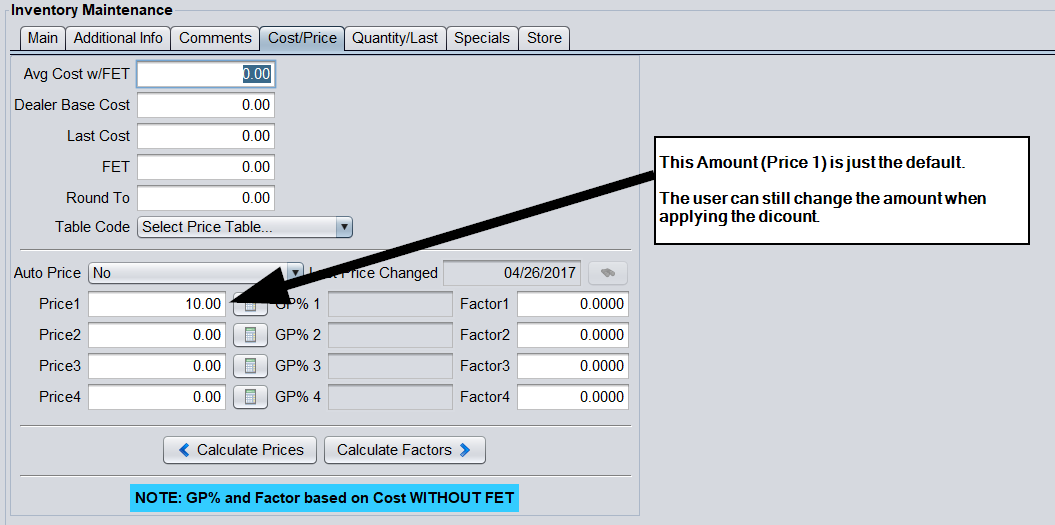
Price 1 will be the default discount amount for Target Price & Dollar Off
===>Example: Target Price = 29.99
===> Example: Dollar Off = 10 ($10 OFF)
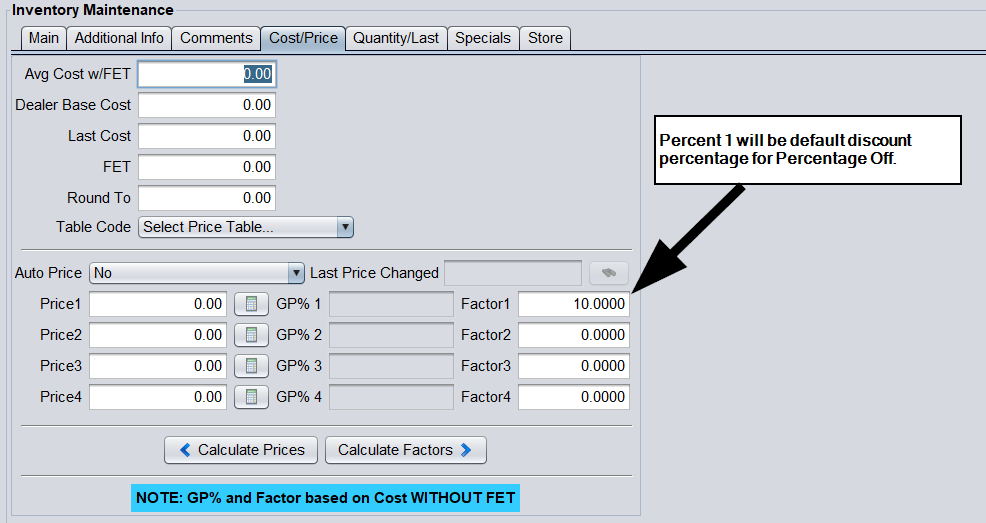
Percent1 will be the default discount percentage for Percentage Off
Be sure to LOG OUT and log back into HITS for the new PCD! codes to appear in the drop-down. This is required for all users to see your the new discount codes!