
For HITS version 50 and later. Using v49 or earlier? See Inventory Cost/Price Export and Import.
Use the Administration & Utilities>Data > Pricing Export/Import utility to export inventory pricing information, make changes in a spreadsheet, and import those changes into HITS. This opens the Matrix Pricing Export/Import tool, which replaces the previous CSV Price & Cost Export and Update utilities.
Step 1 – Export Inventory
- Go to Views > Administration & Utilities.
- Select Data > Pricing Export/Import.
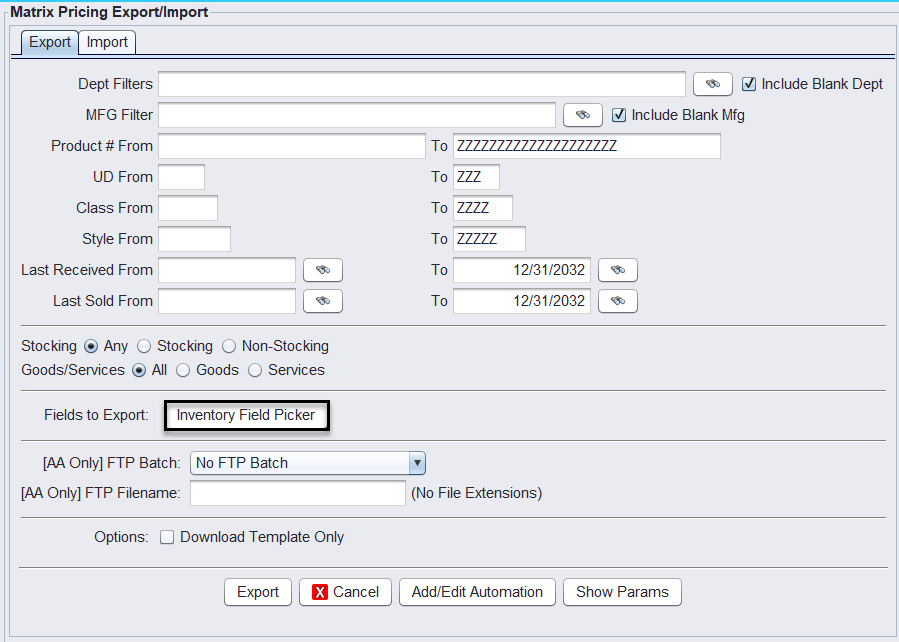
- On the Export tab, use the available filters to select the items you want to export:
- Department and Manufacturer, including options to include items with blank departments or manufacturers.
- Product #, UD, Class, and Style ranges.
- Last Received and Last Sold date ranges.
- Stocking: Any, Stocking, or Non-Stocking.
- Goods/Services: All, Goods, or Services.
- Click Inventory Field Picker to select the fields you want to export. Include the product number and the fields you intend to update.
- Click Export and open the exported spreadsheet.
- Make your changes and save the file.
- Return to HITS to import your changes.
Spreadsheet Guidelines
- Keep the column headers generated by the new utility unchanged. Use a fresh export or template from the new tool.
- When copying information from a supplier’s spreadsheet, match each value to the appropriate column in the HITS spreadsheet.
- Format product numbers as Text to preserve leading zeros and prevent spreadsheet formatting changes.
- To create a blank template, select the fields through Inventory Field Picker, check Download Template Only, and click Export. You no longer need to export a nonexistent product number and delete the resulting message row.

Step 2 – Import Changes
- Go to Views > Administration & Utilities > Data > Pricing Export/Import.
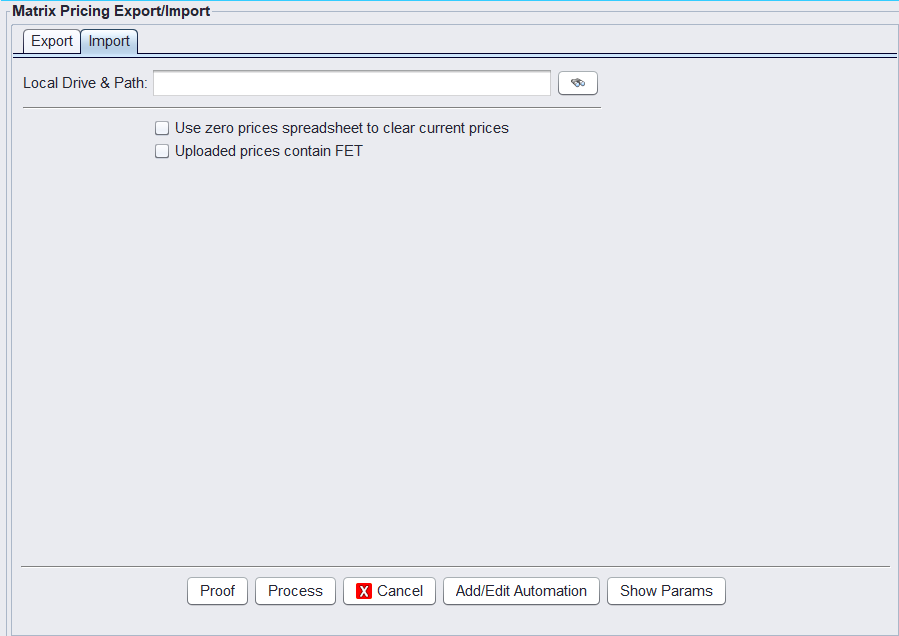
- Select the Import tab.
- At Local Drive & Path, click the binoculars to locate and select your saved file.
- Review the available options:
- Use zero prices spreadsheet to clear current prices: Select this when you intend to clear current prices using zero values in the spreadsheet.
- Uploaded prices contain FET: Select this if the prices in your file include Federal Excise Tax.
- Click Proof to review the proposed changes before applying them.
- Once you have verified the changes, click Process to apply them.
- Review the results and verify the updated information on the affected products.
Updating Target Percentages Only: If you update only your Target Percentages (Factors), run the Target Percentage Price Change Utility when you are ready to recalculate selling prices using those percentages.