Product and tire rebates are post-purchase, manufacturer-sponsored incentives that provide partial refunds (cashback, prepaid cards, or rebates) to consumers who buy specific tires or vehicles within a promotional period. Unlike instant discounts, these require submitting proof of purchase to receive money back after the sale.
Product rebates can be displayed in the HITS point-of-sale, as well as HITS Tirelink.
The screenshot below shows how rebates are displayed on the Inventory Lookup screen in the HITS point-of-sale. By hovering over the rebate icon, you can see the rebate memo. By clicking the rebate icon, you will be taken to the rebate link.

** Contact HITS Support to add the rebate column the Inventory Lookup screen if you would like to see this information on the Inventory Lookup screen.
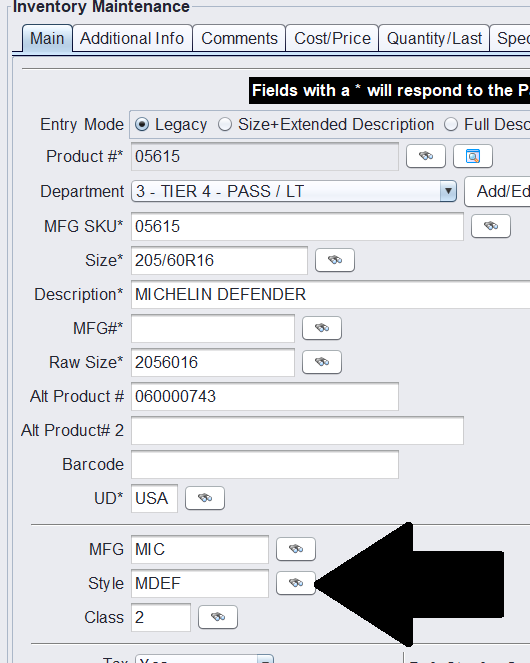
To add rebate information to products in HITS, find a product that should qualify for a rebate from the Inventory Lookup, and right-click to Item Edit. Next click the binoculars beside the style field to edit the Style. This will add the rebate link to all items with this style.
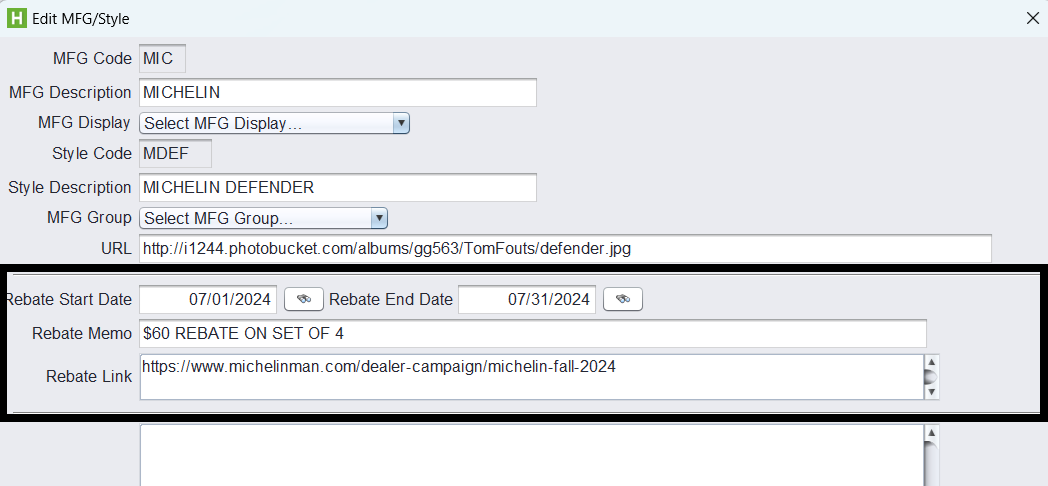
You must set a Rebate Start Date and Rebate End Date for the rebate to display. You can also add a Rebate Memo to display and a Rebate Link to send the user to when they click on the icon. Click Save when done to save the Style updates. Enter your desired rebate information and click Save.
When viewing items from the Inventory Lookup screen they will display like the image below. The tooltip hover will also include the Rebate memo:
On HITS Tirelink websites, the rebate will show highlighted in green. To see the rebate information, hover over the link. To access the rebate link, click the icon.

The rebate functionality can be used for manufacturer rebates or company offered rebates. Currently rebate functionality is “self-serve” requiring users to set up and manage rebates on their inventory.
Reporting and/or updating your rebates
You can mass view your rebates by completing a MFG/Style Export – go to Views > Administration & Utilities > Data > MFG/Style Export/Import and go to the Export tab. Since rebates are Style record, you can just export the existing styles to see your rebates. You can utilize this feature to report on existing rebates.
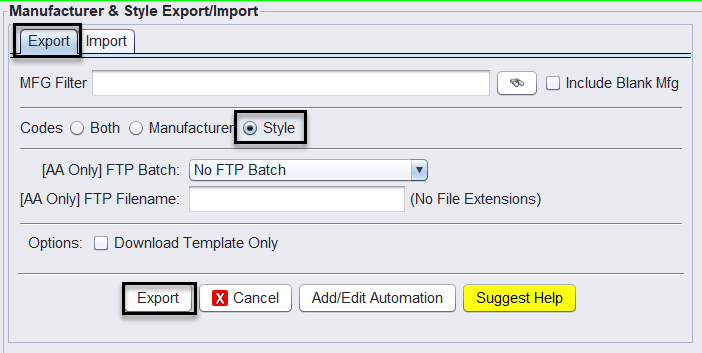
Technical support can Import the exported update additions and changes to your rebates. Please reach out to tech@aasys.com with your updated spreadsheet.
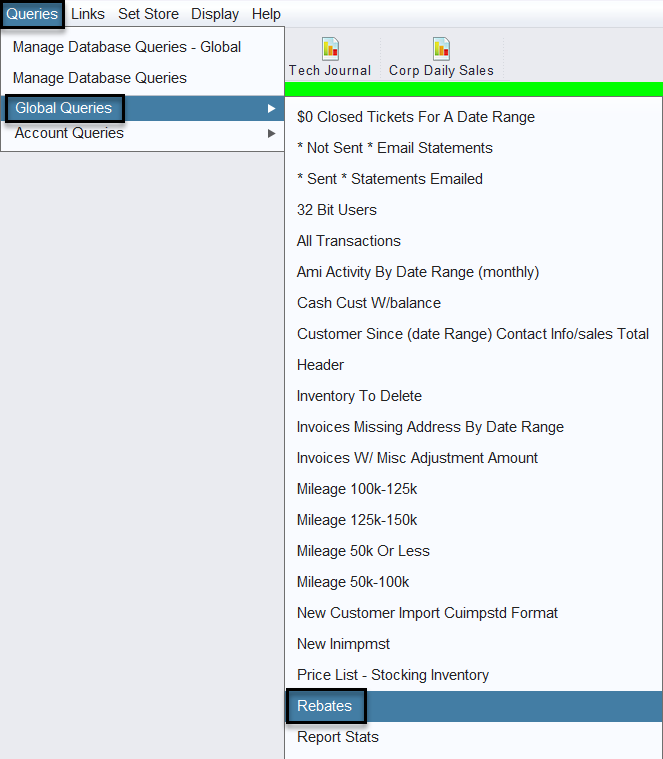
There is also a Global Query called Rebates that will provide a list of the existing rebates as well. *This report should not be used in the MFG/Style Export/Import utility.

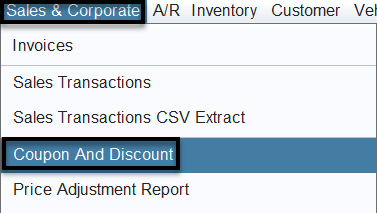
If you’re using specials and coupons (PCD! codes) with your rebates, please use the Sales & Corporate>Coupon & Discount report.