
In HITS, Purchase Orders (POs) help track inventory orders, vendor deliveries, and make sure items are received correctly. Users can create new POs for tires, consolidate multiple open POs for the same vendor, and reconcile deliveries once inventory arrives. This ensures efficient tracking and reduces manual errors.
NOTE: POs are optional for some businesses. Confirm with your manager if your shop uses PO tickets in HITS.
How to Create and Reconcile a Purchase Order
1.) Go to Views > Receiving and click on the PO button from the toolbar.

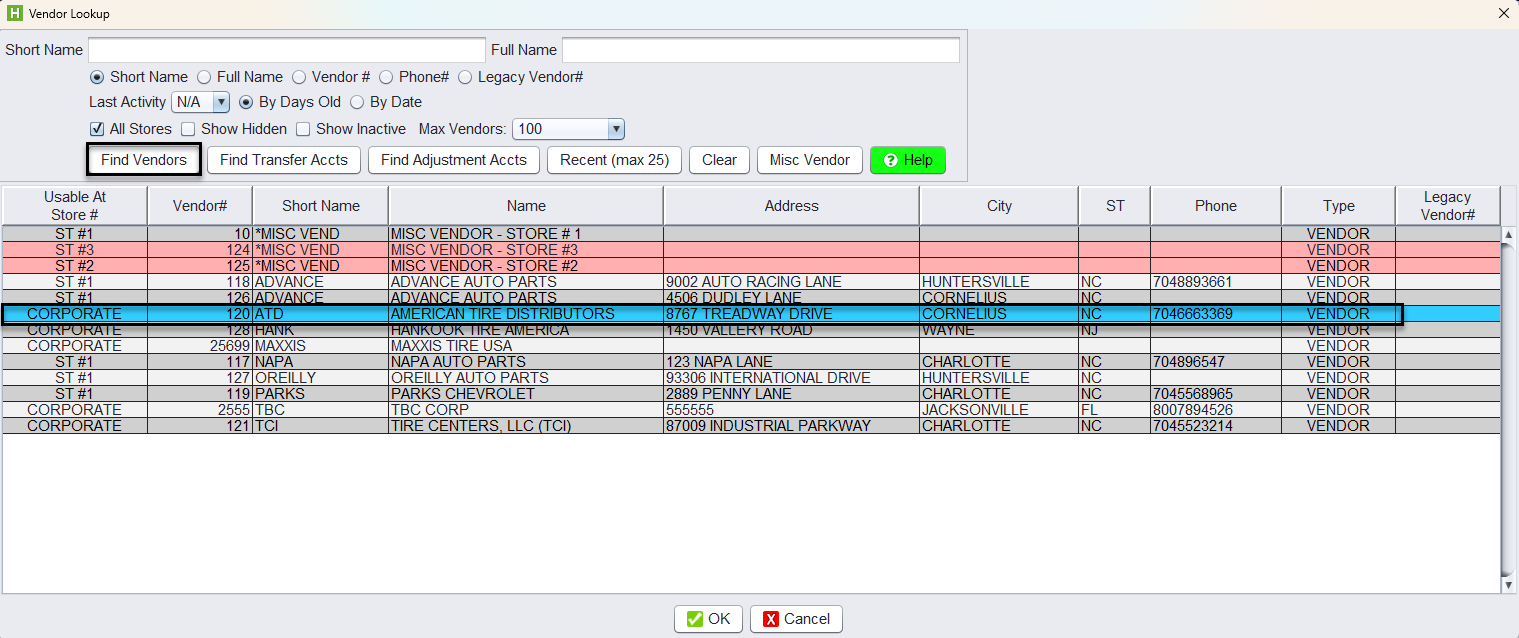
2.) Select a vendor using the Vendor Lookup tool.
-
- Click Select Vendor/Store to choose the appropriate vendor from the lookup.

TIP: You can confirm you’re working in a Purchase Order ticket by checking the status from the top-right corner. It will display PO.

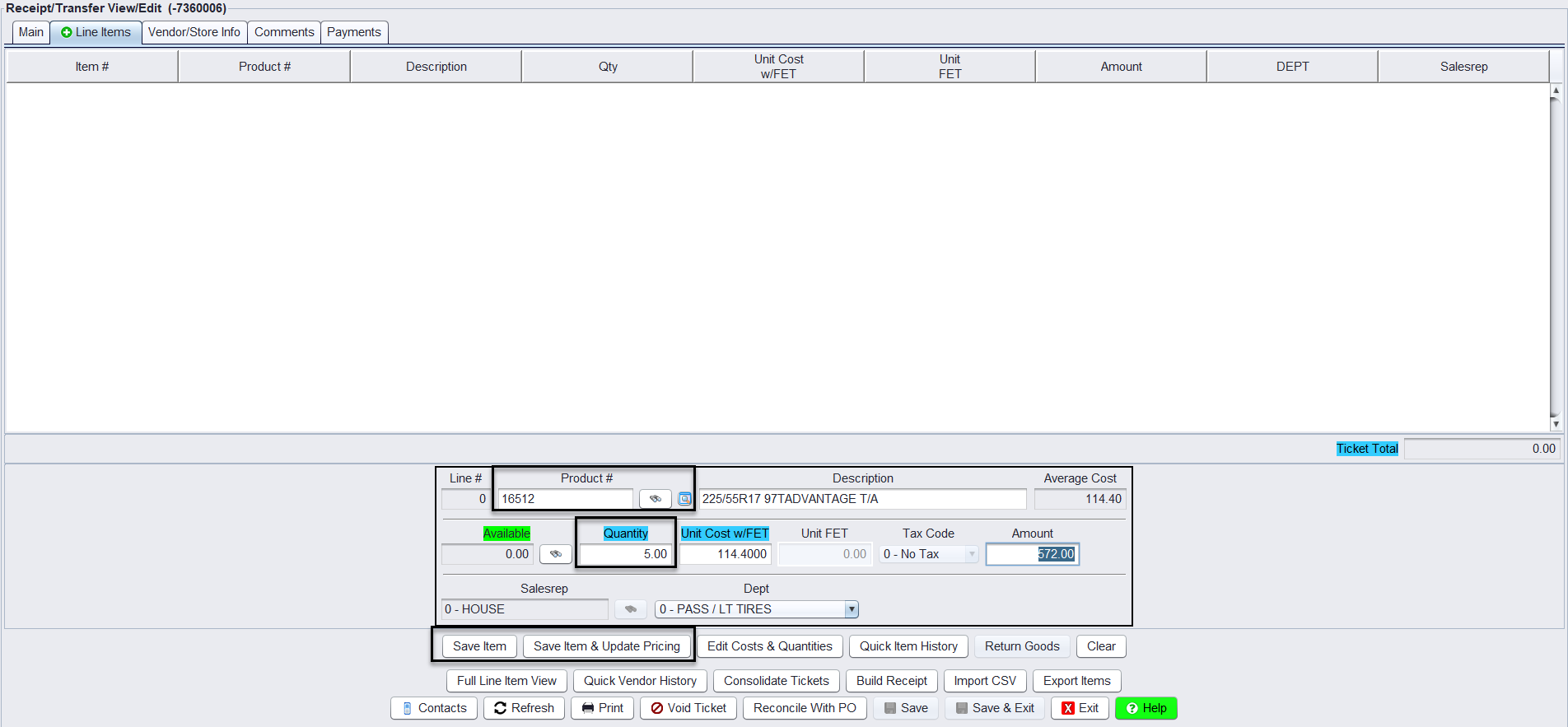
3.) Click on the Line Items tab to add products:
-
- Enter the Product # or use Inventory Lookup.
- Enter the Quantity, then click Save Item or Save Item & Update Pricing.
- If using Save Item & Update Pricing, refer to Update Inventory Pricing documentation. (see Update Inventory Pricing if using the Save Item & Update Pricing)
4.) Once all items are added, the PO can be printed or emailed as needed.
Exporting a PO to Vendor (Optional)
You may export your PO to upload to a vendor’s website.
1.) Open a PO and click Export Items from the bottom of the PO.
2.) Select the vendor’s format from the Output Format dropdown.
3.) Enter details like:
-
- PO Number (defaults to Ticket#)
- Ship-To Number
- Due Date
- CSV Output Mode
4.) Click Create CSV File.
-
- File is saved to your GSTNET folder on your local computer.
- Upload the .CSV file to the vendor’s website if applicable.
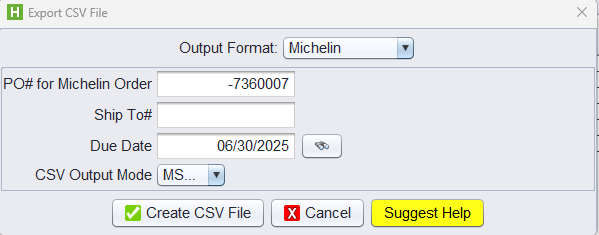
NOTE: Different vendors require different output formats. Always verify the correct selection.
Consolidating Multiple POs (Optional)
If multiple open POs exist for the same vendor and you expect a single shipment:
1.) Open any PO for that vendor.
2.) Click Consolidate Tickets at the bottom.
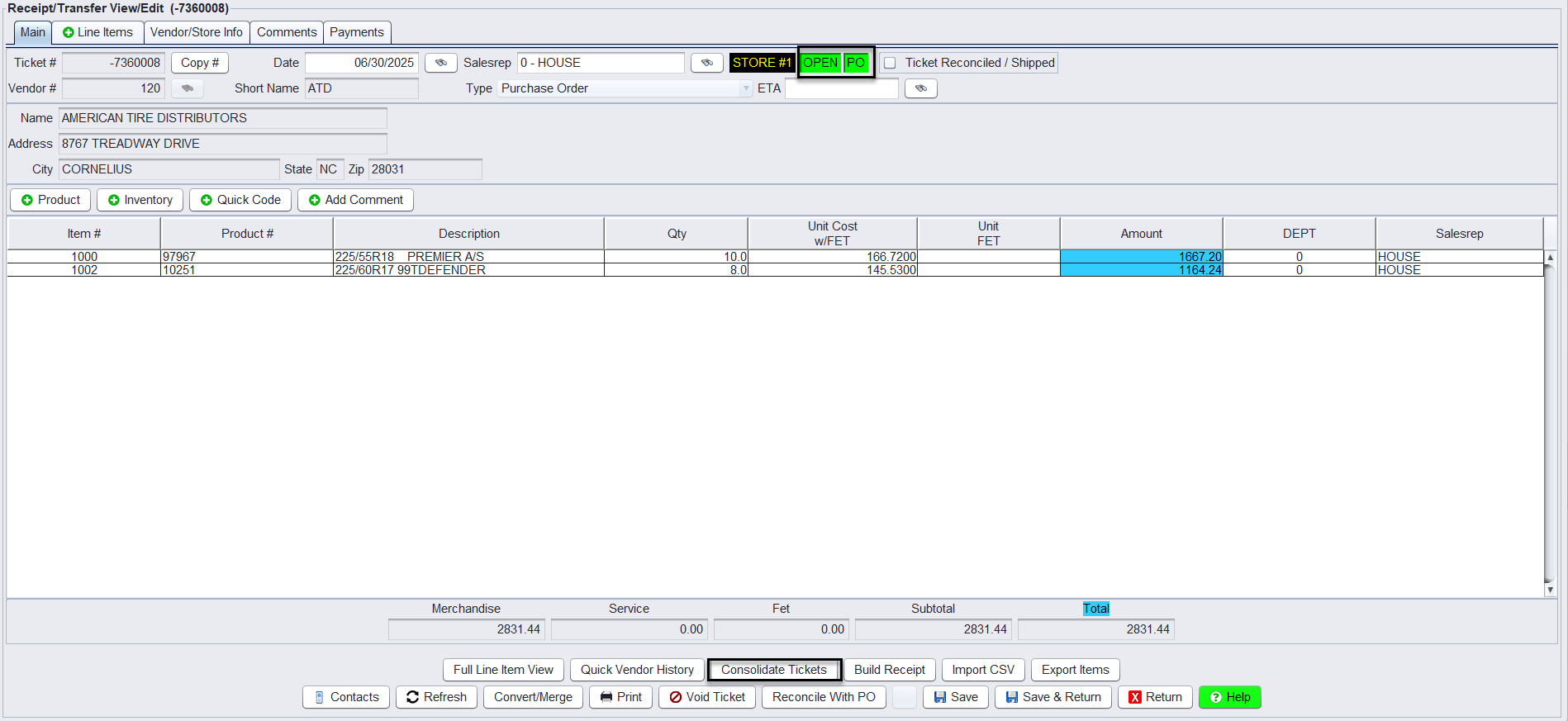
3.) Select all other open POs for that vendor (hold Ctrl to multi-select), then click Consolidate.
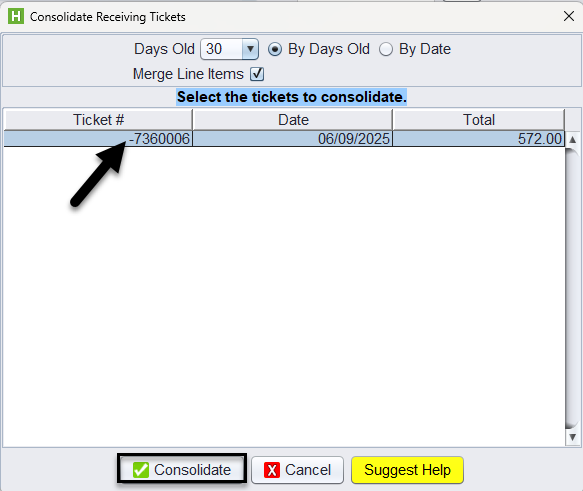
NOTE: This merges all line items into a single PO, simplifying receiving and reconciliation when a vendor sends a combined shipment.
Receiving Inventory
In HITS, a Purchase Order (PO) is used to begin the receiving process but does not change available inventory until it’s converted into a receipt. Once the items are received and the PO is converted to a receipt, the inventory is updated.
Option A: Convert PO to Receipt (Closes PO)
Use this if:
-
- All items were received
- Or your vendor uses a ship-or-kill policy (no backorders allowed)
1.) Use Receiving Ticket Lookup to find the PO.
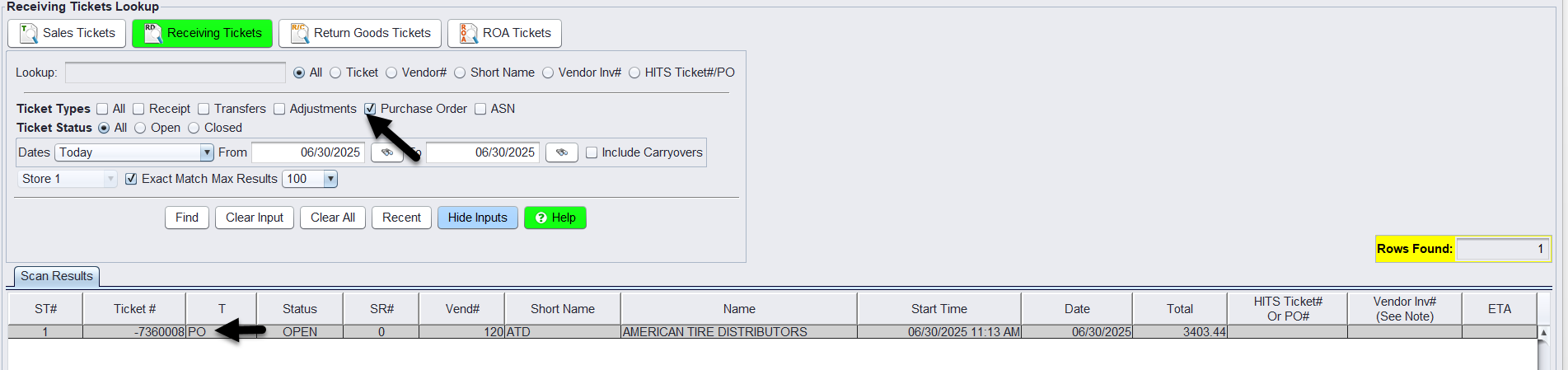
2.) Open the PO and click Convert/Merge > Convert to generate a receipt ticket.
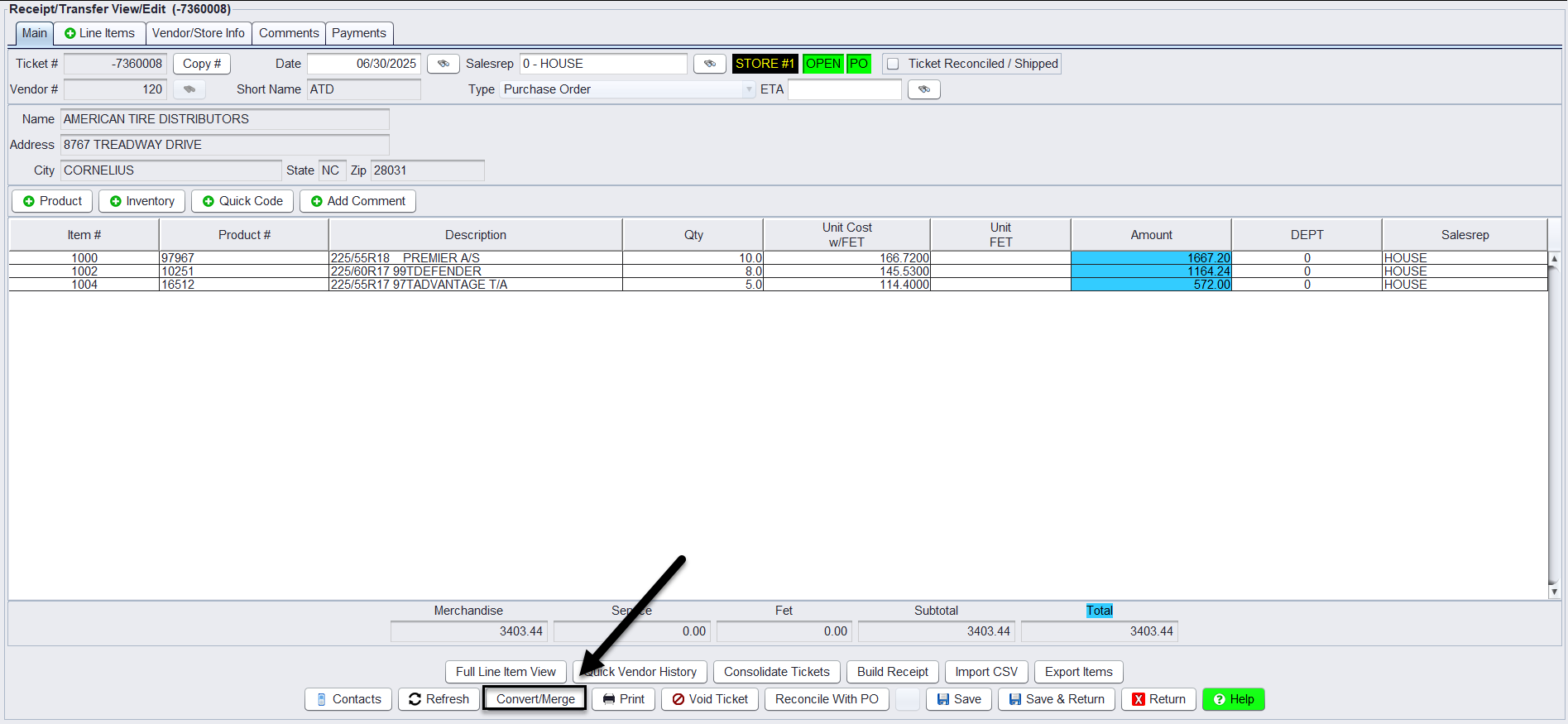

Note: Do not enter a Ticket # into this field as HITS will create the Receipt using the next number in sequence.
3.) Edit Unit Cost or Pricing Matrix from the Line Items tab, if needed.
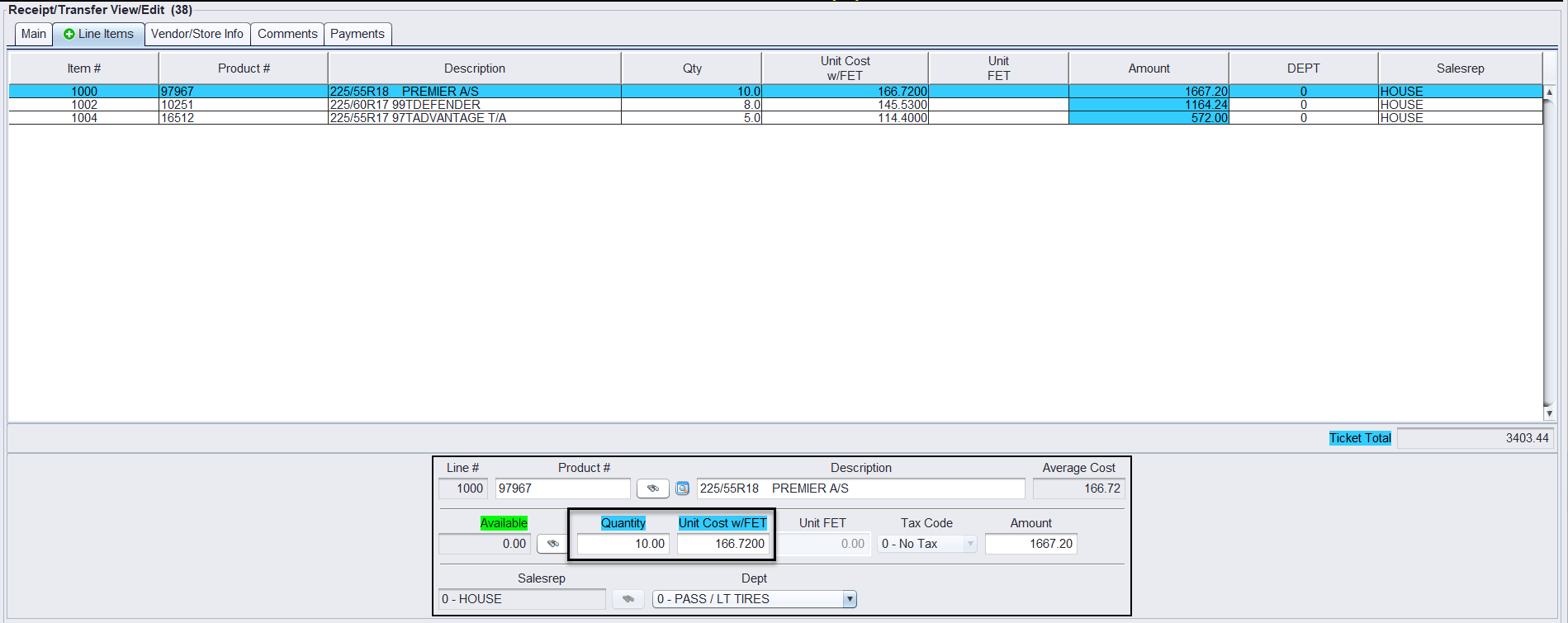
4.) Go to the Payments tab to apply A/P Terms, enter the Invoice #, and Close the receipt.
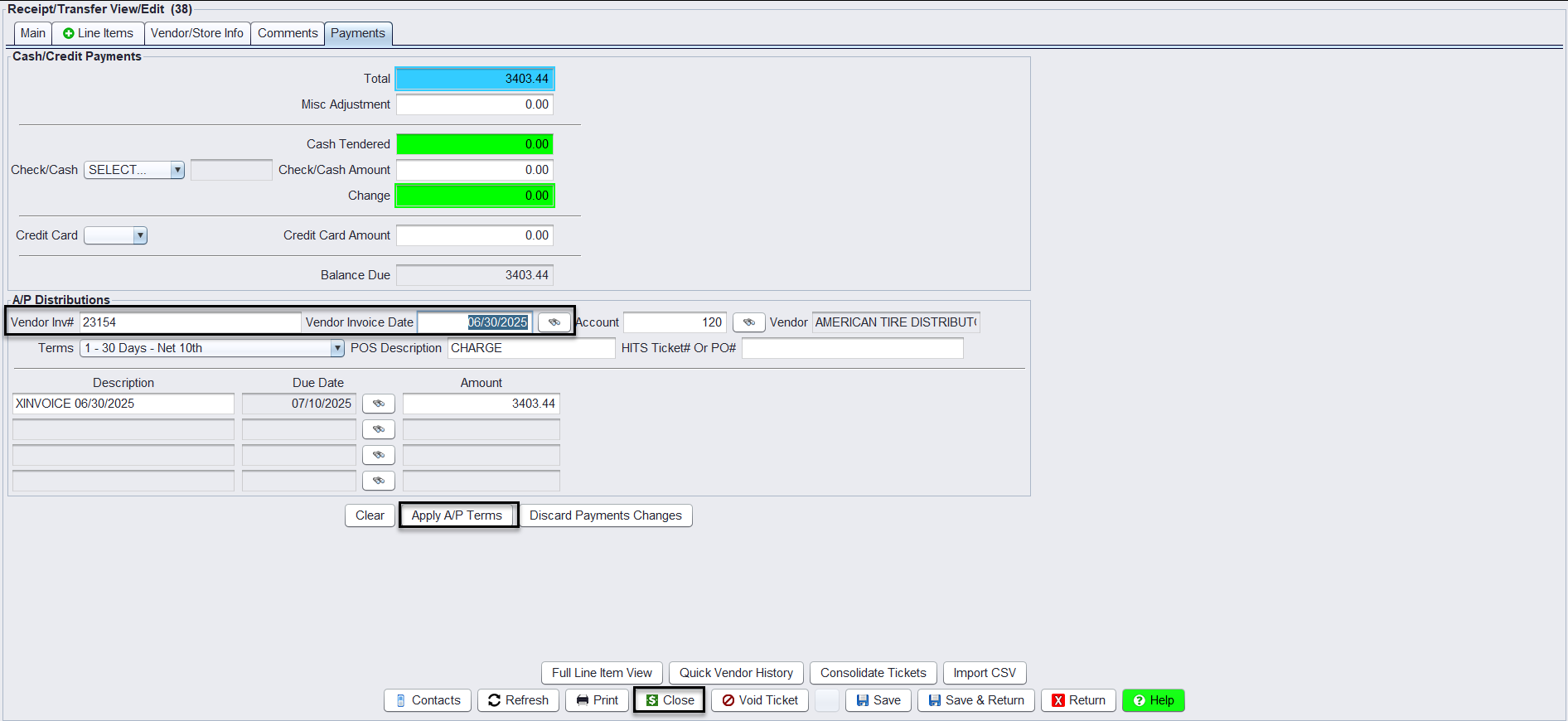

CAUTION: This method closes the PO and does not allow backorder tracking.
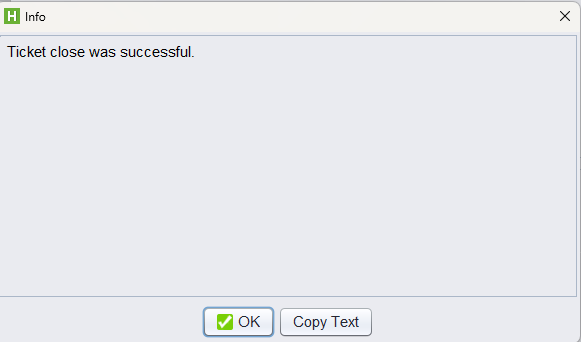
This process closes the PO automatically and any undelivered items must be reordered on a new PO.
Option B: Build Receipt from PO (Keeps PO Open)
Use this if:
-
- You’re tracking backorders
- You’re receiving items across multiple shipments
1.) Open the Build Receipt from PO window from the toolbar (looks for the hammer icon)
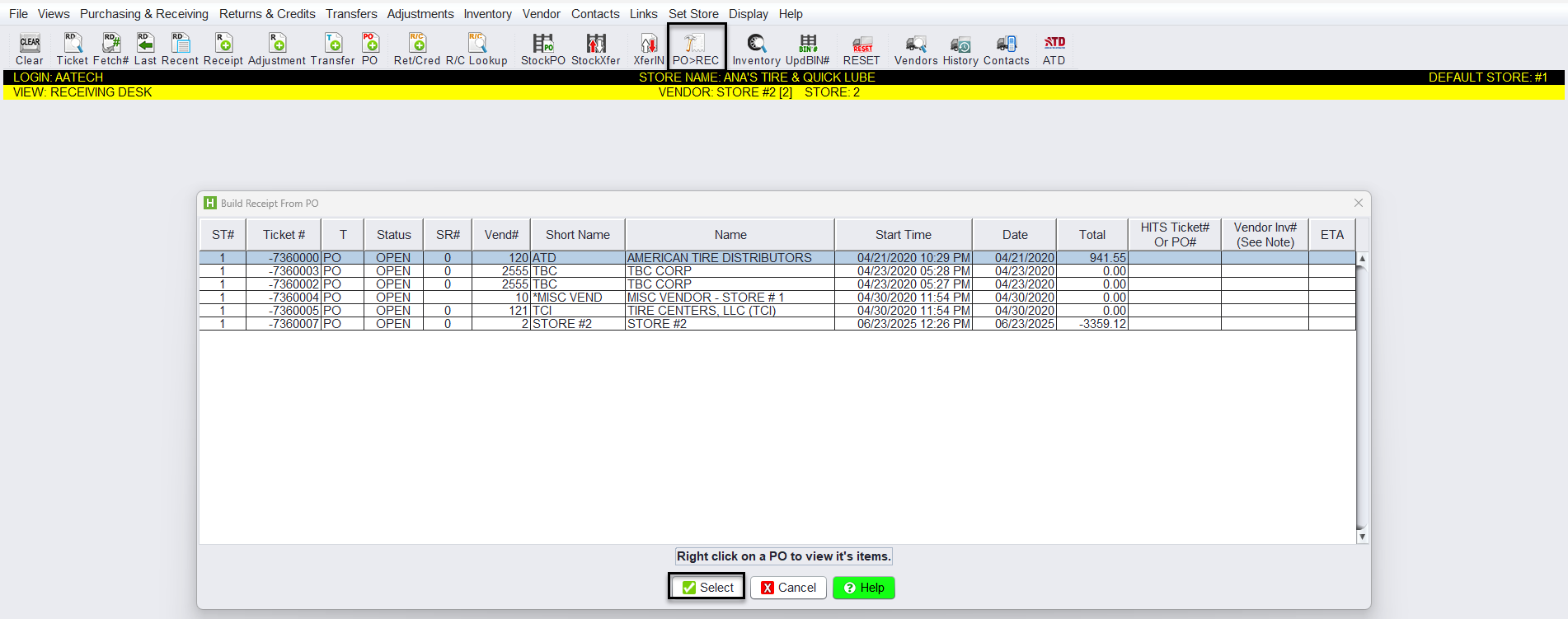
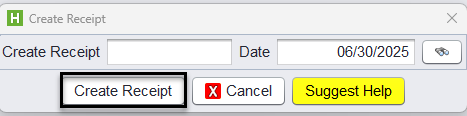
2.) Select your PO, then click Create Receipt.
3.) On the Line Items tab, change the quantities and remove items not received. Then go to the Payment tab and click Apply A/P Terms.
-
- Enter the vendor Invoice # and apply A/P Terms
- Then close the receipt
4.) Close the receipt.
Benefits of Using POs in HITS
- Visibility: See what inventory is on order from the Inventory Lookup screen (under “Orders in Process”).
- Tracking: Know which items have or haven’t shipped from a vendor.
- Efficiency: Build receipts directly from POs to save time.
- Exporting: Upload large vendor orders easily via spreadsheet.
- Reconciliation: Track what was ordered vs. received, especially with partial deliveries.