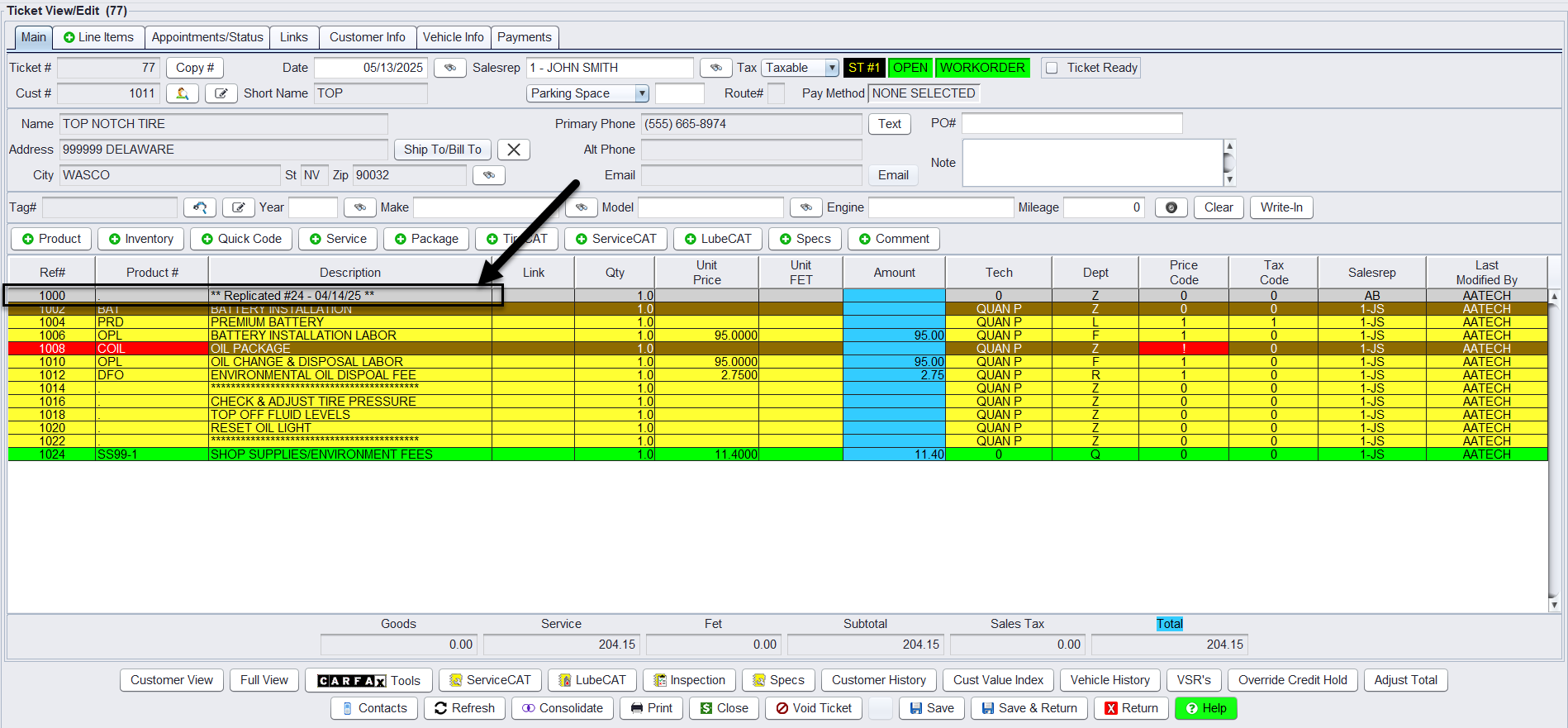
Reversing A Ticket
About:
Occasionally, you will need to reverse a ticket that has been done due to a mistake or because you need to give a customer a refund.
How:
1.) On the Sales Counter View, pull up the original ticket on your screen.
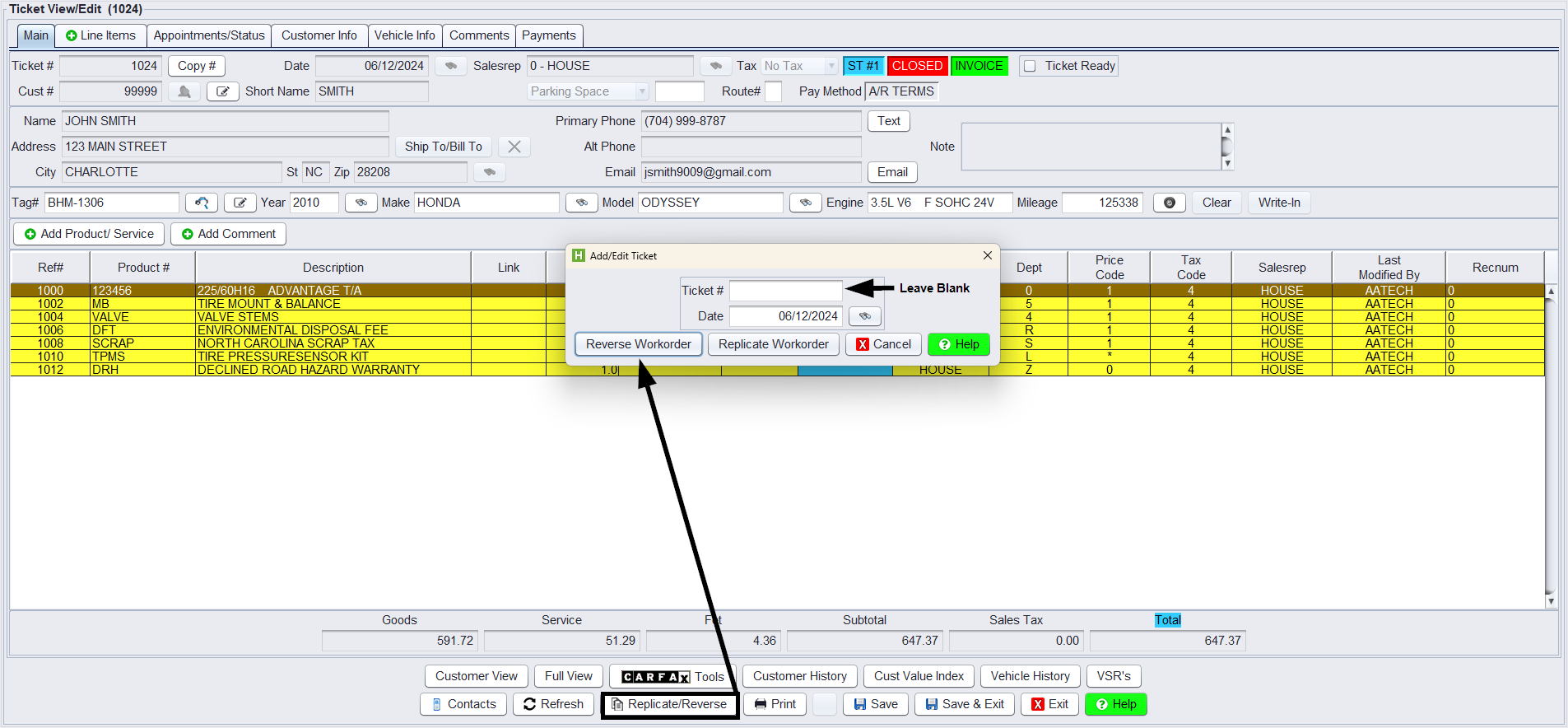
2.) On the Ticket View/Edit screen (shown below), click on the Replicate/Reverse button at the bottom of the screen.
3.) Click on the Reverse Workorder button. (Do not manually key in a ticket #):
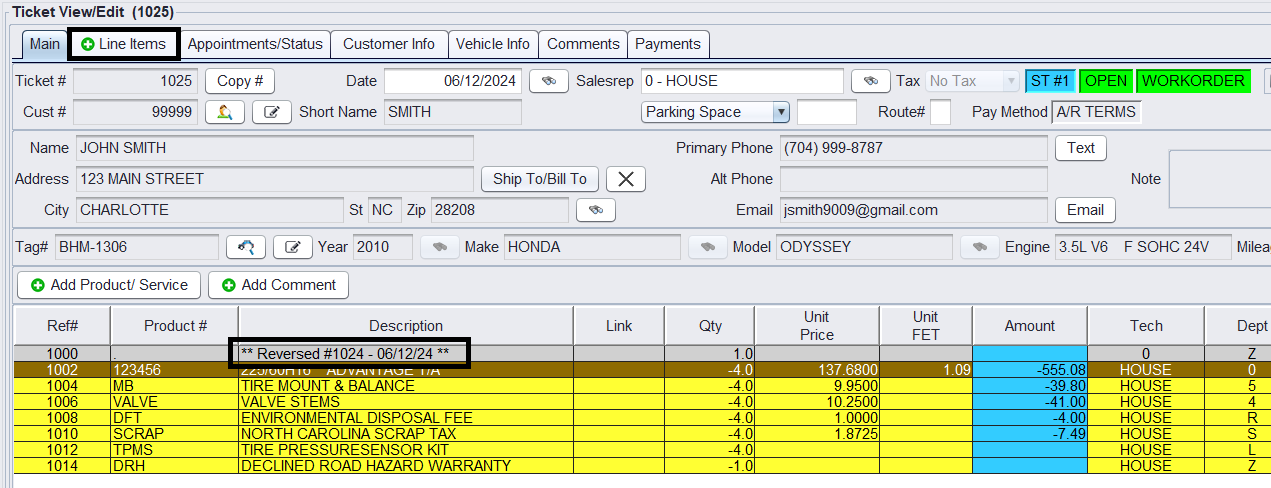
4. On the Ticket View/Edit screen (shown below), you will see that you are now on the brand new, reversed ticket. You will note that there is now also a comment referencing the original ticket # and noting the ticket is a reversal.
5. You can edit the ticket if necessary by clicking on the line item tab:
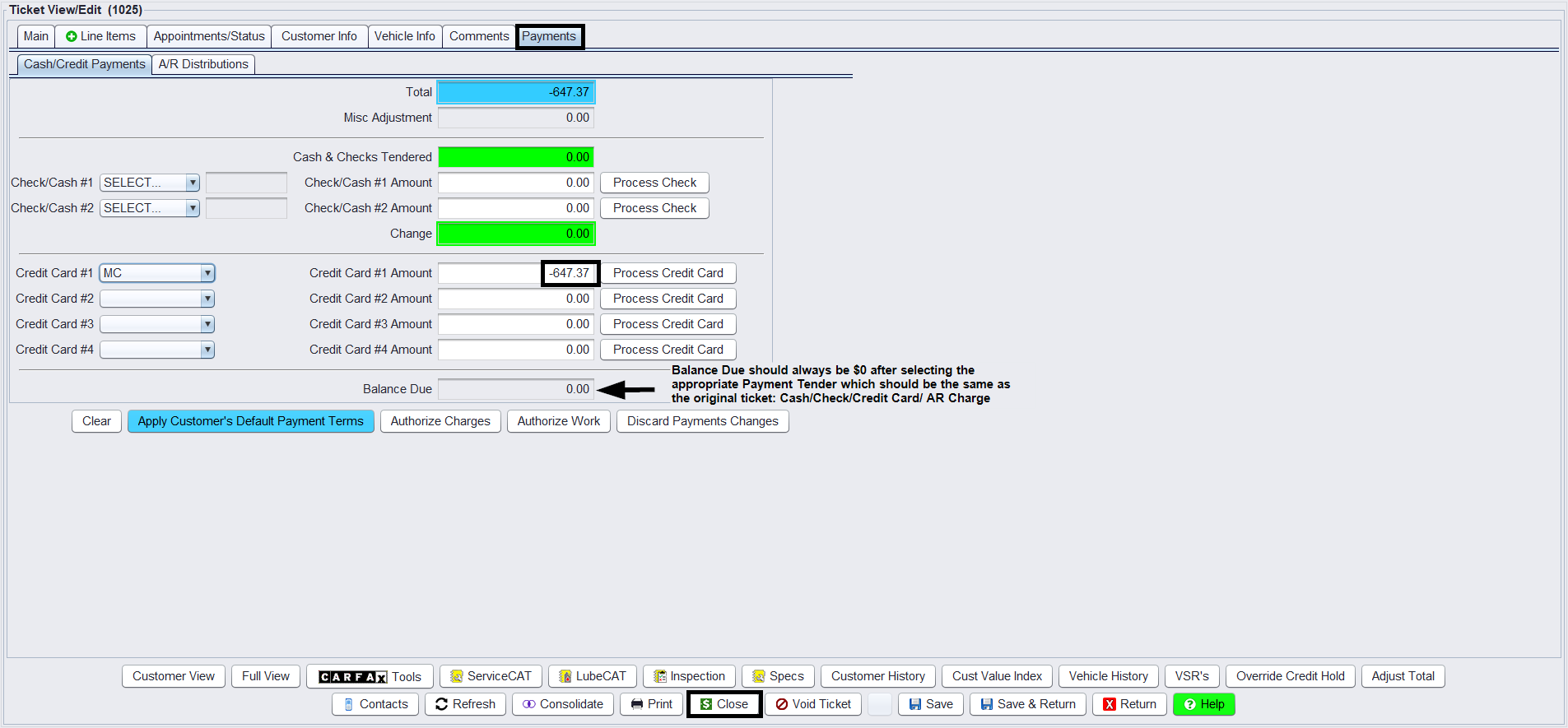
6. Reverse the customer’s original payment method by clicking on the Payment tab, then keying in a negative payment amount in the appropriate field.
7. When you are ready to close the workorder, click on the Print & Close button (or the Close button if you don’t want to print a copy) at the bottom to close the ticket:
 8. Upon clicking the close button, check to see if the original ticket date is listed and select this date before clicking Close or Print & Close
*Note – Check to see if the store date the original ticket was posted on is still open. If this date is still open, at the time of closing the reversal ticket you can select the original date to close the ticket on.
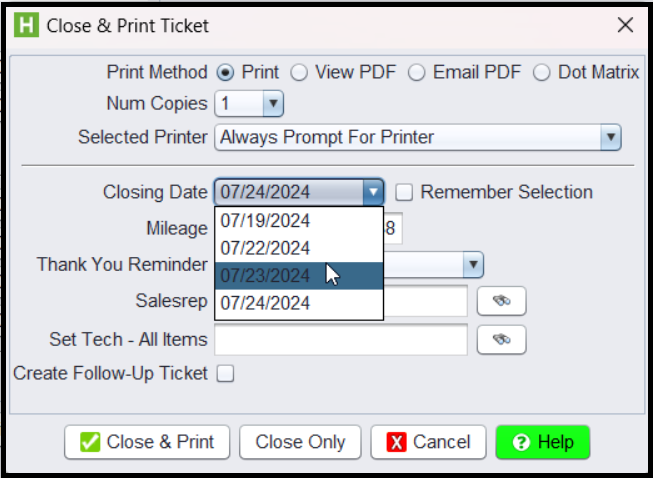
Also, Users must have password permission to invoice (P16) and to close invoices (P21). If you need to give a user permission to perform the above function, please contact your system administrator.
Important: Disburse the Reversal Against the Original Ticket
After closing the reversed ticket:
- Navigate to A/R Info for the customer.
- Locate the original invoice
- Right-Click to Edit Disbursement
- Disburse (apply) the negative reversed invoice against the original invoice.
Why this matters
- This step wipes out both balances
- Prevents open A/R items from lingering
- Ensures reports reflect a true zero balance
- Avoids the negative invoice from appearing on statements
Skipping this step will leave both invoices open, even though the ticket was technically reversed.
Replicating a Ticket
While in the Sales Counter View
1.) Retrieve the Ticket # you wish to replicate.


2.) Once the ticket is open, select the Replicate/Reverse ticket button at the bottom.
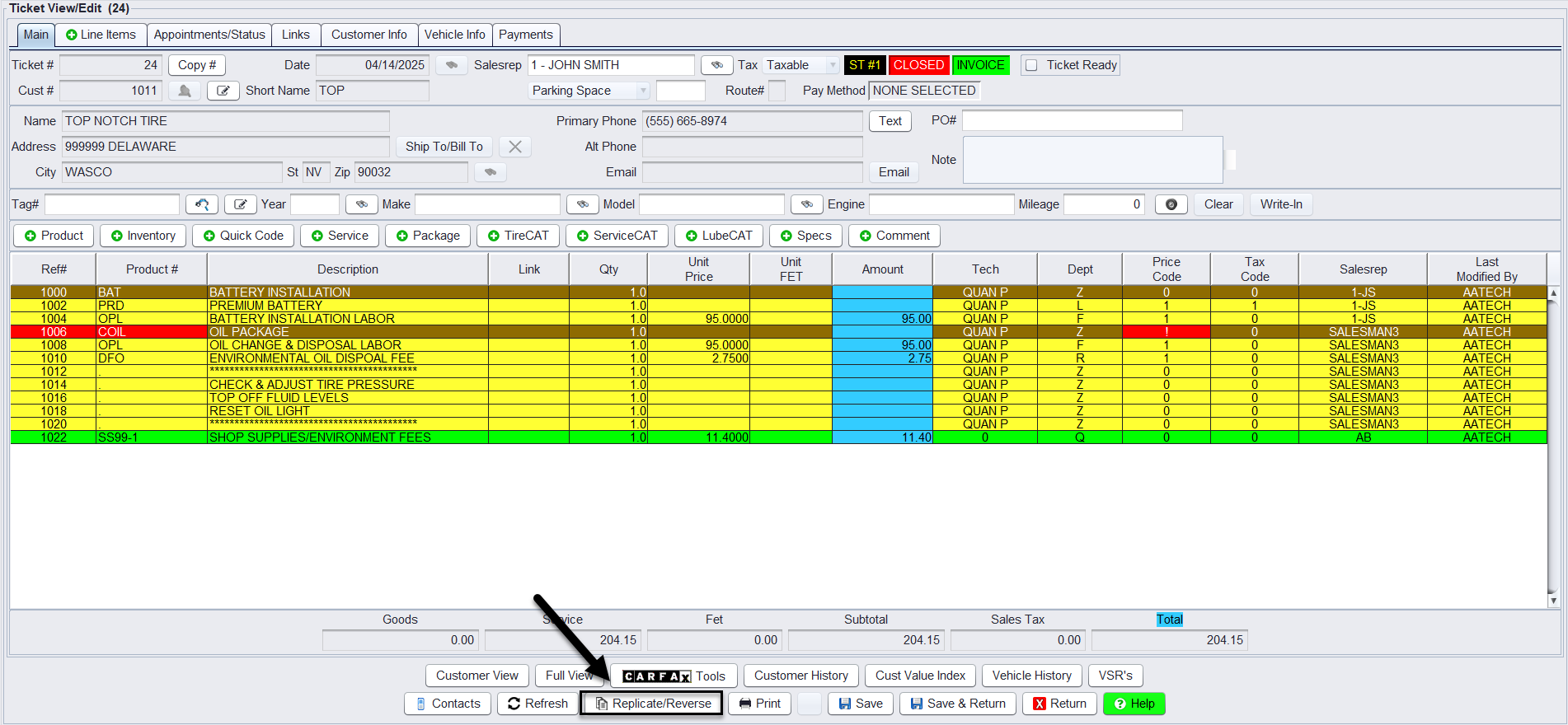
3.) Select Replicate Workorder, this will create a copy of the ticket you are in. (No need to populate the ticket #)
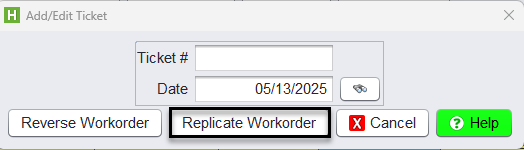
This will create a new ticket number that allows you to modify line items from the original ticket, such as deleting a line item or removing tax. A comment line item will be added to the new ticket indicating that it is a replica of the original ticket, along with the replication date.