
HITS is integrated in real-time with RT Systems, an industry leading warehouse management system. Review each section below to see how each ticket type in HITS interacts with RT Systems.
1) Customer Orders
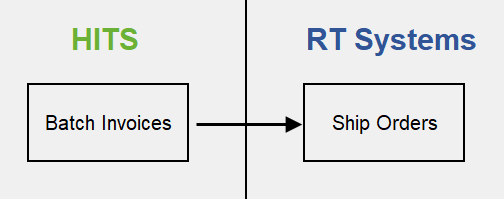
HITS Batch Invoices are sent in real-time to RT when the HITS Batch Invoice is CLOSED.
The customer’s name, route, and route seq # (stop #) are sent to RT along with the products that are to be shipped.
It is required to select the Order Type on the HITS ticket prior to closing. If activated for RT, HITS will not let you close a ticket without making this selection.
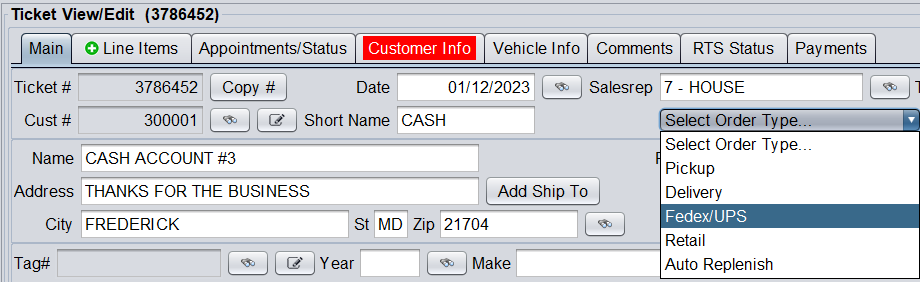
By default, the order will default to filling from stock. However for cross-docking applications, the RT Status tab on the HITS ticket can be set if the order is being filled from Purchase Order/ASN or Transfer. (This step is not necessary for stock-filled orders).

If being filled from Purchase Order/ ASN or Transfer, you will need to add the Vendor #. For Purchase Orders/ ASNs, this would be the supplier who is filling the customer order. For Transfers, this would be the Store# of your location that is filling the order. This step must be completed prior to closing the HITS Batch Ticket.
For orders that are filled partially from stock and partially from a cross-dock, there will need to be two HITS Batch Invoices created, one for the order filled from stock, and one for the order filled from the cross-dock.
Note #1 – HITS Batch Invoice edits: If the HITS Batch ticket is re-opened and edited, edits made to the ticket are NOT sent to RT.
Note #2 – Cancelled orders: If the customer cancels an order prior to shipment, there are two options.
Option 1: VOID the order in HITS and RT.
Option 2: Reverse the HITS Batch Invoice and close, effectively creating a Credit Return in RT.
2) Customer Orders, Short In RT
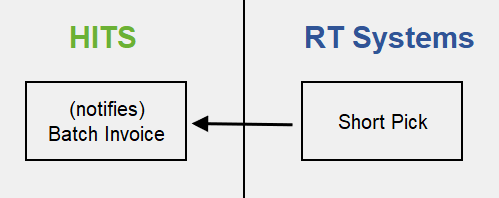
If an order is short picked in RT, RT will send a notification back to HITS that an Invoice was SHORT.
From the RT Status tab, the Reconcile button allows you to correct the HITS quantities to match what was picked in RT. (The Batch Invoice will need to be Re-Opened to perform this function.)
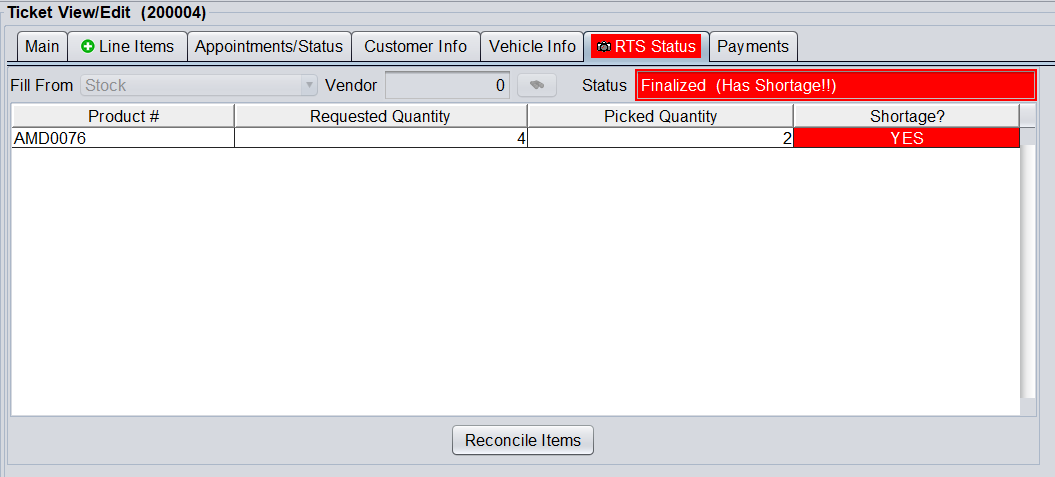
HITS has two configuration options on how to process SHORT orders:
Option 1: Not allow Invoices to finalize if HITS and RT do not match. This essentially means each RT Short must be reconciled in HITS prior to finalize closing the Invoice.
Option 2: Allows you to finalize closed Invoices even if the HITS and RT quantities do not match. This means it is not a required to reconcile the HITS ticket to RT prior to finalizing.
Often businesses first getting starting with RT will opt for Option 2 for flexibility, and later activate Option 1 to ensure better data integrity between the two systems.
3) Customer Orders, Returns

Sales returns are processed as a NEGATIVE sales ticket in HITS.
It is best practice to find the original sales invoice, and perform a Reverse/ Replicate. This will ensure the price the invoice was sold for matches the credit. Of course, if the original sale cannot be located, a new ticket can be created also. Like other HITS Batch Invoices, the ticket will be sent to RT when the ticket is closed.
Often these are staged in a particular location in the warehouse prior to being approved and put away.
4) Receiving
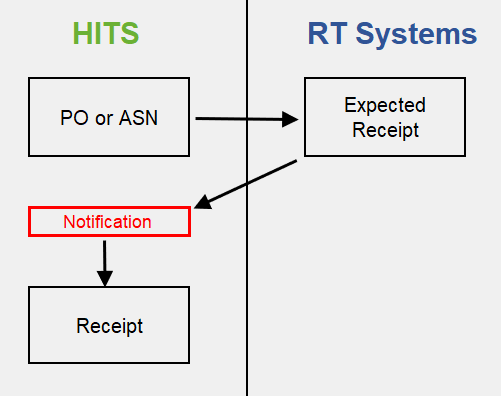
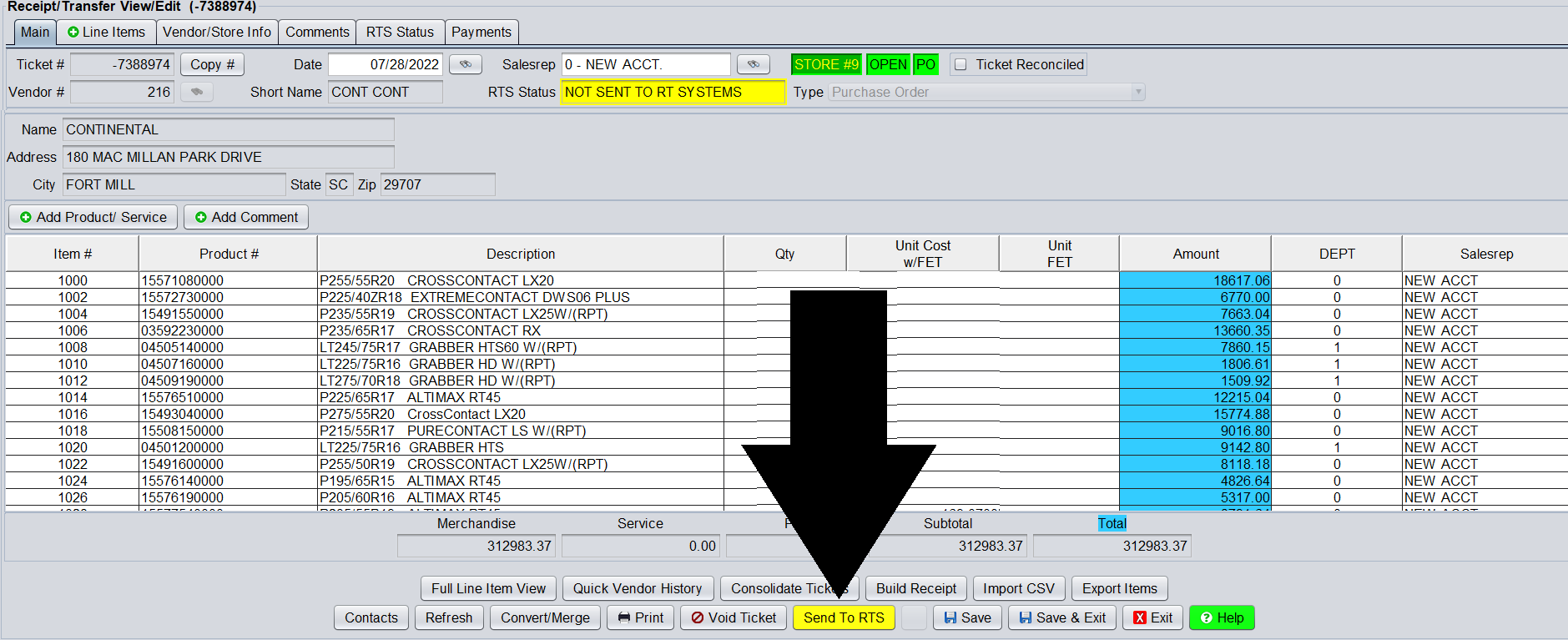
HITS Purchase Orders or Purchase Orders flagged as ASN’s are sent to RT when the user clicks the Send To RTS button on the bottom of the HITS Purchase Order/ASN. Once sent, they cannot be re-sent to RT.
These transactions arrive in RT as “Expected Receipts” which are then picked against.
Once picked and finalized in RT, a notification will appear in HITS alerting users with permission that there are pending RT Receipts. Note that RT does not actually create the HITS Receipts automatically, the user must first process the notification before the HITS Receipt is created.
Once the HITS Receipt is verified and closed, it can be reconciled to the HITS Purchase Order via the Reconcile To PO button. This reconciliation process has nothing to do with RT, this is simply the regular HITS reconcile Receipt to PO function.

5) Transfers
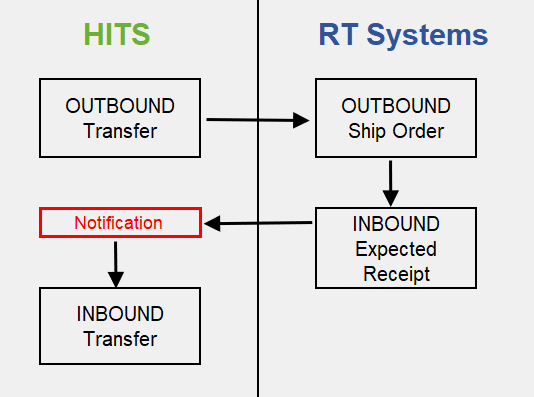
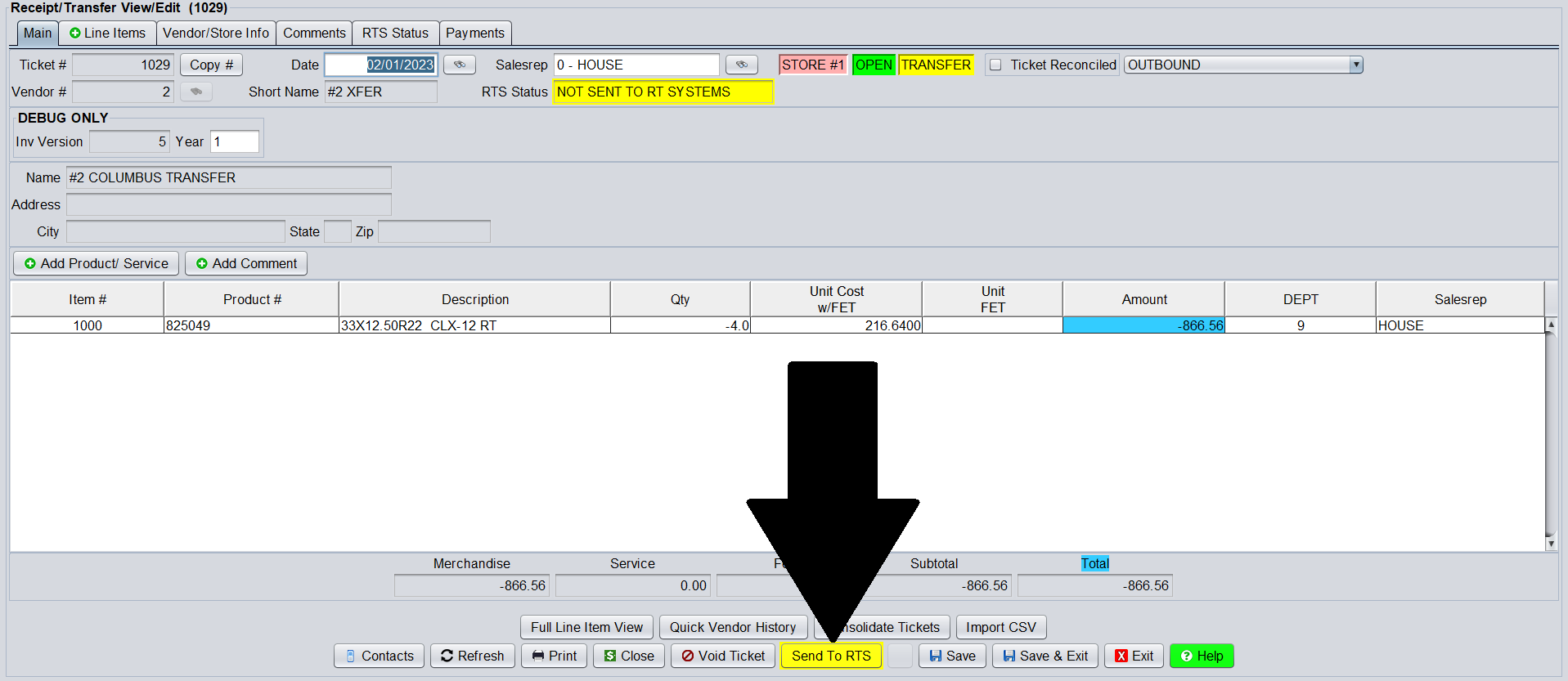
HITS OUTBOUND Transfers are sent to RT when the user clicks the Send To RTS button on the bottom of the HITS OUTBOUND Transfer. Once sent, they cannot be re-sent to RT.
HITS OUTBOUND Transfers arrive in RT as Ship Orders at the shipping location.
RT automatically generates an RT “Expected Receipt” at the receiving location.
Once this “Expected Receipt” is picked and finalized in RT at the receiving location, a notification will appear in HITS alerting users with permission that there are pending RT INBOUND Transfers. Note that RT does not actually create the HITS INBOUND Transfers automatically, the user must first process the notification before the HITS INBOUND Transfer is created.
Once the HITS INBOUND Transfer is verified and closed, it will close the corresponding OUTBOUND Transfer in the shipping location assuming all users are set to P71=2 which is the highly recommended transfer setting for ALL HITS users including owners.
6) Inventory
RT Systems has the ability to pull and update the part master list from the HITS inventory. Please contact your RT representative about how this will be used in your RT system.
Version Notes:
HITS/ RT API Version 3: Used for RT Systems Version 3. Includes all ticket types except POs/ASNs to RT Expected Receipts.
HITS/ RT API Version 4: Used for RT Systems Version 4. Includes all ticket types. Added support for Route Seq# on Ship Orders.
HITS/ RT API Version 5: Used for RT Systems Version 4. Include all tickets types. Added support for cross-dock transfers and purchases.
Test script: Click here for a blank test script used when configuring a new client for the RT Systems integration.