
The Sales Tickets Lookup screen lets you quickly search and review tickets by date range, store, customer, ticket type, and more. To help match different workflows, the lookup screen includes multiple View options that change which columns display in the results grid.
Important: These view options apply to the Sales Tickets tab only. They do not affect Receiving Tickets, Return Goods Tickets, or ROA Tickets.
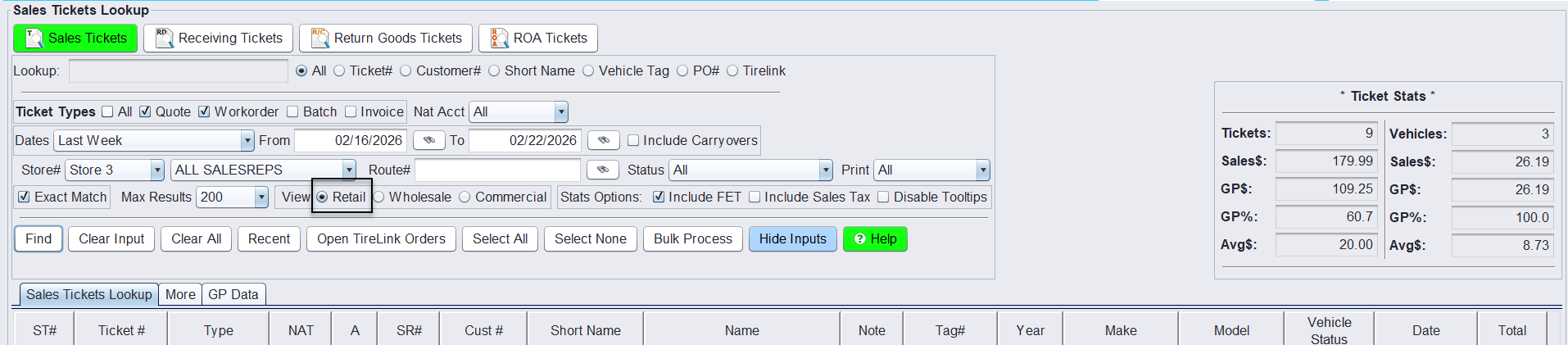
Retail View (Default)
Retail is the default view and is designed for standard front-counter ticket review.
It displays general ticket and customer information.
- Ticket #
- Type
- Customer #
- Short Name
- Customer Name
- Vehicle details (Tag, Year, Make, Model)
- Date
- Total
Wholesale View
The Wholesale view includes additional timing details helpful for high-volume and account-based workflows.
- Start Time
- Start Date
- City
- Route
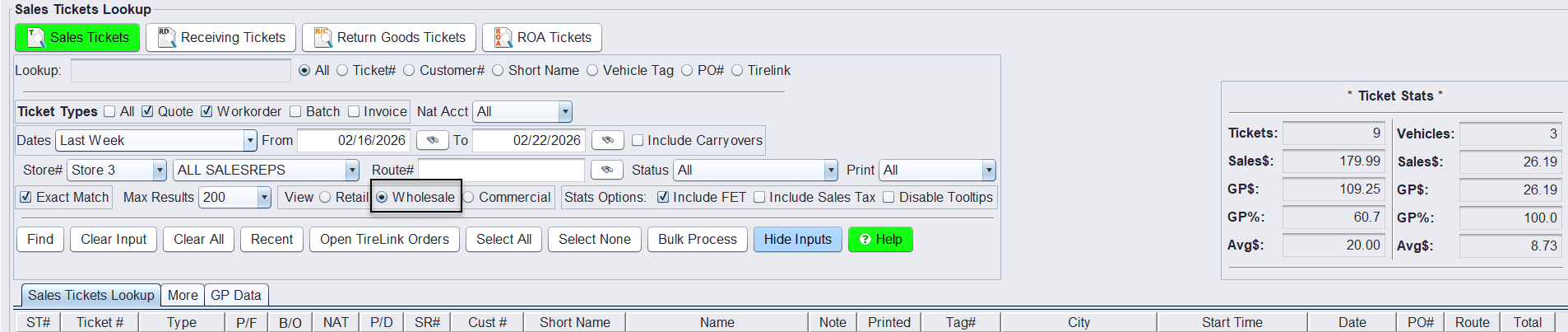
This makes it easier to review when tickets were created and track route-based or scheduled activity.
Commercial View
The Commercial view is designed specifically for commercial service workflows and account management. It includes additional A/R and billing-related columns:
- Bill To details
- A/R Balance
- Credit Information
- Customer Type
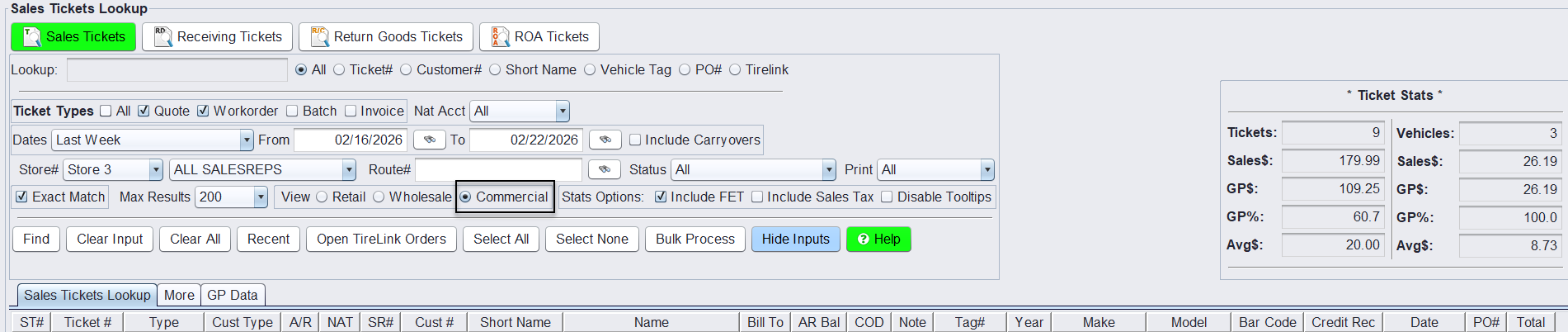
This view is ideal when reviewing account status, open balances, and billing structure directly from the ticket lookup screen.
Unit # Support for Commercial Workflows
Commercial View works hand-in-hand with a store setting that allows Unit # to be used in place of Vehicle Barcode throughout the system.
Many commercial customers track vehicles by Unit Number rather than barcode. When this setting is enabled, all vehicle barcode lookups and displays use Unit # instead, creating a more natural workflow for fleet and account-based service.
This helps commercial teams:
- Locate vehicles using familiar Unit Numbers
- Align ticket lookup with fleet tracking methods
- Reduce confusion when servicing multiple vehicles per account
- Improve speed and accuracy during ticket creation and review
To enable this option:
Go to Views > Administration & Utilities > Store > View/Edit Default Settings > Vehicle Lookup/Edit
Set Barcode Label – Change Barcode to Unit Number to Yes.
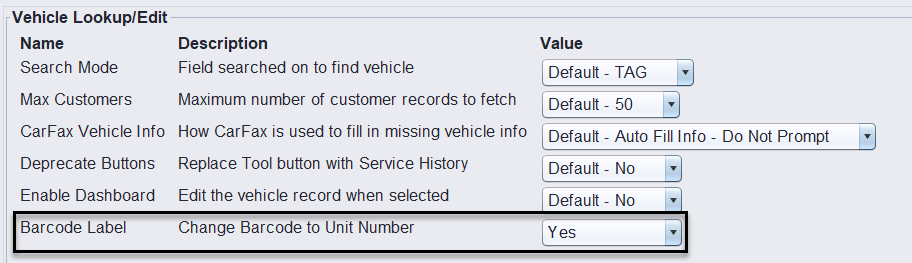
Once enabled, Commercial View and Sales Ticket Lookup will reflect Unit Numbers instead of vehicle barcodes.
Column Comparison
| Column Type | Retail (Default) | Wholesale | Commercial |
|---|---|---|---|
| Standard Ticket Info | ✔ | ✔ | ✔ |
| Start Date / Time | — | ✔ | — |
| Route | — | ✔ | — |
| Bill To Details | — | — | ✔ |
| A/R Balance | — | — | ✔ |
| Credit Information | — | — | ✔ |
Sales Tickets Lookup Filters
Below are the filters available on the Sales Tickets tab.
| Filter | Description |
|---|---|
| Lookup | Search by All, Ticket #, Customer #, Short Name, Vehicle Tag, PO #, Tirelink, or AMI. |
| Ticket Types | Select Quote, Workorder, Batch (if activated), Invoice, or All. |
| Nat Acct | Filter by National Account tickets only. |
| Dates | Select predefined ranges (Today, Last Week, etc.) or custom From/To dates. |
| Include Carryovers | Include carryover tickets in results. Carryover tickets have future date of 12/31/2032 and are carried over from prior date open tickets. |
| Store # | Filter by store location. |
| Sales Rep | Filter by specific salesperson. |
| Route # | Filter by assigned route. |
| Status | Filter by ticket status. |
| Filter by printed status. | |
| Exact Match | Requires exact search match. |
| Max Results | Limits number of tickets returned with a max of 1000 records. |
| Stats Options | Include FET, Include Sales Tax, NA Gain/Loss, Disable Tooltips. |