
Shop Supplies are an automated charge that can be activated in HITS to calculate on customer tickets. Many shops activate “Shop Supply Fees” to help cover the cost of non-billed shop supplies like fluids, cleaners, shop rags, etc.
Most shops charge between 2% – 8% Shop Supplies. Most shops have a minimal charge (for example, $2.50) and a maximum charge (for example, $34.95) Most shops do not charge shop supplies on tire installations and repairs but do charge shop supplies on mechanical services where more supplies are likely to be used. Shop Supplies Example: A retail shop that does $1M per year with 50% tire & 50% auto service that sets their Shop Supply Charge to 6% can expect to earn about $30,000 per year of the automated Shop Supply Charge.
- Shop Supply %’s can be different by Department
- Shop Supply %’s can be different for Goods and Services within each Department
- Shop Supplies can be different by store (for multi-location businesses)
- Specific Customers can be made Exempt from Shop Supplies
Consider the following when getting ready to set up your Shop Supplies:
- What default % do you want to set your Shop Supply Charge to be?
- What is the Minimum Shop Supply Charge (if any) for each ticket?
- What is the Maximum Shop Supply Charge (if any) for every ticket?
- What % should my shop supplies be and for what departments?
- Will Tax Exempt Customers be charged Shop Supplies?
- Are Shop Supplies taxable in your state?
Once you have answered your getting ready questions, you’ll be ready to set up your Shop Supplies.
Step #1 – Access Store Settings – Shop Fees
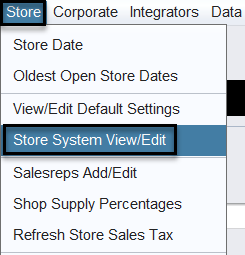
To ensure Shop Supplies are enabled navigate to Views>Administration & Utilities>Store>Store System View/Edit>Other tab 63-Shop Fees for each store you wish to use Shop Fees. Repeat this step for each store where you want shop fees applied and click SAVE at the bottom to save your changes.
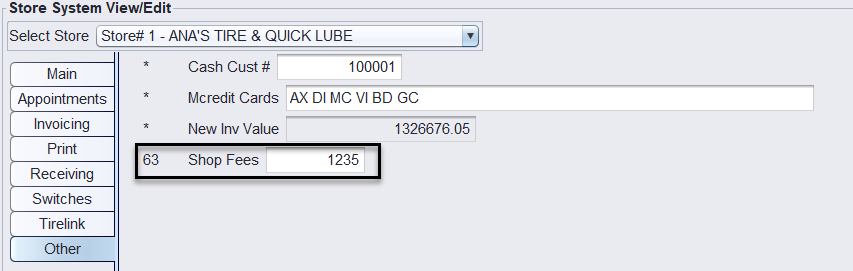
- Entry 15 – To activate shop fees for the specific store.
- Entry 125 – To exempt all tax-exempt customers from shop fees.
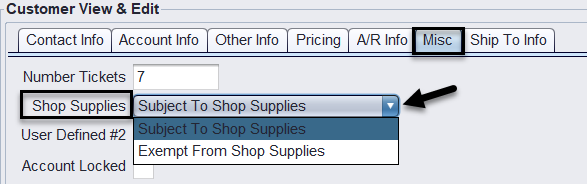
- Entry 135 – To exempt a specific customer from shop fees (this is partnered with the Customer>View/Edit>Misc.>Exempt from Shop Supplies setting on the Customers account).
- Entry 1235 – To implement all modes.
Step #2 – Access Store Settings – Shop Supply Percentages
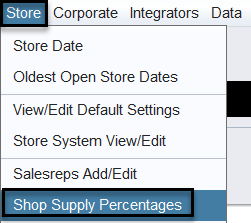
To set up specific departments with a Shop Supply % navigate to Views>Administration & Utilities>Store>Shop Supply Percentages.
Enter the percentages (for example 2% = 2.00) for each department for which you wish to charge shop fees. You can enter a different percentage for Goods vs. Services for each department. To EXCLUDE a department from having shop fees calculated, leave the percentage blank for that department. Click SAVE to save your changes.

Step #3 – Access Shop Supplies Inventory Item
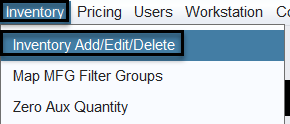
If you wish to set a total ticket minimum, maximum (or both) for shop fees you can update the Inventory item SS99 for your store. Example: SS99-1 is Store 1 Shop Supplies fee. Navigate to Views>Administration & Utilities>Inventory>Inventory Add/Edit/Delete and enter SS99-1 in the Product # field and press Enter. Do this for each stores shop fee product. SS99-2, SS99-3, etc.
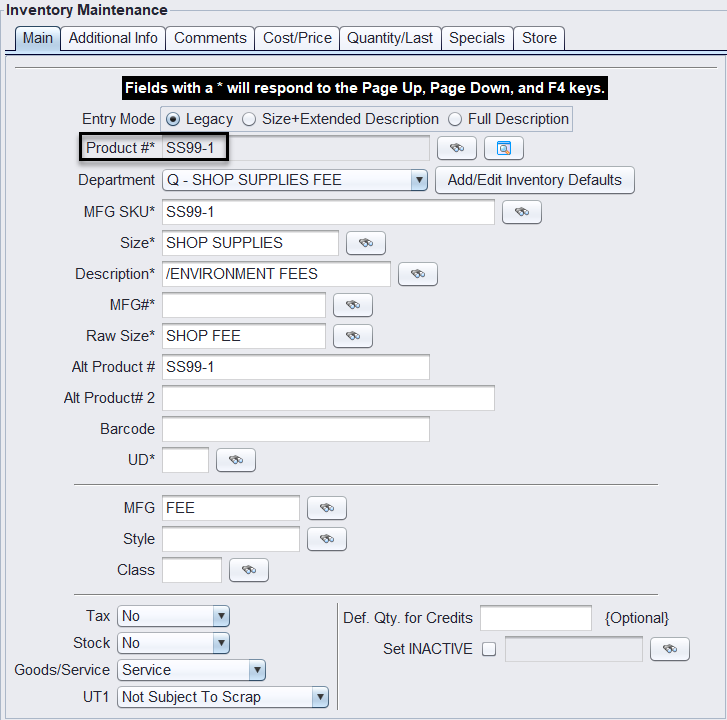
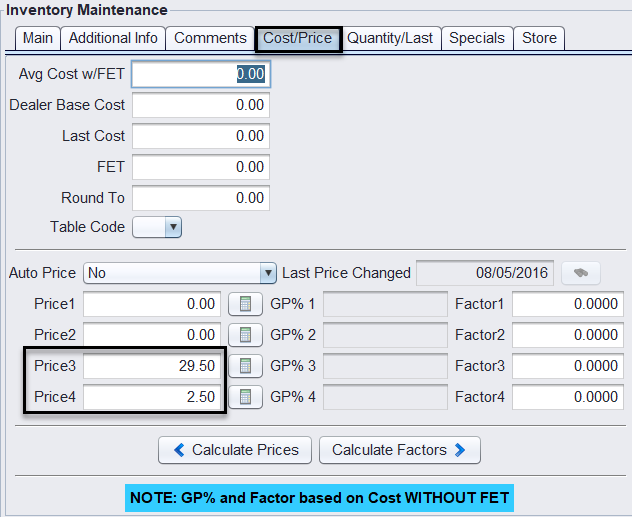
Select the Cost/Price tab. To set a total ticket dollar Maximum, enter the dollar amount in Price 3. To set a Minimum fee, enter the dollar amount in Price 4. The minimum will only be applied if the calculated fee is greater than zero (0).
Click SAVE to save your changes to the inventory item.
Congratulations! Your system is now set for automatic shop fees. These fees will be automatically applied when you add chargeable line times to an invoice.
Optional Settings
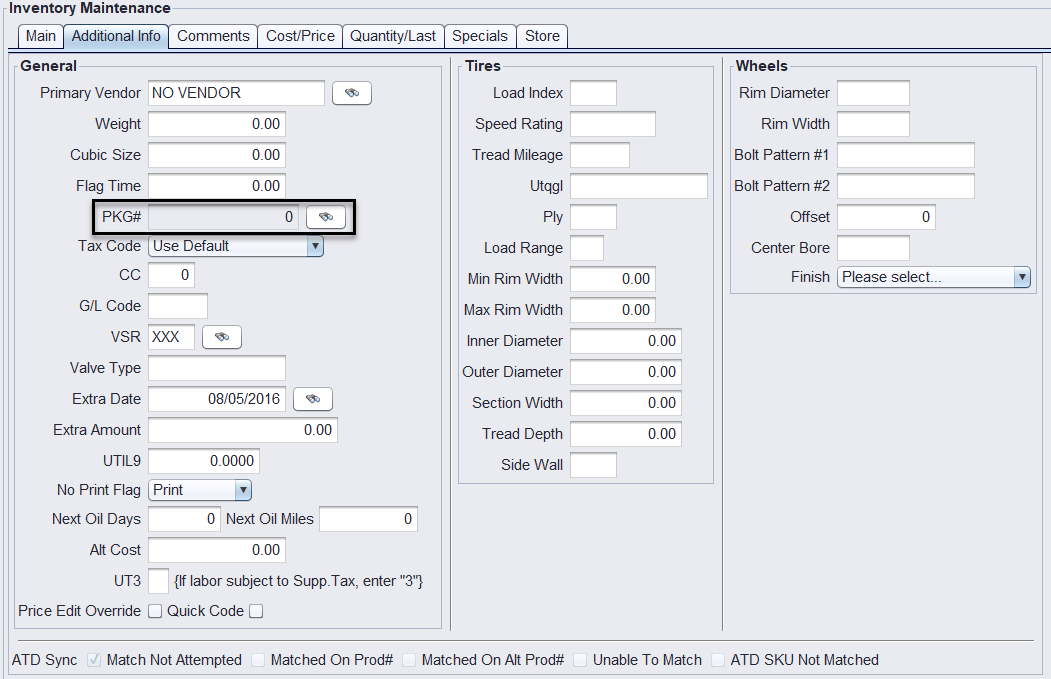
If you would like a package of comments added to the shop fees, enter the appropriate comments package # (-1 to-1000) on the additional info tab in the PKG # field of the SS99 inventory item.
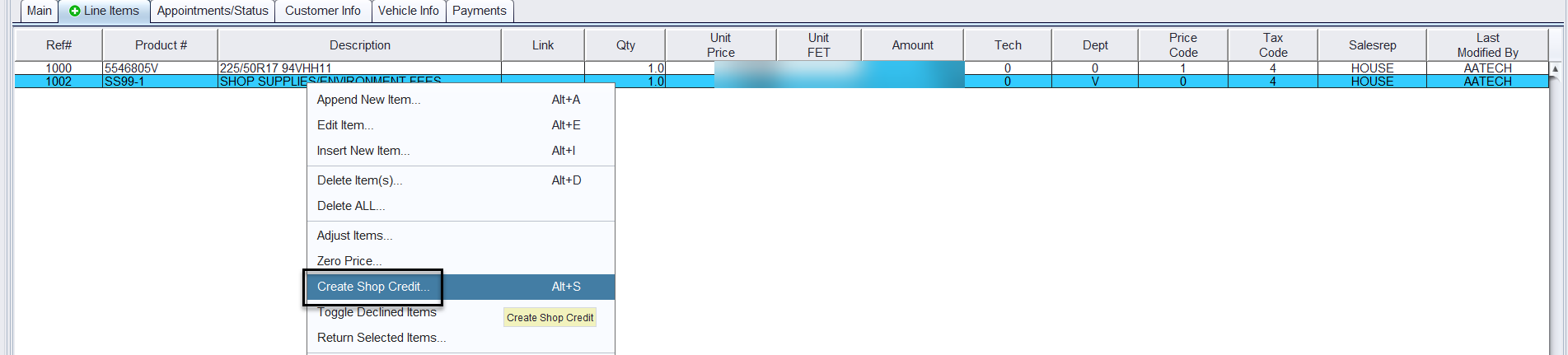
If you need to credit off shop supplies, right-click on the line items window and select Create Shop Credit. This will add an SS99CREDIT line item to credit the shop supplies.

If you wish to prevent selected employees from crediting shop fees, enter an A in permissions P43 under Views>Administration & Utilities>Users>Permissions Switches for each employee.