
Some vehicles are designed with staggered tire fitment, meaning the front and rear tire sizes are different. At this time, HITS does not support searching both sizes simultaneously in a single lookup. However, we can easily work around this using Inventory Lookup or leverage our Tire Connect integration.
Option 1: Using Tire Connect (Recommended)
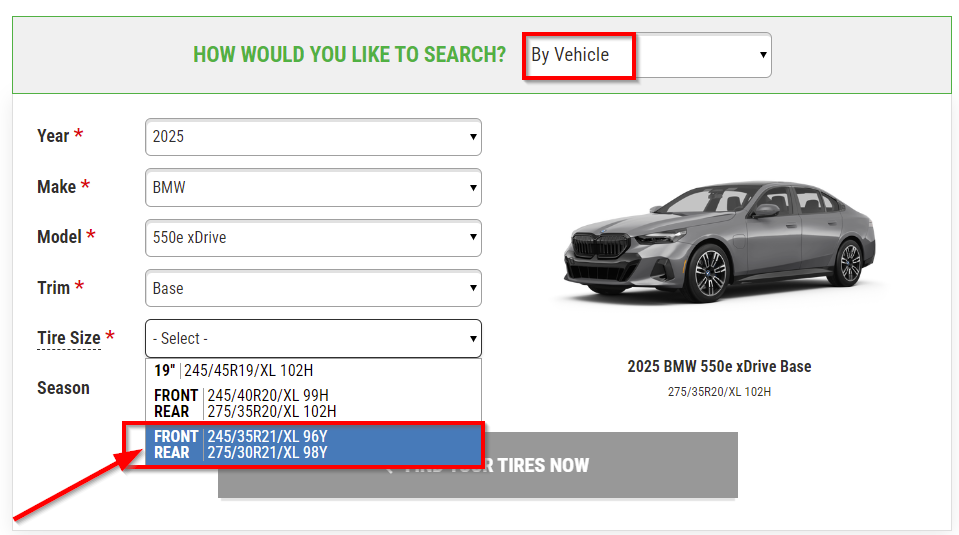
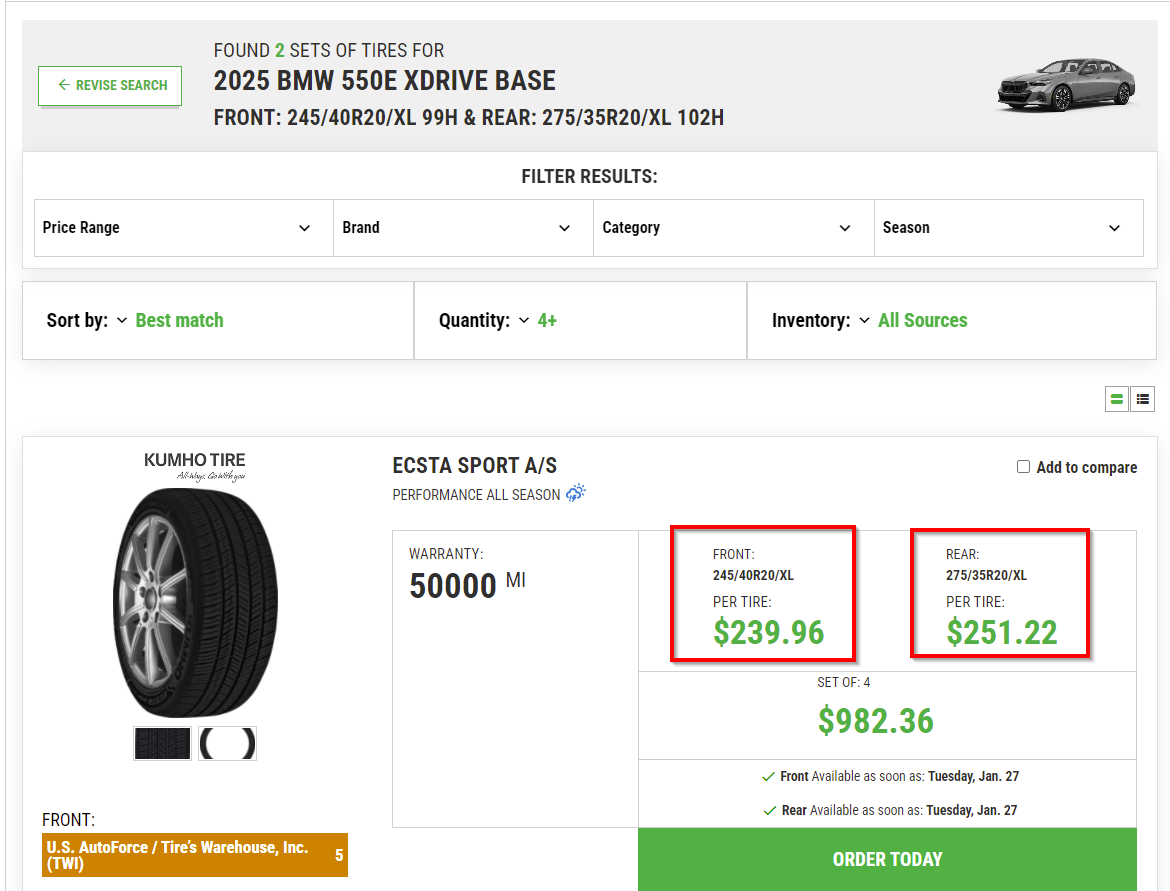
When searching by vehicle in Tire Connect, staggered fitment will automatically display both the front and rear tire sizes when applicable.
Search by Vehicle
- Select By Vehicle
- Enter: Year, Make, Model, Trim
- If the vehicle is designed with staggered fitment, both sizes will appear
Option 2: HITS Inventory Lookup
Since HITS currently searches for one size at a time, we recommend the following process.
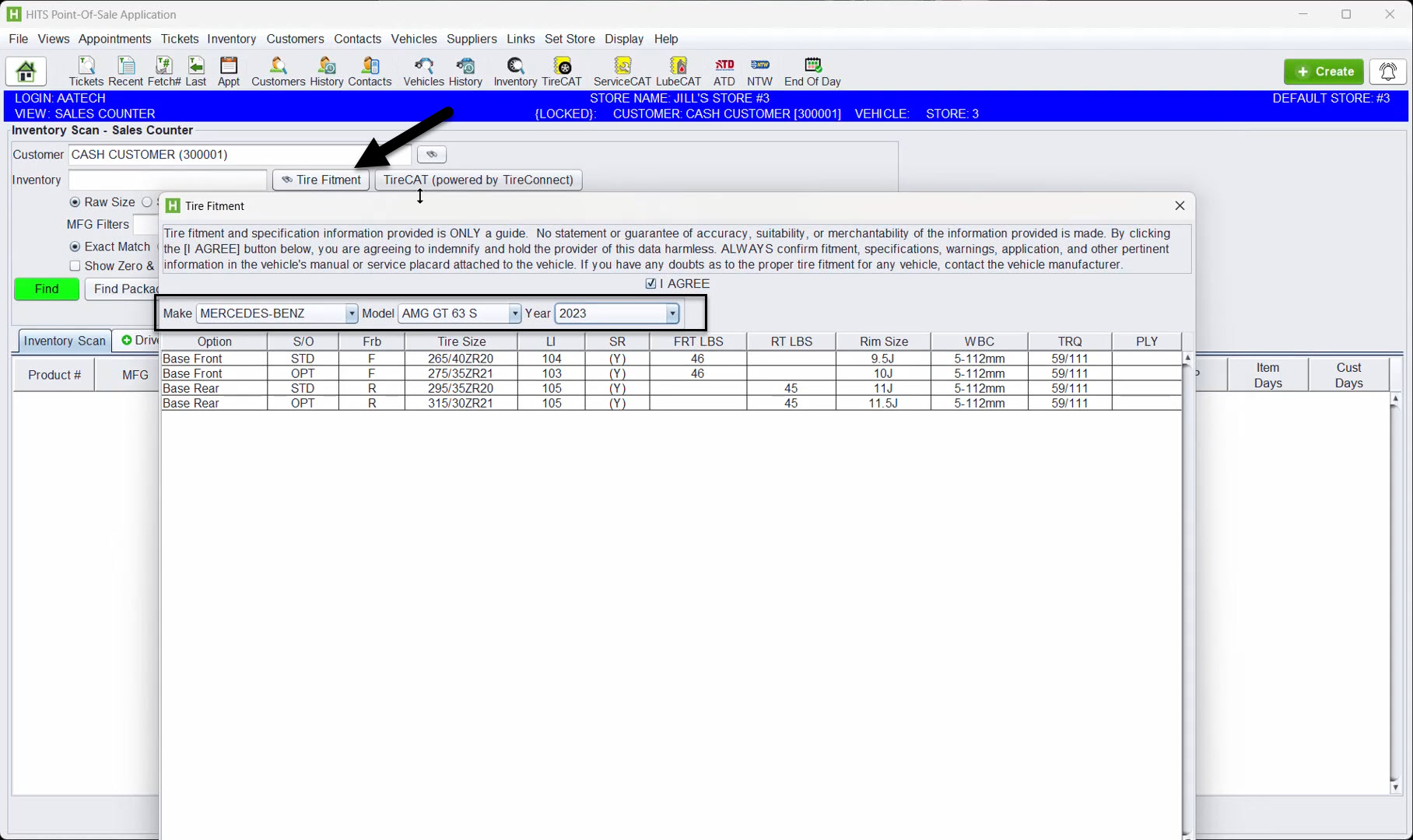
Step 1: Access Tire Fitment from the Ticket
-
-
- Open the ticket or select the vehicle
- Select Inventory Lookup
- Choose Tire Fitment
- Select the customer’s vehicle
-
If this vehicle was designed to use staggered fitment, HITS will show both front and rear sizes.
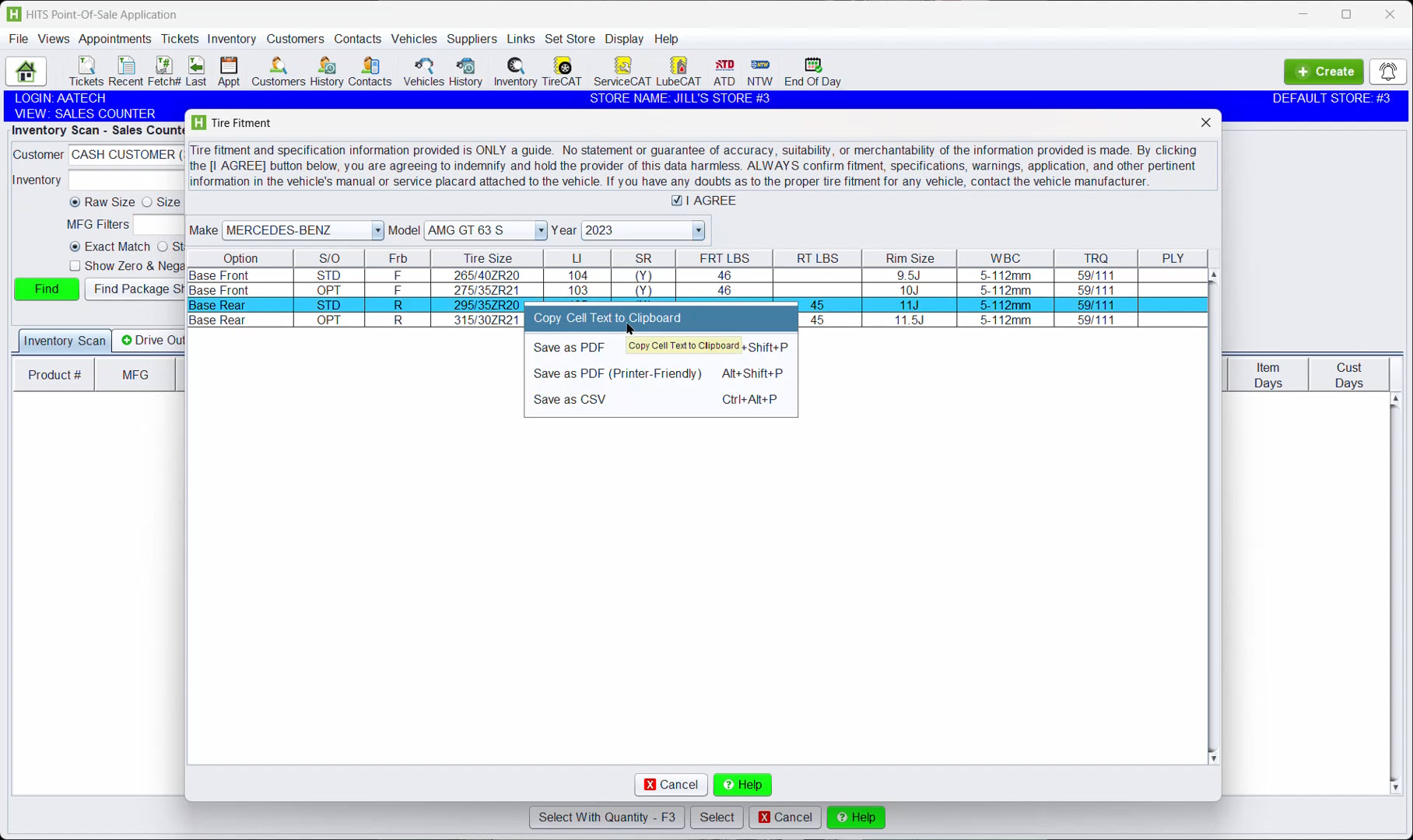
Step 2: Copy the Rear Size
-
- Right-click the rear size
- Copy it to your clipboard for later use
Step 3: Search the Front Tires
-
- Double-click the front tire size
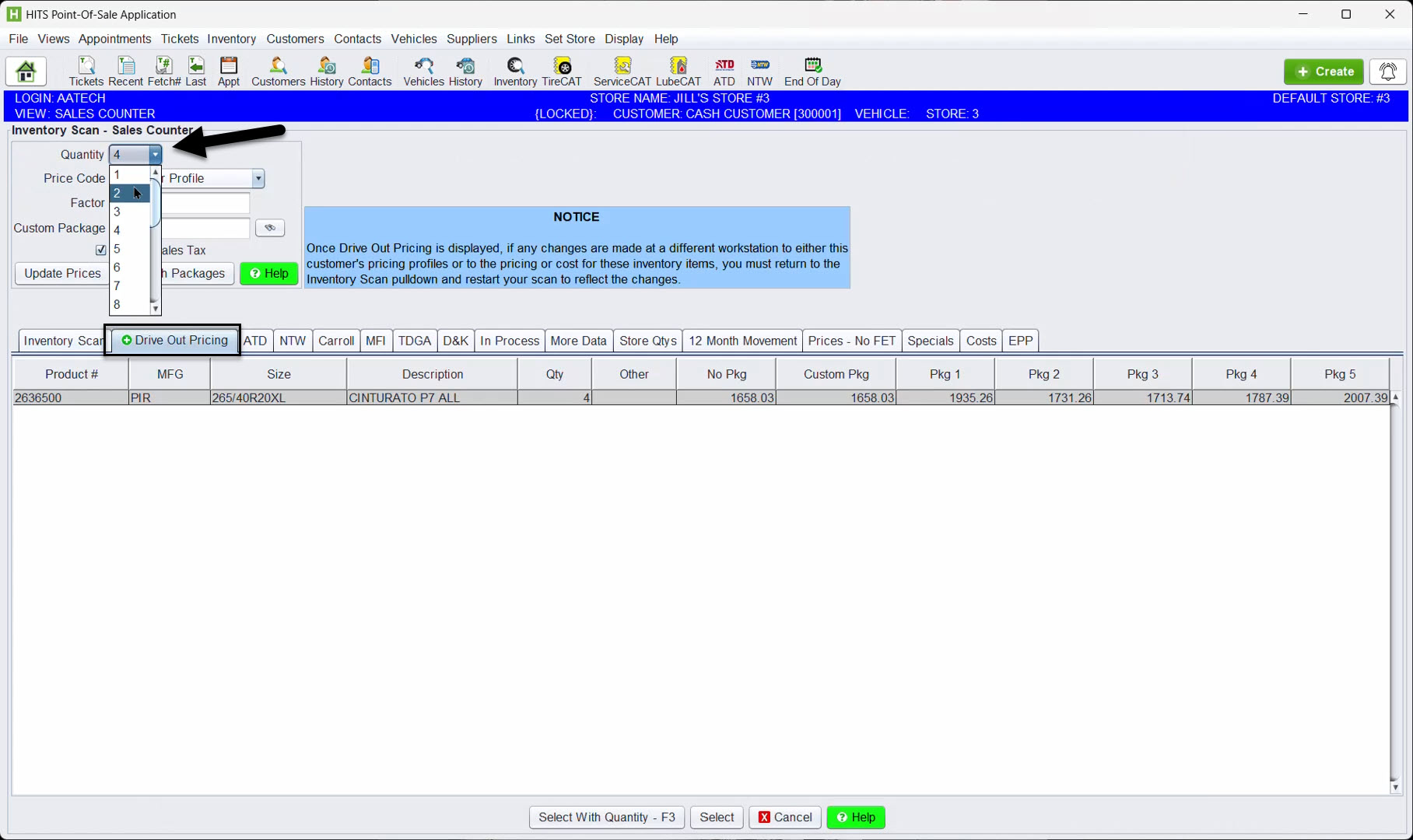
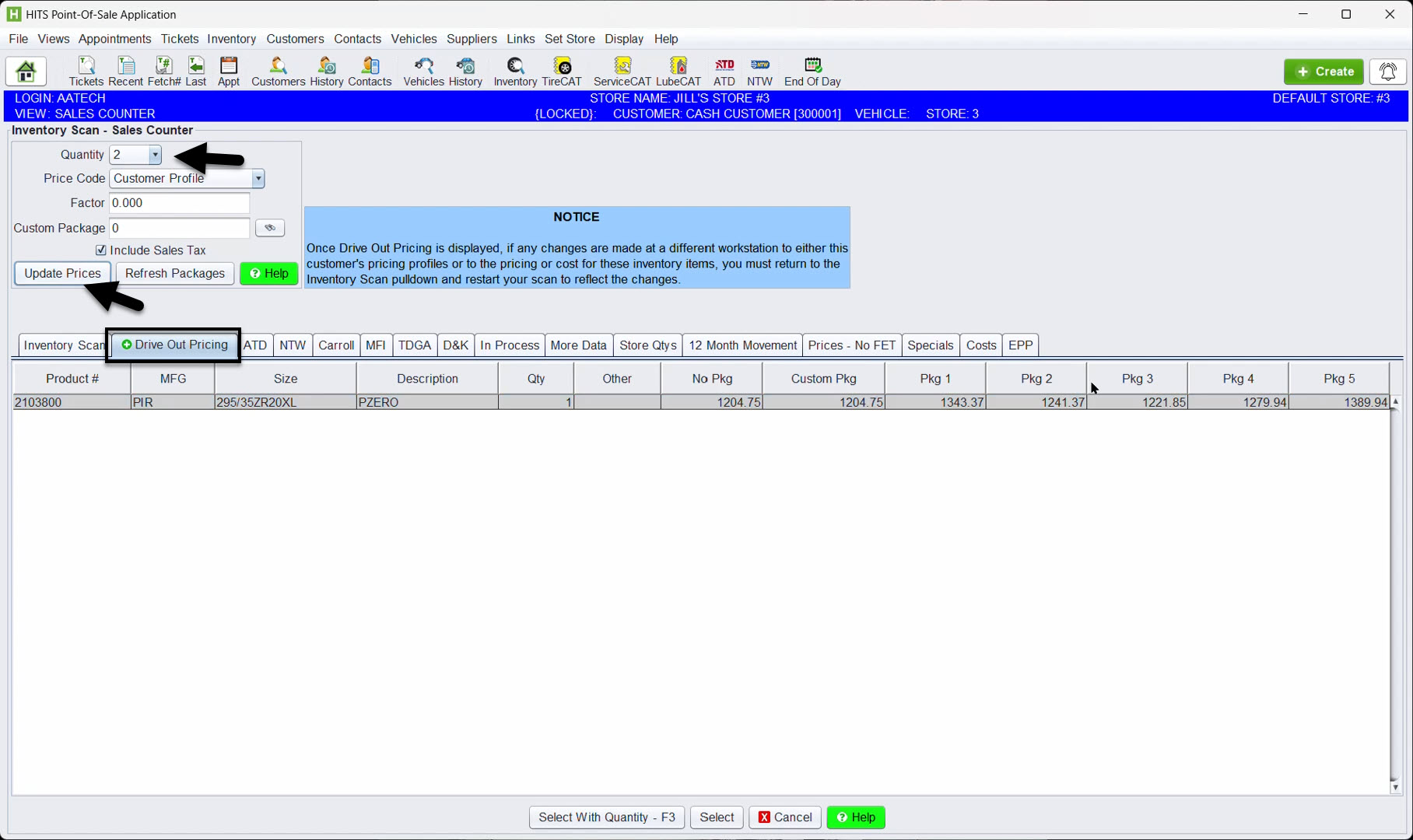
- Click the Drive Out Pricing
- Change quantity to 2
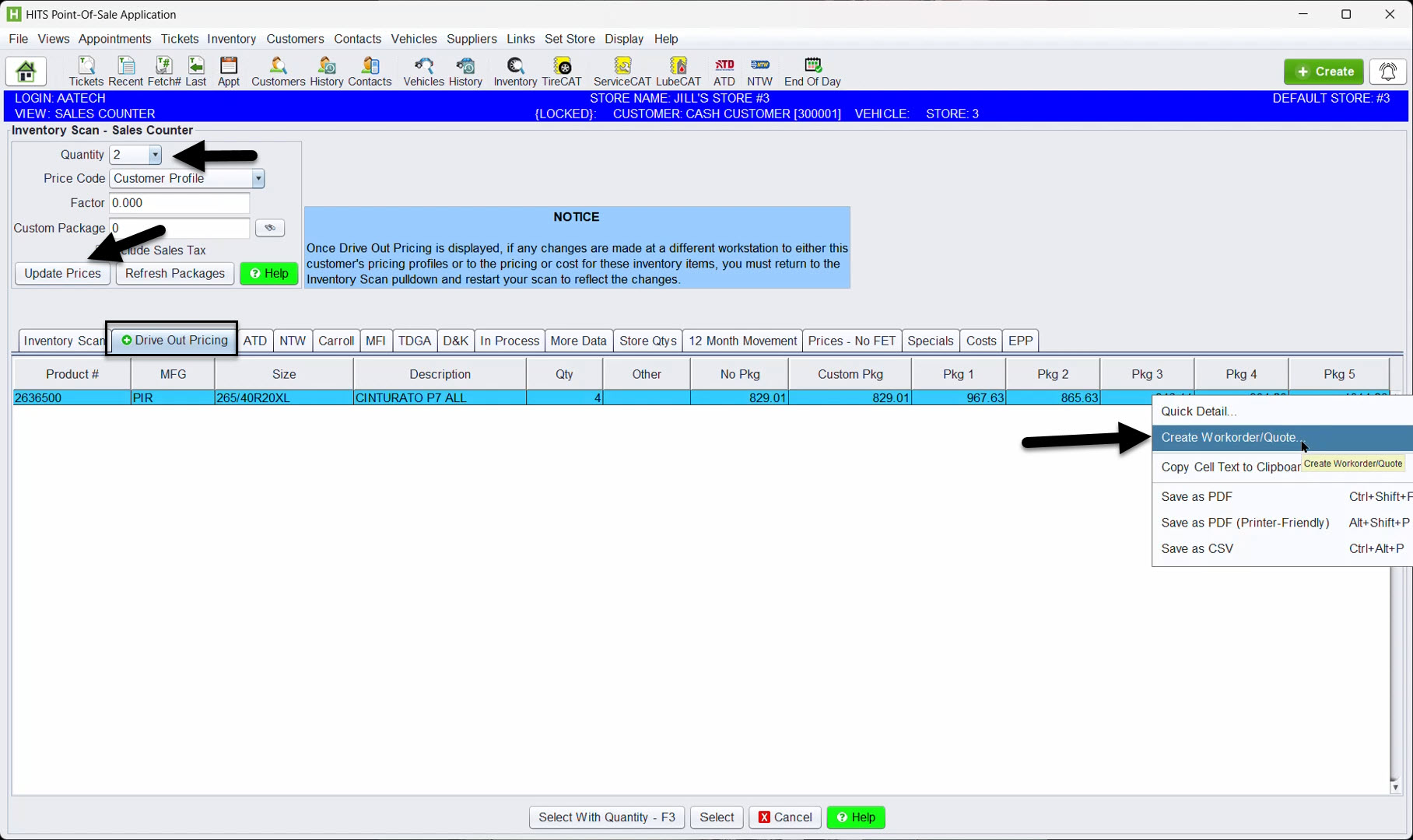
- Click on Update Prices
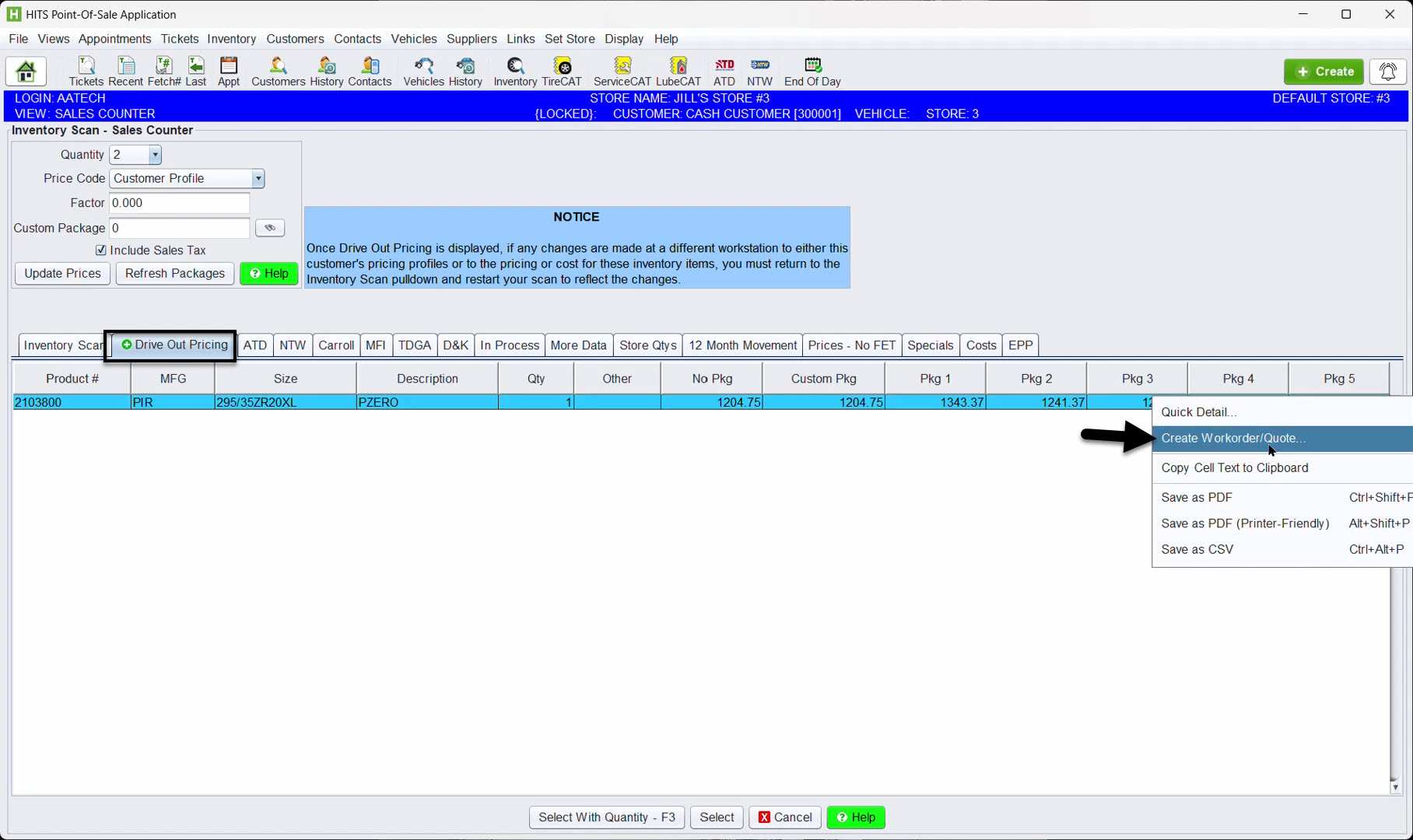
- Right-click in the cell that contains the “Price” that you are quoting the tire
- Choose Create Work Order Quote
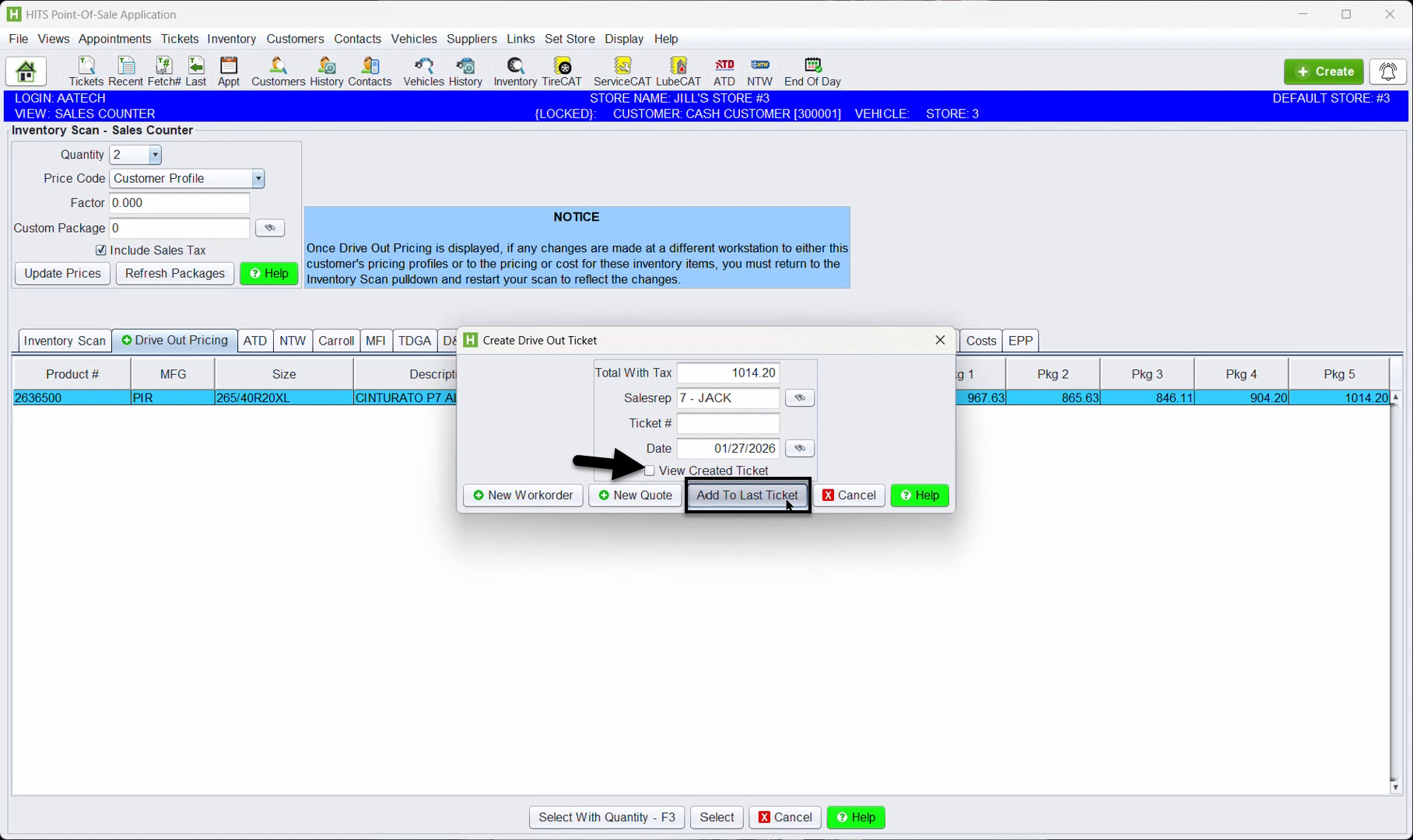
Before continuing:
-
-
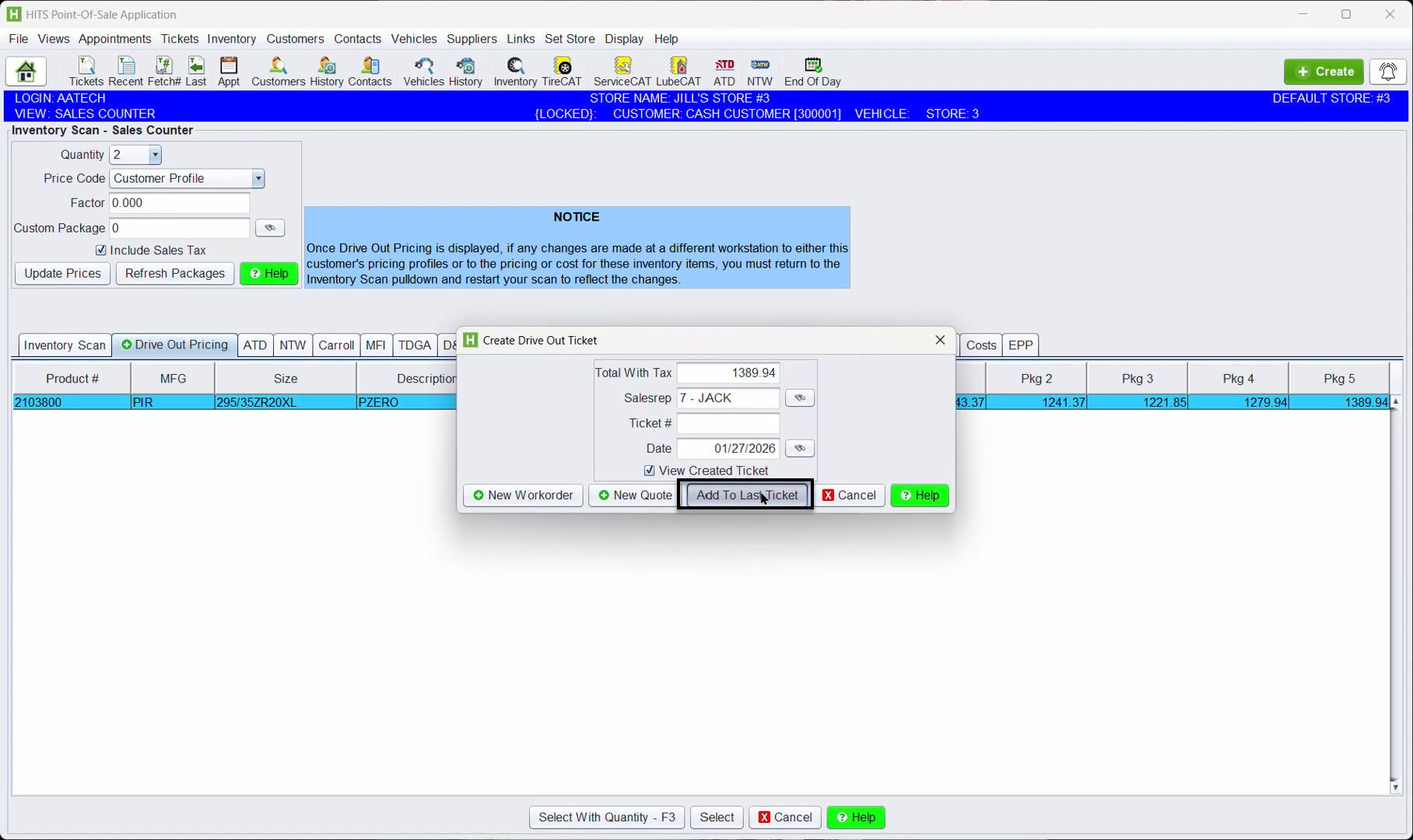
- Uncheck: View Created Ticket
- Select: Add to Last Ticket if this process was started within an existing ticket
Note: If this was started from the vehicle and not a ticket, you will want to click on New Workorder
-
This adds the first pair of tires while keeping you in lookup.
Step 4: Search the Rear Tires
-
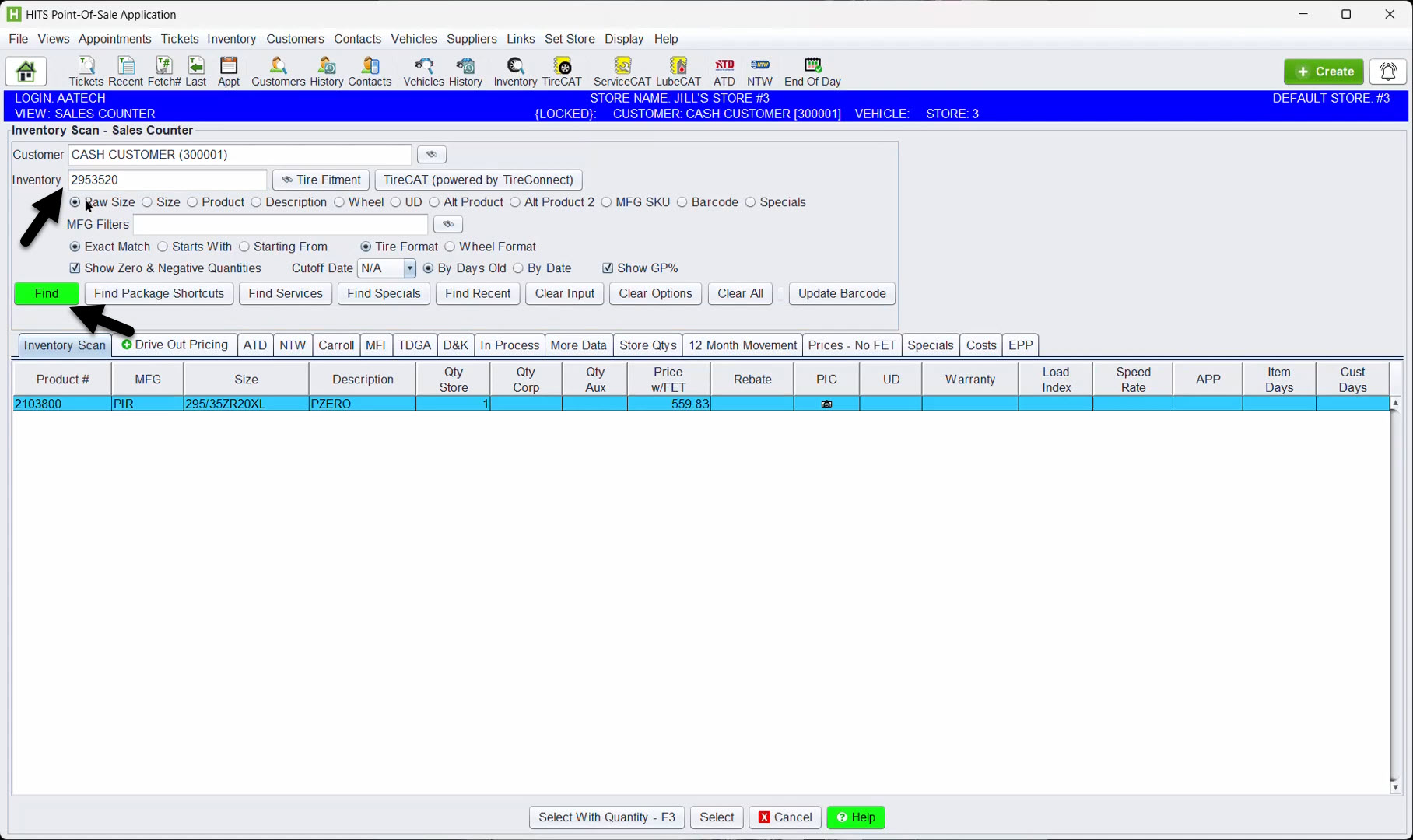
- Return to the Inventory Scan tab
- Paste the rear size that is currently in your clipboard and press ENTER to find the item
- Click on the Drive Out Pricing tab
- Change quantity to 2
- Click the Update Prices button
- Right-click in the cell that contains the “Price” that you are quoting the tire → Create Work Order Quote
- Leave View Created Ticket checked
- Choose Add to Last Ticket
The ticket will now show:
-
-
- Two front tires
- Two rear tires
-
