
The Store Recap Report provides a high-level financial and operational summary for a selected store over a chosen date range. This report consolidates sales, cost, profit, register activity, A/R activity, and inventory changes into one comprehensive view. It is commonly used for monthly, quarterly, or year-end review, as well as for internal store performance analysis.
When to Use the Store Recap Report
Use this report when you need to:
-
- Review a store’s overall performance for a specific time period
- Compare Retail vs Commercial vs Wholesale sales
- Reconcile deposits, A/R charges, credits, and register activity
- Validate cost, profit, and margin data
- Review inventory movement & valuation changes
- Provide management or accountants with summary-level store activity
How to Run the Store Recap Report
1.) Navigate to: Views → Reports → Recaps & Summaries → Store Recaps
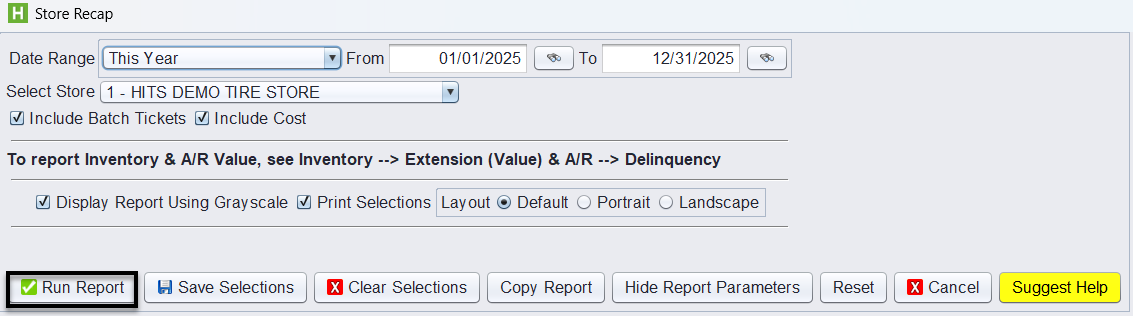
2.) Select the desired Date Range (Ex: This Year, Last Month, Custom Range)
3.) Choose the Store you wish to report on.
4.) Optional settings:
-
-
Include Batch Tickets – includes any closed batch-processed tickets
-
Include Cost – shows cost and profit details in the report
-
5.) Click Run Report.
Understanding the Report Sections
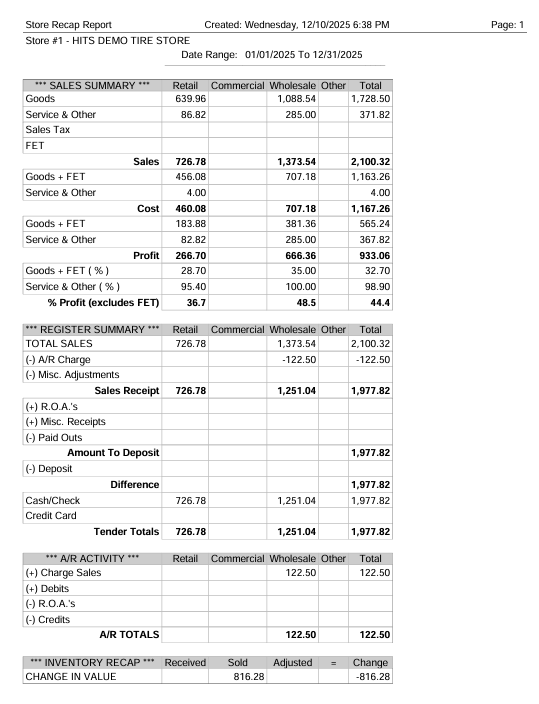
The Store Recap is divided into several major blocks:
1. Sales Summary
Breaks down sales into Retail, Commercial, Wholesale, and Total.
Includes:
-
- Goods Sales
- Service & Other Sales
- Sales Tax & FET (if applicable)
- Cost
- Profit & Profit % (with/without FET)
This provides a snapshot of revenue, cost of goods sold, and margin performance.
2. Register Summary
Shows how money was collected and reconciled, including:
-
- Total Sales
- A/R Charges
- Misc Adjustments
- Paid Outs & Misc Receipts
- Deposit Amount vs Difference
This area is used to validate end-of-day deposits and reconcile register activity.
3. A/R Activity
Displays customer account activity impacting the store:
-
- Charge Sales
- Debits
- Credits
- R.O.A. (Payments received on account)
This helps ensure A/R movements match accounting expectations.
4. Inventory Recap
Shows inventory received, sold, adjusted, and the net change in value over the date range.
Useful for identifying shrink, receiving discrepancies, or valuation changes.
Why This Report Matters
The Store Recap offers a complete financial and operational overview in a single report. It ties together:
-
- Sales & Profit
- Register Balancing
- A/R Movements
- Inventory Impact
Managers, owners, and accountants rely on this report to verify store performance and ensure records align with business operations.