
The Supplemental Tax Report provides a breakdown of supplemental taxes collected during the selected date range. Supplemental taxes are any additional tax rates applied on top of the standard store tax—for example, county-level surtax, city tax, and state tax.
This report shows how much supplemental tax was charged, which jurisdictions it applies to, and which invoices generated that tax.
When to Use This Report
Use the Supplemental Tax Report when you need to:
-
- File supplemental or county-level tax returns
- Identify invoices that were charged an additional tax rate
- Reconcile supplemental tax collected during a filing period
How to Run the Supplemental Tax Report
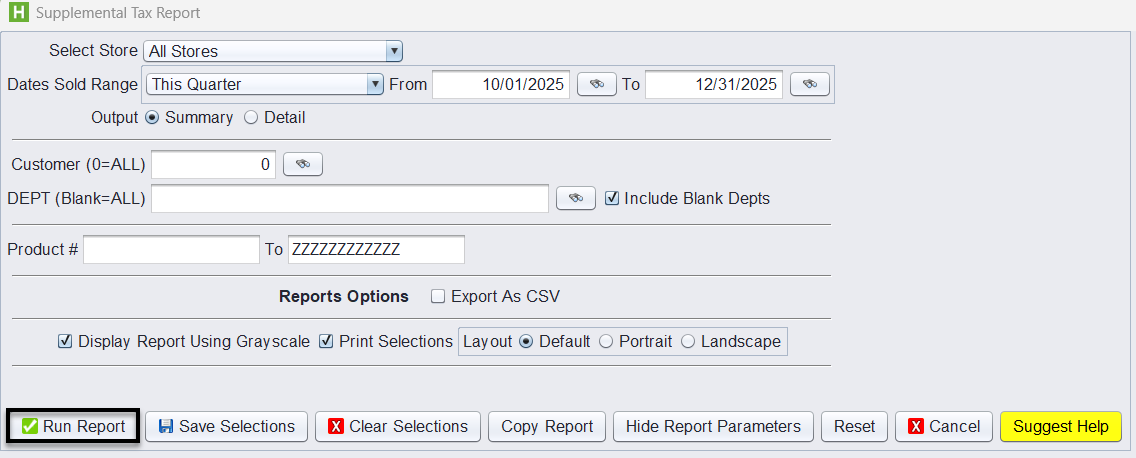
1.) Navigate to: Views → Reports → Journals → Supplemental Tax Report
2.) Select Store
3.) Set the Dates Sold Range
4.) Choose Output: Summary or Detail
-
- Summary – Shows totals by supplemental tax code (Supp Tax Code), jurisdiction, taxable sales, and total supplemental tax collected.
- Detail – Lists each invoice that generated supplemental tax.
5.) (Optional) Apply any of these filters:
-
- Customer – Limit results to a specific customer
- DEPT – Filter by department (e.g., Tires, Parts, Service)
- Product # Range – Limit the report to specific products
- Include Blank Depts – Include items with no assigned department
6.) Click Run Report to generate the results.
Understanding the Summary Output
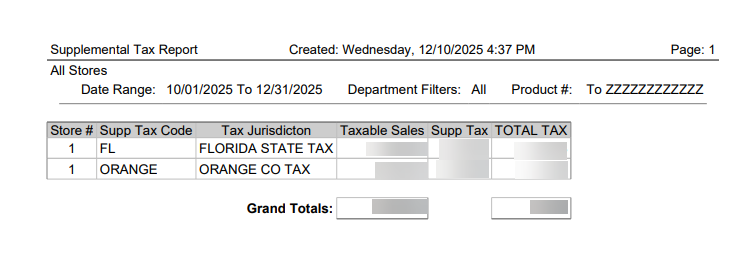
The summary version groups results by Supplemental Tax Code and Tax Jurisdiction.
Columns include:
-
- Store # – Store where the invoice was created
- Supp Tax Code – Supplemental tax code assigned
- Tax Jurisdiction – Description of the supplemental tax (e.g., FLORIDA STATE TAX, ORANGE CO TAX)
- Taxable Sales – Sales subject to the supplemental tax
- Supp Tax % – Supplemental tax rate
- Total Tax – Supplemental tax collected for that jurisdiction
At the bottom of the report, a Grand Totals row displays the combined taxable sales and supplemental tax collected across all jurisdictions.
Understanding the Detailed Output
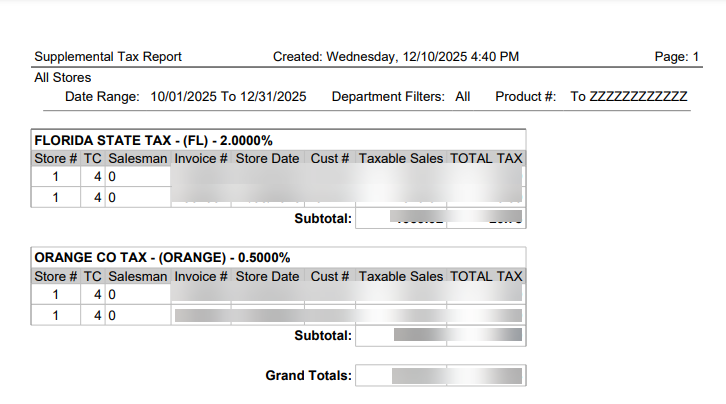
When Output = Detail, the report lists every invoice that generated supplemental tax.
Columns include:
-
- Store #
- TC – Supplemental Tax Code
- Salesman
- Invoice #
- Store Date
- Cust #
- Taxable Sales – Sales amount subject to supplemental tax
- Total Tax – Supplemental tax charged on that invoice
Results are grouped by Jurisdiction and Subtotaled for each.
At the bottom, Grand Totals show:
-
- Total Taxable Sales
- Total Supplemental Tax collected
This version is especially useful for audits or resolving tax discrepancies.
Before Running the Supplemental Tax Report
The Supplemental Tax Report is designed for stores that use Supplemental Tax Codes—an optional feature in HITS that allows you to apply additional tax layers such as city, county, or special district taxes.
If your store uses supplemental tax, these codes and packages must be configured in advance for the report to show accurate results.
If supplemental taxes are not used at your store, this report will return blank or minimal data.
For stores that do use supplemental tax, please refer to the setup guide here: Configuring Supplemental Tax Codes & Packages
Important: HITS Support cannot provide tax rate percentages or advise which tax jurisdictions apply. For rate information, please contact your CPA or local tax authority.
Once supplemental tax items and packages are configured, the Supplemental Tax Report will accurately summarize taxable sales and supplemental tax collected for each jurisdiction.