
This guide explains how to review and update package line item pricing when costs or prices change in your inventory master file. Use this feature to keep your packages accurately priced and your cost tracking up to date.
Overview: Why This Message Appears
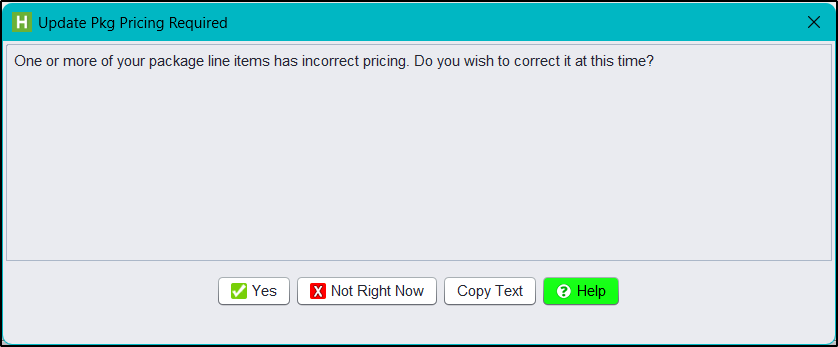
When you log into HITS, you may see a prompt stating that one or more package line items has incorrect pricing and asking if you would like to correct it. This happens because:
- Packages in HITS are statically priced — their prices do not change automatically.
- If a product that is a line item on a package has its cost or price updated in the inventory master file, HITS will detect the discrepancy and alert you.
- You can choose to update the package pricing, postpone the update, or exclude specific items from future prompts.
Note: Static pricing is intentional. For example, if you advertise a fixed-price oil change, you would not want that price to change automatically when oil costs fluctuate.
Understanding the Color Coding
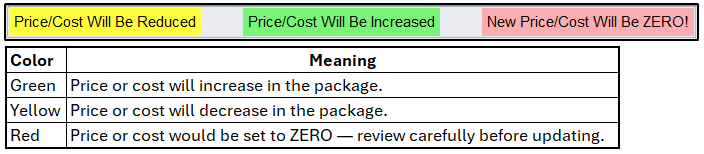
The Update Package Pricing screen uses color coding to indicate how prices or costs will change if updated:
How to Update Package Pricing
Follow these steps when you want to apply updated costs or prices to your packages:
- Log into HITS. If any package line items have pricing discrepancies, the Update Package Pricing prompt will appear automatically.
Note: Some customers prefer manager review and turn this feature off. This is located from your Store View/Edit Default Settings. - Select Yes when asked if you would like to correct pricing. This opens the Update Package Pricing screen.
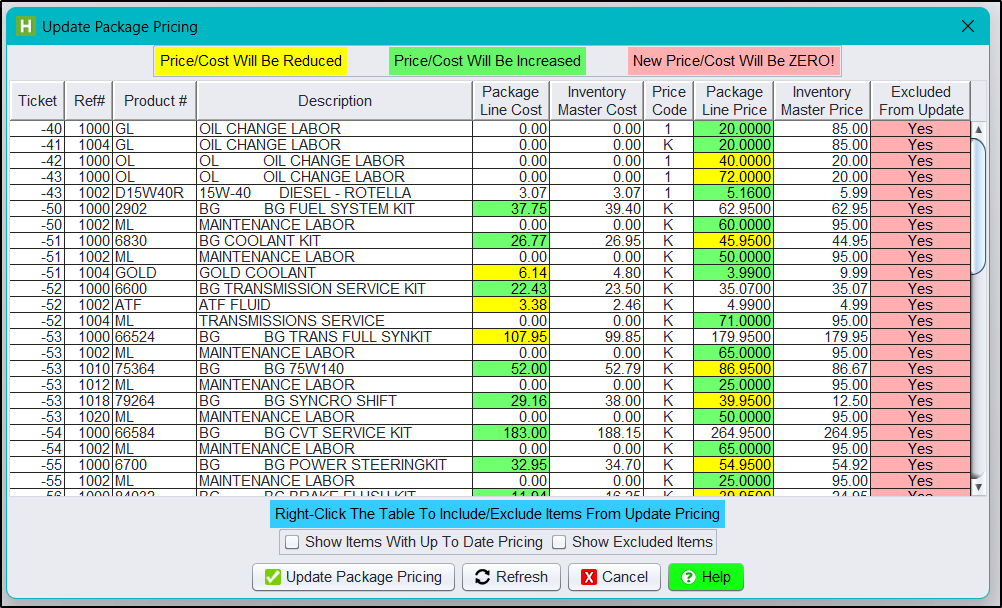
- Review the list of affected line items. Each row displays the package name, the current package price, and the updated inventory master price.
- Use the color coding to assess the impact of each change (see the color guide above).
- Click the Update Package Pricing button at the bottom of the screen to apply the new costs and prices to all listed packages.
- Log out and log back in to see the updated pricing reflected in your packages.
How to Exclude Items from Package Pricing Updates
If you want to keep certain package prices unchanged (for example, a fixed advertised price), you can exclude those line items:
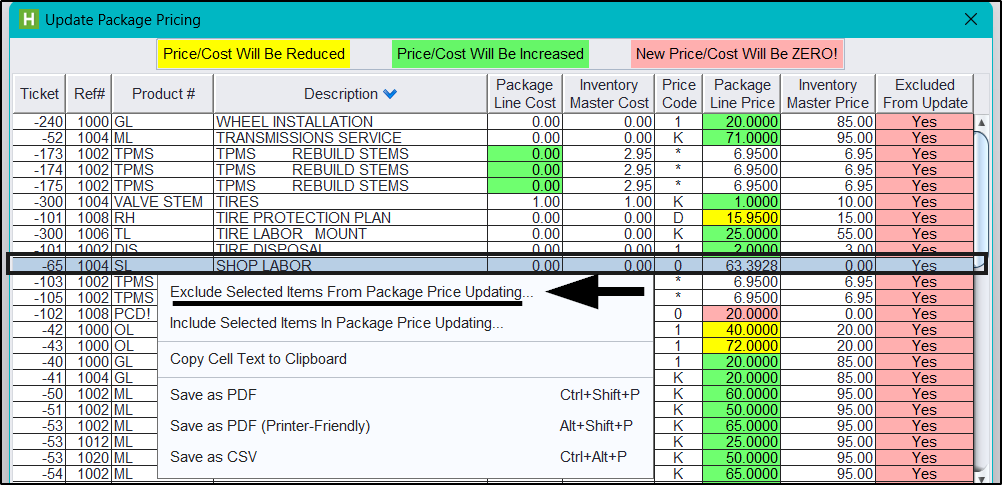
- On the Update Package Pricing screen, highlight the line item(s) you wish to exclude.
- Right-click and select Exclude Selected Items from the Package Pricing Updating.
- The items will be flagged as excluded and will no longer appear in future update prompts unless re-included.
How to Re-Include Previously Excluded Items
To review or manage items that were previously excluded:
- At the bottom of the Update Package Pricing screen, check the Show Excluded Items option. All previously excluded items will now be visible.
- Highlight the item(s) you want to re-include.
- Right-click and select Include Selected Items in the Package Price Updating.
- Uncheck Show Excluded Items to return to the standard view. The re-included items will now appear in the active list.
- Click Update Package Pricing to apply the changes, then log out and back in to see the updated prices.

Accessing the Update Package Pricing Screen at Any Time
You do not need to wait for the login prompt to manage package pricing. To access the screen manually:
- In HITS click Views > Administration & Utilities
- Select Corporate > Synchronize Package Pricing to Inventory.
- The Update Package Pricing screen will open, showing any items with pricing discrepancies.
Need help? Contact your system administrator or reach out to HITS Technical Support.